
CMD Commands for Windows: Quick Reference Guide for Beginners


 3 min. read
  Updated on
Command Prompt is a built-in Windows tool for running system tasks, troubleshooting, and automation. Use this concise list of must-know commands to work faster and fix issues.
Table of contents
Basic CMD Commands for Beginners
Navigation and File Management
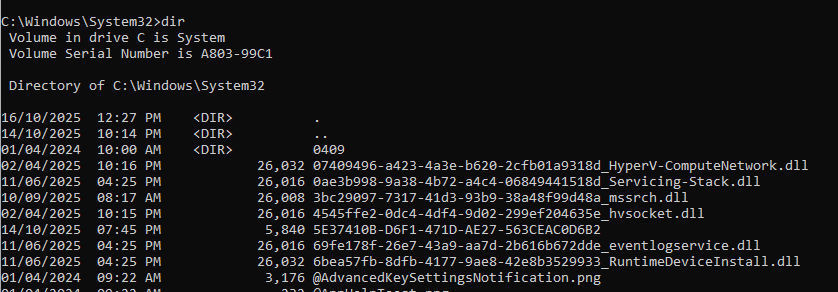
These essentials help you move around folders and manage files quickly.
- dir — Lists files and folders in the current directory.
- cd [folder] — Opens a specific folder.
- cd .. — Goes back to the previous directory.
- mkdir [foldername] — Creates a new folder.
- rmdir [foldername] — Deletes a folder.
- del [filename] — Deletes a file.
- copy [source] [destination] — Copies files to another location.
- move [source] [destination] — Moves files to a new location.
If you want deeper control for file operations, see this overview of Windows shell commands.
System Information and Management
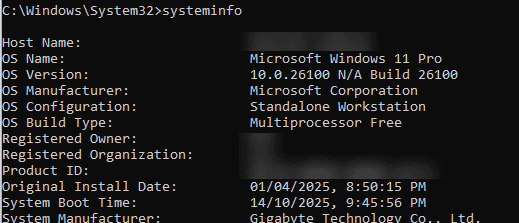
Quick commands to view system details and control running apps.
- systeminfo — Shows detailed system configuration.
- hostname — Displays the computer’s name.
- ver — Shows the Windows version.
- tasklist — Lists active processes.
- taskkill /IM [processname.exe] /F — Force-closes a program.
- shutdown /s /t 0 — Shuts down immediately.
- shutdown /r /t 0 — Restarts immediately.
For scripting and process control at scale, learn how to use WMIC commands to list and manage processes.
You can explore more ways to manage processes by reading this guide to Tasklist and Taskkill commands.
Network Commands

Diagnose connection problems and inspect network routes.
- ipconfig — Shows IP addresses and adapter details.
- ping [host] — Tests connectivity to a server.
- tracert [host] — Displays the path packets take.
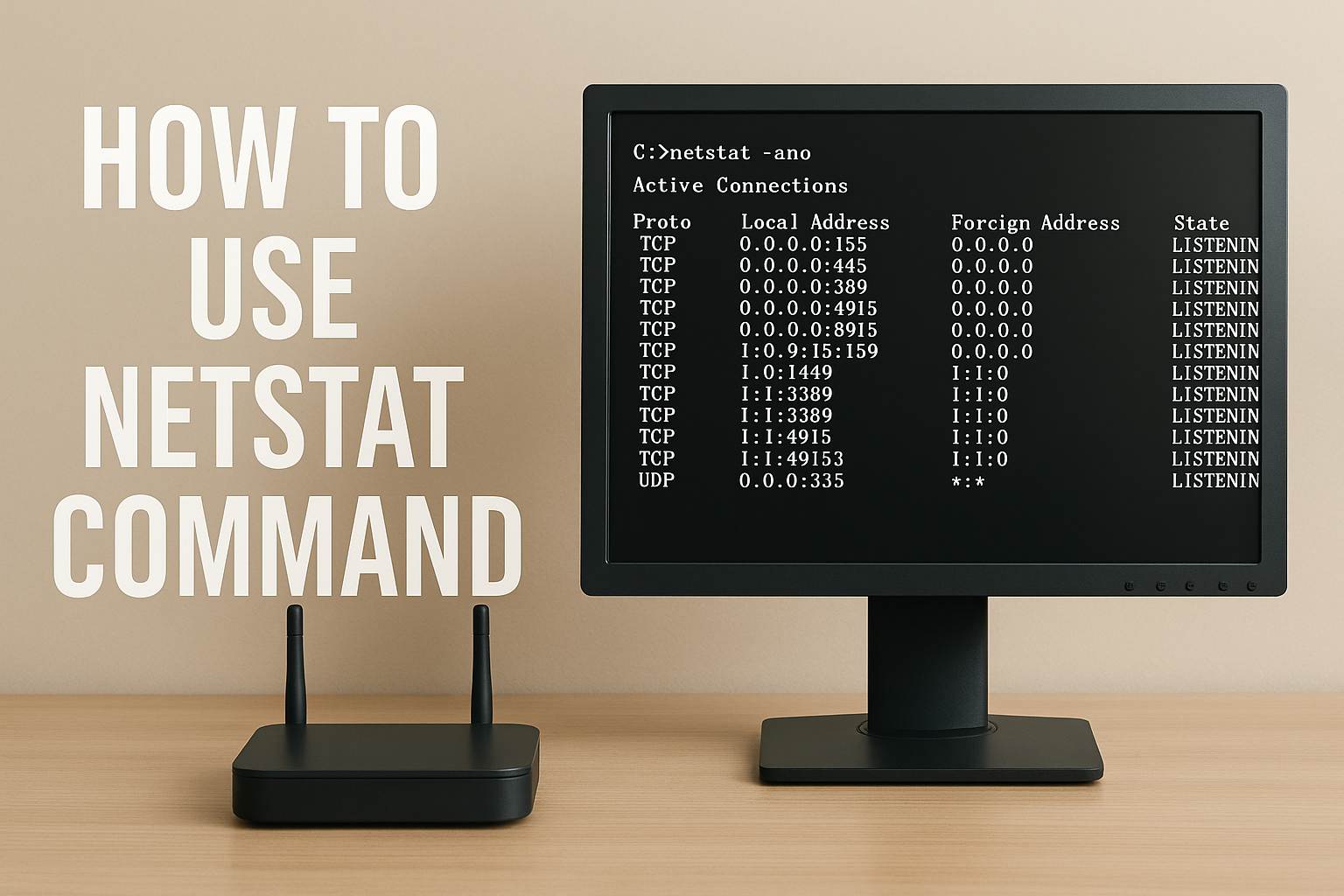
- netstat -an — Lists active connections and ports.
- nslookup [domain] — Resolves a domain to IP.
- getmac — Shows the MAC address of your adapter.
- netsh wlan show profiles — Lists saved Wi-Fi networks.
Disk and File System Commands

Fix storage errors, check integrity, and manage volumes.
- chkdsk [drive:] /f — Scans and fixes disk errors.
- sfc /scannow — Repairs corrupted system files.
- diskpart — Opens the partition manager.
- format [drive:] — Formats a drive.
- label [drive:] [newname] — Renames a drive.
For shadow copies and volume snapshots, review Vssadmin commands for advanced disk management.
Advanced and Troubleshooting Commands
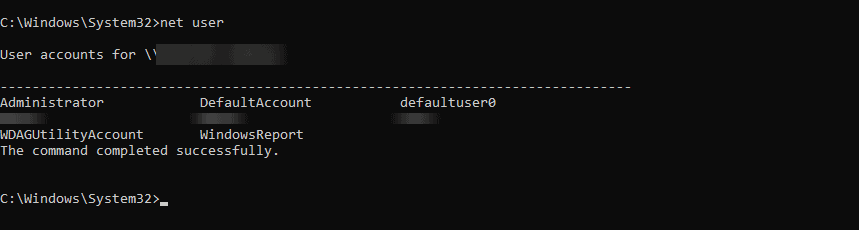
Power-user tools for diagnostics, performance, and permissions.
- net user — Shows user accounts on the system.
- net user [username] [password] /add — Creates a user account.
- attrib [filename] +r — Sets a file as read-only.
- powercfg /energy — Generates a power efficiency report.
- driverquery — Lists installed device drivers.
- wmic — Displays hardware and software details.
- fc [file1] [file2] — Compares two files.
How to Use CMD Safely
- Run Command Prompt as Administrator when changing system settings.
- Avoid formatting or deleting drives unless you’re certain.
- Double-check paths before delete or move operations.
FAQs
Yes. sfc /scannow and chkdsk repair core files and disk issues.
No. PowerShell offers richer scripting, while CMD is great for fast, simple tasks.
Search for Command Prompt, right-click, and select Run as administrator.
Use help to list commands or append /? to a command to view its syntax.
ipconfig and ping are common for quick network checks.
Conclusion
With a handful of well-chosen commands, you can navigate files, diagnose networks, and repair Windows efficiently. Keep this cheat sheet handy and practice the basics until they become second nature.

Read our disclosure page to find out how can you help Windows Report sustain the editorial team. Read more



Improve this guide

User forum
0 messages