
DisplayFusion Explained: Setup, Key Features, and Pro Tips


 4 min. read
  Updated on
DisplayFusion is a multi-monitor management app that helps you control multiple displays on Windows. It adds extended taskbars, advanced wallpaper control, and customizable window snapping, making multitasking easier for users who rely on more than one screen.
Table of contents
How to Install DisplayFusion on Windows?
1. Download DisplayFusion
Start by downloading the official installer from the developer’s website.
- Visit the official DisplayFusion website.
- Click Download Now under the Free or Pro version.
- Choose the installer that matches your Windows version.
- Save the file to your Downloads folder.
2. Install the Application
Once downloaded, you can proceed with the installation.
- Locate the downloaded setup file (usually DisplayFusionSetup.exe).
- Double-click the file to launch the installer.
- Select your language and click Next.
- Accept the license agreement.
- Choose an installation folder, then click Install.
- Wait for the process to complete and click Finish.
3. Launch and Configure
Now it’s time to open the program and set up your displays.
- Open DisplayFusion from the Start menu.
- If prompted, allow it to start with Windows.
- Explore the Monitor Configuration window to set up your displays.
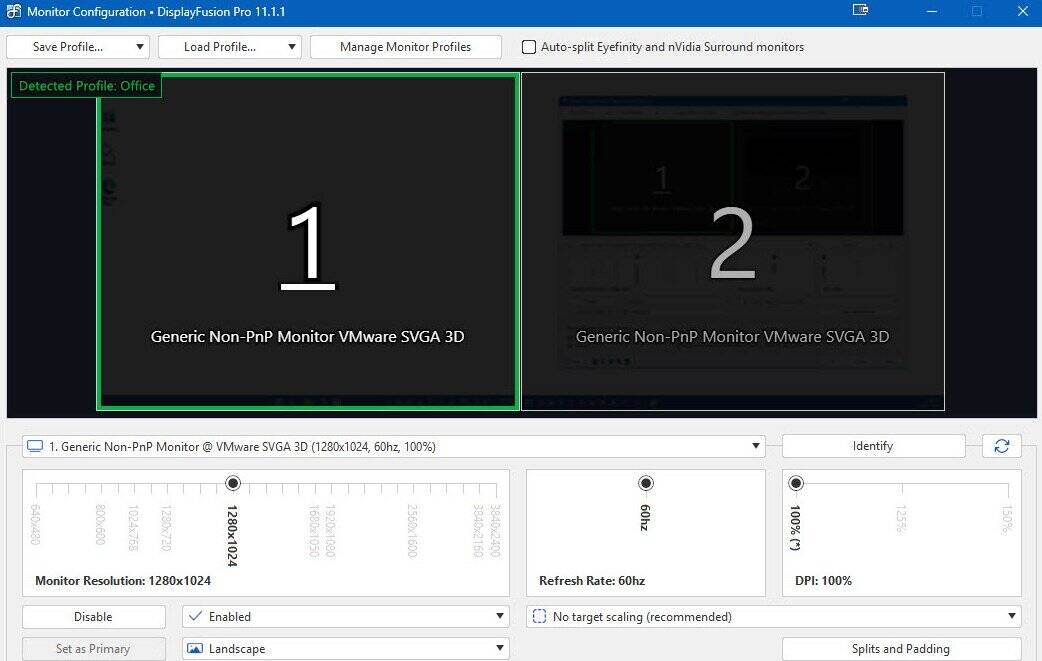
- Click Apply to save your layout.
If you also want to control where apps open by default, check out how to launch specific programs on chosen monitors for better organization.
How to Use DisplayFusion’s Key Features
1. Set Up Monitor Profiles
Use this to save and switch between display layouts easily.
- Go to Monitor Configuration in the app.
- Arrange your screens as desired.
- Click Profiles > Save Profile.
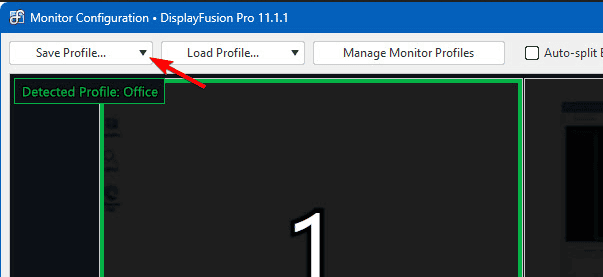
- Assign a name like Work Layout or Gaming Setup.
- Switch profiles easily when connecting or disconnecting monitors.
2. Customize Wallpapers
You can assign different wallpapers for each screen.
- Open Wallpaper Settings.

- Choose Use Different Image for Each Monitor.
- Select images or folders for each screen.
- Click Apply to preview your wallpapers.
3. Enable Multi-Monitor Taskbars
Adding a taskbar to every screen makes navigation easier.
- Go to Settings > Taskbar.
- Check Enable Multi-Monitor Taskbars.
- Choose whether to show all windows or only those on the same monitor.
- Click Apply to enable it.
4. Create Window Management Hotkeys
Shortcuts let you move and resize windows quickly. You can also combine them with Windows 11 split screen features for more efficient multitasking.
- Go to Settings > Functions.

- Scroll through the list of available actions.
- Assign a custom key combination (for example, Ctrl + Alt + Right).
- Test your shortcut to move or resize windows instantly.
DisplayFusion Free vs Pro
| Feature | Free Version | Pro Version |
|---|---|---|
| Multi-Monitor Taskbars | ✅ | ✅ |
| Monitor Profiles | ✅ | ✅ |
| Triggers and Automation | ❌ | ✅ |
| Remote Control (Mobile App) | ❌ | ✅ |
| Wallpaper Management | ✅ | ✅ |
| Custom Hotkeys | Limited | Full Access |
If you manage multiple monitors daily or need automation triggers, the Pro version offers excellent value. You can get a cheap DisplayFusion Pro key from verified sources for lifetime activation.
Why Use DisplayFusion?
DisplayFusion makes multi-monitor setups far more convenient than Windows’ default tools. It lets you:
- Add taskbars to all monitors.
- Control wallpapers independently for each display.
- Create monitor profiles and window snapping shortcuts.
- Lock your mouse to one screen while gaming or presenting.
- Use customizable hotkeys to manage window layouts.
These features save time, improve productivity, and reduce the clutter of switching between screens.
FAQs
Yes, DisplayFusion has a free version with essential features. The Pro version unlocks advanced options like remote control and scripting.
Yes, DisplayFusion is fully compatible with Windows 11 and Windows 10.
Yes. You can lock your mouse to one display, manage wallpapers, and set profiles for specific games.
No, it’s lightweight. It runs quietly in the background without significantly affecting CPU or RAM usage.
Conclusion
DisplayFusion is one of the most efficient tools for managing multi-monitor setups on Windows. It lets you create customized layouts, wallpapers, and shortcuts that streamline your workflow. Whether for gaming, design, or productivity, it delivers control and flexibility that built-in Windows tools can’t match.
For users who also want to keep their desktop visuals dynamic, explore our guide to the best software that auto changes wallpaper. It complements DisplayFusion perfectly, helping you manage both layouts and wallpapers with ease.
Want to customize your PC further? If so, why not consider using these clock screensavers?
If you rely on multiple displays, DisplayFusion is an easy upgrade that transforms how you work and multitask.

Read our disclosure page to find out how can you help Windows Report sustain the editorial team. Read more



Improve this guide




User forum
0 messages