
Do I Have Windows 11? Easy Ways to Check Version


 3 min. read
  Published on
If you’re unsure of your PC’s version and are yourself “do I have Windows 11?” the good news is that it’s easy to find out. Whether you’re using your PC for work or gaming, knowing your current Windows version helps with software compatibility and troubleshooting. This guide walks you through the easiest to most advanced ways to check your version.
Step-by-Step Methods to Check If You’re Running Windows 11
Table of contents
Use the About Section in Settings
This is the simplest method and works on any Windows 10 or Windows 11 device.
- Press Windows + I to open the Settings menu
- Click on System in the left sidebar
- Scroll down and select About
- Look under Windows specifications
- Check the Edition and Version lines
If it says Windows 11 and the version is 22H2, 23H2, or the latest 24H2, then you’re all good. Microsoft has already started rolling out Windows 11 24H2 broadly, although some users may encounter hardware-related restrictions.
Use the winver Command
This method shows a quick popup with version info.
-
Press Windows + R to open the Run dialog
- Type winver and press Enter
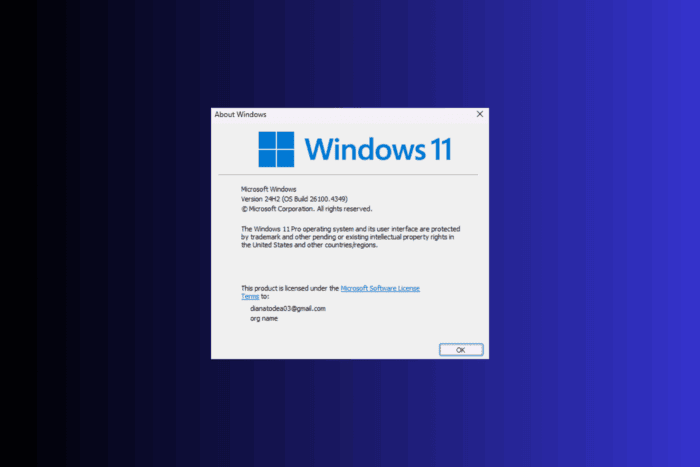
- A small window appears showing your Windows version and build number
If it says Windows 11 at the top, you’re all set. If you’re still on Windows 10 but want to switch, you can install Windows upgrades without data loss by following the right steps.
This window also shows your build number, useful if you’re checking for feature updates.
Use Command Prompt or PowerShell
This option gives a more detailed breakdown and works for advanced checks.
- Open Command Prompt or PowerShell
- Press Windows + X and select either from the menu
- Press Windows + X and select either from the menu
- Type the following command:
systeminfo | findstr /B /C:"OS Name" /C:"OS Version"
- Press Enter
You’ll see something like:
OS Name: Microsoft Windows 11 Pro
OS Version: 10.0.22631 N/A Build 22631
If the name line says Windows 11, you’re running it. The version number helps confirm which update you have.
If you’re unsure about your license status, it helps to check your license type to know whether you’re on a retail, OEM, or volume edition. This matters if you’re planning to upgrade or reinstall later.
Final Tips
If you’re still not seeing it and meet the system requirements, you can force the update manually without waiting for the automatic rollout.
Most official builds for Windows 11 begin with version numbers like 22000, 22621, or 22631. Anything below that likely means you’re using Windows 10.
FAQs
Any build starting with 22000 or higher is part of Windows 11.
Yes, if your device meets the system requirements. You can upgrade through Windows Update or manually install it without losing data.
That depends on your needs. Windows 11 has a refreshed design, new productivity tools, and better gaming support.
Conclusion
Checking your Windows version doesn’t require technical skills. You can start with Settings, use Winver, or run a quick command in Command Prompt. These methods ensure you know exactly which OS you’re running. If it turns out you’re still on Windows 10 and want to move to Windows 11, follow the right steps to upgrade safely and check your license type before making major changes.


Read our disclosure page to find out how can you help Windows Report sustain the editorial team. Read more



Improve this guide

User forum
0 messages