
Epic Pen Tool: How to Install and Use It on Windows and Mac


 4 min. read
  Published on
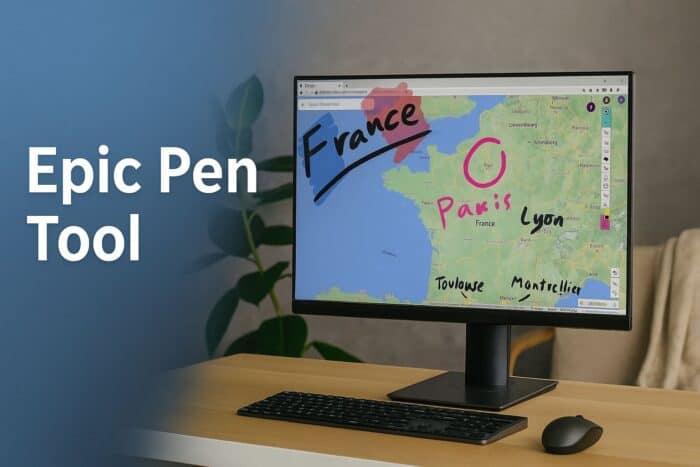
The Epic Pen tool lets you draw, highlight, and annotate on any screen. It is ideal for tutorials, live streams, or classroom presentations. Here is how to download and use it effectively.
Table of contents
How to Use the Epic Pen Tool on Windows and Mac?
How to Download and Install Epic Pen
Let’s start with installing the tool on your device.
- Go to the official Epic Pen website and click Download.

- Select the version for Windows or macOS.
- Once downloaded, double-click the installer file to start setup.
- Follow the on-screen instructions and choose the installation folder.
- After installation, launch Epic Pen from the desktop shortcut.
You can also download Epic Pen Pro if you need advanced features such as screen capture, whiteboard mode, or custom shortcuts.
For more annotation options you can use alongside Epic Pen, see our screen annotation software guide.
How to Use Epic Pen to Draw and Annotate
Here is how to start marking up your screen right away.
- Click the Pen icon from the Epic Pen toolbar to start drawing.

- Select your preferred color and brush size from the options.
- Hold and drag the mouse or stylus across the screen to draw.
- Switch to the Highlighter to emphasize text or areas.
- Use the Eraser to remove individual marks or click Clear Screen to erase all.
The toolbar can be moved anywhere on the screen. If you are presenting, use the Hide Toolbar option to keep focus on your content while keeping your annotations visible.
If you frequently annotate files, learn how to annotate and manage PDFs in Windows.
How to Use Hotkeys in Epic Pen
Use these keyboard shortcuts to work faster while drawing or presenting.
- Ctrl + 1 – Switch to Pen
- Ctrl + 2 – Switch to Highlighter
- Ctrl + 3 – Activate Eraser
- Ctrl + 4 – Undo
- Ctrl + 5 – Redo
- Ctrl + E – Clear Screen
- Ctrl + H – Hide or show toolbar
These shortcuts make Epic Pen easier to use without constantly reaching for the mouse and improve workflow during fast-paced sessions.
Epic Pen Free vs Pro Version
Here is a quick comparison of what you get in each edition.
| Feature | Free | Pro |
|---|---|---|
| Drawing and highlighting | ✔ | ✔ |
| Custom colors and brushes | ✔ | ✔ |
| Whiteboard mode | ✖ | ✔ |
| Screenshot capture | ✖ | ✔ |
| Opacity control | ✖ | ✔ |
| Hotkey customization | ✖ | ✔ |
If you prefer a browser-based experience, try the Kami Chrome extension for PDFs and web content.
What Is Epic Pen?
Epic Pen is a lightweight annotation software that works over all apps and windows. You can draw, highlight text, or write on top of videos, web pages, or documents without affecting them. It supports pen tablets, touchscreens, and standard mice.
The tool includes essential features like color selection, brush size adjustment, hotkeys, and an erase option. It is popular among teachers, gamers, and content creators who need real-time visual cues during recordings or demos.
Common Issues and Fixes
Follow these quick checks if Epic Pen is not working properly.
- Toolbar not appearing: Restart Epic Pen or press Ctrl + H to toggle visibility.
- Cannot draw: Make sure you selected Pen or Highlighter and not Cursor mode.
- Slow performance: Update your graphics driver and close other screen overlay programs.
Tips for Getting the Most Out of Epic Pen
Try these simple adjustments to improve your experience.
- Enable Always on Top to keep the toolbar visible while multitasking.
- Adjust opacity for smoother integration with your background content.
- Use Whiteboard mode when you want a blank screen for teaching or brainstorming.
- Save annotations using the Screenshot tool if you use Epic Pen Pro.
- Pair it with a graphics tablet for more precise drawing and smoother lines.
FAQs
Yes, the base version is free and includes essential annotation tools. The Pro version adds advanced options such as screenshot capture and whiteboard.
Yes, it supports touchscreens, pen tablets, and stylus devices for natural drawing.
Yes. Epic Pen overlays work during Zoom presentations, OBS recordings, and live streams.
Click the Eraser icon to remove specific lines or press Ctrl + E to clear all annotations instantly.
Final Thoughts
The Epic Pen tool is one of the simplest ways to annotate, draw, and highlight on any screen. Whether you are teaching, streaming, or presenting, it gives you real-time visual control without altering your content.

Read our disclosure page to find out how can you help Windows Report sustain the editorial team. Read more



Improve this guide




User forum
0 messages