
Google Discover Not Working on Android & PC? Here's Why & How to Fix It


 4 min. read
  Published on
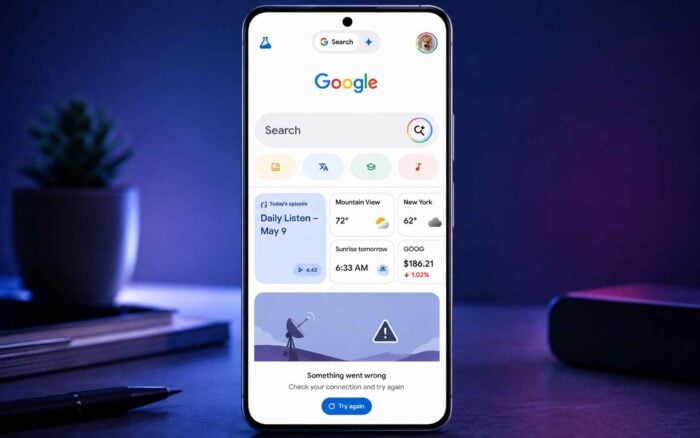
It can be frustrating at times when you open the Google app expecting your usual Discover feed to pop up normally only to find out it is not working, displaying blank page, or a message saying that Discover can’t connect. In recent past, many users have complained about Google Discover working while signed out but disappearing after signing back into a Google Account. It sounds unsual but it has happened to many users. But, worry not. In this guide, we’ll walk you through different methods to fix Discover not working on your phone wnd PC.
What to do when Google Discover doesn’t work on Android and PC
1. Check your connection and restart Google
Discover needs a working connection, and the Google app is closely involved in delivering the feed. Before changing account settings, rule out a temporary app or network problem.
- Switch between Wi-Fi and mobile data.
- Open the Google app and force close it.
- Restart your Android phone.
- Open Google again and refresh the Discover page.
- Update the Google app and Chrome through the Play Store.
- Also check for an Android System WebView update.
Google also recommends restarting the Google app, restarting the device, updating the app and clearing its cache for loading problems.
2. Turn Discover back on
A hidden or accidentally changed setting can stop the feed from appearing.
- Open the Google app.
- Tap your profile picture.
- Go to Settings > General.
- Make sure Discover is enabled.
- If it is already enabled, turn it off, restart the Google app, then enable it again.
Google confirms that Discover can be controlled from the Google app’s settings.
3. Check Web & App Activity
This is one of the most important step because Discover uses account activity to personalize its recommendations.
- Open Settings > Google > Manage your Google Account.
- Select Data & privacy.
- Under History settings, open Web & App Activity.
- Make sure it is enabled.
- If available, enable the option to include Chrome history and activity from sites, apps and devices using Google services.
Google says Web & App Activity stores activity used to personalize Google experiences, while Chrome’s Discover suggestions can also use this activity.
4. Test Discover without your account
This is a useful diagnostic rather than just another generic fix.
- Open the Google app.
- Tap your profile picture.
- Tap the arrow beside your account.
- Select Use without an account.
- Check whether Discover appears.
If Discover works while signed out but fails when your account is active, the problem may be related to account-level data or personalization.
Why is Google Discover not working?
The cause may be corrupted Google app data, an outdated app, network problems, disabled Discover settings, or an account-specific personalization issue. In some cases, it may also be a temporary Google-side problem.
That’s all we have for fixing Google Discover not working on Android. We also want you to check our guide at times when Google Search isnt working on your PC or when using it on your Firefox browser. In case you are having issues deleting your Google Search history, check this guide.
FAQs related to Google Discover not working
1. Is Google Discover currently down?
It may be, but widespread failure across multiple devices is a stronger indication of a server-side problem.
2. Will clearing the cache delete my account?
No. Clearing cache removes temporary files. Clearing app data is different and resets stored app information.
3. Why does Discover work on mobile data but not Wi-Fi?
Your Wi-Fi network, DNS configuration, VPN, or filtering may be interfering with Google’s services.
4. How long does a Google-side Discover problem take to fix?
There is no fixed timeframe. Some issues disappear within hours, while others may require a Google-side update.

Read our disclosure page to find out how can you help Windows Report sustain the editorial team. Read more



Improve this guide


User forum
0 messages