
How To Format A PC Using Setup, Reset And Disk Tools


 4 min. read
  EEST
EEST
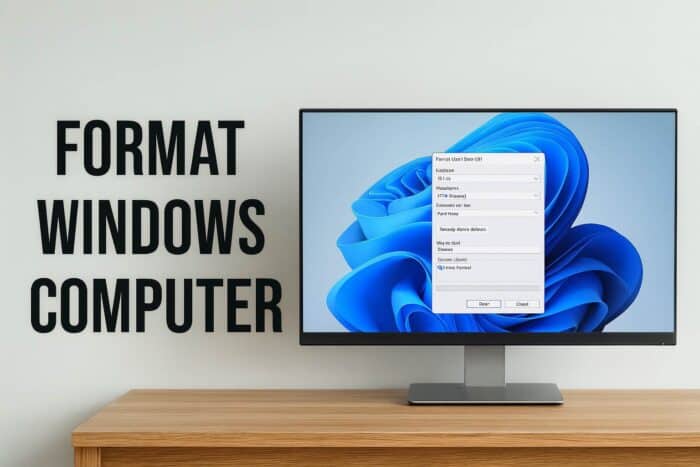
Formatting a Windows computer removes system files, apps and settings to restore performance or fix persistent errors. You can format the PC during Windows setup or inside Windows using reset options and drive management tools. Here are the most effective methods.
Table of contents
How To Format A Windows Computer?
Format The PC During Windows Setup
This is the most complete method because it fully wipes the system drive and installs Windows fresh.
- Download the Windows Media Creation Tool from Microsoft.
- Use it to create a bootable USB.
- Restart the PC and boot from the USB using the correct boot key.
- Select Install now.
- Choose Custom installation.

- Delete all Windows related partitions on Drive 0.
- Select the unallocated space and click Next to reinstall Windows.

If you use a high speed NVMe drive on a modern system, you can also follow a dedicated guide that explains how to format an NVMe SSD in Windows 11 correctly.
Format A Drive With Disk Management
This method works for secondary drives or partitions inside Windows.
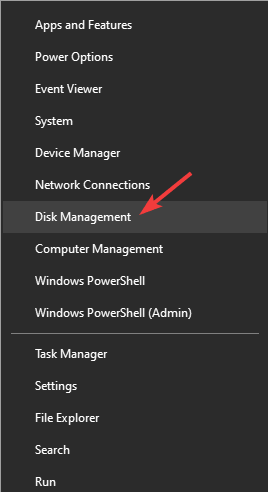
- Press Windows plus X and select Disk Management.

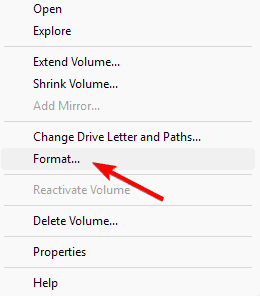
- Right click the drive or partition you want to format.
- Select Format.

- Choose the preferred file system.
- Confirm the action to erase the selected partition.
If you are not sure which file system to pick, you can read a detailed comparison of NTFS, FAT32 and exFAT file systems before you confirm the format.
Format The Computer Using Reset This PC
This option formats the system drive without a USB and reinstalls Windows automatically.
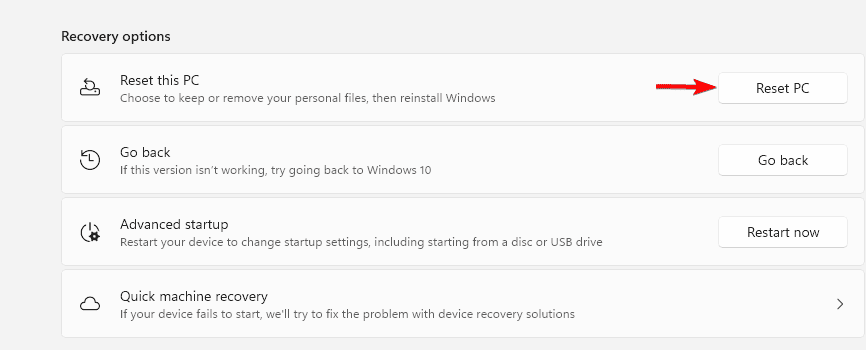
- Open Settings.
- Select System.
- Select Recovery.
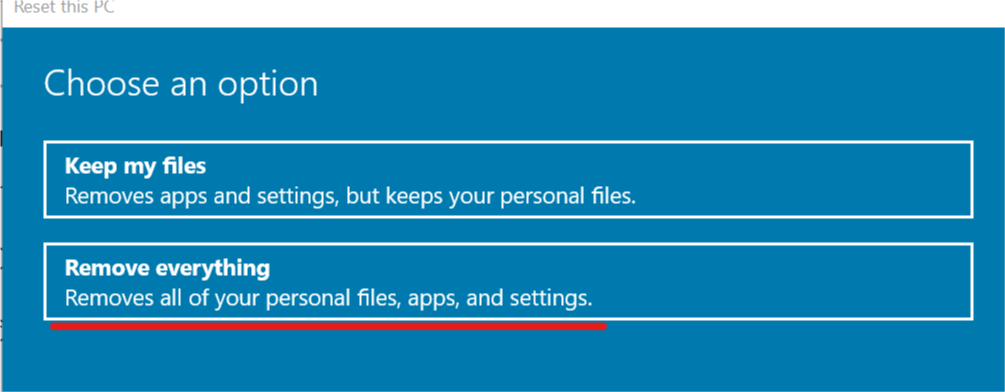
- Choose Reset this PC.

- Select Remove everything.

- Pick Cloud download or Local reinstall.
- Confirm the reset and wait for Windows to reinstall.
Format With Command Prompt During Advanced Startup
Use this method when the computer cannot boot normally.
- Interrupt the boot process three times to trigger Automatic Repair.
- Select Advanced options.
- Select Command Prompt.
- Type
diskpart - Type
list disk - Type
select disk 0 - Type the following to erase all partitions from the drive
clean - Restart and install Windows from a USB.
Format A USB Or External Drive Using File Explorer
This method formats external storage devices through Windows Explorer.
- Open File Explorer.
- Right click your external drive.
- Select Format.

- Select NTFS or FAT32.
- Click Start to wipe the device.

When you work with removable storage, you may sometimes need to change file systems, for example from exFAT to FAT32, and you can follow a step by step tutorial that shows how to convert an exFAT drive to FAT32 safely.
Why You May Want To Format Your PC
Formatting resolves slow performance, malware, corrupted system files and boot problems. A clean installation gives Windows a fresh environment with no leftover data.
FAQs
Formatting during Windows setup provides the most complete reset.
Reset this PC with Keep my files keeps personal data but does not perform a true format.
Windows blocks that process, so you must use setup or advanced startup.
You need a USB only for clean installation. Reset this PC works without it.
Formatting restores system stability and clears out problems that normal troubleshooting cannot fix. Choose the method that fits your situation and back up important files before you start. A clean format through setup, reset or disk tools gives Windows a fresh environment and often makes the computer feel new again.

Read our disclosure page to find out how can you help Windows Report sustain the editorial team. Read more



Improve this guide

User forum
0 messages