
How To Use Hardware & Devices Troubleshooter On Windows 11


 3 min. read
  Published on
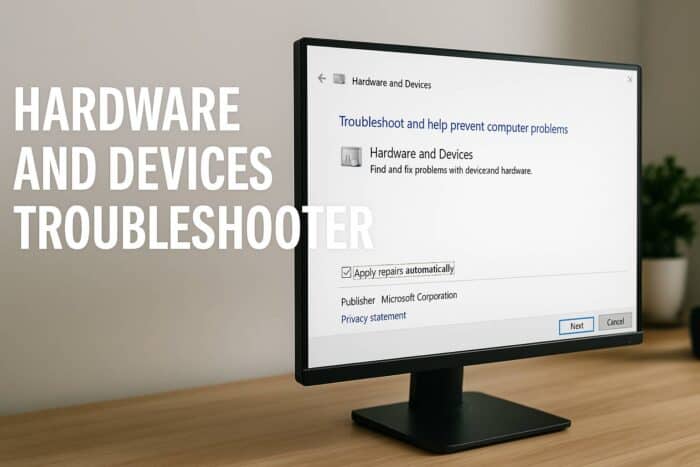
Hardware problems on Windows 11 appear after updates, driver changes, device swaps, or power interruptions. The Hardware Devices Troubleshooter detects conflicts and fixes issues with USB ports, audio gear, cameras, and Bluetooth accessories. This guide explains the fastest ways to run it and start the scan.
Table of contents
How To Run The Hardware Devices Troubleshooter In Windows 11?
1. Open Troubleshooter Using Settings
Follow these steps:
- Open Settings from the Start menu
- Select System
- Click Troubleshoot

- Choose Other troubleshooter

- Scroll down and click Run next to Hardware and Devices
You can also check other built in troubleshooters by reviewing how to run troubleshooters in Windows 11.
2. Run It From Command Prompt
Use this method when the option does not appear in Settings.
- Press Windows key and type cmd
- Select Run as administrator

- Enter the command below and press Enter
msdt.exe -id DeviceDiagnostic
- Click Next and follow the prompts
If you prefer the command line, you can explore more options by checking how to launch troubleshooters using CMD.
3. Run It Through Control Panel
Some users prefer this classic method.
- Open Control Panel
- Select Troubleshooting
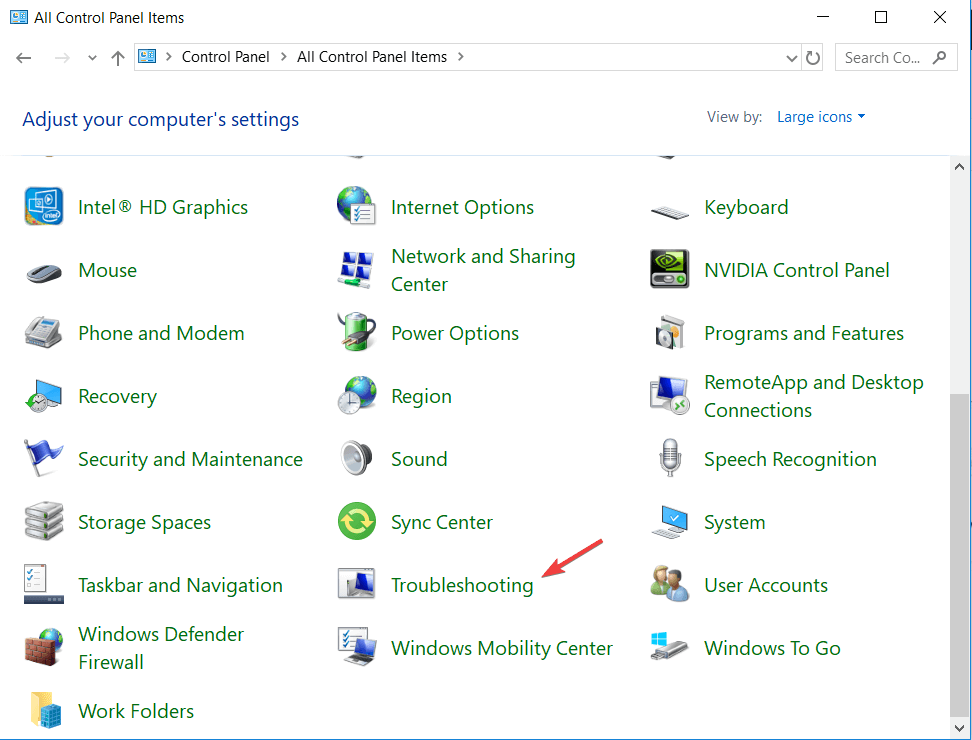
- Click Hardware and Sound
- Select Hardware and Devices
- Click Next to begin the scan
What The Hardware Devices Troubleshooter Does
The tool checks for common hardware failures and configuration errors. It scans device drivers, permissions, and system settings to restore normal recognition and behavior.
For extra help with missing troubleshooters, see why the Hardware and Devices Troubleshooter may not appear.
FAQs
Drivers may fail after updates or system changes. Running the troubleshooter detects mismatched settings and fixes them.
It detects conflicts, reinstalls drivers, and restores default settings for many USB issues.
Microsoft hides it in some builds. You can launch it manually using the msdt command.
Try driver updates, Windows Update, and manufacturer tools first. Reinstall Windows only as a last step.
The Hardware Devices Troubleshooter provides fast diagnostics for USB failures, Bluetooth problems, audio issues, and other device malfunctions on Windows 11. Running it through Settings, Command Prompt, or Control Panel helps correct configuration errors and restores proper hardware behavior with minimal effort.

Read our disclosure page to find out how can you help Windows Report sustain the editorial team. Read more



Improve this guide




User forum
0 messages