
How to Run Windows Troubleshooter From Command Line


 3 min. read
  Updated on

You can run Windows Troubleshooters directly from the command line when apps crash or settings stop working. This guide shows you fast commands that open each troubleshooter. Follow the steps to fix issues without searching through menus.
Table of contents
How Do I Run Windows Troubleshooter From Command Prompt?
1. Open Command Prompt
Command Prompt opens every Windows troubleshooter through quick commands.
- Press Windows + R, type cmd, and press Enter.

- Open an administrator window when you want full diagnostic access.
2. Launch System Troubleshooters
Use command IDs to launch specific troubleshooters fast.
- Run control /name Microsoft.Troubleshooting to open the Troubleshoot settings page.
- Run msdt.exe /id DeviceDiagnostic to check hardware and devices.
- Run msdt.exe /id NetworkDiagnosticsWeb to fix internet connection issues.
- Run msdt.exe /id AudioPlaybackDiagnostic to fix sound problems.
- Run msdt.exe /id WindowsUpdateDiagnostic to repair update failures.
- Run msdt.exe /id BluetoothDiagnostic to diagnose Bluetooth issues.
- Run msdt.exe /id PowerDiagnostic to fix power or battery concerns.
- Run msdt.exe /id PrinterDiagnostic to check printer faults.
If your keyboard stops responding, you can also use the dedicated Keyboard Troubleshooter for faster diagnosis.
You can learn more about the Hardware And Devices Troubleshooter to understand what this tool checks and how it resolves device detection issues.
3. Run a Full Diagnostic Scan
Windows includes a general performance scan that checks system health.
- Run
msdt.exe /id PerformanceDiagnostic
- Wait for the tool to inspect your system and apply recommended fixes.
The broader scan works well alongside the System Maintenance Troubleshooter when you want automated cleanup.
Run Windows Troubleshooter From PowerShell
1. Open PowerShell
PowerShell supports the same diagnostic commands.
- Press Windows + X and select Windows PowerShell (Admin).
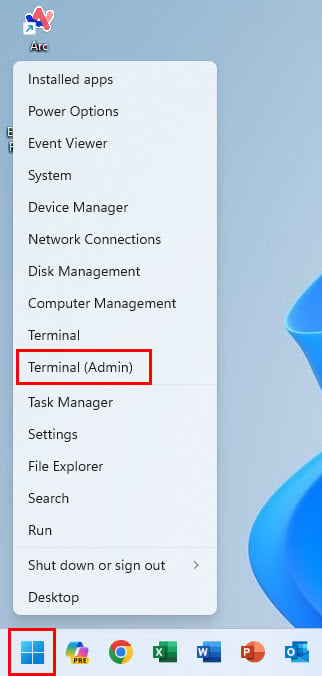
- Approve the admin prompt.
2. Trigger Troubleshooters
Run the same IDs you use inside Command Prompt.
- Run msdt.exe /id PCWDiagnostic to analyze general issues.
- Run msdt.exe /id WindowsUpdateDiagnostic to fix update errors.
- Run msdt.exe /id NetworkDiagnosticsWeb to correct network problems.
Run Troubleshooters With Settings URIs
The Settings app supports direct URI shortcuts.
- Press Windows + R.
- Type ms-settings:troubleshoot to open Troubleshoot settings.

- Type ms-settings:troubleshooters on some builds for Recommended Troubleshooting.
- Type ms-settings:windowsupdate to access update repair tools faster.
What Running Troubleshooters From Command Line Does
The command line triggers built in diagnostic tools that scan network, audio, hardware, and Windows Update services. It gives you direct access to tools normally buried in settings. For general steps, you can also review this guide on how to run troubleshooters in Windows 11.
FAQs
Open Command Prompt as administrator, then run any msdt.exe /id command.
A damaged OS file can interrupt scans. Run sfc /scannow from an elevated window.
Yes. Add any msdt.exe /id command to a batch or PowerShell script.
No. They follow Microsoft diagnostic routines.
Command line troubleshooters help you fix problems fast when Windows slows down, drops network connections, or fails to update. Use the IDs in this guide anytime you want direct access to the right diagnostic tool without searching through menus.

Read our disclosure page to find out how can you help Windows Report sustain the editorial team. Read more



Improve this guide




User forum
0 messages