
How to Delete a Service in Windows Server [Using Command Prompt & Registry Editor]


 3 min. read
  Published on
Ever had a service in Windows Server that you no longer need and want to delete but keeps running in the background? It could be an old application that left its service behind, or maybe a test service that’s no longer relevant.
Deleting such unused services can help keep your server clean, reduce resource usage, and avoid unexpected errors. In this guide, we’ll walk you through different ways to safely delete a service in Windows Server.
Table of contents
Here are different methods to delete a service in Windows Server
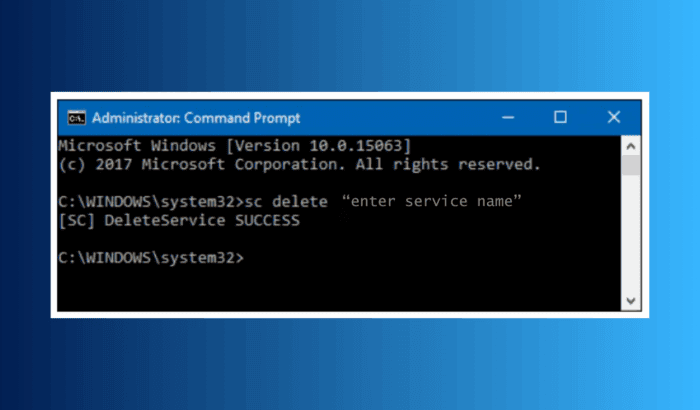
Method 1: Delete a service in Windows Server using Command Prompt
- Press Win + R, type cmd, and press Ctrl + Shift + Enter to open Command Prompt as administrator.
- Type the following command:
sc delete "ServiceName"
Note: Replace ServiceName with the exact name of the service. - Press Enter and wait for confirmation.
- Restart your server to finalize removal.
Method 2: Delete a service in Windows Server using Registry Editor
- Press Win + R, type regedit, and hit Enter.
- Navigate to:
HKEY_LOCAL_MACHINE\SYSTEM\CurrentControlSet\Services - Find the folder matching your service name.
- Right-click it and select Delete.
- Restart your server for changes to take effect.
NOTE: Always back up your registry before making changes, as incorrect edits may cause system issues.
Old or broken services can slow down boot times, consume memory, and sometimes trigger errors. Cleaning them up ensures better server performance and fewer troubleshooting headaches.
Summing up
Deleting a service in Windows Server can help remove unused or problematic services that affect performance. Before doing so, check which users are logged in to avoid disrupting active sessions by following our guide on how to check who is logged in on Windows Server.
If the service is related to web hosting, you may want to check our guide on how to install IIS on Windows Server to ensure web services remain functional. For network-related services, understanding DNS setup is helpful, check our guide on setting up DNS in Windows Server for proper configuration.
FAQs
Yes. Use services.msc to disable a service if you just don’t want it running but may need it later.
Critical system services, if deleted, can break Windows Server. Always double-check before removing.
Yes, when used correctly. It’s the official method provided by Microsoft to remove services.
Yes, by running the sc command with the \ServerName parameter, provided you have admin rights.

Read our disclosure page to find out how can you help Windows Report sustain the editorial team. Read more



Improve this guide




User forum
0 messages