
How to Use MyASUS: Complete Setup and Driver Update Guide


 3 min. read
  Published on

MyASUS is a built-in management tool that helps you keep your ASUS laptop running smoothly. You can update BIOS and drivers, optimize performance, connect your phone, and contact ASUS support directly from one interface. Follow this guide to learn how to make the most of it.
Table of contents
How to Use MyASUS?
How to Open MyASUS on Your Laptop
- Click the Start menu, type MyASUS, and select the app.
- Right-click it to Pin to Start or Pin to Taskbar for easy access.

- Browse sections such as Home, Customer Support, Customization, and Link to MyASUS.
If you also use Armoury Crate to adjust BIOS and performance settings, both utilities can complement each other. Learn more in the ASUS Armoury Crate BIOS Update guide.
How to Update Drivers Using MyASUS
- Launch MyASUS and open Customer Support.
- Click Live Update from the sidebar.
- Select Check for Updates to scan your system.
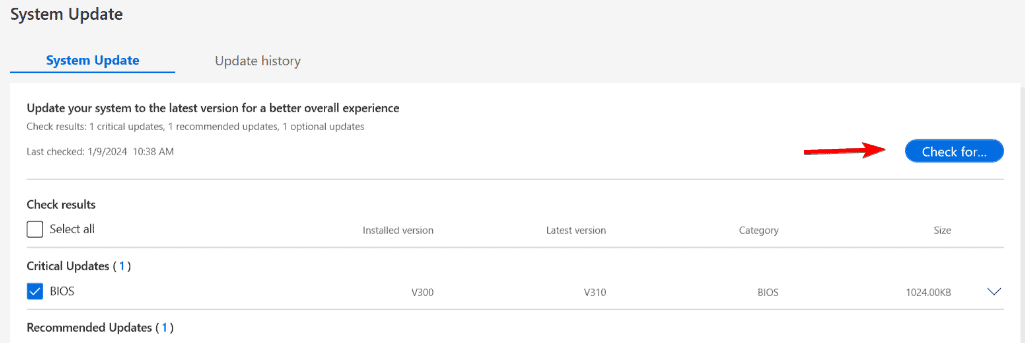
- Choose the updates you want and click Install.
- Restart your computer after installation.
If your BIOS requires a manual update, you can follow the process outlined in How to Update BIOS on ASUS Laptops for a safe upgrade.
How to Use Link to MyASUS
- Open MyASUS and select Link to MyASUS.
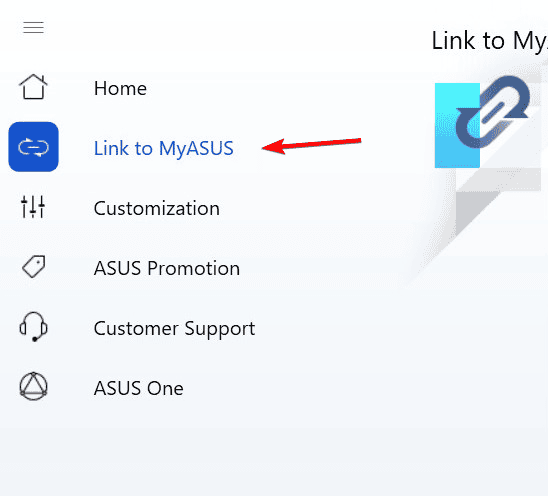
- Install the Link to MyASUS mobile app on your phone.
- Scan the on-screen QR code to pair both devices.
- Grant permissions for notifications, contacts, and file sharing.
- Use the feature to transfer files or manage phone calls from your PC.
How to Optimize Performance with MyASUS
- Open MyASUS and go to Customization.
- Click System Settings to access performance controls.
- Choose Performance, Balanced, or Silent mode.
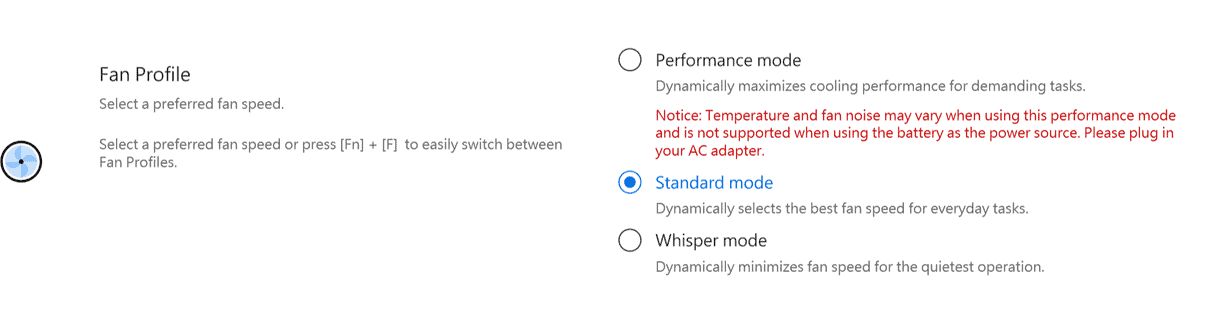
- Enable Battery Health Charging to reduce battery wear.
- Modify display color and brightness using Splendid Display.
For best performance, ensure all hardware drivers are current. The latest versions are available in the ASUS Drivers for Windows 11 resource.
How to Contact ASUS Support via MyASUS
- Go to Customer Support in MyASUS.

- Choose the category of your issue, such as software, hardware, or warranty.
- Run built-in diagnostic tests.
- Submit a service request or locate a nearby ASUS repair center.
What Is MyASUS?
MyASUS is an all-in-one control center for ASUS laptops, combining driver management, diagnostics, and device customization. It integrates with Windows 10 and 11 to help users maintain system health, monitor performance, and connect with ASUS support more efficiently.
FAQs
It manages updates, adjusts performance settings, monitors battery health, and connects your PC with your smartphone.
Yes, but doing so removes access to quick updates and diagnostics, so keeping it installed is recommended.
Most ASUS devices running Windows 10 or 11 are compatible, but older models might not support all features.
Search for MyASUS in the Microsoft Store and reinstall it from there.
Summary
MyASUS provides essential tools for managing your ASUS device, from driver updates and BIOS management to battery optimization and smartphone connectivity. Using it alongside tools like Armoury Crate and regularly checking for driver updates helps keep your laptop fast, efficient, and reliable.

Read our disclosure page to find out how can you help Windows Report sustain the editorial team. Read more



Improve this guide




User forum
0 messages