
Fix the Install Driver to Show Hardware Error in Windows Setup


 3 min. read
  Published on
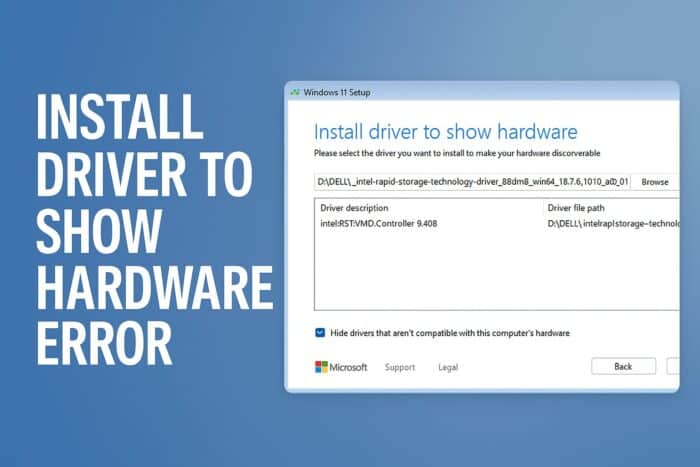
You see this message when Windows Setup cannot detect your storage device. The system asks for a driver so the installer can show your hard drive or SSD. You can fix it quickly with the steps below.
Table of contents
How can I Fix Install Driver to Show Hardware Error?
Check your USB installation media
The installer may not load storage drivers because of a corrupted or incomplete USB stick.
- Create a new USB installer with the Windows Media Creation Tool.

- Use an 8 GB or larger USB drive.
- Plug the USB into a different port on your PC.
- Start the installation again and check if the drives appear.
Fresh media ensures the setup loads all required driver files correctly.
For more related issues, you can check common Windows 11 installation problems.
Switch the USB port or disable USB 3.0 in BIOS
Older chipsets may not detect the installer correctly when you use a USB 3.0 port.
- Restart your PC and enter BIOS using Del, F2, F10, or F12.
- Locate USB Configuration.
- Turn off USB 3.0 support or select USB 2.0 mode.

- Move the USB installer to a USB 2.0 port.
- Start the Windows installer again.
USB 2.0 mode improves compatibility with older motherboards.
If the installer asks you to select a driver, check this guide: select a driver to install in Windows 11.
Load the correct SATA or NVMe driver manually
The installer does not see your HDD, SSD, or NVMe drive because the chipset or controller needs a specific driver.
- Visit your motherboard or laptop support page on another device.
- Download the Intel Rapid Storage Technology driver or the NVMe driver listed for your model.
river download
- Copy the extracted driver folder to your USB installer.
- Return to the Windows install screen and select Load driver.
- Select the driver folder.
- Continue the installation.
The installer can detect your storage device once you provide the correct storage controller driver.
Change SATA mode in BIOS
Wrong storage mode prevents Windows Setup from identifying the drive.
- Open BIOS.
- Go to Storage Configuration.
- Set SATA Mode to AHCI.

- Save changes and reboot to the installer.
AHCI mode improves driver compatibility with Windows Setup.
Remove additional drives and peripherals
Windows Setup may fail when too many storage devices or USB peripherals connect at once.
- Disconnect extra SSDs, HDDs, USB devices, and SD cards.
- Leave only the target drive and keyboard or mouse.
- Start the installer again.
A simpler hardware configuration helps the installer detect the correct drive.
FAQs
The installer cannot detect your storage device because it needs a driver or better USB compatibility.
Most systems need the Intel Rapid Storage Technology driver or the NVMe driver specific to the motherboard.
Yes. Damaged or incomplete installation media triggers this problem often.
Yes. Wrong SATA or USB modes hide drives during installation.
These steps help your PC detect the storage hardware and allow the Windows installer to continue normally. If you still see missing drives during setup, you can review more guidance on Windows 11 drivers not found.

Read our disclosure page to find out how can you help Windows Report sustain the editorial team. Read more



Improve this guide

User forum
0 messages