
Keyboard Screenshot Key in Windows 11: How to Use It


 4 min. read
  Updated on

Learn how to use the keyboard screenshot key in Windows to capture your screen quickly and save images automatically. This guide covers all the shortcut keys and where to find your saved screenshots.
Table of contents
How to Take Screenshots Using Keyboard Shortcuts in Windows?
Capture the Entire Screen
Use this shortcut to copy everything visible on your screen.
- Press PrtScn on your keyboard.

- The screenshot is copied to your clipboard.
- Open Paint, Word, or any image editor and press Ctrl + V to paste.

- Save the image in your preferred location.
Automatically Save the Screenshot
This shortcut saves your screenshot directly to your computer without needing to paste it.
- Press Windows + PrtScn.

- Your screen will briefly dim, confirming the capture.
- The file is automatically saved under Pictures > Screenshots.
If your screenshots do not appear automatically, learn how to make Windows 11 save screenshots automatically.
Capture a Specific Area
Use this method to take a snip of only part of your screen.
- Press Windows + Shift + S.
- Select the snip type: rectangular, freeform, window, or full screen.

- The captured image is copied to your clipboard.
- Open an image editor or document and press Ctrl + V to paste.
For more advanced snipping features, check out how to use the Snipping Tool text extractor in Windows 11. For users who need more advanced capture and editing options, explore these free Snagit alternatives to enhance your Windows screenshot experience.
Capture an Active Window
This shortcut captures only the currently active program window.
- Press Alt + PrtScn.
- This takes a screenshot of only the active window.
- Paste it into Paint or another program using Ctrl + V.
Where to Find Your Saved Screenshots
Here is how to locate your screenshots quickly after capturing them.
- Press Windows + E to open File Explorer.
- Go to This PC > Pictures > Screenshots.
- Screenshots taken with Windows + PrtScn will appear here automatically.
What Is the Keyboard Screenshot Key?
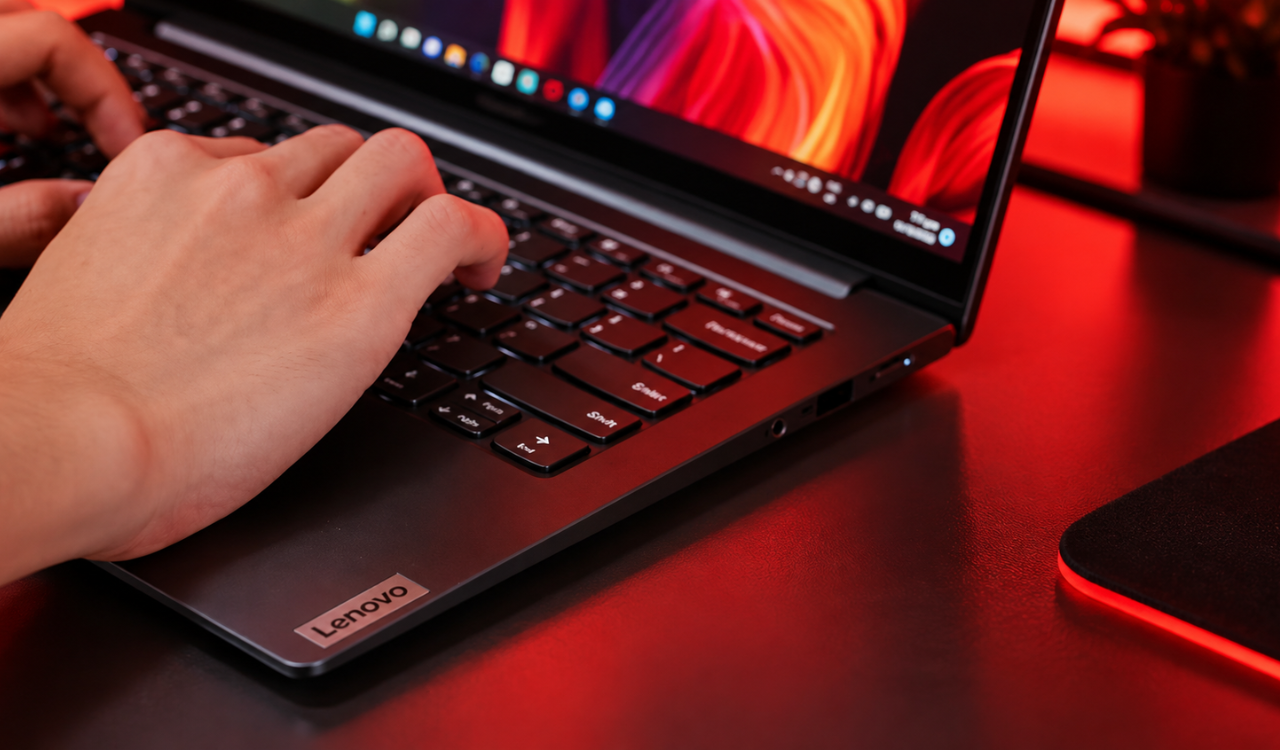
The keyboard screenshot key lets you capture what is on your screen instantly. It is usually labeled Print Screen (PrtScn) and located near the top-right corner of your keyboard.
Windows supports multiple screenshot shortcuts that let you capture the full screen, a specific window, or a selected area.
For a complete breakdown of all capture methods, see this detailed guide on taking screenshots in Windows 11.
Tips for Using the Screenshot Key
These quick tips help you get the most out of your Windows screenshot shortcuts.
- Use Snipping Tool for extra editing and delay options.
- Pin Snipping Tool to your taskbar for quick access.
- If screenshots do not save, check OneDrive or Clipboard Settings to ensure the shortcut is enabled.
FAQs
Usually near the F12 key or labeled as PrtScn, PrtSc, or PrntScrn on the top row.
Use Windows + Shift + S or launch Snipping Tool from the Start menu.
Check if Function Lock (Fn) is enabled. You may need to press Fn + PrtScn on some laptops.
Yes. Right-click the Screenshots folder under Pictures, choose Properties > Location, and select a new folder path.
Conclusion
Using the keyboard screenshot key in Windows makes it easy to capture your screen in seconds. Whether you want to copy an image to the clipboard, save it automatically, or snip a specific area, these shortcuts give you fast control. Once you master them, capturing and managing screenshots becomes a simple part of your daily workflow.

Read our disclosure page to find out how can you help Windows Report sustain the editorial team. Read more



Improve this guide



User forum
0 messages