
How to Change Email on LinkedIn in 5 Steps (Fast Guide)


 3 min. read
  Updated on
Changing your primary email on LinkedIn keeps your profile secure and up to date. Many users want to know how to update their email address without losing access to their account. Here’s a quick guide to walk you through the steps.
Table of contents
How to Update Your Email on LinkedIn?
1. Open Your LinkedIn Settings
Firstly, open your settings:
- Log in to LinkedIn on desktop or mobile.
- Click your profile picture in the top-right corner.
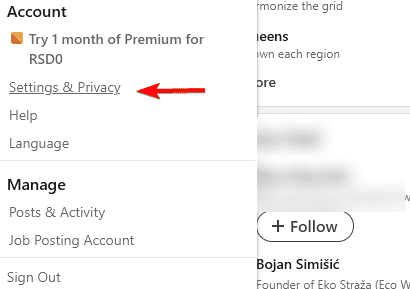
- Select Settings & Privacy from the dropdown menu.
2. Go to Sign In & Security
Next, head to the Security section:
- In the left sidebar, click Sign in & security.
- Look for the Email addresses section.
3. Add a New Email Address
Now you need to add new email address:
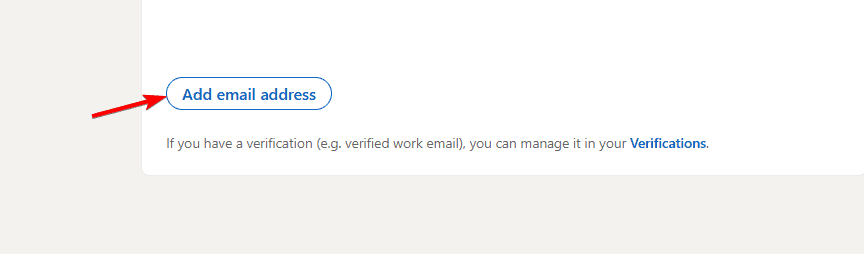
- Click Add email address.
- Enter your new email.
- Check your inbox for the verification message from LinkedIn.
- Click the verification link to confirm.
Want to improve your profile while updating your email? Check this guide on how to update your resume on LinkedIn.
4. Make It Your Primary Email
- Once verified, return to the Email addresses section.
- Select Make primary next to your new email.

- Your login and notifications will now use this address.
If you’re planning to apply for jobs, you might also want to know how to download your resume from LinkedIn.
5. Remove Old Email (Optional)
- If you no longer want to use the old address, click Remove beside it.
- Keep at least one verified email on your account for recovery purposes.
Why Update Your Email on LinkedIn?
- Ensures you never miss job alerts or recruiter messages.
- Keeps your account secure if you stop using an old address.
- Helps you maintain access in case of forgotten passwords.
FAQs
Yes. You can add multiple emails and switch the primary one anytime.
No. LinkedIn does not display your email to others unless you set it visible in privacy settings.
Yes. LinkedIn requires verification before you can set it as primary.
You can still recover your account as long as you have at least one verified email linked.
Conclusion
Changing your email on LinkedIn is quick and ensures your account stays secure. By keeping your contact details updated, you’ll never miss important notifications or opportunities. If you also want to manage your subscription, see this guide on how to cancel LinkedIn Premium.
Want stronger privacy controls while you update account details? Learn how to block someone on LinkedIn to stop unwanted views and messages.

Read our disclosure page to find out how can you help Windows Report sustain the editorial team. Read more



Improve this guide

User forum
0 messages