
Simple Steps to Sign In as Administrator on Windows 11


 4 min. read
  Published on
Learn how to log in as Administrator on Windows 11 using simple steps. This guide explains how to enable the hidden admin account, switch users, and manage admin privileges easily.
Table of contents
- How to Log in as Administrator on Windows 11?
- 1. Enable the Hidden Administrator Account Using Command Prompt
- 2. Set a Password for the Administrator Account (Optional but Recommended)
- 3. Log in as Administrator from Safe Mode
- 4. Create a New Local Administrator Account
- 5. Disable the Administrator Account When Done
- What Is the Administrator Account?
- Why Use an Administrator Account?
- FAQs
- Conclusion
How to Log in as Administrator on Windows 11?
1. Enable the Hidden Administrator Account Using Command Prompt
You can activate the built-in Administrator account directly from Command Prompt with one simple command.
- Press Windows + S and type cmd.
- Right-click Command Prompt and select Run as administrator.

- Type this command and press Enter:
net user administrator /active:yes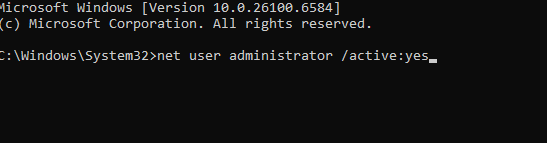
- You should see the message The command completed successfully.
- Sign out from your current user account.
- On the login screen, select Administrator to log in.
For a detailed guide on activating the hidden admin profile, see this tutorial on enabling the hidden Administrator account in Windows 11.
2. Set a Password for the Administrator Account (Optional but Recommended)
After enabling the Administrator account, you should set a password to protect it from unauthorized access.
- Open Command Prompt (Admin) again.
- Enter the following command:
net user administrator * - Type a new password, then confirm it.
- Restart your PC to apply changes.
Setting a password helps prevent unauthorized access to the Administrator account.
3. Log in as Administrator from Safe Mode
If you cannot access the Administrator account normally, try enabling and logging in from Safe Mode.
- Press Windows + I to open Settings.
- Go to System > Recovery.

- Under Advanced startup, click Restart now.
- After your PC restarts, go to Troubleshoot > Advanced options > Startup Settings.
- Press F4 to start your PC in Safe Mode.

- On the login screen, select Administrator to sign in.
4. Create a New Local Administrator Account
You can also create a new local user account and grant it administrative privileges.
- Press Windows + I to open Settings.
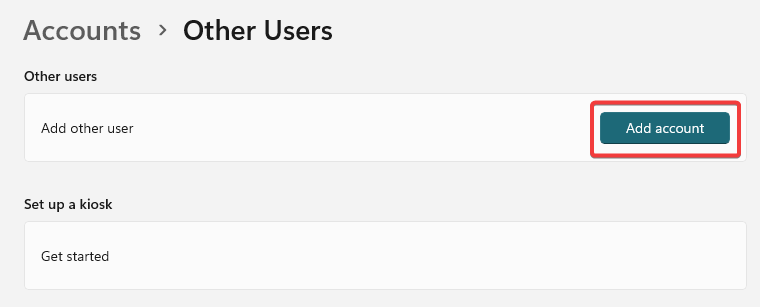
- Go to Accounts > Other users.
- Click Add account and follow the on-screen instructions.
- Once created, click the new user and choose Change account type.
- Select Administrator and confirm.
To learn more about changing admin privileges on Windows, check this guide on how to change the Administrator account in Windows 11.
You can also create a new local user account and grant it administrative privileges. For additional details on managing and adjusting account options, see how to open Account Settings in Windows 10.
5. Disable the Administrator Account When Done
Once you finish troubleshooting or configuring your system, it’s best to disable the Administrator account again.
- Open Command Prompt (Admin) again.
- Type:
net user administrator /active:no - Press Enter and close the window.
This hides the Administrator account from the login screen again.
What Is the Administrator Account?
The Administrator account is a special Windows account that gives you full control over your PC. It allows you to install software, change system settings, and manage other user accounts.
By default, Windows keeps this account hidden for security reasons, but you can activate it anytime using Command Prompt. If you’re using an older version of Windows, you can also follow this Windows 10 Administrator account guide for comparison.
Why Use an Administrator Account?
Using an Administrator account gives you full control of your Windows system. You can:
- Install and remove software
- Change system-wide settings
- Manage user permissions
- Fix restricted file or registry errors
However, always use it with caution, as daily use increases the risk of accidental system changes or malware infections.
FAQs
Press Windows + R, type netplwiz, and check your account type under Group. If it says Administrator, you already have admin privileges.
Only if the hidden Administrator account is active and no password was set. For security, always set one.
No. It’s best used for troubleshooting or system configuration. Use a standard account for daily activities.
Boot your PC in Safe Mode, open Command Prompt as administrator, and run the command to activate the account again.
Conclusion
Logging in as Administrator on Windows 11 is essential for advanced system management, troubleshooting, and software installation. Whether you enable the hidden account or create a new admin user, the process is quick and secure. Always remember to disable the Administrator account or protect it with a strong password once you’re done to keep your system safe.

Read our disclosure page to find out how can you help Windows Report sustain the editorial team. Read more



Improve this guide




User forum
0 messages