
How to Change User Accounts in Windows 10 Easily


 4 min. read
  Published on
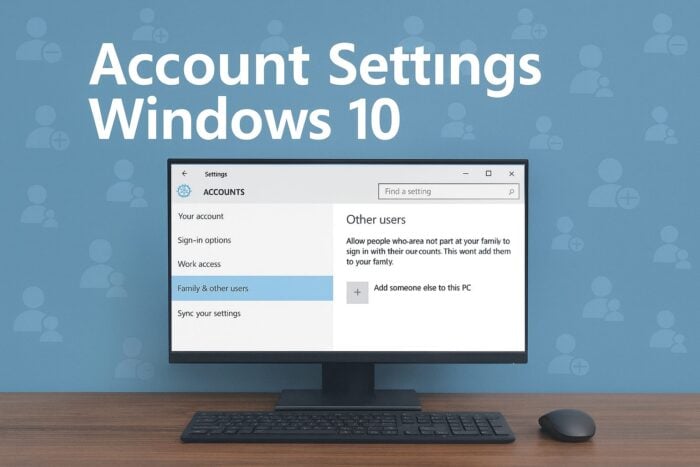
Learn how to access and manage Account Settings in Windows 10 in just a few clicks. Whether you want to change your password, add a new user, or switch to a Microsoft account, this guide explains each method clearly.
Table of contents
How to use Account Settings on Windows 10?
What Are Account Settings in Windows 10?
Account Settings allow you to customize your user information, password, profile picture, and sign-in options. You can also manage family members, set up work or school accounts, and switch between local and Microsoft accounts.
How to Open Account Settings in Windows 10
There are multiple ways to access your account settings in Windows 10. You can open it from the Start menu, search bar, or even use a command shortcut.
1. Use the Start Menu
- Click the Start button in the lower-left corner of your screen.
- Select the Settings gear icon.
- Choose Accounts from the Settings window.
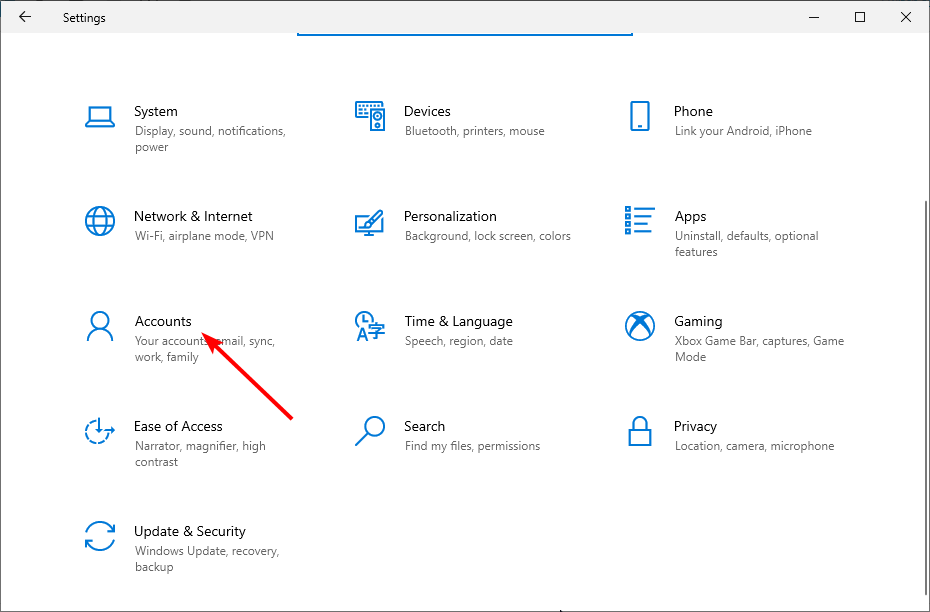
- Here, you can manage your Your info, Email & accounts, and Sign-in options.
2. Use the Search Bar
If you prefer using the Search function, this is one of the quickest ways to find your Account Settings.
- Click on the Search icon (magnifying glass) next to the Start button.
- Type Account Settings.
- Select Account settings from the results to open the menu directly.
3. Use the Run Command
The Run command offers a direct way to access any Windows settings panel.
- Press Windows + R on your keyboard.
- Type ms-settings:accounts and press Enter.
- The Account Settings window will open instantly.
4. From the Control Panel
If you’re more comfortable with the classic Control Panel, you can reach Account Settings from there too.
- Press Windows + R and type control.
- Click User Accounts.

- Select Manage another account to make changes to your account preferences.
For more advanced account management options, check out how to open Local Users and Groups in Windows 10.
How to Change Your Account Type in Windows 10
Changing your account type lets you grant or remove admin privileges for other users on your PC.
- Open Settings > Accounts.
- Click Family & other users in the left sidebar.
- Select the account you want to modify and click Change account type.

- From the dropdown, choose Administrator or Standard User.
- Click OK to confirm the change.
If you want to gain full control over your computer, see this guide on how to log in as Administrator in Windows 10.
How to Switch to a Microsoft Account
Switching to a Microsoft account lets you sync settings, passwords, and files across all your Windows devices.
- Open Settings > Accounts > Your info.
- Click Sign in with a Microsoft account instead.
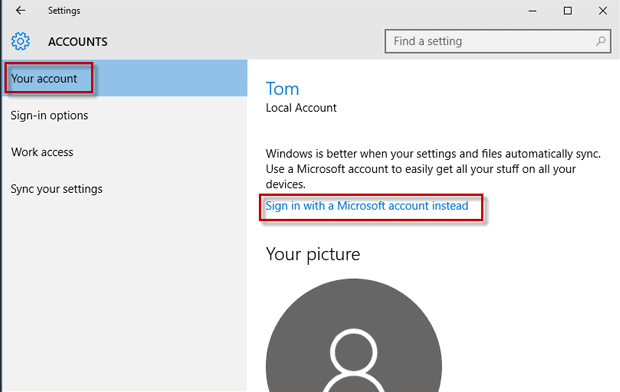
- Enter your Microsoft credentials (email and password).
- Follow the prompts to complete the setup.
How to Add a New User Account
Adding new user accounts is ideal if you share your PC with others or want to create a separate profile for work.
- Go to Settings > Accounts > Family & other users.
- Click Add someone else to this PC.

- Choose whether to sign in with a Microsoft account or create a local account.
- Enter the username and password.
- Click Next to finish the process.
For more tips on handling multiple users, see our full guide on how to manage users in Windows 10.
FAQs
Go to Settings > Accounts > Family & other users, select the account, and click Remove.
Yes. When creating an account, choose I don’t have this person’s sign-in information, then select Add a user without a Microsoft account.
Go to Settings > Accounts > Your info, then click Browse for one to upload a new image.
Navigate to Settings > Accounts > Sign-in options, then select Password and click Change.
Conclusion
Managing Account Settings in Windows 10 gives you full control over your system access and personalization options. From changing account types to switching to a Microsoft account, these steps cover everything you need to manage users effectively. If you ever need deeper administrative tools, revisit the linked guides above for step-by-step help with advanced account management.

Read our disclosure page to find out how can you help Windows Report sustain the editorial team. Read more



Improve this guide



User forum
0 messages