
Connect Logitech Mouse to Laptop: Step-by-Step Guide


 3 min. read
  Published on

Learn how to connect a Logitech mouse to your laptop in minutes. Whether it is wireless, Bluetooth, or USB, the process is simple. Follow these quick steps to start using your mouse right away.
Table of contents
How to Connect Logitech Mouse to Laptop?
1. Using a USB Receiver (Wireless Models)
If your mouse came with a USB receiver, follow these steps:
- Plug the Logitech Unifying receiver into a USB port on your laptop.
- Turn on the mouse using the power switch at the bottom.
- Wait a few seconds for Windows or macOS to install the driver automatically.
- Test the mouse to confirm it works.
If you notice problems during setup, see this guide on Logitech mouse not working.
2. Via Bluetooth (Without Receiver)
For Bluetooth-enabled Logitech mice, connect directly through settings:
- Turn on the mouse and press the pairing button until the LED blinks.
- On your laptop, open Settings > Devices > Bluetooth & other devices.
- Select Add Bluetooth or other device, then choose your Logitech mouse.
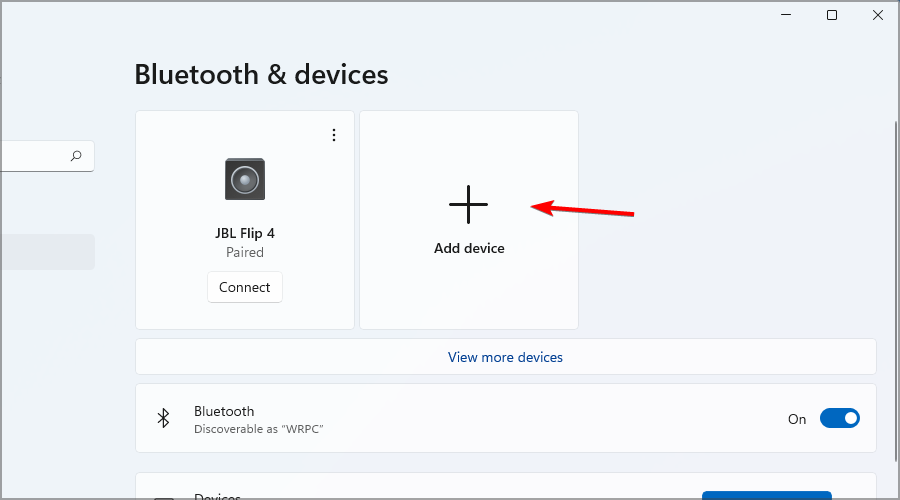
- Confirm pairing and move the cursor to test.
Users of gaming models may also encounter lag. Check this article if your Logitech G305 is stuttering.
3. With a Wired USB Cable (Wired Models)
If you have a wired mouse, just plug it in:
- Connect the mouse cable to an available USB port on your laptop.
- Wait for the system to detect it automatically.
- Start using the mouse immediately.
4. Installing Logitech Options Software (Optional)
To customize mouse settings, install Logitech’s official software:
- Download Logitech Options from the official Logitech website.

- Install and launch the program.
- Adjust button functions, pointer speed, and gestures.
For advanced troubleshooting, you might also need to reset your Logitech G Pro Wireless. Want to go beyond pairing and setup? Check our complete guide on how to use a Logitech mouse for tips on gestures, button mapping, DPI tuning, and everyday workflows.
You can also change the DPI on your Logitech mouse to fine-tune speed and accuracy, giving you smoother control for gaming, editing, or everyday browsing.
FAQs
Check the bottom of the mouse for a Bluetooth logo or look in the manual.
Make sure the batteries are charged, the USB receiver is plugged in, or Bluetooth is enabled on your laptop.
Yes, some models support Easy-Switch buttons that let you pair with up to three devices.
No, the mouse will work without it, but the software allows extra customization.
Only Unifying-compatible devices can pair with a Unifying receiver. Check for the orange star logo.
Conclusion
Connecting a Logitech mouse to a laptop is simple whether you use USB, Bluetooth, or a wired cable. For extra customization, install Logitech Options and enjoy full control of your device.
When your mouse fails to connect, low power might be the cause. Learn how to change the battery in a Logitech mouse to fix power issues quickly.

Read our disclosure page to find out how can you help Windows Report sustain the editorial team. Read more



Improve this guide




User forum
0 messages