
How to Use a Logitech Mouse on Windows (Full Guide)


 3 min. read
  Published on
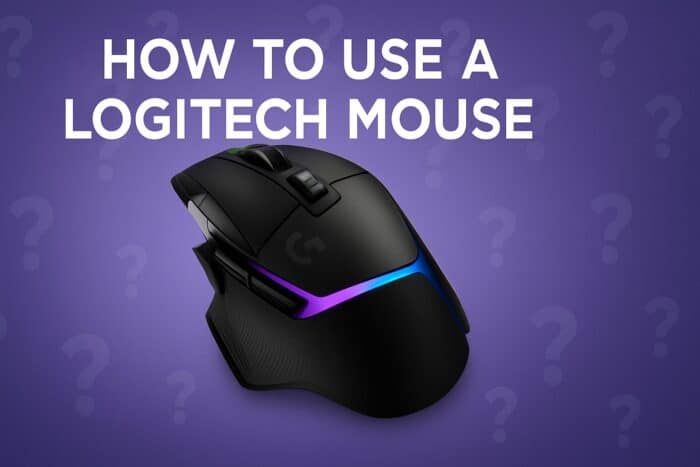
Getting started with a Logitech mouse is quick and simple. This guide will show you how to set it up, connect it to your computer, customize the settings, and fix common problems on Windows and Mac.
Table of contents
How to Use a Logitech Mouse?
1. Getting Started With Your Logitech Mouse
Before connecting, make sure your mouse is prepared and ready for use.
- Remove the mouse and accessories from the box.
- Check for the USB receiver or charging cable.
- Insert batteries if required.
- Switch on the mouse using the power slider underneath.
For extra help with wireless setup, check this guide on how to connect a Logitech mouse to a laptop.
2. Connecting Your Logitech Mouse
Depending on your model, you can link the mouse using a receiver, Bluetooth, or a wired connection.
- Plug the USB receiver into an available port and wait for setup.
- If using Bluetooth, open settings and enable Bluetooth.

- Press the mouse pairing button to make it discoverable.
- Select the mouse from the device list and click Pair.
- For wired models, connect the USB cable to your computer.
- Test movement to ensure the connection works correctly.
3. Customizing Logitech Mouse Features
Personalization settings help you adjust performance and comfort for daily use.
- Visit the official Logitech support site.
- Download Logitech Options (for productivity) or G Hub (for gaming).

- Install the software and launch it.
- Select your mouse model from the dashboard.
- Adjust pointer speed and DPI sensitivity.
- Reassign buttons for shortcuts or commands.
- Enable smooth scrolling or gesture features.
- Save the profile to keep your changes.
If you’re using a gaming model, you may also need to reset the Logitech G Pro Wireless before applying new settings. To take customization further, you can change the DPI on your Logitech mouse for better control, whether you want faster movement or higher accuracy in specific tasks.
4. Troubleshooting Logitech Mouse Issues
When problems appear, simple checks and updates usually solve them quickly.
- Check if the mouse is powered on.
- Replace or recharge the batteries.
- Reconnect the USB receiver or Bluetooth connection.
- Restart your computer.
- Open Device Manager from the Start menu.
- Expand Mice and other pointing devices.
- Right-click your Logitech mouse and choose Update driver.
- Select Search automatically for drivers.

For more detailed fixes, see this guide on what to do if a Logitech mouse is not working.
When troubleshooting power problems, you may also need to change the battery in your Logitech mouse to restore proper functionality.
For step-by-step power guidance, see how to charge a Logitech mouse to restore battery quickly and prevent future dropouts.
FAQs
You can use the included USB receiver or connect via Bluetooth in the settings.
No, but installing Logitech Options or G Hub unlocks customization features.
Check the power, replace the batteries, reconnect, or update the driver.
Yes, Logitech mice are cross-compatible, and most models support both systems.
Conclusion
Using a Logitech mouse is straightforward once you know how to set it up, connect it, and customize it. These steps cover the basics so you can enjoy smooth performance whether for work, gaming, or everyday browsing.

Read our disclosure page to find out how can you help Windows Report sustain the editorial team. Read more



Improve this guide




User forum
0 messages