
Learn How the Get Help App Works on Windows 11 PCs


 4 min. read
  Updated on
The Get Help app in Windows 11 is a built-in Microsoft support tool that helps you troubleshoot problems, run diagnostics, and contact Microsoft directly. It replaces the older Contact Support feature and comes preinstalled on every Windows 11 PC.
Table of contents
What Is the Get Help App in Windows 11?
The Get Help app provides chat-based support for your Windows issues. You can describe a problem, get automatic troubleshooting steps, or connect with a live Microsoft agent. It’s the main way to access official Windows support from your desktop.
To understand more about how Microsoft’s support tools evolved, check out how to get help in Windows 10.
How to Open the Get Help App
You can open the app in several ways depending on where you are in Windows.
- Press F1 on your keyboard while on the desktop or inside Settings to open the app directly.
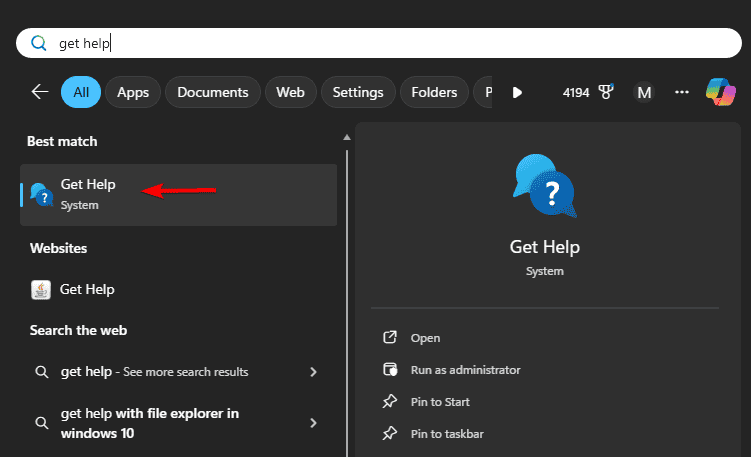
- Search for Get Help in the Start menu and select it from the results.
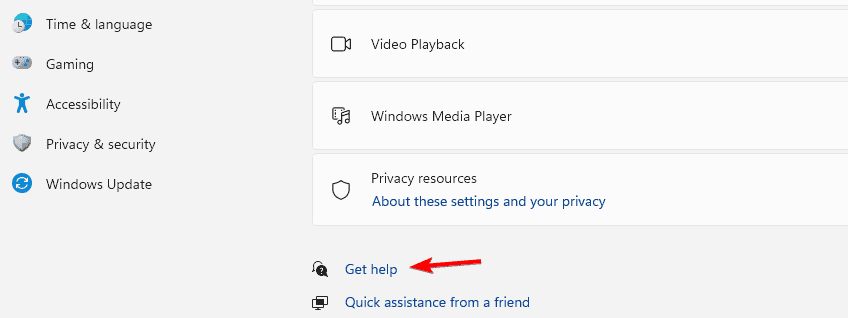
- Go to Settings > System > Troubleshoot > Other troubleshooters, then choose Get Help to launch it.
How to Use the Get Help App
After launching the app, follow these steps to get assistance from Microsoft or the built-in virtual agent.
- Type your issue in simple words, such as Bluetooth not working or Windows activation issue.
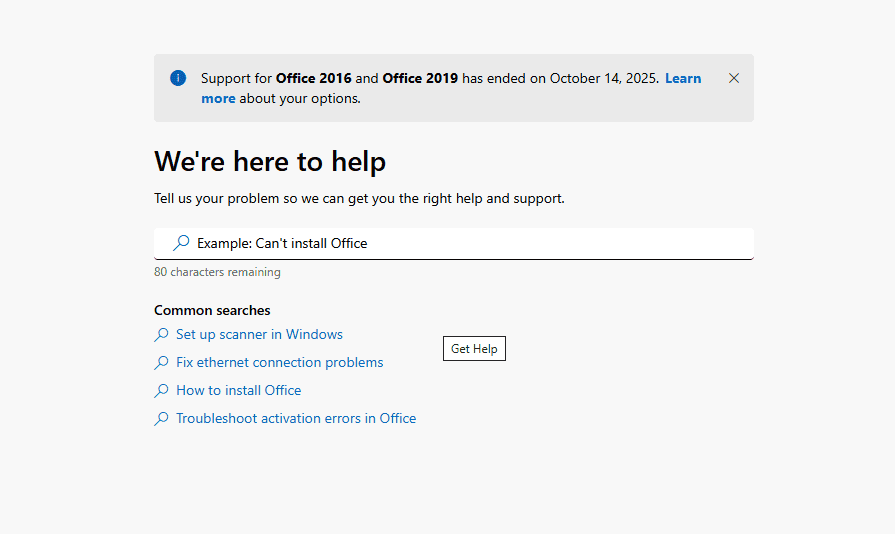
- Follow the instructions displayed on the screen to apply the suggested fixes.
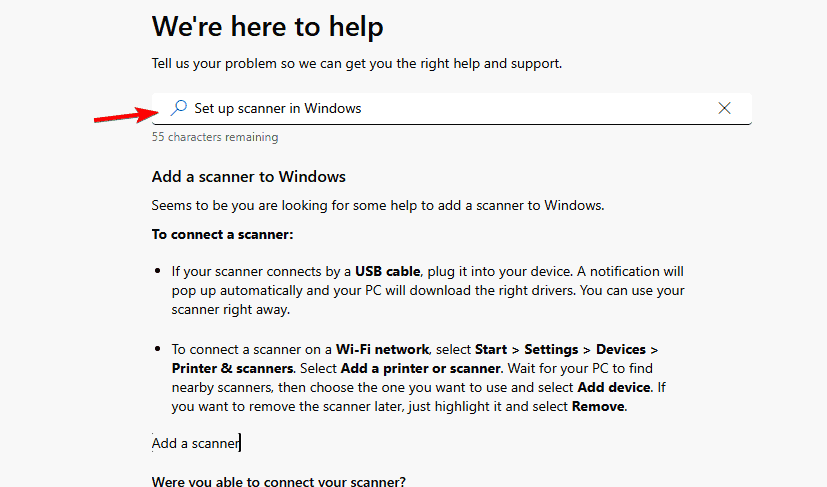
- Type talk to a person to start a chat with a Microsoft support agent if automated solutions do not help.
- Save or copy the chat transcript so you can refer back to it later.
If the tool fails to load or doesn’t respond properly, read our full guide on Get Help not working in Windows 11.
What You Can Fix with the Get Help App
The Get Help app covers a wide range of problems and links directly to key Windows settings.
- Windows activation or licensing errors
- Microsoft account and login issues
- Internet, Wi-Fi, and connectivity problems
- Printer, audio, or display errors
- Billing and subscription questions
You can also get step by step assistance for folder navigation or file management issues by reading our guide on how to get help with File Explorer in Windows.
Microsoft account and sign in issues often require deeper diagnostics, and the dedicated tool here can help resolve them Microsoft 365 sign in troubleshooter.
Alternative Ways to Get Help in Windows 11
If the built-in app cannot fix the issue, you can reach Microsoft through other official channels.
- Visit the Microsoft Support website to access troubleshooting articles and system tools.
- Open the Feedback Hub to report a specific bug or performance issue.
- Contact Microsoft’s verified accounts on X or Facebook for quick help from the support team.
If you keep seeing the app open unexpectedly, review our detailed guide on the Get Help pop-up in Windows 10.
You can get a clearer idea of how Microsoft enables secure remote assistance by checking the Remote Help App guide which explains how support teams use it on Windows devices.
Why You Should Use the Get Help App
This tool streamlines the troubleshooting process by providing:
- Fast access to AI-based recommendations for common Windows issues
- Step-by-step fixes without needing to visit third-party sites
- Quick connections with Microsoft’s live support agents when needed
It’s built into Windows 11, meaning you don’t need to install anything extra to start getting assistance.
FAQs
Yes, it’s completely free for all Windows users.
No, it’s a system component, but you can hide it from search if you prefer.
Some automatic fixes work offline, but live chat requires an internet connection.
Yes, the app can route you to the correct Microsoft support page for other products.
Conclusion
The Get Help app in Windows 11 is the quickest and most reliable way to troubleshoot problems without leaving your desktop. It offers guided solutions, instant support connections, and tailored instructions for your version of Windows.
If the app ever fails to start or triggers unnecessary pop-ups, refer to the related guides linked above for additional troubleshooting.

Read our disclosure page to find out how can you help Windows Report sustain the editorial team. Read more



Improve this guide




User forum
0 messages