
How to Open RPT File on Windows: 5 Easy Methods


 4 min. read
  Published on

If you’ve ever found an .rpt file on your PC and wondered how to open it, you’re not alone. With the right tools, you can view or edit these reports in just a few steps.
Table of contents
How to Open RPT Files on Windows?
1. Use Crystal Reports
Crystal Reports is the native tool for viewing and editing most RPT files.
- Download and install SAP Crystal Reports Viewer.

- Launch the program.
- Click File > Open.
- Browse to your RPT file and click Open.
- Use Export to save as PDF, Excel, or Word if needed.
If your workflow includes certificates, you may also need to open CRT files on Windows. Follow this step-by-step guide to open CRT files on Windows and view, import, or convert them with built-in tools or trusted utilities.
2. Open with a Text Editor for Simple Reports
If the RPT file contains plain text data, any text editor can open it.
- Right-click the file.
- Select Open with > Notepad or install Notepad++ and use it.

- Review the content.
- If the data is tabular, copy it into Excel for easier viewing.
Tip: If you see random symbols, the file is likely binary and not readable in a basic editor.
3. View RPT Files in Excel
Some RPT files store tabular data compatible with Microsoft Excel.
- Open Excel.
- Go to File > Open.
- Click Browse and set the filter to All Files (*.*).
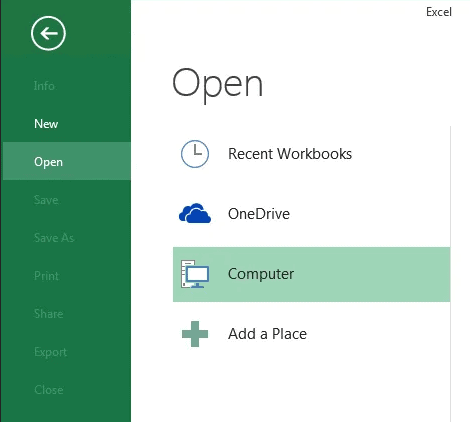
- Select your RPT file and click Open.
- Use the Text Import Wizard to set delimiters and column formats.
Some projects ship configuration keys that confuse Windows users at first glance. Use this walk-through to quickly open KEY files, check their contents safely, and convert them into formats compatible with your app.
4. Use a Third-Party Viewer
If you don’t have Crystal Reports, try free RPT viewers like:
- Install a compatible RPT viewer such as R-Tag Report Viewer or Easy View.
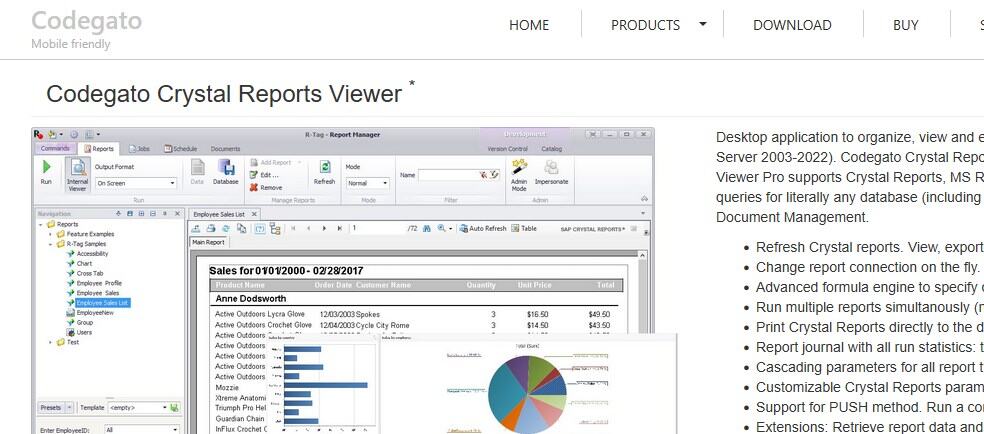
- Open the app and choose File > Open.
- Select your RPT file to view it.
5. Convert the RPT File to Another Format
If you need to share or print the file easily:
- Open the file in Crystal Reports Viewer.
- Click Export.
- Select PDF, XLSX, or DOCX.
- Save to your preferred location.
What Is an RPT File?
An RPT file is a report generated by software such as Crystal Reports, databases, or diagnostic tools. Some are plain text, while others are binary with embedded layouts and data connections.
Why Can’t I Open My RPT File?
- Missing software support such as Crystal Reports.
- Corrupted file due to an incomplete export or transfer.
- Binary data that cannot be read in simple text editors.
Try a proper viewer or ask the source to re-export the file.
Working with radio captures or device logs? This tutorial shows how to open SDR files in Windows, including recommended viewers, basic analysis tips, and export options.
FAQ
Yes. Use a free viewer or a text editor if the file is plain text.
Not always. Many RPT files are binary and require specialized software.
Yes. Use Crystal Reports Viewer to export to PDF or Excel.
It is likely a binary file. Open it with Crystal Reports or a compatible viewer.
Conclusion
Identify the file’s origin and choose the right tool. Use Crystal Reports for full fidelity, Excel for structured data, and third-party viewers for quick access. If nothing works, ask the sender to re-export the report as PDF or CSV.

Read our disclosure page to find out how can you help Windows Report sustain the editorial team. Read more



Improve this guide



User forum
0 messages