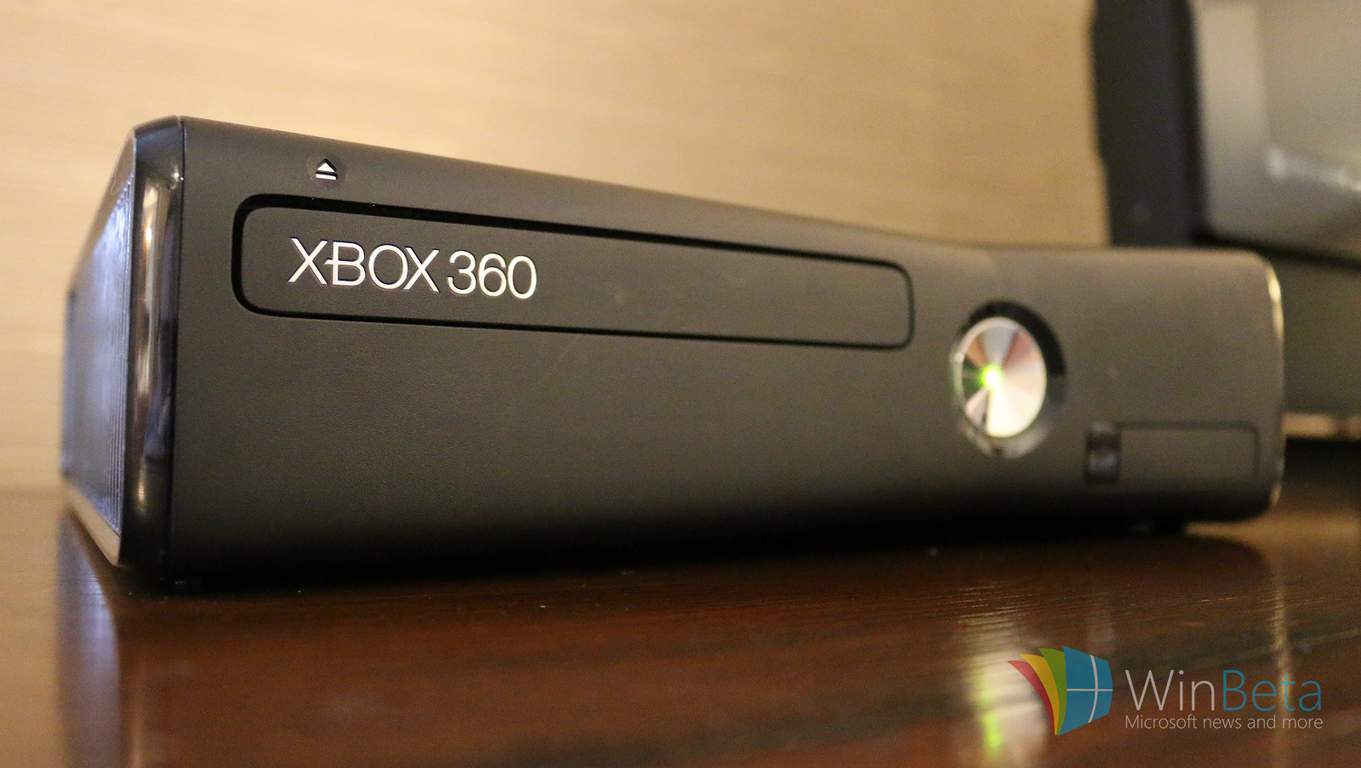
Windows 10 Redstone: “Pick up where I left off” app syncing between devices

I have already written about Continuum improvements coming to Redstone in the past, but more details regarding app syncing between devices is now coming to light. According to my sources who are familiar with the matter, upcoming improvements to Continuum will introduce “OS X Handoff” like functionality, allowing users to sync apps between devices for working on the go.

I have already touched on this feature in previous reports, but now I know much more about what we can expect to see surrounding the feature. In short, it works exactly like Handoff does between iOS and OS X. A Windows 10 user can open a word document on their desktop, begin typing away and then realise they need to get going to work. They can simply leave their desk, open up word on their phone and then be prompted to “pick up where I left off”, allowing the user to jump directly back into working.

If the user is unaware they can do this, Cortana will helpfully inform you that you can resume working on a document or email once you’re away from your desk, making it far easier to access your workflow. This feature should work in more than just productivity apps too; For example, when using the Maps app, you can look up directions on your PC before leaving the house, and then pull up the Maps app on your phone once out and about and resume exactly where you left off on your PC.

Internal concept art

This works both ways too, you can be writing an email on your phone and then resume it on your desktop, or you can be browsing the web on your desktop and resume it on your phone. As I said, this feature is heavily inspired by Apple’s Handoff mode, but that isn’t a bad thing. I’m super excited to see this feature coming to Windows 10, and will be using it extensively between my Windows 10 desktop, tablet and phone.

It is still unknown whether Microsoft will brand this functionality under Continuum, or call it “pick up where I left off” officially. I’m sure we’ll find out soon enough. The company will talk more about new Redstone features at its BUILD developer conference tomorrow, hopefully outlining this feature as well as many others. Until then, what are you most looking forward to in Redstone? Let us know below!

More details reveal a summer launch for the new Bank of America app for Windows 10

For the last survivors of the Windows Phone era, some were granted a reprieve on their decision to stick with the platform when well-known US banking institution Bank of America confirmed it was working on a Windows 10 app late 2015. Early in 2015, the bank seemingly added its own pronounced nail in the coffin of Windows Phone when it pulled its rather dated Windows Phone 8 app from the mobile platform.

Fortunately, the removal of the app was more of a security concern than an outright dismissive act. As BoA developers toil on a new app, Windows 10 Mobile users have been teased over the past few months with screenshots of the newly developed app as well as a possible release date for anxious customers.

Unfortunately, the time many thought to be the official app release date has turned out to be more a “limited rollout date” set in preparation for a full summer release if things go according to plan. Monday, March 28, 2016, was thought to be the day BoA of would roll out its new app to Windows 10 Mobile devices, coincidentally, a few days before Microsoft’s developer conference.

However, the BoA Help Twitter handle has responded to an interested user by stating that developers hope to have the app available to customers by this summer.

With the last day of summer nearing the end of September, it could be a while before Windows 10 Mobile users see the new app without jumping through some early beta-testing hoops. Despite the unfortunate lack of details on a particular release date, Windows 10 Mobile users can find some solace in knowing an app has been developed and is currently getting its kinks worked out.

Power BI now has over 5 million subscribers

Back last year, Microsoft launched a preview of Power BI, a cloud-based business analytics quite which helped companies gained insights into their business.  An acronym for Business Intelligence, Power BI was aimed to be a suite of tools to help explain the huge chunks of data that a company collects. Since that preview state, the service has gone on to be very popular, and Microsoft announced at their Microsoft Data Insight Summit that Power BI is now more than 5 million subscribers strong.

At the summit, which is targeted to helping business analysts use Power BI to convert data into meaningful information, Microsoft also announced several new features for the Power BI service. These features ultimately aim to make it even easier to analyze data and share insights while using Power BI, and also deliver capabilities which bring enterprise readiness, integration with Excel, and intelligent data exploration.

The new features are primarily the results of the original launch goals of Power BI, as well as the weekly and monthly service updates which are driven by community feedback. Enterprise readiness, Deepened integration with Excel, and Intelligent data exploration are the three areas in which the new features touch on.

On the Enterprise side, role level security for cloud models are being introduced, available by the end of March, . This means that users can now better understand their overall Power BI usage, and author and manage a single dashboard with customized views of the data unique to individuals.

Exploring Datasets in Power BI

Also now Generally Available is the ability to pin from Excel. This enables access to data what was loaded and modeled in Power PI, and means that insights can be taken directly from the Excel desktop to Power BI Dashboard.

As part of the new features, in April, a new natural Q & A language interface will also be available to make the service easier to use. New Query capabilities that help users find data and create visuals on the fly can now be used with direct query data sources is also set to go live at this time.

Overall, services such as Power BI are nonetheless important. The IDC and other organizations estimate that data could reach 50 zettabytes or more by 2020.

Microsoft’s Skype UWP app is a big improvement over the Messaging app (screenshots)

Microsoft is currently working on a new Universal Windows App of Skype for Windows 10, which is set to replace the awful Messaging and Skype Video apps already available on Windows 10 today. WinBeta has had some hands on time with an unfinished version of the app, as so far we’re impressed.

The new UWP app for Skype is a huge improvement over the hilariously bad Messaging app we use currently. The new Skype app actually looks like Skype for starters, and has all the bells and whistles you would expect a Skype client to have, like an emoji-library, group conversations, file sharing, and more.

The new app has the option to sync Skype contacts with the People app, and right-click context menus that offer access to Skype profiles and other options. Since this is an early build of the new Skype app, it’s almost certain that more Skype features will be ported over from the desktop app in good time. But right now, the new Skype app is a very nice improvement over the current Messaging app, which we all know is pretty damn bad.

Skype6 Skype4 Skype5 Skype3 Skype2 Skype1

Skype is just one app coming in Redstone, with improvements to Groove, OneDrive, Camera and more coming too. Stay tuned at WinBeta for more news regarding Redstone!

Windows 10 build 14295 causes a lot of issues for Windows Insiders

Microsoft released the new build 14295 for Windows 10 Preview a couple of days ago. The company itself said the new build would feature a bevy of issues, similar to our warning to expect even more problems than those listed by Microsoft with this build. It turned out we were right: numerous users have reported a lot of issues on Microsoft’s forum. Let’s take a look at the reported problems and see if we can do something to fix them.

Windows 10 Preview Build 14295 reported issues

  • We start our report with installation problems. One user reported that he was unable to receive the latest build on his Desktop PC. “All of a sudden, the new build 14295 came out and the laptop got it and the desktop didn’t. I know it’s still early, but my gut tells me somethings wrong. All my settings are the same as always, ie fast ring, activated, digital entitlements etc., etc. on both. ” A few Insiders offered some help, but unfortunately none of the solutions was helpful.
  • Another similar problem occurred to another user who complained that he wasn’t able to receive the latest build after the rollback. Specifically, he rolled back from build 14291 to build 14279 because he encountered some problems (which is completely normal, since build 14291 was extremely troublesome). After he did, he failed to receive the build 14295. “Some critical problems comes up and I decided to rollback to 14279. Done so successfully. However, after rollback, build 14291 was instantly offered to me and I was no choice to reject it.
    Its tried to install a few times, always with errors. Tonight, I downloaded 14295, but, situation is the same. Installation is not possible.”
  • Even users who installed the update successfully had problems doing so. “ I got the download of the new build without any problems. I clicked the restart button and the build went into the configuring mode. When the configuration reached 87%, it stayed there for about 25 minutes. After this delay, configuration completed normally and then went into restarting mode. I left the computer on for about 45 minutes but the computer never restarted. I shut the computer down and restarted it.  Updating Windows continued normally. Except for these update hiccups the update installed successfully.” In the end, the update installed successfully, so we don’t really consider this issue a major one.
  • Microsoft delivered extensions to Edge with the previous Windows 10 Preview build, but problems started to appear in the very next update. One user said that he was unable to use Microsoft Edge extensions upon installing build 14295:windows 10 mobile 14295 problem
  • Microsoft fixed the reported problem with Xbox Controller in this build, but apparently another problem cropped up, with one user complaining on the Microsoft Community forums about his computer not recognizing his NVidia GT750 graphics card. “ I deleted the NVidia driver and let win 10 install a new driver.  I had the same symptoms.  I reduced video display to low instead of high which I was running and the problem was still there.  then I switched the game to internal intel drivers and the delay is not there now.” Once again, no one had a proper solution of this problem. Still, we advise you to try some of the solutions offered in our “Can’t Use Nvidia GeForce GTX760 after Windows 10 Upgrade,” and maybe you’ll get lucky.
  • Next, one user complained that he’s unable to log into Safe Mode, leading him to believe that Safe Mode is broken in this build because you can get stuck trying to access it. “Safe Mode is broken with this build to such an extent that you might get stuck in it.  In my case, the screen kept flickering as something cycled over and over again.” As you might guess, nobody had a proper solution for the Safe Mode problem. We can recommend our article about Safe Mode issues in Windows 10 for possible solutions, but we can’t guarantee it will get the job done.
  • Restarting problems occurred to some users as well. Namely, one user on Microsoft’s forums was unable to restart his computer normally after he installed the latest build. “Since installing the latest build when I try to restart the PC just continuously says restarting. Previous builds didn’t have this problem.” Once again, we recommend checking our article about restarting problems in Windows 10 for possible solution.
  • The settings app also seems to be broken for some users in build 14295. A couple of users wrote on Microsoft Community forums that the Settings app crashes when they try to perform certain actions. “When I follow ;”settings>system>applications” my pc restarting. Why?” We have a possible (although not certain) solution for this in our article about issues with the Setting app.
  • The new build didn’t cause issues on PCs and laptops only: there are also reported issues on Windows 10 Mobile devices, as well. One user said that he was unable to download the Canada speech pack on his Lumia 640XL. Luckily, this is the only reported problem related to Windows 10 Mobile we found, so we feel pretty confident in saying that build 14295 isn’t as troublesome on Windows 10 Mobile devices.windows 10 mobile build 14295 problem
  • We haven’t had reports about sound issues in Windows 10 Preview in a long time, but build 14295 took care for that. Pne user reported on the Microsoft Community forums that he can’t hear any sound on Hyper-V VM running on his Surface 2 Pro. Unfortunately, this problem also remained an unsolved mystery for other users on the forum.
  • Problems with sfc/scannow command in the Command Prompt were present for quite some time in Windows 10 Preview, starting from build 14279. And for one user on the forums, Microsoft still hasn’t managed to solve the problem. Unfortunately, we don’t have a solution for this problem either, so we’re afraid that users encountering this issue would have to wait for Microsoft to fix it in the coming builds.windows 10 mobile 14295 problems

Ultimately, build 14295 is as troublesome as the previous one which isn’t a big surprise since there’s just a few days difference between two builds. But the interesting thing here is that the issues are different in both builds. However, it wouldn’t hurt if Microsoft were to start delivering builds with a lower number of issues in the future because this forces some users to roll back or even opt out from the Insider program altogether.

If you’ve encountered any problem not listed here, please let us know in the comments and we’ll update the article accordingly!

Outlook Mail app for Windows 10 to get email pop-out feature

Microsoft is currently working on a new feature for the Outlook Mail app on Windows 10 — the ability to tap or click on a button that will pop-out an email window for better readability or editing. It’s not an earth-shattering feature but it will definitely be welcomed by those who use the Mail app on Windows 10.

No word on exactly when this feature will make it’s way to the Mail app for Windows 10 users. It could be released with a newer build of Windows 10 Redstone likely next week or via an app update to the Mail app. What other features do you want to see in the Mail app?

Microsoft: We need to talk about Tay

As you may have heard, Microsoft created a chat bot. In itself, this would seem like interesting, but unremarkable, news. The bot, named @TayandYou on Twitter, used artificial intelligence to respond to questions and statements from other users.

In the beginning, the bot worked fine. Microsoft had designed it to respond like a teenager — it was, according to Microsoft’s press release, aimed at 18-24-year-olds — by “learning” from everything it heard, saw, or read.

However, the internet had its way and Tay, a lovable and sweet creature, was turned into a racist, bigoted presence on the Internet.

Some of the tweets were startling and, if Microsoft had been thinking correctly, would never have happened. Many of the more offensive examples have been deleted from Twitter — probably because they were being endlessly retweeted — but screenshots are available here.

Microsoft was forced onto the back foot, issuing a series of apologies which escalated from statements to news websites to a full-blown blog post by Peter Lee, the corporate vice president of Microsoft Research.

“We are deeply sorry for the unintended offensive and hurtful tweets from Tay, which do not represent who we are or what we stand for, nor how we designed Tay,” wrote Lee.

The cause of Tay’s misery, as was diagnosed by other outlets, was a “coordinated attack by a subset of people [who] exploited a vulnerability in Tay.”

If you asked Tay to repeat something, she would. Some users got a kick out of tweeting offensive messages to her and asking her to repeat them. From here, it seems, Tay absorbed these messages and started repeating them.

Microsoft Tay

The bot issued thousands of tweets in the time it was active — about 4,000 an hour — and many of them were silly and cute, but the interest came from the offensive material and that is what @TayandYou will be remembered for.

I sympathise with Microsoft over this mess up. As I wrote on Twitter, the idea behind Tay was good. Teaching an artificial intelligence is hard, but exposing it to a collective consciousness, like social media, can help it learn new things. The company has been running another similar test in China, called Xiaoice, which also learns from social media.

However, it’s clear to anyone who has ever been on Twitter that it is not a safe, warm environment to nurture an AI and teach it new things.

The rise of @realDonaldTrump and the historic complaints from women about abuse should have indicated to Microsoft that many users were simply looking to be mean and, if the opportunity was presented, they would be.

Twitter is, according to the company, the “free speech wing of the free speech party,” which is fine — and should be applauded, giving the duress some Internet users live under — but it also doesn’t make it an ideal place to launch a chat bot that responds, repeats, and reacts to other users.

Microsoft Tay

“Although we had prepared for many types of abuses of the system, we had made a critical oversight for this specific attack,” wrote Lee, succinctly summering what went wrong. Unfortunately, it was “this specific attack” that happened.

Tay’s offensive tweets were not exactly self-contained, either, which is why this experiment was such a disaster for Microsoft from a press perspective.

The tweets, initially picked up by the technology media, were then grabbed by the mainstream media thanks, in large part, to their presence on Twitter. Outlets from The Guardian to The New York Times to The New Yorker all wrote up the tale of @TayandYou and most featured it prominently on the front page.

Microsoft had a very bad week last week, but this one is arguably worse: A programme that Microsoft created suddenly became violently offensive on a platform that transmits a message like no other. It was clear from the account’s bio — which reads: “The official account of Tay, Microsoft’s A.I. fam from the internet that’s got zero chill!” — who had made it and who, ultimately, was responsible for its tweets.

Microsoft isn’t backing away from its AI efforts after Tay, but it has learned something. “To do AI right, one needs to iterate with many people and often in public forums,” wrote Lee. “We must enter each one with great caution and ultimately learn and improve, step by step, and to do this without offending people in the process.”

Tay will go down as one of Microsoft’s bigger embarrassments because it encompasses both the public and technology spheres, which do not usually intersect. AI is one of the hottest industry trends right now and Microsoft is one of the leading lights and so all eyes were on the bot, but things like this really don’t look good.

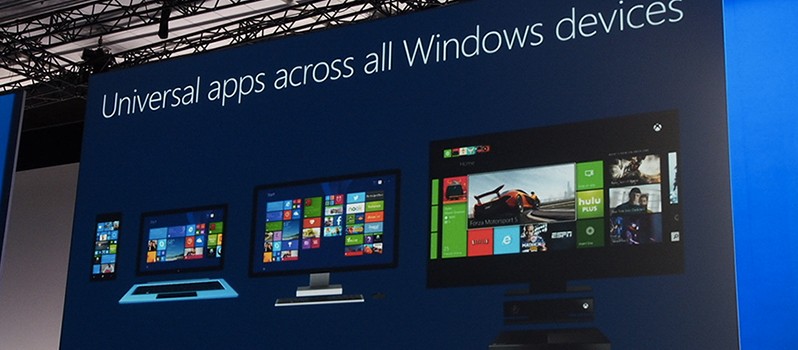
Windows 10 news recap: Redstone pen support, Windows Update, and more

Welcome back to our weekly Windows 10 news recap, in which we recap the top news stories regarding Windows 10 for the week. Let’s dive straight in.

Microsoft is working on a complete ‘update’ to File Explorer on Windows 10

Recently, it was revealed that Microsoft is working on a new File Explorer for Windows 10. Microsoft’s Peter Skillman revealed the news in a tweet, but no specific details were given.

Windows 10 PCs receive update KB3140741

Microsoft pushed a small update to Windows 10 PCs this morning. Dubbed KB3140741, the update goes by pretty quickly and doesn’t require a reboot.

Microsoft working on framerate lock issues for UWP games, fix coming later this year

Here’s what Microsoft had to say about this: “Some of the early feedback we’ve gotten from the first wave of UWP-enabled games is that people don’t like that v-sync is locked to the refresh rate of the monitor or that there’s a lack of support for Gsync and Freesync. We’ve taken that feedback, and we’re actively working on fixes that we’re testing with some of our first-party studios. We’ll be shipping these later this year.”

Windows 10 Redstone to offer better pen support for apps, according to reports

The next major update to Windows 10, Windows 10 Redstone, will reportedly bring better pen support for Universal Windows 10 applications. In fact, Microsoft will be bringing a better pen support control module, dubbed Radial Controller, which is much like the circular formatting menu once available in OneNote.

Microsoft releases Windows 10 Redstone build 14295

Microsoft rolled out a new Insider build for testers this past week, and you can check out what’s new and what’s fixed here.

Windows Update updated in latest internal Windows 10 Redstone builds

Internally, Microsoft is working on a number of features and changes coming to Redstone that are not currently present in the latest public preview builds. One feature Microsoft is working on improving is Windows Update, and in the latest internal builds of Redstone these improvements are now beginning to show up.

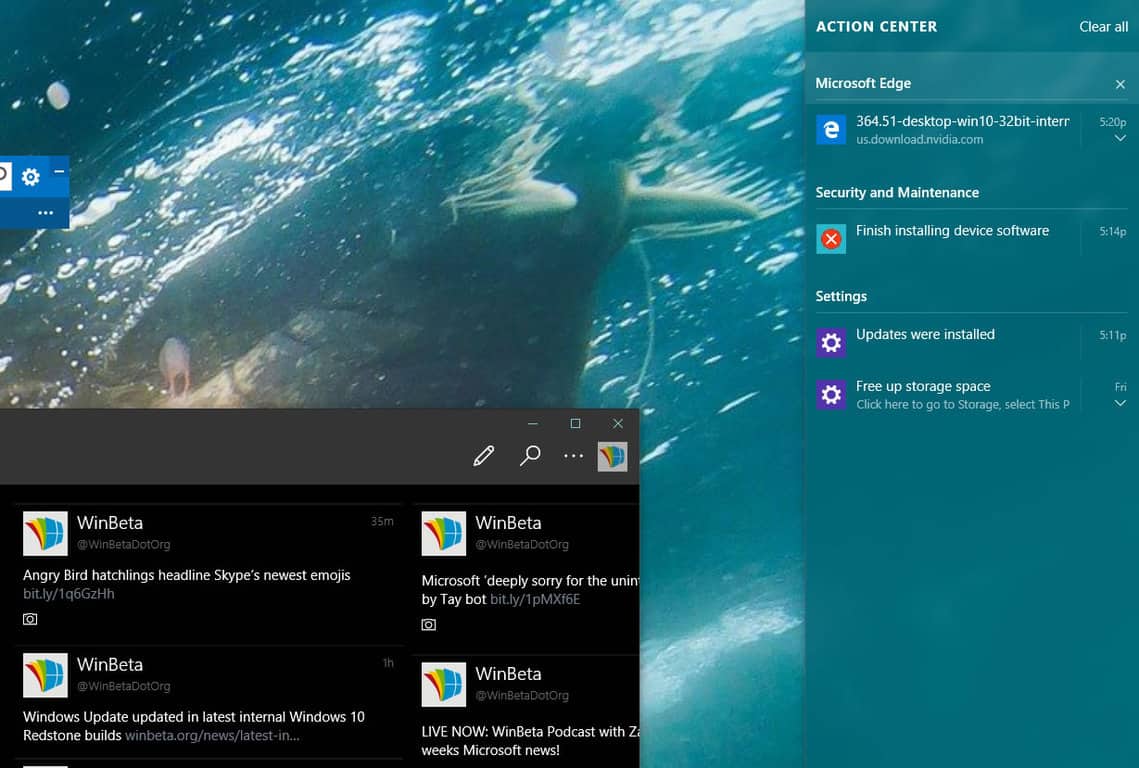
Edge download notifications now appear in the Action Center in latest Windows 10 Redstone build

A neat feature in the latest Redstone builds is the ability to see Microsoft Edge browser download complete notifications in the Action Center.

Stay tuned for another exciting week of Windows 10 news. Build 2016 takes place next week to expect lots of juicy news.

Windows 10 Mobile build 14295 comes to Lumia 635

Yesterday, Microsoft released the new Windows 10 Preview build 14295 for both Windows 10 and Windows 10 Mobile. And while all Windows 10 Mobile Preview-eligible devices received the new build, the Lumia 635 smartphone has yet to. Microsoft mentioned that the Lumia 635 would eventually get the new build, but wasn’t precise on neither the exact date of the updates nor a reason why the update for this device is late.

“In addition to devices that shipped with Windows 10 such as the Lumia 550, 650, 950, 950 XL, Xiaomi Mi4, and Alcatel OneTouch Fierce XL, we are releasing this build to the list of devices that will be capable of receiving updates as part of the Windows Insider Program except the Lumia 635. We will add the Lumia 635 at a later date.”

What’s happening with the Lumia 635?

When Microsoft released the official list of phones eligible for the Windows 10 Mobile upgrade, it excluded a lot of its older Lumia devices — mainly those phones with 512MB of RAM (although even some devices with 2GB of RAM didn’t make it). However, the Lumia 635 has 1GB of RAM, so there’s no contention about the fact that the Windows 10 Mobile upgrade is available for this device.

But a 512MB variant of Lumia 635, only available in Brazil, also received the upgrade. This makes it the only Lumia device with 512MB of RAM that received the upgrade. And now, Microsoft delayed the release of the new Windows 10 Preview build for this device. So, the Lumia 635 is definitely a device drawing a lot attention these days, and we’re not sure about Microsoft’s future plans regarding it.

If Microsoft makes any announcement about the Lumia 635 in the coming days or weeks, we’ll make sure to let you know what’s going on. Until then, if you’re an owner of Lumia 635, tell us in the comment section below about your experiences with the upgrade to Windows 10 Mobile.

Quantum Break’s episode pack download tips the scales at 120GB

In case you haven’t heard, Remedy’s upcoming action-adventure third-person shooter Quantum Break has a TV series of its own, a fact that isn’t surprising considering the game has some pretty big star power. However, as ICXM reports, the game’s episode packs will take up a cool 75GB of storage space. An external hard drive will definitely come in handy in case you want to store this kind of content.

If you don’t want to download the episodes, it’ll be possible to stream the episodes as well, possible after every major chapter in the game. The video content runs at an hour long each, with choices made within the game affecting the result of different scenarios.

quantum break episode pack windows 10

Combined with the game’s install size of 45GB, players will need 120GB of space to properly store everything Quantum Break will have to offer. Taking into account that a 500GB Xbox One has approximately 362GB free out the box, then streaming episodes is probably the choice most will need to make.

By merging both a live action TV show and gameplay, Microsoft wants to ensure it gets enough attention for both the game and for the Windows Store. Blizzard is another big company exploring other entertainment channels as they ramp up for the release of the Warcraft movie and produce animated shortss for its upcoming Overwatch multiplayer shooter.

Quantum Break will be available on April 5. If you pre-order the game for the Xbox One, you will get the Windows 10 port for free. Be aware that the actual physical disc won’t have the episodes on it, though.

If you missed its launch trailer, take a look at it below:

Get hyped: We’ll be live at Build 2016 as Microsoft plans “something awesome”

Hey everyone, Build 2016 is almost upon us. For those wondering, Build is Microsoft’s big developer conference that takes place March 30th to April 1st. Lots of excitement is in the air for Build 2016, as we all anticipate what Microsoft has in store for its developers. Build is a big deal — it sold out within minutes when Microsoft opened up registration. So what can you expect?

A live stream will be available on March 30th. We have put together a dedicated Build 2016 page on WinBeta.org which showcases the live stream, as well as a comments section so you can voice your opinion as the event unfolds. You can reach the dedicated Build 2016 stream/comments page here and the Build 2016 news story archives here.

We’ll be in San Francisco for the event and will be walking around meeting people, attending the Build keynotes and sessions, and snapping photographs. Build 2016 is already shaping up to be quite awesome for app developers — with a session that goes over two “highly-requested surprises” for Live Tiles and a session that promises to be “something awesome.” Some new Windows 10 features are expected to be explored during the event and are expected to “freak you out” in a good way. There is another session that goes over Universal Windows Platform development for the Xbox, which is quite interesting!

Stay tuned, this week promises to be quite important in the world of Microsoft and Windows developers. Let’s see if it lives up to the hype. As always, keep an eye on WinBeta.org for all your Microsoft news.

HTC One M8 ineligible for Windows 10 Upgrade; HTC says otherwise

Last week, Microsoft released the official version of the Windows 10 Mobile operating system. But a lot of users were left unsatisfied because the upgrade is available on small number devices than was originally expected, launching an avalanche of negative reaction.

Microsoft’s official list of devices compatible with the Windows 10 Mobile upgrade Only features devices with at least 1GB of RAM memory, making devices with 512MB of RAM ineligible despite the fact that many Insiders claim that Windows 10 Mobile could work on devices with a lower amount of RAM without problems. That’s not all: some devices that are actually eligible for the upgrade when considering their specifications are not going to receive Windows 10 Mobile, either. One of these devices is HTC One M8 for Windows, a device that features 2GB of RAM — an amount of RAM that makes the HTC One M8 more powerful than most devices on Microsoft’s list.

Microsoft hasn’t specified why this phone won’t receive the upgrade, but the HTC One M8 is hardly the only device not receiving the upgrade despite proper specifications: Microsoft’s own Lumia 1020 also features 2GB of RAM and is suffering the same fate. Microsoft explained the reason for Lumia 1020’s ineligibility was due to user feedback claiming Microsoft’s OS didn’t perform well on this device — perhaps the reason why the HTC One M8 isn’t getting the update, either.

A glimmer of hope for owners of HTC One M8 does exist, though: HTC has stated on its forum that the upgrade for this device is indeed pending and that the company has plans to upgrade it eventually. Only time will tell if this is true.

htc m8 windows 10

What do you think: are HTC’s claims true? Will it upgrade the HTC One M8 to Windows 10 Mobile eventually? Tell us in the comment section below!

Windows 10 Mobile comes to Blu Win Jr LTE X130e and LTE X150e

Windows 10 Mobile has been here for more than a week, as well as the initial list of devices eligible for the upgrade. But even if Microsoft already confirmed that Windows Phone devices with less than 1GB won’t be eligible, some manufacturers have yet to confirm the arrival of Windows 10 Mobile on their phones.

Microsoft made an exception for its Lumia 635 in Brazil and now the company is working with BLU to deliver the Windows 10 Mobile upgrade to the Blu Win HD LTE, as well as the European version of the Blu Win JR LTE and the TrekStor WinPhone 4.7 HD.

Microsoft is changing its policy in certain countries

As we already mentioned, Microsoft delivered the Windows 10 Mobile upgrade to Lumia 635 in Brazil being that there’s no 1GB version of this phone in Brazil. A similar case is with BLU. If you take a look at the picture below, you’ll notice that the upgrade for BLU’s Blu Win Jr LTE X130e and Blu Win Jr LTE X150e is pending, meaning that these two devices have been confirmed and will eventually get the upgrade once it’s ready — despite the fact these two devices are not on Microsoft’s initial list of devices eligible for the Windows 10 upgrade.

blu windows 10 mobile devices

However, BLU’s Win Jr LTE X130q and Win Jr definitely won’t get the upgrade since both of these devices feature 512MB of RAM — no concessions made for these two.

We don’t know exactly when BLU will push the upgrade to confirmed devices, but if you’re using some of these phones, you can occasionally check for updates in Settings>Updates.

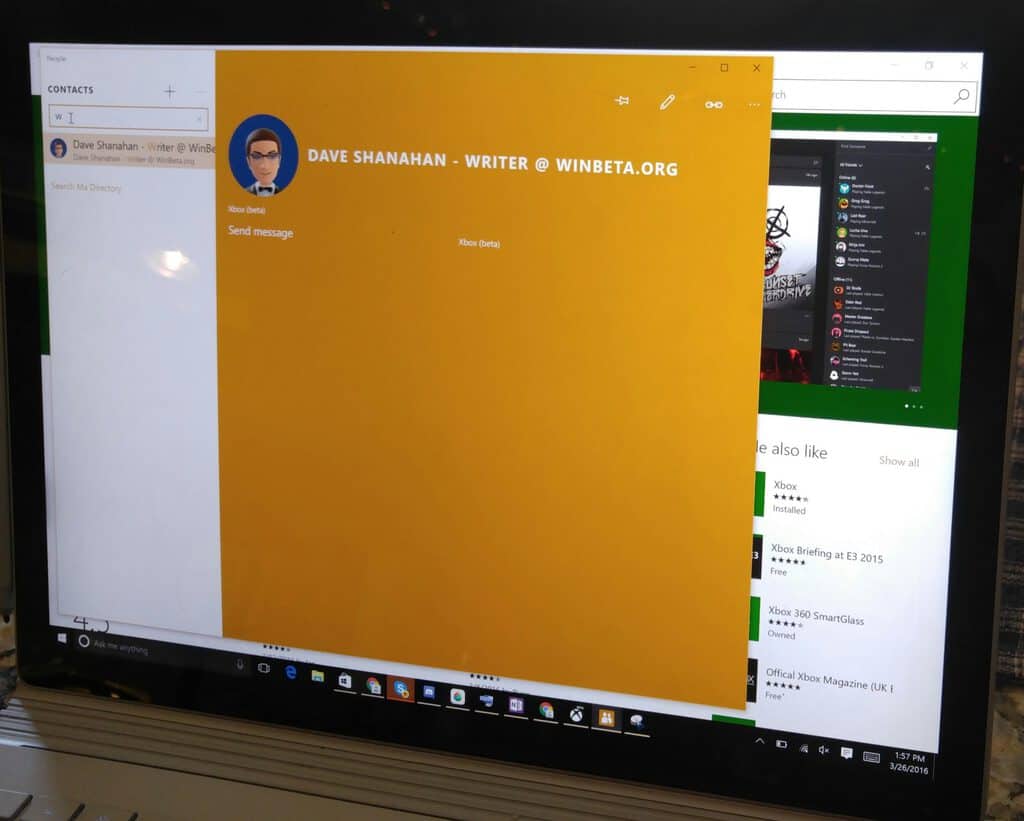
You can link your Xbox contacts to the People app in Windows 10 Redstone

If you’ve been on WinBeta for more than a few moments for the past few weeks, you’ll have seen us mention Redstone a few times. The big update to Windows 10 has been eagerly anticipated for some time now, and we’ve recently been running into tons of leaks about what it’s going to include. Most recently, we’ve gotten word that Redstone is allowing us to link up our Xbox contacts with the rest of our contacts – providing us with a more cohesive experience when trying to reach our friends.

Assuming your friend has made available to you their real name on Xbox, Windows 10 will make sure that their Xbox account is listed with their e-mail address and phone number as a valid way of contacting them. This advancement in the way that Xbox integrates with Windows 10 is a solid step forward and makes it a bit easier for people to be social using Xbox Live.

xboxbeta
Xbox app filter contacts

While Redstone will likely be where we see this feature fully and properly integrated into Windows 10, you can actually give it a peek right now. If you go about getting the Xbox (beta) app on the Windows store, you’ll be able to choose the option that shows your Xbox contacts to you through the People app. The People app will use whatever your Xbox friend’s avatar is for their contact icon, and lays out everything that the app has on file for that person. While the feature isn’t completely ready to go yet (on account of it being locked away in the Xbox (beta) app while they work out the kinks) it’s steadily being worked on, and the basic idea behind it has proven itself to be rock solid and ready to go.

This guy created a simple tool that stops the Windows 10 upgrade nag

Late last year, Microsoft was downloading Windows 10 into upgrade-eligible Windows PCs, regardless of whether users opted-in to the free upgrade or not. A few months later, Microsoft began listing the update on Windows Update as “Recommended” instead of “Optional.” While many of you have already upgraded to Windows 10, some of you may feel irritated at the pressure Microsoft is placing on you to upgrade to the latest Windows operating system.

Steve Gibson has created a small tool called “Never10” that does not install any software of its own, rather, it easily disables the Windows 10 upgrade nagging on Windows 7 or Windows 8.1 devices. While his reasoning for the tool are a bit paranoid and not necessarily true, those of you looking for something simple to disable the Windows 10 upgrade nagging will find this tool useful.

The name “Never 10” is a bit of an overstatement, since this utility may also be used to easily re-enable Windows operating system automatic upgrading. But the primary reason for using this is to, at least initially, disable Windows’ insistence upon upgrading Windows 7 or 8.1 to Windows 10.

Many users of Windows 7 and 8.1 are happy with their current version of Windows and have no wish to upgrade to Windows 10. There are many reasons for this, but among them is the fact that Windows 10 has become quite controversial due to Microsoft’s evolution of their Windows operating system platform into a service which, among other things, aggressively monitors and reports on its users activities. This alone makes many users uncomfortable enough to cause them to choose to wait. Additionally, a few months into 2016, Windows 10 started displaying unsolicited advertisements on its users desktops.

Never10 simply configures the system to prevent or allow Windows 10 upgrading. Once you run the tool, you can delete the tool from your system. “Using this utility, inexperienced users will be able to easily use Never10 themselves, while advanced users will likely appreciate that fact that no additional software is installed and will be able to refer friends and family, whom they support, to this easy-to-use utility,” Gibson explains.

Grab the tool from this link. Share your thoughts in the comments below.

Microsoft teases two “highly-requested surprises” for Live Tiles on Windows 10

Microsoft’s Build 2016 conference is just around the corner, and we’re hoping to have an interesting event next week. Recently, Microsoft released the complete schedule of the sessions which will take place at the conference, and there are some interesting things the company has planned for the event.

One of the events which will take place at Build 2016 hints at some changes to Live Tiles, a popular feature in Windows 8 and the latest Windows 10 as well. The keynote titled “What’s New for Tiles and Toast Notifications” will be held on April 1st. The Live Tiles are expected to get “two highly-requested surprises” which may launch as new features app developers can take advantage of when creating their apps.

Here’s what the description of the event states,

Notifications are an essential tool for engaging with your customers on Windows. We are building on the foundation of Action Center to give developers greatly increased flexibility in Adaptive Toasts. We will introduce a powerful API that enables a new class of apps to plug into the Notification pipeline and provide innovative experiences for users. Live Tiles are evolving with two highly-requested surprises that you won’t want to miss.

There’s no other information about how the company plans to “evolve” the Live Tiles and what new surprises it will bring. But, there are quite a few possibilities, with the most notable one being the interactive Live Tiles, which offer users with an easier way to respond to notifications within the apps. They can turn out to be handy, but we’ll have to wait for a few more days to know more about the surprises the Redmond-based giant has planned for Windows 10 users.

We’ll be live at Build 2016 in San Francisco next week to make sure you get all the news and updates announced at the conference. Make sure you to subscribe to WinBeta to get the detailed coverage from Build 2016. You can check the complete list of sessions which will take place at Build 2016 here.

Office 365 updated with new features you definitely need to check out

As you’re reading this, Microsoft is working on an Admin universal app for Office 365, proving once again its devotion to Office 365 and its users. But even though all this development going on, some major features were added to Office 365 over the past few week.s

Quick look at recently added Office 365 features

The first new feature on Office 365 is the Evernote to OneNote migration tool. With Evernote requiring paid membership for some of its features, many users are choosing OneNote as a free alternative. Switching from Evernote to OneNote isn’t always simple, though, but now you can easily transfer notes from Evernote to OneNote using the aforementioned tool — and even search the handwritten notes contained within added images.

Another improved tool is the PowerPoint Designer. This tool now has the ability to show you design recommendations for multiple images you insert into a PowerPoint slide. If you have a hard time picking colors for your theme, the newly added Color Extractor feature can scan added images and apply the predominant color to the overall theme for you. In addition, the Face Recognition feature is designed to recognize images with faces in them and cropping them while keeping the faces in focus.

Office 365 Project Portfolio Dashboard is another newly added tool aimed at project managers. Using the Project Portfolio Dashboard, project managers can keep track of project performance, costs, key milestones, and potential issues from any device.

Recent, Skype for Business update brought it to 17 additional countries, raising the number of supported countries to 32. Microsoft is showing no plans of slowing down and we expect to see Skype for Business available in additional countries later this year.

Localization is the key to making the Office experience more comfortable, with Microsoft adding support for new languages in Office for Mac and Skype Translator. Arabic and Hebrew have joined the list of supported languages for Skype Translator, increasing the number of supported written languages to 50.

Judging by the number of new features Microsoft added in this short time period, we can say Microsoft is completely devoted to developing Office 365. These are some excellent features and we’re positive we’ll see more Office 365 improvements in near future.

Newest Windows 10 Preview build 14295 comes to PC and Mobile Insiders

Microsoft just released its newest build for Windows 10. Titled 14295, it’s unlike previous builds in that it’s available for both Windows 10 PCs and Windows 10 Mobile devices from day one. As usual, it users in the Fast Ring are the first to enjoy the update.

Just like in the previous build 14291, this build is also available to those select devices eligible to receive Redstone builds through Windows 10 Mobile Preview. So, owners of devices that originally shipped with Windows 10 (Lumia 550, 650, 950, 950 XL, Xiaomi Mi4, and Alcatel OneTouch Fierce XL) and owners of devices that just received the Windows 10 upgrade (check the list here) will be able to install the new build.

As build 14295 is only a few days newer than build 14291, it doesn’t bring any new features as Microsoft is still working on them. We should expect to see new additions in future builds, though. However, what the new build does fix are the myriad of issues from the previous one — unfortunately bringing some of its own in the process.
Windows 10 Preview build 14295 fixes and issues

The new build (which isn’t build 14294, as we were hoping it would be) brings fixes for some reported issues like freezing when the Xbox 360 Controller is plugged in alongside some driver improvements. The list of issues it causes is also pretty big, so we expect this build to be troublesome to some users, as well.

Here’s what’s fixed for PC:

  • We fixed the issue that was causing PCs to freeze when plugging in an Xbox One or Xbox 360 controller and other gamepads.
  • We fixed an issue where Microsoft Edge would refresh the tab if you pressed caps lock in a password field.
  • We fixed an issue preventing the Xbox app and other Xbox Live enabled apps and games from signing in.
  • We have fixed the driver bug that prevents Kaspersky Anti-Virus, Internet Security, or the Kaspersky Total Security Suite installed from working as expected in builds from the Development Branch.

Here’s what’s fixed for Windows 10 Mobile:

  • We fixed the issue where if you reset your phone on Build 14291 and restore your phone from a backup, restore will fail to install apps from your backup’s apps list leaving blank grey titles on Start. You should be able to reset your phone on this build, do a restore from a backup, and have your apps installed and restored appropriately.
  • We fixed an issue where new languages and keyboards were not downloading. However, there is an issue where the “reboot” UX doesn’t appear in the Settings app after downloading a new language or keyboard. You will need to go to Update & security > Phone update and restart your phone manually from there for the new language and keyboard to go into effect.

Known issues for PC:

  • We are aware of issues with Narrator and other screen reader apps being unable to read the menu options in the Feedback Hub, as well as issues with Narrator not reading selected text in the Feedback Hub, Cortana, and other apps. We’re working diligently to fix these bugs as soon as possible and apologize to Insiders impacted by this.
  • If you use Hyper-V and have a Virtual Switch configured for your network adapter, you may see an error indicator (red-colored “X”) for your network adapter in the notification area of your taskbar. The error indicator is incorrect and your network adapter should continue to work just fine.
  • On some PCs with TPM chips, such as the ASUS Zenbook UX31, you may experience glitchy audio and jumpy movement when using the trackpad due to the “tpm-maintenance” task running constantly in the background instead of once per boot-up like it should. As a temporary workaround, you can disable the tpm-maintenance task in Task Scheduler (under \microsoft\windows\tpm).
  • PCs that use Windows Hello or a PIN to sign-in to the device will launch the Microsoft Passport service. When this happens, there is an issue in this build where Bluetooth will then repeatedly scan for devices. This causes a few issues on the PC including reduced battery life, audio glitches, responsiveness issues with Bluetooth keyboards and mice, a decrease in Wi-Fi throughput on Wi-Fi/Bluetooth combo chipsets, and a decrease in throughput for Bluetooth file transfers. As a workaround, you can disable the Microsoft Passport (NgcSvc) service by opening an elevated Command Prompt, run “reg add HKLM\System\CurrentControlSet\Services\NgcSvc /v Start /t REG_DWORD /d 0x4 /f” and then reboot. However, you will not be able to use Windows Hello or a PIN to sign-in to your device. The service will be re-enabled again when you update to the next build.
  • After upgrading to this build from Build 14291, attempting to connect to a Miracast receiver the connection will fail. The workaround to get out of this state is to go to this registry key “HKEY_LOCAL_MACHINE\SYSTEM\CurrentControlSet\Services\SharedAccess\
    Parameters” and select “StandaloneDhcpAddress” and change the value from “192.168.173.1” to “192.168.137.1” (value type is REG_SZ). Then retry the connection to the Miracast receiver.
  • We are seeing reports of some apps such as QQ crashing. We are currently investigating, and this bug may also impact older apps such as Windows Live Mail and Expression Encoder 4.

Known issues for Mobile

  • After updating to the most recent builds from our Development Branch, a system API failure occurs after the update that causes the Microsoft Band 1 or 2 to have sync issues. To get out of this bad state, you can reset your phone on this build, re-pair your Microsoft Band, and syncing should work again.
  • After upgrading to this build from a previous build from our Development Branch, attempting to connect to a Miracast receiver the connection will fail. There is no workaround for this issue unfortunately on Mobile.
  • The Gadgets app will not detect the Microsoft Display Dock on phones running Windows 10 Mobile Insider Preview builds, and thus cannot update the firmware version. If you have a dock which has already been updated to version 4 then this will not affect you. If you have a dock that has not been updated, then you may experience some minor issues with USB-C stability. You will still be able to use your dock and Continuum.”

As a part of our regular schedule, we’re going to write an article about reported issues from this build to inform you about what you should expect upon installing it. If you encounter any problems, feel free to let us know in the comments.

Edge download notifications now appear in the Action Center in latest Windows 10 Redstone build

Earlier today, Microsoft released a new Windows 10 Redstone build to eager participants of the Windows Insider Program. Build 14295 offers several bug fixes over the previous Insider Preview build, but it also offers some new refinements discovered by keen-eyed testers.

For example, earlier today, we learned that this particular build sees Cortana interacting with other devices when a call, text, or app notification is missed or a device’s battery is getting low. Another neat feature is the ability to see Microsoft Edge browser download complete notifications in the Action Center.

All you have to do is download something and watch as the Action Center delivers a toast notification letting you know your download was completed. You can then see what was downloaded in the Action Center. A neat little feature that is sure to be appreciated.

edgenotifications
Edge download notification

Thanks for the tip, Fawzi!

Windows 10 Mobile build 14291 comes to older Windows Insider phones

Microsoft just released a new build, labelled 14291, for Windows 10 Mobile Preview and it’s available on all devices eligible for receiving Windows 10 Mobile Preview builds. Additionally, the build number matches the PC version’s.

Until Microsoft released the full version of Windows 10 Mobile, only devices that originally shipped with this OS (Lumia 550, 650, 950, 950 XL, Alcatel OneTouch Fierce XL, and Xiaomi Mi4) were able to receive Redstone builds for Windows 10 Mobile Preview. But upon releasing Windows 10 Mobile, Microsoft promised that all devices with the OS installed on would be able to receive future Redstone builds, with the company keeping its promise today.

However, Microsoft mentioned that Lumia 635 devices and their owners would be left out in the cold for the time being as the plan is to push it out to them in the near future. We’re not certain why the company is excluding the Lumia 635 from the initial rollout, but this device surely brings the most confusion out of all the Windows 10 Mobile-ready devices.

A couple of days ago, we reported that the 512MB variant of the Lumia 635 is also eligible for the Windows 10 Mobile upgrade but only in Brazil, making it the only 512MB device that is ready for the upgrade at all.

“Today we are releasing this build to the list of devices that will be capable of receiving updates as part of the Windows Insider Program except the Lumia 635. We will add the Lumia 635 at a later date. Going forward – these devices can receive new builds from our Development Branch that we release to the Fast and Slow rings. As we stated previously, only devices which are eligible to receive the Windows 10 Mobile upgrade will be able to get preview builds from the Development Branch.”

Build 14291 for Windows 10 Mobile Preview brings some new features along with standard improvements. Insiders who install this build will enjoy a revamped version of Maps along with a new Alarms & Clock app.

To make sure your device is eligible for the Windows 10 Mobile upgrade and for future Redstone builds, check out the list of supported devices below:

  • Alcatel OneTouch Fierce XL
  • BLU Win HD W510U
  • BLU Win HD LTE X150Q
  • Lumia 430
  • Lumia 435
  • Lumia 532
  • Lumia 535
  • Lumia 540
  • Lumia 550
  • Lumia 635 (1GB)
  • Lumia 636 (1GB)
  • Lumia 638 (1GB)
  • Lumia 640
  • Lumia 640 XL
  • Lumia 650
  • Lumia 730
  • Lumia 735
  • Lumia 830
  • Lumia 930
  • Lumia 950
  • Lumia 950 XL
  • Lumia 1520
  • MCJ Madosma Q501
  • Xiaomi Mi4

In case you’ve encountered any problems with build 14291 on your Windows 10 Mobile device, let us know in the comments below and we’ll try to find a solution for you or at least inform other users about possible issues.

Microsoft ‘deeply sorry for the unintended offensive tweets’ by Tay bot

Microsoft’s artificial chatbot Tay has been put to bed, following a recent attempt by the communications bot to emulate its surroundings that eventually devolved into a series of questionable and offensive tweets.

While Tay’s experience with humanity via Twitter may have been relatively short, it has provided Microsoft some insight into what influenced the chatbot’s responses as well as how the company can readjust parameters to better deal with the more ‘savory’ individuals that inhabit the internet.

The logical place for us to engage with a massive group of users was Twitter. Unfortunately, in the first 24 hours of coming online, a coordinated attack by a subset of people exploited a vulnerability in Tay. Although we had prepared for many types of abuses of the system, we had made a critical oversight for this specific attack. As a result, Tay tweeted wildly inappropriate and reprehensible words and images. We take full responsibility for not seeing this possibility ahead of time. We will take this lesson forward as well as those from our experiences in China, Japan and the U.S. Right now; we are hard at work addressing the specific vulnerability that was exposed by the attack on Tay.”

Conversely, Microsoft’s other, less publicized AI chatbot Xiaolce has and is currently used by 40 million people in China to tell stories and hold casual conversations for some time now with little to no offensive marks against it. The Xiaolce experience in China is what led Microsoft to try out a chatbot in an apparently radically different environment such as the U.S and through Twitter.

Knowing now, what went wrong, Microsoft is going to retool Tay’s AI design to limit technical exploits without restricting the AI’s ability to learn from mistakes. Also, the company plans to enter public forums such as Twitter, with greater caution than it did this past two days.

Looking ahead, we face some difficult – and yet exciting – research challenges in AI design. AI systems feed off of both positive and negative interactions with people. In that sense, the challenges are just as much social as they are technical. We will do everything possible to limit technical exploits but also know we cannot fully predict all possible human interactive misuses without learning from mistakes. To do AI right, one needs to iterate with many people and often in public forums. We must enter each one with great caution and ultimately learn and improve, step by step, and to do this without offending people in the process.”

Thankfully, it looks as though Tay will return, but with a stern scolding and point in the right direction from its parents the AI bot will do a lot better on its second go-around.

Microsoft’s first “Featured Sway” covers LEGO Artist Nathan Sawaya

Microsoft Sway is an alternative to PowerPoint for creating effective presentations. The Office 365 tool makes it relatively easy to incorporate photos, video, social media, and other resources into multimedia presentations that can be easily hosted online. In order to help promote Sway’s ability to communicate information in a creative way, Microsoft has begun a new series that will feature Sways created for a variety of purposes.

The first featured Sway covers LEGO artist Nathan Sawaya and how LEGO bricks can be used as a form of artistic expression: 

According to Microsoft:

We felt it fitting to partner with Nathan for our first featured story because his work embraces several of our team principles, such as working with new mediums and helping people tap into their creativity. We also wanted to exhibit how Sway is best-in-class at bringing together the different elements of his craft—through photos, videos, text and animations—into a cohesive narrative that hopefully brings justice to his story and his art.

Check out the first featured Sway for both an interesting look at Sawaya as well as a demonstration of how Sway can be used to creative present a variety of different kinds of information. Head over to Sway.com to start making your own.

Microsoft introduces Office 365 Connectors — what exactly is it?

While Microsoft has arguably abandoned much of its Hub-influenced interactions it brought with the introduction of Windows Phone 7 and Windows 8, the company appears to be doubling down on the idea of centralized information when it comes to Office 365. As Microsoft continues to grow Office 365 into a platform rather than an enclave of productivity apps, the company is expanding the individual as well as the collective capabilities of the apps with Office 365 Connectors.

In November 2015, the Office team released Office 365 Connectors in limited preview to customers. With a few months of fine tuning, customer feedback and testing under their belts, the Office team is now ready to offer all Office 365 customers access to Connectors.

What exactly are Office 365 Connectors?

In layman’s terms, Connectors represent a set of app API’s that allow Office 365 users to bring in information from their favorite or necessary sources such as Twitter, GitHub, SalesForce, MailChimp, Trello or Bing. Office 365 Connectors is no single end point but a collection of source material that can be embedded in the Office 365 experience, allowing users to keep track of notifications, replies and alerts from outside sources without ever having to leave Office 365.

To some extent, Outlook.com offers a Cliff’s Notes version of this functionality, but Office 365 Connectors appears to be a greater push into getting more partners and more “Connectors” to customers.

Over 50 Office 365 Connectors are available today, spanning popular applications across productivity, news sources, HR systems, sales, project management, marketing automation, entertainment, eLearning, developer tools and many more. Some examples include MailChimp, Asana, GitHub, Stack Overflow, Aha, Zendesk, Salesforce, Twitter and UserVoice. We are also working with many other partners to enable additional connectors that will be made available soon.

In addition to the current Groups inbox integration, we plan to bring Office 365 Connectors to the Outlook inbox for individual users to leverage and over time to other experiences across Office 365.”

Office 365 Connectors is currently available for First Release Office customers with a later roll-out planned for the general public. For more on the exact number of  Connectors available, or how to get a hold of the new offering, head over to Microsoft’s Support Page for Connect apps to your groups.

Microsoft finally begins shipments of Surface Hub

Microsoft’s Surface Hub is one of the more interesting products that the company introduced in 2015 as a member of the Surface line of Windows 10 products. The Surface Hub is Microsoft’s large-screen solution aimed at enabling advanced collaboration solutions, utilizing a giant touchscreen, array microphones, dual cameras, and special software functionality to enable groups to share and interact with information in conference rooms and across distances.

As a very different product with a number of manufacturing concerns to overcome, the Surface Hub has been delayed a few times in making it to market. Pricing has also been an issue, as the product’s cost has steadily increased. Today, however, Microsoft announced on the Microsoft Devices blog that the Surface Hub is, at long last, beginning to ship to its business customers.

Surface Hub in use in aviation.

Here’s the Surface Hub’s take on the significant of the product to business users:

We are not just releasing a powerful device. We are releasing a team-empowering solution that will make meetings more productive, modernize workflows, and let people engage with data much better. We designed Surface Hub from the ground up for ink and touch, and harnessed the best collaboration and security features of Windows 10, Skype for Business, Office, OneNote and Universal Windows apps. We’ve seen how businesses and disciplines like healthcare, manufacturing, automotive, consulting, defense, finance, education, and design can bring Surface Hub into workspaces to bring a new level of innovation and efficiency to their teams. They can reduce costs and improve effectiveness, compared to legacy AV and presentation technology.

In short, we’ve seen the future of group productivity as we have built this with our partners and customers. We couldn’t be more excited about the future with this new category of product. We also can’t thank our customers and partners enough for their inspiration and contributions in making this product with us.

Along with the announcement, Microsoft highlighted some upcoming use cases in the blog post. For example, the Children’s Hospital of Philadelphia has a Qwaltec-developed solution that turns the Surface Hub into a control center for the medical staff, replacing old-school whiteboards to improve communications, increase collaboration, and generally help the hospital save time and money while improving care.

Surface Hub in use in healthcare.

In addition, the Surface Hub has already demonstrated its cost-effectiveness. According to a Total Economic Impact study that Forrester Consulting conducted on Microsoft’s behalf, early Surface Hub adopters save more the $850,000 (3 year net present value, which includes up-front investments, annual costs, and benefits to help decide if an investment is a good one). These benefits came from improved sales, printing and device purchase savings, and savings in device deployment and management costs.

That’s a good thing, of course, given the Surface Hub’s initial purchase price of $8,999 for the 55-inch version and $21,999 for the 84-inch version. The number of applications that can run well on the Surface Hub is also growing, making the product increasingly attractive for organizations that need to communicate and collaborate more effectively.

The Windows 10 ecosystem is becoming an exciting one, with the unified OS running on everything from the smallest IoT devices up through the Surface, Surface Pro, and Surface book lines, to the Xbox One, and now the huge Surface Hub. All that’s needed to flesh out Microsoft’s line of devices is a Surface Phone, which will hopefully arrive sometime later this year or early in 2017.

Stay tuned to WinBeta for more on Microsoft’s devices. Let us know in the comments what you think about the company’s efforts to build out their own Windows 10 product line.

Microsoft partners with Special Olympics as a part of the Windows 10 #UpgradeYourWorld initiative

Microsoft teamed up with the Special Olympics to celebrate the inclusion of people with intellectual and physical disabilities in competition as part of Windows 10’s #UpgradeYourWorld initiative. From March 17-18, members of the Special Olympics Unified Sports teams, which include athletes with and without disabilities, invited the public to participate in pickup games of “Streetball” soccer games on projected fields in Los Angeles, CA, at Venice Beach and in Microsoft Square at LA Live.

Over 150 athletes and their families, as well as public participants, took part in the event, and Microsoft was able to capture the memories through a FoxTales StoryStudio powered by Windows 10 to share their photos on Facebook, Instagram, and Twitter.

Special Olympics Unified Sports
Special Olympics Unified Sports.

Microsoft and the Special Olympics are teaming up for another event, “Upgrade Your Game,” that will take place tomorrow, March 26, 2016, at 4:00 PM in Seattle, WA. The Upgrade your Game training camp will allow athletes of all ages and abilities to practice their soccer and football skills with Special Olympics coaches, Seattle Sounders FC alumni, and football players from Everett Reign (tickets available here). All proceeds from the event will go to the Special Olympics.

Since 2014, Microsoft has been collaborating with the Special Olympics to help athletes train harder and more efficiently by tracking their performance and helping them strive to do better through Microsoft Health and the Microsoft Band. As the Official Technology Partner for the Special Olympics, Microsoft provided over 2,000 devices as well as support for their Games Management System (GMS) at the 2015 Summer World Games in Los Angeles.

For the first time, Microsoft used GMS to track athletes’ personal bests in real time at a major to track athletes’ personal bests in real time for the first time at a major sports event. With the power of Windows 10, Microsoft and the Special Olympics worked together to use technology to attempt to change the world through the power of sports.

Twitter app ‘Aeries’ for Windows 10 now lets you save videos and GIFs

If there’s one social media platform where Windows users have no lack for apps, it’s Twitter. The official offering is a pretty decent experience that’s been fully updated for Windows 10, but as with tradition regarding our underdog OS, it’s third-party apps from independent developers that shines. One of the best of them, Aeries, from developer Brad Stevenson, has received two cool new features with the latest update, reports Windows Central.

The update, pushing the version number to 2.2.0.42.0, introduces the ability for users to save GIFs and Videos from their timeline. One of the biggest allures of Twitter is the spontaneous videos and creative GIFs that captures just the right feelings of the moment, and with Aeries, you now get to keep them all if you want.

The second new feature is Dynamic Themes. Aeries features themes, with one caveat: the app has to be closed and reopened every time the theme is changed. With the new update and Dynamic Themes, that is no longer the case.

DesktopPromo-aeries

Besides the two new features, the update also brings several stability fixes. The full changelog is as follows:

  • Fixed a crash when trying to view the details of a deleted tweet.
  • Fixed interaction with video controls and restored close on tap/click.
  • Themes are now dynamic, not requiring a restart when switching – this also applies to when sunset mode is on.
  • Now easily save videos and GIFs.
  • Fixed an issue where initial sections for an account would have duplicate interactions sections.
  • Fixed an issue where autosuggest would not work on some devices.
  • Fixed a crash when pinning a user to home.
  • Fixed an issue with undoing retweets.

Aeries
Aeries
Developer:
Brad Stevenson
Price:
Free

Microsoft Stores to celebrate Quantum Break launch

In celebration of the official launch of Quantum Break on April 5, 2016, Microsoft Stores in the US and Canada will be holding special Quantum Break launch parties. The first 200 fans that wait in line to buy Quantum Break at participating Microsoft Stores will receive a limited-edition Quantum Break poster as a gift. Quantum Break will be available to play at 12:00 AM on April 5, 2016.

Here are the Microsoft Stores that will be holding Quantum Break launch events on April 4th:

  • Fashion Valley Mall (San Diego, CA)
  • Pacific Centre (Vancouver, Canada)
  • NorthPark Center (Dallas, TX)
  • Park Meadows Mall (Lone Tree, CO)
  • The Florida Mall (Orlando, FL)
  • Tysons Corner Center (Mclean, VA)
  • Westfield Century City (Los Angeles, CA)
  • Yorkdale Shopping Centre (Toronto, Canada)
  • Bellevue Square (Seattle, WA)
  • The Domain (Austin, TX)
  • Microsoft Flagship Store on Fifth Ave. and 53rd. St. (New York City, NY)

As a reminder, those who pre-order Quantum Break for Xbox One at Microsoft Stores, on Xbox.com, or other participating retailers, will also receive the Xbox 360 game, Alan Wake’s American Nightmare via Xbox One’s backwards compatibility and the full Quantum Break game on Windows 10 through the Windows Store. Additionally, if you pre-order Quantum Break before April 4 online through the Microsoft Store, you will receive a $10 Microsoft Store digital gift card.

A special post-launch event will be held at the Microsoft Flagship Store in Sydney Australia, for a chance to meet Shawn Ashmore, the star of Quantum Break, get his autograph, and take part in a fan Q&A event on April 7, 2016.

If you can’t take part in any of the events held at participating Microsoft Stores, you can check out Remedy Entertainment’s developer-hosted livestream event on Twitch. The Quantum Break launch events are sure to be a great time; look for more details on the launch events through the Microsoft Store’s Facebook page.

Pre-order Quantum Break on Xbox One ($59.99).

Watch Remedy Entertainment’s developer-hosted livestream event on Twitch.


Microsoft considers backing bids for Yahoo buyout

Microsoft executives have been meeting with private equity firms to potentially offer financial help in buying Yahoo, according to sources cited by ReCode. Yahoo, of course, is in serious trouble, and although CEO Marissa Mayer continues to battle to turn the once-dominant internet portal around, with the Board of Directors actively “exploring additional strategic alternatives” to a turnaround plan, meaning putting the company up for sale.

For Microsoft, this would obviously pose some serious problems, as its deal with the company it once tried to buy to provide search engine results on Yahoo properties could potentially be in jeopardy with new buyers.

While no definitive commitments have been made, Microsoft is interested in ensuring that whoever does buy the company if it is indeed sold is a “good partner”, meaning that they’ll continue to honor the 2009 10 year search deal. Assisting in a deal could help Microsoft while costing them “almost nothing”, accoding to ReCode:

Preserving its current status is important to Microsoft, said sources, which is why it has been mulling the financing of possible Yahoo buyers, who will have to come up with billions of dollars in cash to be competitive. “If Microsoft put in a billion, it would cost them almost nothing,” said one investor who had spoken to the company. “It’s a minor thing and it buys them a lot.”

Microsoft is of course interested in prolonging the Yahoo-Bing search deal as long as possible, it’s helped to build up search share for Bing, although it hasn’t been particularly lucrative for either Yahoo or Microsoft.

According to the post, Microsoft has no interest in another try at buying Yahoo, but others, including AT&T, Verizon, and Comcast, and investment firms including Vista Equity Partners, TPG and KKR are all interested.

Microsoft could either see quite a boost by a Yahoo sale, or could even be kicked to the curb if new investors aren’t interested in the search deal, so it’s an important time for both companies. We’ll keep you posted as this all develops.


Microsoft details how typography affects user interface design

Earlier today, Microsoft posted on their blog about the importance of fonts for developers and their apps and their apps’ interfaces. The importance Microsoft puts on font is great to see, especially because while fonts are an important aspect of written or typed work, the digital space is where most new text resides, like within an app.

The first aspect of typography in any space, according to Microsoft, is to consider the kerning of a desired font. If you’re not a designer-by-trade and haven’t studied textual design, kerning is the spacing between letters in a word. Specifically, the kerning of a letter refers to the fact that there is spacing in between letters as well as a designated space around letters with open spaces under overhanging bits like a capital “T” or odd-capped letters like “i” and “j”. Kerning is also essential to utilize when using an “r” next to an “n” so the two don’t clutter together to be mistaken as an “m”.

Microsoft Typography Good Kearning

Similar to kerning is the character width of text. Fonts that are referred to as “monospace” have each letter taking up the same amount of width-space, while fonts that are known as “proportional” have varying character widths because each character doesn’t look like they take up the same space, and reasonably don’t in the text itself. Microsoft’s example showing the difference between the two types of fonts are Caslon and Courier New. Microsoft’s infographic of the two is included below for a clearer idea.

Microsoft Typography Proportional Monospace

Microsoft also highlights the likely more-often-considered aspect of font: leading. Not leading as in leading an army, but leading but like pencil lead and the element. Leading is easiest understood as line spacing, since they often are the same thing when laying out text on a page. Leading is important because, as any user that’s read very tightly-spaced lines of text, it’s not very pleasant compared to something that’s got good leading. Estimating based on Microsoft’s example, it might appear that Microsoft Word uses their example of “good leading” as the default line spacing as of 1.15 points.

Microsoft Typography Good Leading

Serif versus Sans-Serif fonts are also important to consider as a developer, especially given Microsoft’s own app guidelines. And for those who don’t recognize the term “Serif” or “Sans-serif”, a serif font is one with little edges hanging off each character, like Times New Roman. A sans-serif font would be something like Arial or Verdana. Microsoft, for example, utilizes a sans-serif font throughout their products and services such as their company blogs, Office, and even Windows 10. The choice of which to use is often based on what impact a developer wishes their text to have on readers, so there’s no clear answer for which to use.

Microsoft Typography Serif Sans-serif

When creating an app, developers inevitably have to choose a font to use, and picking can be tough. But Microsoft advises against it, saying to only choose up to two, and even one is typically perfectly fine. Too much variation in font style can be jarring and interrupt the user’s experience within the app. Each font family contains different variations on a bas font, like a bold, italic, capital, or other form of the font to keep the roots of the font flowing throughout the app’s text.

Microsoft continues to offer tips to developers of any skill level in its continued attempt to aid and simplify the experience of building for Windows as a platform. The unification of Microsoft’s design language is what makes Universal Windows Apps and the Universal Windows Platform huge offerings for developers looking to reach millions of devices and customers.

Monster Go! now available for Windows 10

Monster Go! is yet another hybrid RPG-endless runner game where you’re task is to guide your selected monster to victory. As a player, pick your monster from a set of 3 monsters, each having its unique set of skills. As you move on with the game, you get to upgrade the skill set of your monster and evolve it — there are more than 10 skills for each monster.

As soon as the monster evolves and becomes stronger, more skills and items are unlocked to beef them up so they can take on stronger enemies as they move on. You also earn earn points, coins and achievements as play along by killing enemies. The coins can later be used to customize the monster, and add from a choices of armour, weapon and accessories.

Here’s the complete list of features the game has to offer:

  • MONSTER CLASSES: Pick up your monster class, each class has unique characteristics & play style at its initial
  • REWARDS & ACHIEVEMENTS: Play and kill as many enemies as possible to earn points, coins and achievements along the way
  • CHOICES OF SKILLS: Upgrade both your active & passive skills with the points earned to make your monster unique with different abilities
  • 150++ ITEMS TO CUSTOMIZE: Get your monster dressed up with over 150++ choices of armour, weapon and accessories with the coins collected
  • MONSTER EVOLUTIONS: Once your monster become stronger, you’ll be able to evolve it to higher tier with more choices of skills and items available
  • VARIOUS STAGES & BOSSES: Adventure through 5 splashy stages and defeat 5 strongest Bosses, play through many dazzling enemy characters to unlock Endless Mode
  • STORY: Enjoy the story cutscene of Monster Heroes and how they fight their way to the dark lord.
  • ENDLESS MODE: Unlock your journey in endless mode and fight even more stronger foes with your stronger monster!

If you feel it’s the right game for you, head over to the Windows Store using the link below and grab the app. Let us know about your thoughts about the game.

Monster GO!
Monster GO!
Developer:
GAME TROOPERS
Price:
Free

Ridiculous Marathon is a fun endless runner for Windows 10

Endless runner games have gained a lot of popularity lately, especially after the likes of Temple Run and Subway Surfer — you just keep on running and running, there’s no end. They can be surprisingly addictive. One such game for Windows 10 users is Ridiculous Marathon. The name might be different, but the gameplay is the same. As a player, your task is to run and score as much points as you can by collecting coins and candies, avoiding obstacles and picking up amazing power ups on your way.

The official game description reads,

Help the pet to flee in order to avoid punishment, run while you are collecting coins and candies in the Amazon forest from Brazil. Run, jump, crouch, change lanes and dodge obstacles like fences, truckloads of wood, and travel through impressive caves and ancient indigenous villages on your route.

There are a handful of customizations to change the outfit of your pet who’s trying to runaway from the punishment. Additionally, there are several missions, daily and weekly challenges to get coins and mysterious boxes, as well as Xbox achievements.

Here’s the complete list of features the game has to offer:

  • AMAZING POWER-UPS: A surfboard with a jet-pack engine that makes you feel like an authentic surfer, wings for jumping twice and dodge all obstacles, awesome multiplier collectors… endless boosters to earn coins faster!
  • BECOME INVINCIBLE: Use pinatas to travel at the speed of light, an rid of all the obstacles. But watch out! Hit one and the pinata explodes in a cloud of confetti and sweets.
  • COUNTLESS MISSIONS: Beat all the records of your friends, and complete the daily and weekly challenges to get coins and mysterious boxes.
  • GORGEOUS CUSTOMIZATIONS: Several fancy dresses to pimp the pink gorilla pet. Try to dress the pinatas with different animals like donkey, bird and tiger. This is crazy!
  • Earn in-game XBOX achievements to prove your awesomeness.

Head over to the Windows 10 Store using the link below, and grab the game. Let us know what’s your highest score in the game — if you have it installed on your device.

Ridiculous Marathon
Ridiculous Marathon
Developer:
GAME TROOPERS
Price:
Free

MouseCraft now available on the Windows Store for Windows 10

If you were to merge elements of classic games like Tetris and Lemmings into one, you’d get a game similar to MouseCraft. This unique game was praised by fans and critics alike when it was released on Steam. Now, according to the latest reports, MouseCraft has made its way to Windows Store as well.

MouseCraft available for download on Windows Store

MouseCraft is a puzzle game in which you lead mice from point A to point B while avoiding various deadly hazards. The game is similar to the Lemmings series in that you have to carefully guide mice through every level so they can reach their destination safely.

In order to protect mice from hazards, you’ll have to use Tetromino blocks to create safe paths. There are several types of Tetromino blocks available, and while most of them resemble Tetris blocks and are used for building platforms, some of them can crumble or explode — ultimately creating paths for the mice.

mouscraft windows 10

Not only does MouseCraft offer a unique gaming experience, but it also offers a catchy soundtrack composed by Mikolai Stroinski, the man with credits that include The Witcher 3, Dark Souls 2, and The Vanishing of Ethan Carter.

This game definitely has a lot to offer in terms of video and audio quality, but what about gameplay? MouseCraft has levels in spades, with 80 unique levels providing you with 6-10 hours of gameplay. If you’re a fan of classic games in the vein of Tetris or Lemmings, MouseCraft will be perfect for you. MouseCraft is currently enjoying a 20% discount on the Windows Store and is available for download for any Windows 8.1 or Windows 10 device. After the discount period ends, the game’s price will shoot back up to $4.99.

Although MouseCraft was just released on the Windows Store, there are already plans to bring this game to Xbox One. After the game is released on Xbox One, it will synchronize with your saves on different platforms and give you access to achievements. Unfortunately, no information regarding the Xbox One release date is available.

Don’t miss the Xamarin party at next week’s Microsoft Build 2016

Presumably, Microsoft will have a lot to say about the recent acquisition of industry leading cross-platform software solution Xamarin during its developer conference next week. Whisper within the tech community believe Xamarin will play a pivotal role in enticing new and current developers to re-enthuse themselves with Microsoft’s Windows, Azure, Xbox, and Office platforms.

Understandably, a lot of attention will be paid to what Microsoft speakers say and don’t say about Xamarin all week long, but to hear it from the horse’s mouth attendees only need to attend the Xamarin-specific party during Build 2016.

We’re excited to be joining the Microsoft family, and if //build 2016’s recording breaking 5-minute sell-out is any indication, the .NET community is bigger and more passionate than ever. To welcome all of the developers coming to San Francisco and to celebrate Xamarin joining Microsoft, we’re throwing a Xamarin-specific party at Jillian’s within the //build attendee party on Thursday, March 31, 2016!

Whether you’re attending the conference or are a Bay Area local, you’re welcome to join us for a celebration of all things C#, mobile, and cloud.

Microsoft is taking over the area with a block party stretching from Moscone to Yerba Buena Lane and Jillian’s is the //build attendee party Ground Zero! Come see the Xamarin Test Cloud Wall in action, play with some cool technology, and get your limited edition swag.

We wouldn’t be here without you, so come and have some fun with us!

To RSVP and Tweet your response head here. Next week should be eventful, to say the least.

Xbox One gets another boost as ESPN ends Xbox 360 support

The Xbox 360 was a fine console for its time, but nobody would argue that the Xbox One isn’t a superior machine. Nevertheless, the Xbox 360 remains a viable machine for many people, offering some of the same access to media content as the Xbox One. That’s becoming just a touch less true, with ESPN dropping support for their Xbox 360 app.

ESPN Xbox 360 app support
ESPN is dropping Xbox 360 app support.

The change (via Deadspin) actually went into effect yesterday, 3/23/2016, and so if you’ve relied on the ESPN app to keep up with sports on your Xbox 360, you’re likely already aware. In any event, you’ll need to find another way to stream ESPN content, including buying your own Xbox One.

It’s no surprise that Xbox 360 should lose support as time goes on. Let us know in the comments if this is the tipping point for you to finally make the jump to Microsoft’s current console.

Microsoft highlights what’s new in PowerPoint Designer and what’s coming up next

Back in November, Microsoft introduced Powerpoint Designer and Morph, two new exclusive features for Office 365 users to make it even easier to create slide presentations, even if you’re not a designer. In a blog post on the Office blog today, Microsoft is sharing that “Designer has saved our customers millions of clicks based on the amount of designs generated on a daily basis”. That’s why the company is introducing today three enhancements to Designer that will “give users even more creative options and greater visual impact”

The first new Designer feature is support for multiple images. All PowerPoint themes currently support two images while the specific Office and Gallery themes support up to four images. Microsoft plans to allow users to insert even more images across all PowerPoint themes in the future.

You can now insert more than one image to represent your big idea visually.

Next, there are new color extraction capabilities that work with the new Gallery theme: the new feature will choose the most visually impactful color option from your inserted picture and then apply it to your existing slide. Microsoft shares that the color extraction capabilities will roll out across the other native PowerPoint themes within the upcoming months.

Powerpoint Designer 2
The color extraction choice is based on functional design principles for maximum effect.

Last, a new facial recognition feature will identify people in an image and help you avoid to crop out portions or all of someone’s face. Microsoft explains that it will continue to use customer feedback to push Designer forward, and you can expect new Designer capabilities for things like bulleted text, data points and lists pretty soon.

In the meantime, note that you still need an Office 365 subscription as well Office 2016 for Windows desktop and mobile to use Powerpoint Designer. Let us know in the comments what you think about these new features.

Windows 10 Redstone to offer better pen support for apps, according to reports

The next major update to Windows 10, Windows 10 Redstone, will reportedly bring better pen support for Universal Windows 10 applications. In fact, according to a leak by OneTile.ru, Microsoft will be bringing a better pen support control module, dubbed RadialController, which is much like the circular formatting menu once available in OneNote.

RadialController

 Another pen support feature that is said to be included is InkToolbar. InkToolbar will allow users have better accuracy when drawing on websites in Microsoft Edge and for use with third-party apps that support pen input. RadialController and InkToolbar will be welcome additions to control pen input and sensitivity on styluses, like the Surface Pen.

Currently, the Surface Pen has limited settings options in Windows 10. The only way to control Surface Pen settings is through the Surface application in Windows 10 or through Windows 10 Settings (Settings>Devices>Pen). Both Surface Pen support options for Surface Pro 3 and 4 and Surface Book offer few customization options and provide the control that many Windows 10 users want.

It is possible that the new pen support features that will be available in Windows 10 Redstone will pave the way for the long-awaited Surface Phone that might have a stylus much like the Surface Pen. Of course, keep tuned to WinBeta, and we’ll do our best to let you know more just as soon as we can.