Windows 10 How to: Tracking your favorite teams with Cortana

Cortana is Microsoft’s easy to personalize assistant. In addition to tracking packages, flights, and more, she can keep tabs on your favorite sports teams. Once you’ve set up your favorite team in Cortana’s notebook, she can bring you your favorite team’s updates, scores, and upcoming games. While Cortana has been doing this for awhile on phones, she now can give you this information directly on the desktop in Windows 10.

To have Cortana track your favorite teams you start out by opening Cortana’s notebook. You access this by clicking the search bar in the lower left hand corner of your screen and selecting Notebook, the third icon from the top. You then scroll down and select “Sports.”

Cortana sports notebook setting

Once there, make sure that Sports cards is toggled on. There are separate options to have her show updates and/or upcoming games as well so you can control how much information you see. Below that is the most important part of customizing Cortana for sports, selecting your favorite teams.

Cortana tracking teams settings

As you can see in my Notebook, I’m a big Washington DC area sports fan but I also have some teams from my parents’ home state of Wisconsin. Cortana lets you follow a long list of teams from many major sports and regions. You just click on “add teams” and search for your favorite ones. At the moment she yields results for many major sports but some are missing such as the NHL and college basketball.

Cortana sports update

Once you set that up, you’ll see game preview, scores, and more. Cortana won’t replace your favorite sports app or notification service but she does create an easy way to see updates and scores on the desktop and on your phone.

Even identical twins can't fool Windows Hello

It is almost every day now that news comes, detailing a hack or leak, revealing the passwords of millions to the world. In response to the evolution of this thorny cause célèbre, tech companies have made it their mission to restore confidence in the security mechanisms we use on a daily basis.
Windows Hello is Microsoft’s answer, and by all accounts is quite impressively accurate; so much so in fact that even identical twins pose no challenge for its mystical algorithms. In a test mounted by The Australian, and the Australian Twin Registry, it was found that the service was able to distinguish between the twins with impressive accuracy.
Using an Intel RealSense enabled camera, Windows Hello is an embedded service in Windows 10 machines, allowing users to unlock their device using their faces alone. As this service is expected to come with the rumored new Lumia flagships, expect Microsoft to make a great deal more of it in future.
Do you believe the password needs to die? Let us know in the comments below.

Google is aware of Chrome issue in Windows 10 build 10525, but there's a temporary fix

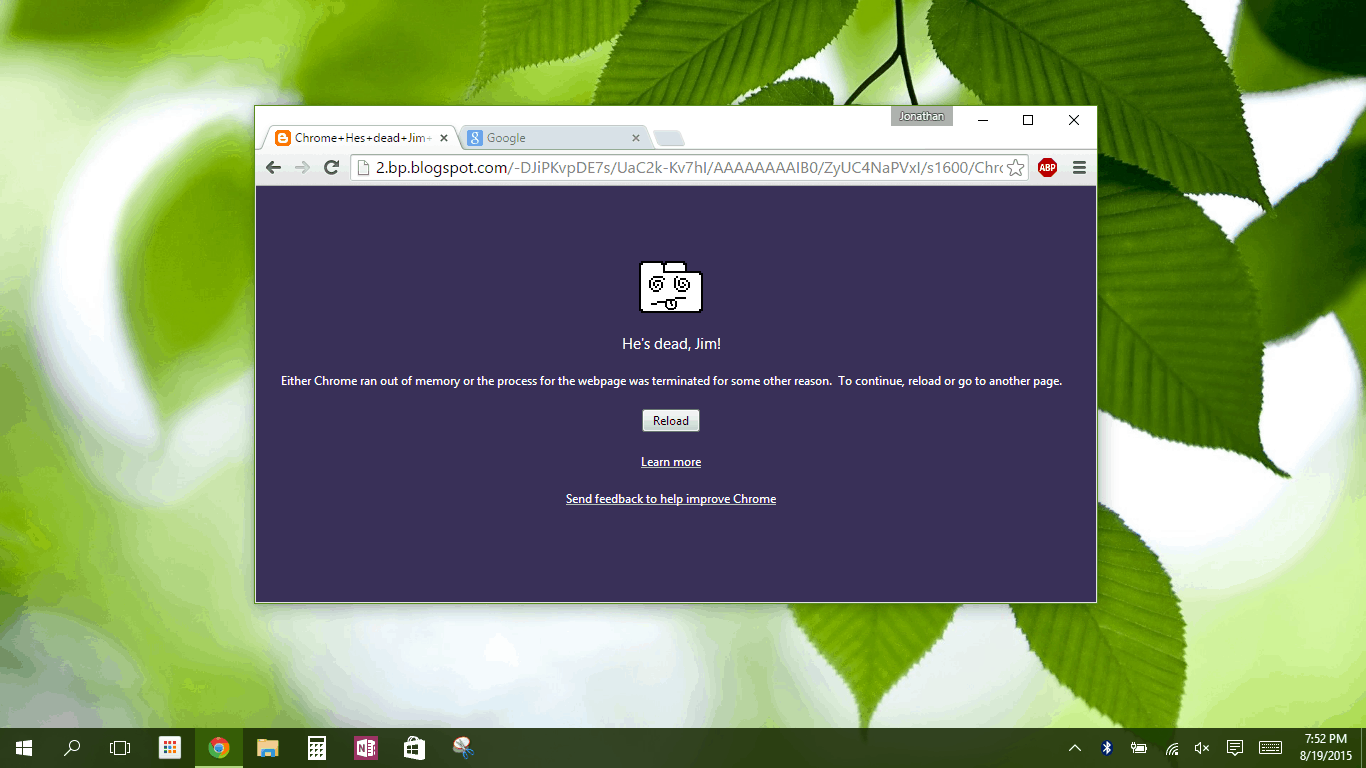
Many users were experiencing a major issue with Chrome after Microsoft released their first Insider build since the release of Windows 10. Basically, every time Chrome was opened in Windows 10 build 10525, the webpage would crash and display a “He’s dead, Jim!” error page. Luckily, this issue doesn’t seem to affect users of the 32-bit Chrome, so feel free to download that version instead.
Google is indeed aware of this, saying in the Chromium message board,

“We have the problem confirmed and someone is working on it, so additional “me to” comments are a distraction at this point. Please just star the issue if you want to convey that you are affected, and if we have any questions or need additional feedback we’ll post a comment.
Also, please remember that this kind of temporary breakage is expected for users on the Windows 10 fast ring. So, we definitely appreciate your assistance in tracking down these problems, but if you’re not comfortable dealing with disruptions and workarounds, then the fast ring might not be for you.”

There is, however, a temporary fix for users running a 64-bit version of Chrome. Here’s what you can do.

  1. Pin Chrome to the desktop, then right click the shortcut just created and click Properties.
  2. In the Target field, add –no-sandbox to the end of the box and click OK. You will need administrative privileges to continue.

Chrome shortcut settings

When you open Chrome, it should work normally aside from a warning at the top of the browser. Do note that this method does not work with Chrome Canary builds right now. Let us know if this solves your issue in the comments below.
Screenshot (27)

Wunderlist for Windows 10 Beta now available, features improvements all around

Wunderlist has just released a public beta of its new app for Windows 10. For those of you who have never heard of it, it’s a to-do app created by 6Wunderkinder, a German-based company recently acquired by Microsoft.
The new updated look of the Wunderlist Beta app is designed to match the design language of Windows 10 and make to-dos easier to read, and backgrounds are no longer blurry. The sidebar on the app can now be collapsed to a full-width view thanks to the small menu button located on the top right corner of the app. The beta app also adds better keyboard support and more compatibility with high-contrast themes.
While the app is in public beta on the Windows Store, the Wunderkinder team encourages you to send feedback and bug reports to their email [email protected].
You can try the Wunderlist Beta app for Windows 10 for free on the Windows Store. Be sure to share your thoughts on the new app in the comments below.

Wunderlist Beta
Wunderlist Beta
Developer:
6 Wunderkinder GmbH
Price:
Free

Full Windows 10 support added in Parallels Desktop 11 for Mac

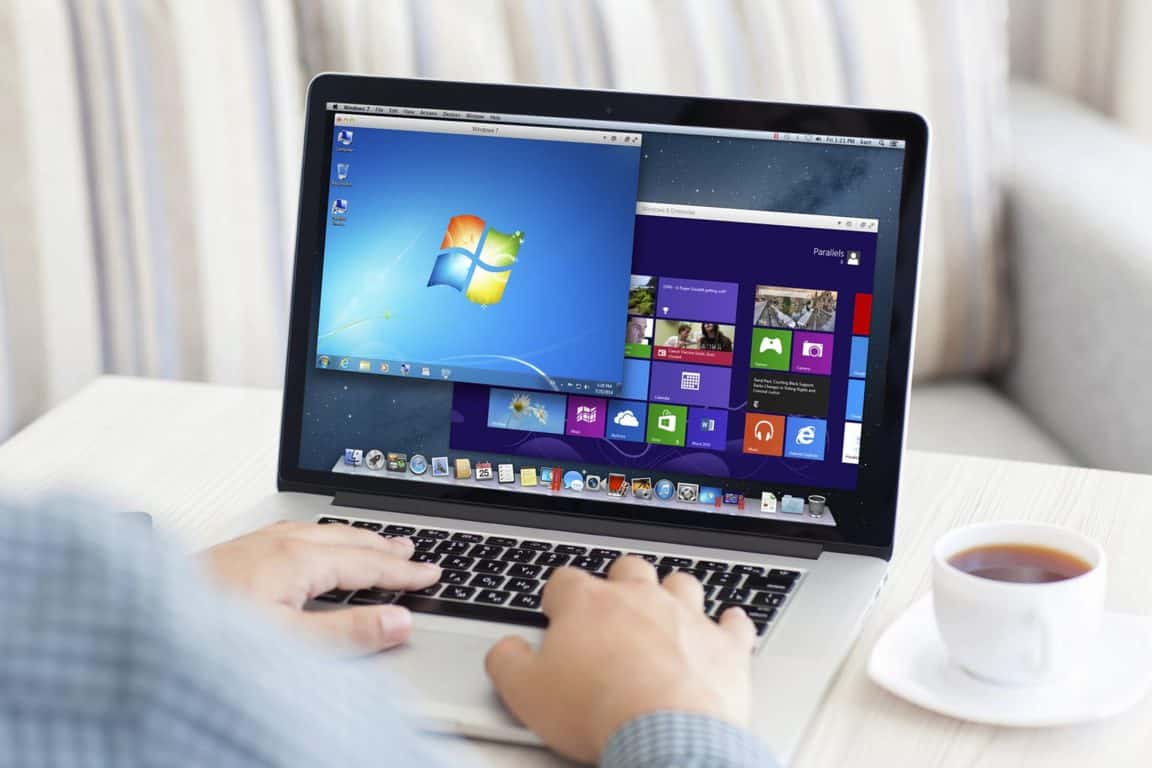
Today, Parallels launched Parallels Desktop 11 for the Mac. Windows users on Apple hardware were given a taste of Windows 10 during the Windows Insider Preview with an update to Parallels 10. However, there were reports that the year old VMware wouldn’t be seeing another upgrade to enable full Windows 10 RTM usage. Instead, it looks like Parallels was working on a completely new solution in Parallels Desktop 11 for Mac.

The new editions of Parallels Desktop for Mac benefit from speed improvements of up to 50 percent, Travel Mode which extends battery life up to 25 percent while on the go, support for Windows 10 along with OS X® El Capitan readiness and a host of other features for both Windows and Mac users.

Alongside the speed and battery improvements, Mac users will continue to leverage Windows specific features, and in Windows 10 there are some pretty useful ones available. Ironically, Microsoft’s digital assistant Cortana will be enabled for Mac users before Apple’s Siri lands on the device. Other features available to Mac users using Parallels Desktop 11 include:

  • Quick Look for Windows extends this cool Mac convenience to Windows documents and files
  • New Force Touch gesture support enables a quick preview of files with Quick Look or the ability to look up the definition of an unknown word
  • Improved Mac Window Controls include a new Coherence mode button
  • Most recently used files list now can be viewed on the Mac regardless of where those files are stored: on the Mac, in a virtual machine, in the cloud or on a file server
  • New easy printing with all Mac, printer options support, saves time with an intuitive solution for OS X users
  • “New Item” support for creation of new files in Windows apps including Microsoft Outlook®, Excel® and Word
  • Now users can easily cancel time-consuming virtual machine actions
  • Mac location services are now available to Windows applications
  • Automatic synchronization of the volume setting of a virtual machine with that of the Mac
  • Enhanced file associations with smart notification messaging help change file association in OS X
  • Improvements in the setup and use of a virtual machine to directly access a Boot Camp® Windows partition—without rebooting

Similar to Windows, there are several pricing options, each based on available feature sets. Parallels Desktop 11 for Mac, Parallels Desktop 11 for Mac Pro Edition and Parallels Desktop 11 for Mac Business Edition are available now for both current and new Parallels Desktop for Mac users at www.parallels.com/desktop and at local retail stores worldwide.

Has your Windows Phone died? Here’s how to bring it back to life using the Recovery Tool

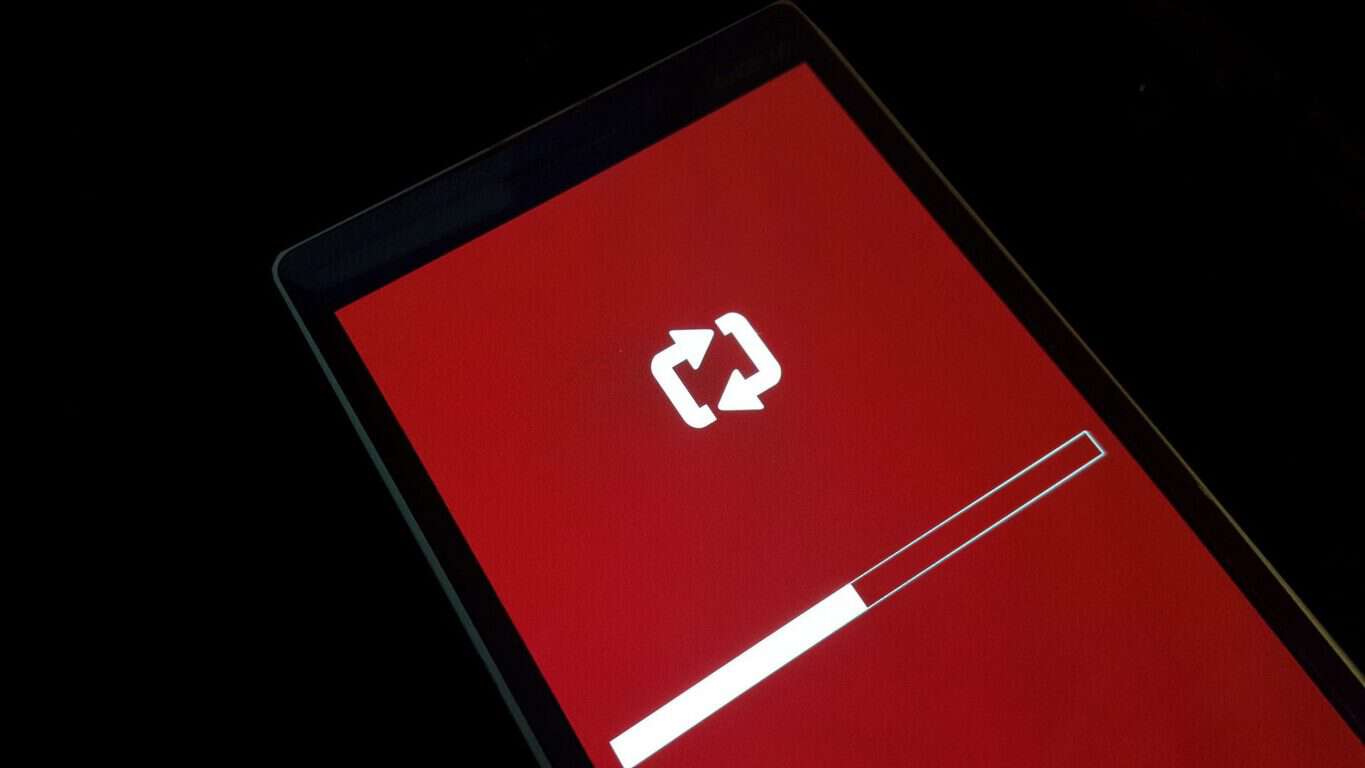
Ever wanted to flash your Windows Phone back to factory default because it’s gotten sluggish over time? Or do a fresh install of the OS when you want to turn a new chapter in your life? Or maybe restore back from the Windows 10 Mobile Insider Preview out of fear that that last bug will make you rage-smash your phone into the wall? Well, you can with the Windows Phone Recovery Tool!

Sometimes, problems occur that are out of your control, here are some of the most common issues you may face with your Windows Phone device:

  • Random reboots and app crashes
  • “Lightning bolt and cog” stuck on screen
  • Stuck loading in splash screen (Nokia, Microsoft logo etc.)

Check out the video above for step-by-step instructions of how to reset your Windows Phone using the Windows Phone Recovery Tool. But before we get started, these are the prerequisites you’ll need to complete the process:

  • Your Windows Phone device (Lumia or HTC)
  • A PC with a connection to the Internet
  • A USB data cable to connect your phone to the PC
  • The Windows Phone Recovery Tool

Follow the instructions in the video and you should have your Windows Phone up and running, fresh as it was out-of-the-box. We hope this helped. If you have any questions or concerns, leave them in the comments section below or in our Open Forum. Happy reviving!

Readit app for Windows 10 updates with a ton of improvements

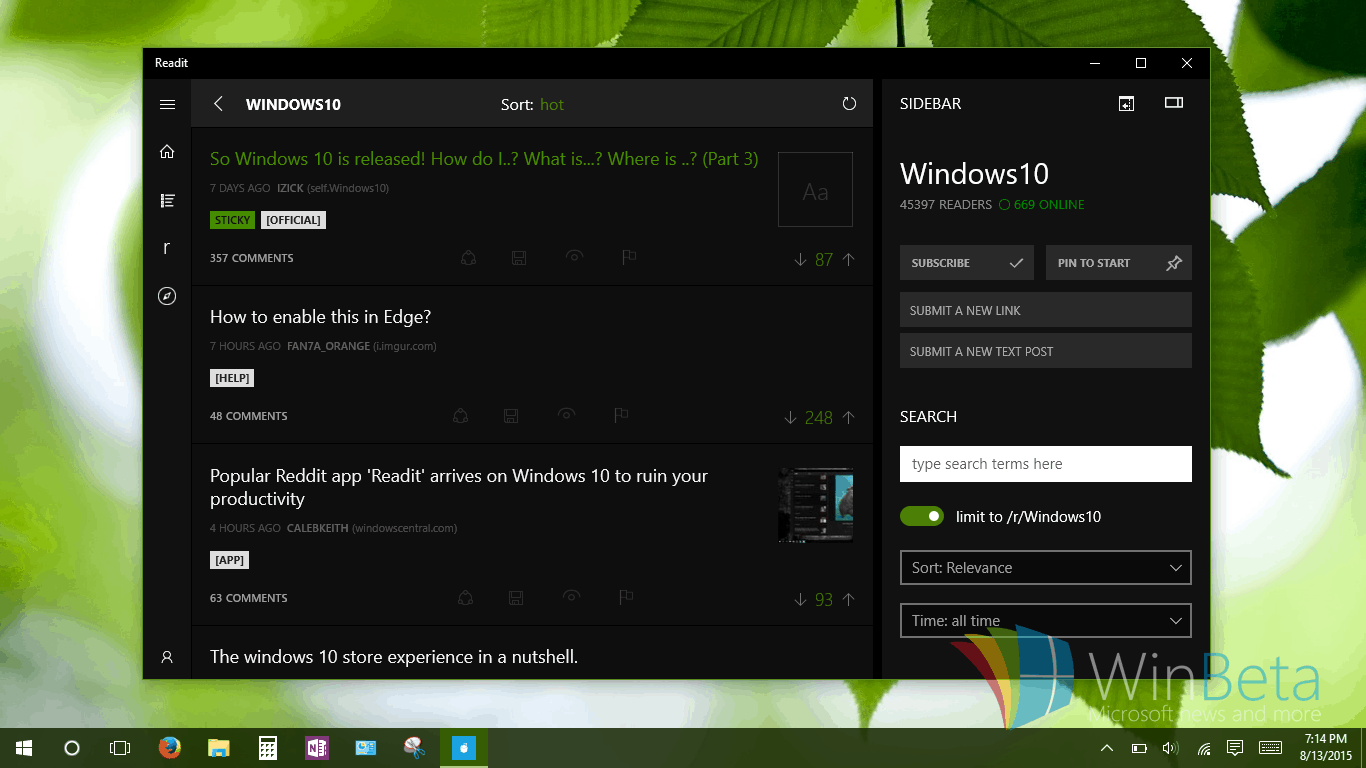
The developers of a popular Windows Phone Reddit app called Readit have just released an update to their new Windows 10 version of the app, which includes numerous performance improvements and bug fixes. Recently, we wrote about this new app for Windows 10, intends to be fast and feature-rich on various devices from small tablets to large desktops. Here’s the list of improvements in 1.2.5.0:

  • More responsive/better performance
  • Light theme is even lighter, matches system apps
  • Dark theme now matches the system apps more
  • Redesigned login dialog
  • New favorites bar in title bar/header
  • Right click subreddits to add them to favorites
  • Reorder favorites by drag + drop
  • New way to jump to subreddits from the title bar/header – ctrl+J will bring you there as a keyboard shortcut
  • View a random sub from the jump dialog
  • View a random subscribed sub from the jump dialog
  • Ctrl+f from anywhere in the app will open search
  • Added open in reading mode in the ellipsis menu when viewing a post – opens edge in reading mode to that page
  • The currently viewed post now has a highlight indicator in the list
  • Version number is now in settings, tied to the installed package
  • Go directly to comments by clicking the comment count/new comment count/etc. This may not always work, still adjusting this. (Kind of a beta feature)
  • Fixed album size cutting off images
  • Fixed settings being reset/notifications continually happening
  • Disabled clicking author/subreddit in post list to prevent accidental clicks
  • Various UI modifications/adjustments
  • Various bug fixes

If you’d like to try the app for yourself, you can download it for free on Windows Phone and Windows 10. Be sure to give us your opinion on the app and this update in the comments below.

Readit
Readit
Price:
Free

Windows Server 2016 Technical Preview 3 now available, here's what's new

Last week, screenshots leaked of Windows Server 2016 Technical Preview 3, and now, the latest preview version is officially available to download. Of course, being a Technical Preview, this particular build is not ready for full-time use as there are still bugs that need fixing.
As for what’s new in this build, Microsoft put a lot of emphasis on software-defined networking, claiming that the “majority of what you’ll find for networking is new in TP3”. The company continues:

“We bring a scalable network controller for programming policies, an L4 load balancer for high availability and performance, enhanced gateways for hybrid connectivity, and an underlying network fabric that converges RDMA traffic together with tenant traffic. In this milestone, you’ll experience a first preview of how the core set of networking capabilities and SDN architecture we use in Azure is coming to you.”

Additionally, Microsoft is laying the foundations of new Hyper-V technology in TP3 that it build upon in future preview builds of Windows Server. “Shielded VMs” play a large role here where they can now be created from a signed template, in addition to other functionality.

“You can also leverage our security enhancements for shared environments by managing Shielded VMs and guarded hosts with ease. On the storage front, you will find improved functionality to maintain desired end-to-end quality of service (QoS) and faster retrieval of data using storage tiers. In Operations Manager, our focus is to enhance user experience through easy discoverability of management packs and ability to automate maintenance windows using PowerShell.”

Along with the release of Windows Server 2016 TP3 is System Center 2016 TP3, where Microsoft has included a host of feature enhancements that include new management capability such as Virtual Machine Manager and support for Nano server among others.

“…you can install Nano Server on a physical host, or in a virtual machine. The new Emergency Management Console enables users to view and fix networking configuration directly from the Nano Server console. In addition, you will find a PowerShell script for creating an Azure VM running Nano Server. From an application perspective, you can now run an ASP.Net v5 application using CoreCLR. Overall, we’ve added significant functionality to expand Nano Server’s capabilities without compromising the basic premise that its footprint remains as small as possible.”

It doesn’t end there, the software giant has also released new Remote Server Administration Tools (RSAT) for Windows 10 Client. This enables remote management of Windows Server 2016 Technical Preview, Windows Server 2012 R2 and Windows Server 2012.
If you’re interested, download Windows Server 2016 TP3 and System Center 2016 TP3 and give them a try. Windows Server 2016 isn’t due to be finalized till 2016 so there’s still a long way to go, a lot of improvements to be made and features to be implemented.
Microsoft warns that since this is still pre-release software, features and functionality may change by the time the final product is released, which is to be expected. Let us know what your thoughts are on the new Technical Preview of Windows Server 2016 in the comments section below.

Poll: Which feature should arrive next in Windows 10

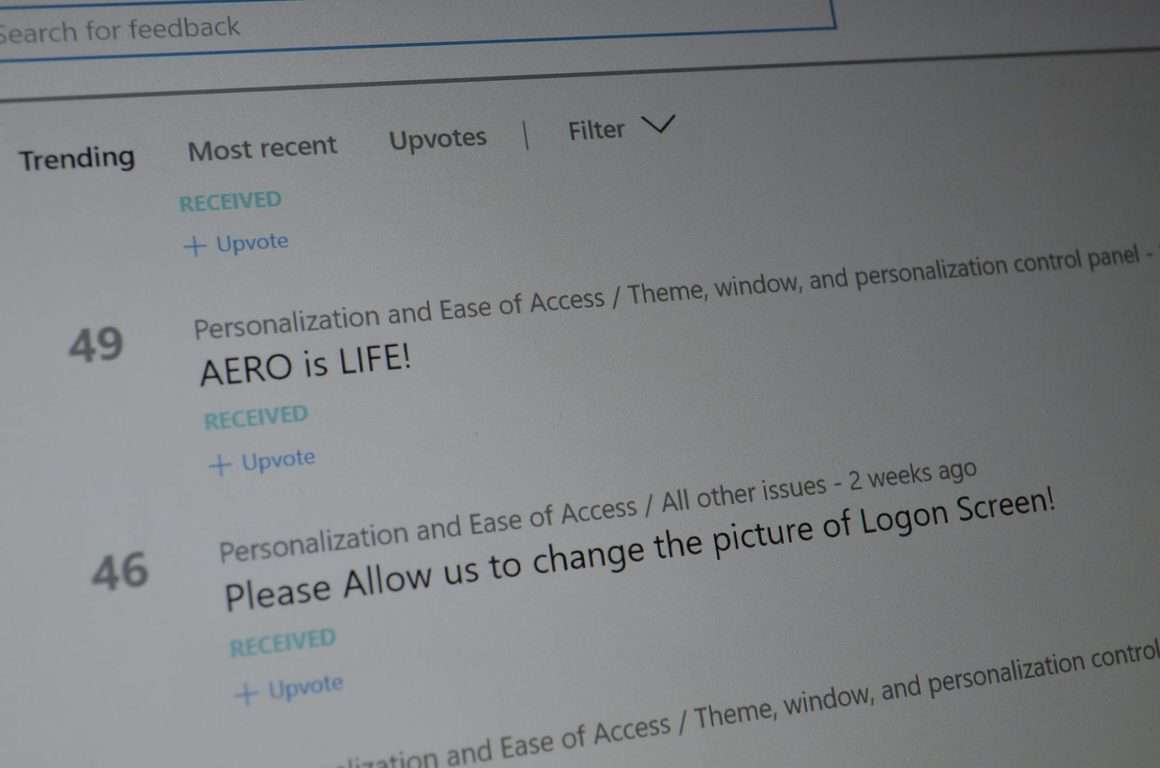
This week we got a new Windows 10 Build. With it came color customization to title bars. This was likely a result of repeated and highly upvoted feedback through the Windows Feedback app and other channels. The top three bits of feedback in the Personalization and Ease of Access section were about title bar colors and that wish has been granted. Now it’s time to vote on and discuss what we want next. In this week’s poll we’re voting on what we want to see next in Windows 10. Make sure you head over to the Windows Feedback app to let Microsoft know as well.
We already know about some features and changes that are coming up such as extensions to Microsoft Edge. This poll is more about things we see feedback givers requesting that haven’t been announced. Some users are quite passionate about these requests. Shouts of “AERO is LIFE” and “NO AERO NO PEACE” echo through the feedback app. People also clamor for dark theme in just about every category. The requests for login screen customization seem more level headed but it is a highly requested feature.
The last option, shape writing, is near and dear to my heart as a regular Windows tablet user. We have an article dedicated to the topic, though at the time I wrongly referred to it as WordFlow which is now part of Windows 10, and it would make typing on tablets significantly easier. Microsoft even already has the technology since it’s within their phone operating system.

All of these are worth having as options and would make people happy but we want to know which one is most important to you. Let us know through the poll and explain your reasoning in the comments below. Check in to the WinBeta Podcast to hear us discuss the results and which features we’d like to see in Windows 10.

How to track packages with Cortana on Windows 10

One of the really neat features of Cortana, Microsoft’s virtual assistant for Windows, is that she can track packages for you without you needing to enter your tracking information. She knows about all pending packages by simply reading your email from the Mail app for Windows 10. If you need help setting Mail as your default email app, be sure to read our how-to here.

When you first launch Cortana from the search button on the taskbar, she’ll ask you if you want to track a package that is currently being shipped to your location. If you click track she will notify you of the whereabouts of the package and when it is delivered.

If Cortana doesn’t ask you to track a package or she doesn’t know there is a package coming, you can just simply paste the tracking number into the search bar and then click Track Package. She’ll start tracking your package and notify you as it gets closer. You can also go into Cortana’s notebook located in the hamburger menu right beside of Cortana, click Packages, enter the tracking ID number for your package, then hit enter.

It’s a very handy feature, at least to most people. Tell us what you think about Cortana’s package tracking feature in the comments below.

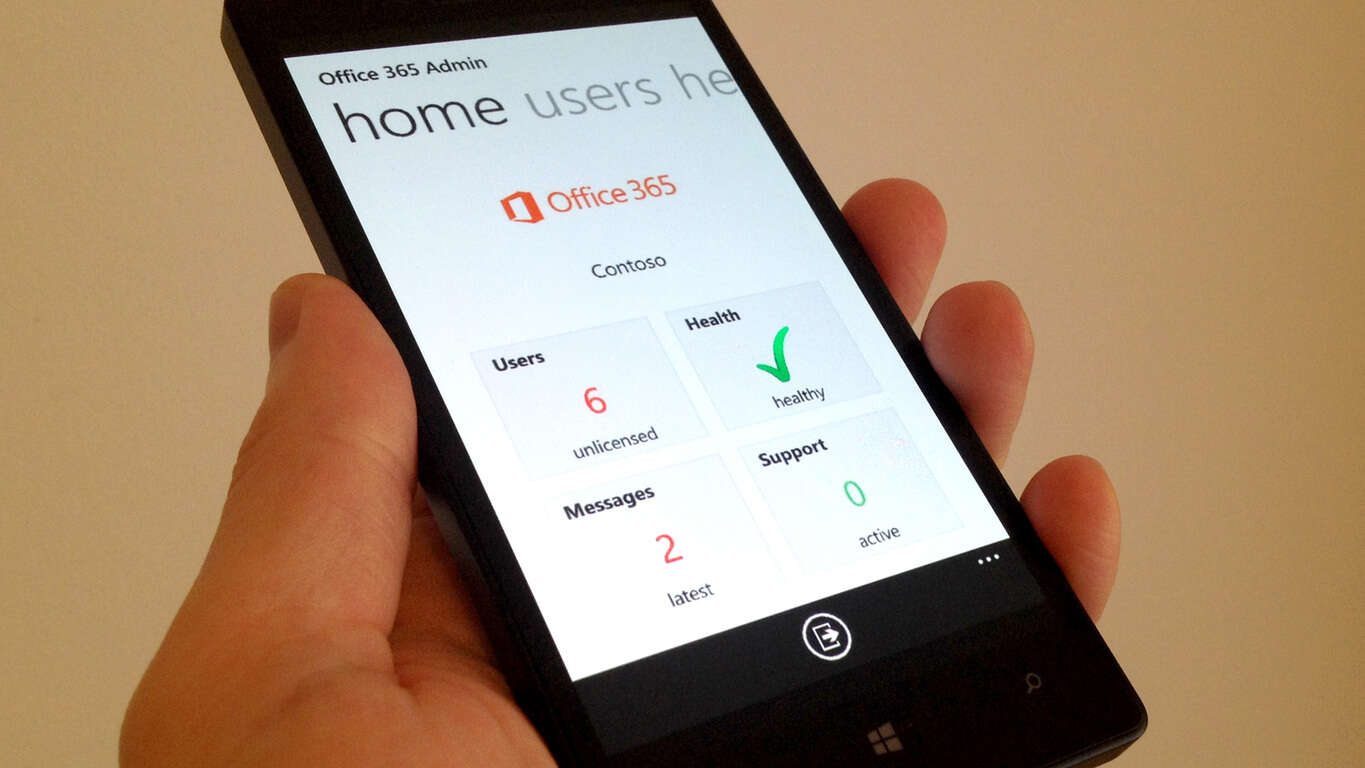
Office 365 Admin app builds on previous features in new update

The Office 365 Admin Windows Phone app has updated to version 2.10 and brings with it the usual bug fixes in addition to more improvements to the login experienced introduced in the previous update which added the ability for multiple users and multiple accounts.
The previous app update also added the ability to turn notifications on and off, send new passwords to an email address, gave more control over Office 365 services when assigning licenses, support for more languages, Live Tile support, support for license assignment for on-premises Active Directory, and the new ability to share Message Center and service incident messages.
The Office 365 Admin Windows Phone app can be a great tool for Office 365 IT administrators wanting to stay in control of their Office 365 environment when they’re away from a computer and needing to make some updates and changes on a regular basis. Have you tried this app yet? Let us know what features you use in the comments below.

Office 365 Admin
Office 365 Admin
Price:
Free

New series launched by Microsoft to help bring businesses to Windows 10

With any new version of Windows comes a great deal of excitement; as years pass between each release, so technology evolves and so too do the features in each new offering. For some, this can make keeping up a little difficult.
This is especially the case for businesses, with many using very niche software in order to meet their software needs. As such, in order to help with the current transition to Windows 10, Microsoft has created a new series of articles, showcasing how to manage and deploy Windows 10 to meet a variety of different needs.
Specifically, each entrant in this series will deal with a different aspect of Windows 10, with regards to enterprise use. Here is the full list:

  • The Best Deployment & Management Options for Windows 10
  • Deploying Windows 10 with ConfigMgr
  • Podcast: Best Practices for Deploying Windows 10
  • Managing Windows 10 with EMS and ConfigMgr
  • Podcast: Best Practices for Managing Windows 10
  • Identity & Access Management in Windows 10
  • Using Cloud Services with Windows 10 + EMS + ConfigMgr
  • Podcast: Maximizing the Cloud-connected Features of Windows 10
  • Navigating the Windows 10 Distribution Rings
  • Podcast: Navigating the Windows 10 Deployment Rings
  • How to Use Enterprise Data Protection Delivered Natively in the OS
  • Podcast: Maintaining Security & Data Protection with Windows 10

As the support for XP continues to dwindle, and Windows 7 begins to show signs of ageing, the pressure for businesses to adopt Windows 10 is only going to build further as time passes by. Microsoft clearly intends to get the hard work done first, convincing IT managers the world over that Windows 10 will fit their needs in the office as well as it does at home.
As moving is a costly affair, whether these customers will opt to adopt Redmond’s newest software offering is something that only time will tell; one thing is for sure however, Microsoft will continue to go all out in singing the praises of Windows 10 for quite some time yet.
What challenges in adopting Windows 10 do you anticipate will be the most significant for businesses? Let us know in the comments below.

Microsoft's Office 365 wins back Italian municipality after costly open source switch

Microsoft solutions have been the de-facto choice for the majority share of enterprise, government, healthcare and education for quite some time. While proprietary, Microsoft’s offerings are arguably easy to use alternatives to other industry options. However, being the de-facto option does not always translate into being the best or most cost-effective solution on the market. As a software provider, Microsoft requires licenses for its wares. Many argue that going FOSS or the open source route would not only loosen Microsoft’s grip on their wallets but offer businesses more customization over their data and workflows.
Numerous case studies are finding that even with Microsoft’s licensing fees, the company is still coming out on top as a financially sound investment over alternatives. Recently, an Italian municipality, Pesaro, made the switch back from the open source offering of OpenOffice to Microsoft’s Office 365. According to a published report from Netcis Observatory, “the city administration will be able to save up to 80 percent of the software’s total cost of ownership (which includes deployment, IT support, subscription plans cost and other elements) using Office 365, compared to its previous setup.” It should be noted, the study was co-commissioned by Pesaro and Microsoft.
Regardless, Stefano Bruscoli, the head of statistics and information systems department for the Pesaro municipality, said the savings were a result of ‘unexpected’ deployment cost.

“We encountered several hurdles and dysfunctions around the use of specific features. What’s more, due to the impossibility of replacing Access and partly Excel (various macros used on tens of files), we decided we had to keep a hybrid solution, using the two systems at the same time. This mix has been devastating.”

WP_20150330_13_59_43_Rich1
The Netics report showed the estimated yearly cost of rolling out open source software hovered around $584 (US) over a the course of a five-year period. Unfortunately, much of the $584 (US) was spent on simply deploying the alternative. Whereas, Microsoft’s Office 365 cost $217 (US) over the same time frame. Office 365 deployment savings come from workers familiarity with Microsoft’s software suite and its larger library of compatible formats, according to the report.
It seems Microsoft’s early ubiquitous nature has helped to keep its momentum in the workplace. Bruscoli, like many others, are finding that lack of compatibility between their current solutions and proposed new ones were a waste of time and productivity that eventually affects financial results.
In all fairness, OpenOffice is an on-premise solution that arguably offers a more secure option for data processing versus Microsoft’s cloud-first Office 365 solution. Both solutions have their upsides as well downsides. OpenOffice lacks collaboration tools while Microsoft’s Office 365 is subject to the behavior of cloud connectivity for better or for worse.
Workplaces are finding, what Microsoft lacks in head-to-head pricing; it makes up for with intangibles such as familiarity and ubiquitousness.

Windows 8.1 RT Update 3 to Bring Start Menu & Lock Screen Improvements

We already told you that Microsoft is preparing some updates for Windows 8.1 RT this fall, but you probably forgot about it because all that hype about the release of Windows 10. So Microsoft revealed a couple of features from the new update, just to remind you that it’s coming. 
windows rt update wind8apps
But let’s get one thing straight first, Microsoft still didn’t change its decision to not deliver Windows 10 for RT devices, so September’s RT Update 3 is still going to be for Windows 8.1 RT, and that’s the only thing Windows RT users should hope for.

But, even if Windows 10 won’t come on Windows RT devices, Microsoft mentioned the RT Update 3 in the Windows 10 FAQ, which seems a bit strange. The only explanation for this is that Microsoft is using the Windows 10 hype to promote the latest update for RT devices. Also, it makes sense that Microsoft are going to use Windows 10 ‘answer pages’ to help Windows RT users with their problems, because opening a whole new community just for RT users would probably be just the waste of money.

But, let’s talk about the features that Microsoft will release as the part of the September’s Windows 8.1 RT Update 3. So, as we said, you won’t get Windows 10 on your RT device, but you’ll get some Start Menu and lock screen improvements. So, make sure to check for updates regularly on your Windows RT device, and you’ll probably get the update in not more than a month.

Microsoft actually didn’t reveal the exact changes to Start Menu, lock screen, and other feature that will be made in the upcoming update, but it could bring some features from Windows 10, as well. Some people are mentioning the replica of Windows 10’s Start Menu, but we don’t have any official info. So, even if Microsoft decided not to deliver Windows 10 to RT devices, its users could use some of Windows 10 features, at least.

Windows RT was released in October 2012, and Microsoft hoped that it could be the main ‘engine’ of its tablets like Surface RT, but it appeared to be quite unpopular, and that’s the main reason why Microsoft won’t deliver Windows 10 on Windows RT devices, as it will be just the waste of money, time and resources. There were also some rumors that Microsoft plans to kill this OS, but since the new update is around the corner, the company will apparently keep it alive a little more.

Read Also: People App is Missing Features in Windows 10, is Microsoft Planning to Kill it?

Windows 10 won't run games with certain older CD-Rom DRMs

Recently Windows 10 caused a stir in the gaming community with a line in the Microsoft Services Agreement saying it can check your system for unauthorized (pirated) games. In this portion of the Agreement, Microsoft reserves the right during updates to scan your device for counterfeit games and prevent them from running. You can read more about it in our previous report.
But now gamers with Windows 10 have a new concern that is not just a potential problem, but an immediate one for hundreds of games on CD-Rom that use DRM (digital rights management). A report form PCGamesHardware.de via Neowin is saying that game or audio CDs that rely on SafeDisc or Securerom DRM will not run on Windows 10 PCs.
This isn’t because Windows 10 isn’t capable of running older software, but instead it is because Microsoft has decided not to enable the CD DRM due to security concerns. The report also includes an explanation by Boris Schneider-Johne, a marketing manager for Microsoft, saying:

“Everything that ran in Windows 7 should also run in Windows 10. There are just two silly exceptions: antivirus software and stuff that’s deeply embedded into the system needs updating – but the developers are on it already – and then there are old games on CD-Rom that have DRM. This DRM stuff is also deeply embedded in your system, and that’s where Windows 10 says ‘sorry, we cannot allow that, because that would be a possible loophole for computer viruses.’ That’s why there are a couple of games from 2003-2008 with Securom, etc. that simply don’t run without a no-CD patch or some such. We can just not support that if it’s a possible danger for our users. There are a couple of patches from developers already, and there is stuff like GOG where you’ll find versions of those games that work.”

Microsoft’s decision to not support SafeDisc or Securom DRM will leave many CD games from the early 2000s unusable on Windows 10. While disappointing for some gamers out there, this is a good decision by Microsoft to not support software that contains a kernel level exploit from the mid ’00’s and on the whole will keep more users safe than dissatisfied.

Why Microsoft removed Windows 10 feedback more than two weeks old

We received a tip over the weekend bringing our attention to the Insider Hub on Windows 10. Apparently, Microsoft has removed feedback from the Insider Hub older than two weeks, sparking various media outlets to speculate that Microsoft was “deleting” feedback. This is not the case.
Microsoft has simply archived “pre-release feedback” and will continue to look at the suggestions made by Windows Insiders to make improvements to the operating system. Microsoft simply wanted to clear out the search results on the Insider Hub, making it a tad bit cleaner to report newer issues. Here’s what Microsoft had to say:
“We’re also taking this opportunity to clear out the older feedback that we received earlier on in our product development cycle so it will no longer display in search result. Don’t worry, your feedback will still be in our backend system and will continue to be used by our engineering teams to make improvements—you’ll still get credit for your contributions in Insider Hub, too. You can always view a full history of your feedback under My feedback with a special Archive demarcation for pre-release feedback.”
So there you have it. Microsoft isn’t deleting feedback, they are simply archiving older feedback to clean up search results. If you want to see your history of submitted feedback, just hit My Feedback under the filter criteria. For those of you unable to locate the Insider Hub on Windows 10, head over here to see how you can get it.

Tips to optimize your Wi-Fi for Windows 10 game streaming

So, you’ve got yourself a nice shiny Xbox One and a nice freshly installed copy of Windows 10, you’ve played with the Start menu, snapped apps, left, right and center, now what? You stream your games from your Xbox, of course! For those who are new to Windows 10, head over here to see how you can set up game streaming.

These quick tips will help you achieve the best experience for your gaming needs. Before we start, you must take into account that all homes are different, from interference, building materials and dead monsters in-between your walls, though, I can’t eliminate these issues, I can most certainly help you get past the worst of it, maybe even to a point where you wouldn’t even know you had half of the Goblins from The Lord of The Rings dead inside your walls. With that said, let’s go.

Router Position

The most important of all. Router placement in the home is one of lives undeniable issues. “Where should I put it?” “Where will it work best?” “Does it matter if my cat sits on it?” All, very good questions. The truth behind it all, your router works best (at least for myself) in the highest room you can get to in the house, providing you have a phone socket or a REALLY long Ethernet cable that you can stealthy hide under the carpets, run the cable across every wall hoping your wife doesn’t notice, or, just run it and hope no one has a fatal accident. Myself, my router is in the spare bedroom, above the living room, game room, and sits in-between the housemates bedrooms, for us, we have full and strong signal everywhere we need it most. You need to find out for yourself where would be a good place to put your router, try and put it closest to the most Wi-Fi intensive areas of the house. Avoid the kitchen, microwaves are a router’s great enemy.

2.4Ghz or 5Ghz?

You may notice on a lot of modern routers, they have this 5Ghz thing, but what is it? It’s a faster, more reliable and stable Wi-Fi signal. 5Ghz is one of the highest types of Wi-Fi signal available to consumers, with it’s super-fast transfer speeds, strong and reliable connection to devices (less drop outs are good for streaming!) and less interference from other devices, such as mobile phones and tablets, it’s the big daddy of the wireless family. So, I hear you ask, why is that better for game streaming? Well, you lovely human being, it means you’re less susceptible to dropped frames when streaming (packet-loss if you’re being posh) thus, Xbox One and talks well with your Windows 10 device, which, in turn, means a lot less lag from a button press and making the experience THAT more awesome. Seriously, use 5Ghz.

Wireless vs Wired

The big question, “do I get better performance on a wired connection than wireless?” The answer, YES. Wired will always be the preferred connection method for anyone, tiny amounts of latency if any at all, higher transfer speeds than traditional wireless and almost no connection drops. But, what if you don’t want to drag a 50ft Ethernet cable across the house, down the hall, though the dining room, into Pan’s labyrinth, to the end up in your office 20 years away from your router? You have wireless. Now, for me, I stream from a 5Ghz Wi-Fi band from my Xbox One in the living room and from my Desktop PC in the office (About 3 rooms away) with a average 3 bars of 5Ghz goodness, I experience almost no lag, no packet loss and enjoy ubur Halo pwning. If you’re on 2.4Ghz wireless, you will not have a great experience, the stream is just to high of a bitrate for the wireless signal, you will encounter lag, stuttering and lots of rage at the fact that your car you spent 500,000CR on just ended up in a bush upside down because the video was too delayed to react quick enough. If you have the ability to use 5Ghz wireless, do it, the same goes for wired connections, if you can plug both your PC and Xbox One into the router without, again, having rather long Ethernet cables hanging around, do it. 2.4Ghz unfortunately just isn’t good enough for high quality and enjoyable streaming, Sorry kids!

Change your Wi-Fi channel

This is an easy one, changing your Wi-Fi channel may have you running round the house in enjoyment that you can finally play Halo in the garden, whilst in the pool, with beer, because, you can. Wi-Fi channels are very important, most modern routers these days have a “Smart” mode for Wi-Fi channels that will constantly monitor noise and activity on other wireless channels to make sure you’re getting the least interference on your current channel, but, as good as that sounds, 90% of the time it doesn’t work quite as well as advertised, thus, requiring some “manual intervention”.  A great way to check what Wi-Fi channel might be best, is a Wi-Fi Analyser for your smartphone or tablet, these things are great, showing you what is the best Wi-Fi channel for you to use with minimal interference and noise. Find your channel that suits yourself and your devices perfectly. The reason behind this, less noise, less lag, more frag.

Upgrade Your Router

Most people will only have the router they got from there ISP. I, on the other hand, have EE Home broadband with a “Bright Box 2” let me tell you right now, there is nothing bright about it, yes, it has 5Ghz channels, but it is simply awful. The same may happen for you — your ISP will always say “it’s the most reliable connection ever” etc., and they’re most likely right, if you live in a single room apartment building. The truth is, the routers you get from your ISP are just plain awful, sure, they work for the average consumer (sometimes) but, in this ever growing technological world, they’re not ready for the future at all. So, with that in mind, after much thought and router movements and channel switching, I decided that this “Bright Box 2” was short of a few sparks. I decided to bite the bullet and buy myself a top of the line, all singing all dancing router, the Netgear Nighthawk X6 to be exact, this thing, wow. Sure, it’s retail price isn’t cheap (£200+) but it’s something I will have for a good few years. This instantly changed my Wi-Fi performance around the house, it’s range is absolutely insane, the connection is solid and reliable and with it’s x2 5Ghz channels, streaming is ALMOST flawless, sure the odd frame drop is to be expected on a wireless signal, but, that’s every half hour or so. My point here is, if you have tried countless measures to improve your signal in your room and or around the house, it might be worth looking into getting a new router.

That’s pretty much it, I hope these tips find you well and make your Windows 10/Xbox One streaming that much more awesome!

Windows Alarms & Clocks and Maps apps updated on Windows 10

The Windows Alarms & Clock and Windows Maps apps have just received an update on Windows 10 PCs and due to their Universal nature, have also updated on phones running preview versions of Windows 10 Mobile.
There appears to be no obvious changes in either app since the updates and as usual there are zero version notes provided by Microsoft, who really needs to get on board and start providing update notes like everyone else. Microsoft has provided some text for the version notes for their Maps app though it’s more promotional text and doesn’t reflect the most recent update at all. Here’s what it says for those that are curious; “The new Maps app brings together all your favourite features – 3D cities, Streetside views, turn-by-turn voice navigation and offline maps – in one universal app for Windows 10 PCs and phones.”
The Windows Maps app is Microsoft’s answer to the popular Google Maps app on iOS and Android. Currently on Windows Phone 8 and 8.1, the collection of Nokia owned HERE navigation apps seem to be the go-to choice for most users. Nokia recently sold the HERE apps to a collection of German automakers so it will be interesting to see if Microsoft will move away from HERE more and focus on its own first party apps moving forward.
The Windows Alarms & Clock is a fairly simple app that provides Windows 10 owners with basic features such as a stopwatch, timer, and alarms. It’s most useful feature is a streamlined world map which can be customized to display specific times for cities across the globe. The map’s grey and white color scheme may be a tad on the ugly side but it does work flawlessly and is useful for those that need to interact with people in different time zones. Here’s hoping they add some color or graphic options in a future update or maybe even a full screen mode.
Both apps should be pre-installed on all Windows 10 PCs but if they aren’t on yours, you can grab them for free via the links below.
Are you using either of these apps on your Windows 10 device? How useful do you find them? Share your feedback in the comments below.

Windows Clock
Windows Clock
Price:
Free


Windows Maps
Windows Maps
Price:
Free

People App missing some features after Windows 10 upgrade?

Users of Microsoft‘s People app have recently reported that app is missing some functionality after Windows 10 Upgrade. Since this is not the first time Microsoft cut some features from its People app, that might mean that Microsoft is planning to discontinue this feature in the future.
people app in windows 10 wind8apps
The problem in Windows 10 occurred when some people, including myself, tried to include friends from social networks to the app. Namely, when you want to connect People app with any social network app available of Windows 10, it just redirects you to null page in the Store, with the message “Your search for “” had no results.” This means that no social network app that can be found in the Store is compatible with People app.

This is probably Microsoft‘s omission, because some social network apps, like Facebook, have sync option for People app, but when you try to sync them, simply nothing happens. This could very easily be done on purpose, because Microsoft maybe plans to shut down this app in the future. And since Microsoft already discontinued some of its own apps that weren’t so popular, we tend to believe in this theory even more.

Also, when people complained about this on Microsoft forums, the staff simply answered that there are no social apps that support integration with People app, currently. They didn’t mention if there will be any updates or fixes for this in the future, which also indicates to the fact that Microsoft plans to shut this app down sooner or later.

What do you think about this Microsoft‘s policy of shutting down ‘not so popular’ apps? Did you use People app, and will you miss it if Microsoft decides to shut it down? Tell us your opinions in the comments, below.

Read also:  Fix: MSVCR100.dll and MSVCP100.dll Missing After Windows 10 Upgrade

Why Windows Hello Might Not Work in Windows 10 for You

Windows 10 brings many improvements ranging from performance, gaming to security. Speaking of improved security, Windows 10 brings a new feature called Windows Hello, but according to some users they can’t enable this feature to work.
windows 10 hello
Firstly, let’s explain what is Windows Hello. Windows Hello is a new feature in Windows 10 that allows you to use your Face to log in to your Windows 10 device instead of a password. In addition there’s a similar technology called Password that should do the same for websites, so you won’t have to type your passwords ever again. I

n addition to logging in to your computer using your face, you can login using your fingerprint or by scanning your iris. All of this sounds incredible on paper, but do we really need all this security as average users? This is the real problem of Windows Hello on Windows 10.

In order to use Windows Hello you will need compatible “depth” camera. Ordinary webcams won’t work, since they aren’t secure enough and they can be tricked with a simple photo. So for example, if anyone steals your laptop and has a photo of you, he can easily unlock it, and this is the main reason why Windows Hello requires “depth” camera.

These cameras will unlock your device only if you’re standing in front of it, and they can’t be tricked with a photo. As for these “depth” cameras, they will be made by Intel, and experts believe that they will be too expensive for regular PC users, and too expensive to include in cheaper Windows devices.

Windows Hello sounds great, but if you’re an average user you probably don’t need so much security. However, if you want to use Windows Hello on your Windows 10, be prepared to buy a special “depth” camera.

Read Also: Fix: Windows Photo Gallery Not Working in Windows 10

Here are some of the best Xbox One games for kids

In a world where action-packed, explosion-filled violent games take center stage in the entertainment business, it can be difficult finding appropriate games for the little ones in our lives. So we’ve put together a list of some Xbox One games that don’t include any excessive violence yet will still put a smile on younger audiences.

Fruit Ninja Kinect 2 ($14.99)

Fruit Ninja was huge back when it first launched on the iPhone, everyone was slashing fruit whenever they had time to kill. But since the hype has settled down, developer Halfbrick Studios decided to keep the game alive with a good ol’ dose of innovation and creativity. Fruit Ninja Kinect 2 is the same fruit slasher you know and love, but with new modes, characters, and gameplay mechanics thrown in.

Rayman Legends ($39.99)

Rayman is another popular video game franchise dating back to 1995. The games have evolved plenty since then, but remain extremely enjoyable. The latest game for consoles, Rayman Legends, has amassed a four star rating out of five, from over 9000 reviews. Critics loved it too, and they’re a lot harder to please than 10 year-olds. Check out the gameplay trailer above to see what the game is all about.

Kinect Sports Rivals ($29.99)

It isn’t in a child’s nature to sit still for hours at a time. Unlike us, they seem to be more comfortable on their feet, running around causing havoc. At least with Kinect Sports Rivals, they’ll be confined to the immediate surroundings of the TV. This particular title packs a range of motion-focused games and activities including wake racing, rock climbing, target shooting, soccer, bowling, and tennis. Who’s to say the kid won’t turn out to be the next Lionel Messi or Serena Williams?

Disney Infinity [2.0] (Disk-only)

If your kids love Disney, they’re going to love playing Disney Infinity. They’ll be able to choose from a wide range of beloved Disney characters to play in an open-world sandbox environment. Characters from Guardians of the Galaxy, Spiderman, Brave, Lilo & Stich, Maleficent, Big Hero 6, the Avengers and more are all included. The fun-factor will last a good while with this one, and if you’re willing to wait, Disney Infinity 3.0 with Star Wars characters thrown in will be available later this year.

Zoo Tycoon ($29.99)

Think of Zoo Tycoon for Xbox as a more advanced, visually stunning version of Tamagotchi, but with wild animals. Players will learn to care for these animals by monitoring their moods and hunger levels, and participate in a range of fun, interactive activities. With over 100 different animals to care for and a large environments to play in, there’s lots of fun to have, and learning to do, as each animal species have different personalities. If you have a Kinect sensor, things get even more fun as animals will now be able to recognize voices and can react to movement. It’s a must-have title for the kids.

That’s our list, if you have any other suggestions of Xbox One games that you think kids would love, let us know in the comments section below.

Test your site in Microsoft Edge with free Windows 10 virtual machines

For anyone choosing to use the new Edge browser in Windows 10, there have been a plethora of caveats that come bundled with the experience. Many of Microsoft’s Edge browser shortcomings have been chalked up to its relative short development age. However, real world scenarios dictate that Edge come of age soon as Chrome, Firefox and other alternatives are not standing still when it comes to improving browser features and performance.
Microsoft has updated the Edge Dev site, bringing a number of major fixes and new features. Among the new features, devs will now have access to free Windows 10 virtual machines with Microsoft Edge. The released update now automates the process Microsoft is using to create virtual machines. Doing so, Microsoft can provide future updates much quicker as the platform matures. Support for new VM formats have also been included, starting with Vagrant boxes (with Virtual Box) and QEMU, that will be rolling out in the coming weeks.
As for bug fixes, Microsoft is touting an “improved markup to make the site and tools work better with assistive technologies.” The FAQ pages have updated alongside the Windows 10 release with new answers to common questions. Many of Microsoft’s older Test Drive demos such as Fishbowl and MazeSolver have also moved to its GitHub repository for open-sourced experimenting.
Microsoft is also promising a faster and clearer platform roadmap included in the update. Devs might also note, the update takes the Microsoft Edge Dev site out of ‘Beta’ as Microsoft will now be redirecting modern.ie traffic to its new home at dev.modern.ie.
While the Edge browser is arguably faster than some of its competitors, it’s still relatively infantile and will need all the help it can get to bring it on par with current offerings. Hopefully, today’s updates will entice more devs to lend a hand.

Windows 10 reportedly reaches 53 million downloads

We reported over the weekend that Windows 10 is running on over 50 million devices. A new report from Neowin backs up our initial statistic and clarifies that Windows 10 has reached 53 million installs according to their sources. Additionally, StatCounter states that number of devices running Windows 10 constitutes 4.95% of the operating system market.
Windows 10 is a free upgrade to many users and is easy to upgrade to from Windows 7 and Windows 8.1. The instillation is rolling out in waves so its download numbers will likely continue to rise. Additionally, it will take some time for enterprises (who have to pay to upgrade) to make decisions on the new operating system. Bank of America has plans to move their large set of devices over to Windows 10 and if other businesses follow suit, we’ll see the install numbers increase in chunks.
Download numbers and market share percentages aren’t the only indicators of success of an operating system but it is a positive sign for Microsoft that Windows 10 is being adopted by so many users. As oft reported, Microsoft has a goal of 1 billion devices within two or three years. While many of those will be IoT devices, tablets, and phones, it’s important for Windows 10 to have a large PC user base if it’s ever going to reach that ten figure goal.

Windows 10 news recap: New updates, activation rules, and more

In this feature, we will be looking back at the past week’s most popular and important Windows 10 stories. Last week, Microsoft rolled out KB3081436 and KB3081438 to Windows 10 users — a set of cumulative updates that improve the functionality of Windows 10 and resolve vulnerabilities in the operating system. No details were given as to exactly what new improvements were made. Both updates were made available via Windows Update.
A few weeks ago, Microsoft launched a YouTube series of videos that walked users through 10 upcoming features in Windows 10, alongside a television campaign highlighting Cortana, Windows Hello, and Microsoft Edge. Now the company is featuring an interactive web demo of Windows 10 for Windows users who have yet to upgrade, but are curious about Windows 10.
Microsoft has changed and redone the activation rules with the release of Windows 10. The new rules makes reinstalling Windows significantly easier compared to previous versions of Windows such as 8.1 and 7. Perhaps the biggest change is the fact that your activation status is stored in the cloud, so that way you don’t need your product key when you reinstall Windows 10. Every time you reinstall Windows 10, the device is activated automatically. Previously, every time you needed to install Windows, you needed the product key unless you had an UEFI-based laptop with Windows 8.1 pre-installed.
We learned this past week that even with certain privacy settings disabled, Windows 10 is still communicating with Microsoft. You can read more about that here. Speaking of privacy, you can check out our how-to guide here for adjusting privacy settings in Windows 10.
Nvidia rolled out a new driver package for Windows 10. If you are running an Nvidia graphics card, you can now download the GeForce 355.60 WHQL drivers for Windows 10, supporting the preview of a new game as well as the Beta version of GameWorks VR.
As of August 14th, Windows 10 has been installed on over 50 million devices worldwide, according to an exclusive report by our very own Zac Bowden. Microsoft began pushing Windows 10 out to a whole lot more devices this week, as their method of upgrading in waves is still ongoing.
That’s it for the week. Stay tuned for yet another exciting week of Windows 10 news.

Must Read Stories

Microsoft built a Windows 10 IoT-powered air hockey table

Last week, Microsoft introduced Windows 10 IoT Core — a new edition of Windows 10 geared towards small, embedded devices that may or may not have screens.  Windows 10 IoT Core does not have a shell experience. Instead, developers can write a Universal app that acts as the interface for the device. To demonstrate Windows 10 IoT Core, Microsoft build a robotic air-hockey table.
For those wondering, IoT stands for Internet of Things, designed to allow small devices to connect to each other and utilize the internet to exchange data. Windows 10 IoT is compatible with the Raspberry Pi 2 and the MinnowBoard Max, two tiny computers that are quite popular with small device makers.
“IoT core designed to have a low barrier to entry and make it easy to build professional grade devices. It’s designed to work with a variety of open source languages and works well with Visual Studio,” Microsoft stated in an official blog post. You can watch the air-hockey table in action below.

Windows 10 can check for 'counterfeit games' if you sign in with a Microsoft Account

(update: the title has been adjusted to further clarify that the EULA mentioned pertains to Microsoft services, which includes the Microsoft account, as well as Xbox and online services)
While Windows 10 has had a smooth release there have been mounting concerns over new data gathering policies. One such concern comes from Windows users who may not be completely square with the law when it comes to their software licenses. It would seem Microsoft has left the situation intentionally vague to give themselves plenty of room to do what they want.
One such concern is that Microsoft will use their new data collection policies to crack down on software pirates. Explicitly within the Microsoft Services Agreement Microsoft will check your system for “playing counterfeit games, or using unauthorized hardware peripheral devices”. While it seems odd to narrow the counterfeit software to only games the statement remains in the agreement.
Perhaps this section pertains to their Xbox consoles and gamers hacking them to load pirated games as was popular with the original Xbox. Now Microsoft has the right to search for such hacks and disable the console from accessing Microsoft services. With the language being so vague it is unclear if Microsoft plans on sharing the information they gather about counterfeit games with law enforcement or if they simply want to disable the content from functioning.
Yet another confusing factor in this whole debacle involves how Windows 10 will now be used across PC, Phone, Xbox, HoloLens, and Surface Hub. Now EULAs need to be written to include protections against stolen phones, Xbox mods, enterprise security, and required updates. Unifying Windows 10 was a technical challenge but now it would seem to also be a serious legal challenge to merge the different licenses into one cohesive agreement spanning all the different usage scenarios.
There is no doubt Microsoft has done a good job of creating Windows 10 to work great for most of their users, but now that Windows 10 has launched they need to focus on how to communicate to their concerned users. With such a great product hanging in the balance Microsoft needs to keep these privacy concerns from hurting the image of Windows 10. So far Microsoft has been largely silent but they need to clarify why they are doing what they do and how users will be affected.

Microsoft introduces real-time co-authoring of Word documents in Office 2016 Preview

Microsoft has introduced co-authoring support for Microsoft Word documents stored in OneDrive in the Office 2016 Preview. This means that users will be able to collaborate with each other in real-time and make changes while working on a document. Initially, the feature was only available on Sharepoint online, but starting today, everyone with access to Office 2016 Preview will be able to use the new co-authoring feature.
Microsoft said in a blog post,

“Earlier this year we announced real-time co-authoring support for Word 2016 as part of the Office 2016 Preview. For the last several months, this feature has been available to preview users co-authoring Word documents stored on SharePoint Online. Today, we are pleased to announce that real-time co-authoring is also available as a first-look for Word documents stored on OneDrive as part of the latest Office 2016 Preview release.”

When two people are working on a shared document from OneDrive, they can co-author the document allowing both users to see the cursor location and changes made by other users in real-time. To get started, both users should be running Office 2016 preview and must have editing permissions in order to make changes to the document.

Windows Server 2016 build 10514 ISO leaks

Microsoft is expected to launch a new build of Windows Server 2016 Preview in the near future. It’s close as we saw some leaked screenshots of Windows Server 2016 build 10154 yesterday, giving us a glimpse of the upcoming operating system in all its glory. It appears that Windows Server 2016 build 10154 ISO has now leaked online. The setup is sized at over 4GB, and is listed as an original image Microsoft shared with partners.
There’s no official word from Microsoft as to when Insiders can expect the new build, but judging by the number of leaks, it’s likely that we’ll see it in the next few weeks. As for the ISO, we aren’t going to share the download links for the file so if you’re interested, you’ll have to search for them yourself.
We’ll update you as soon as Microsoft officially releases the new build for Insiders.

Windows Server 2016 build 10514 screenshots have leaked onto the web

Earlier today we reported that Microsoft is planning to launch a new build of Windows Server 2016 for the public some time next week, and now screenshots of what could be the next technical preview build have leaked onto the web, showcasing the build in all its unfinished glory. The build in question is 10514, and is pretty similar to the last technical preview of Windows Server we received.
​From the screenshots, we can tell that this build is from the public development branch th2_release, which for those who don’t know is the same branch Insiders received 10512 from for mobiles recently. TH2 (Threshold 2) is set to launch in October, but Windows Server 2016 isn’t rumored for release until early next year. Regardless, TH2 is the next update in line for Windows 10 users, and Microsoft is expected to kick off a preview for TH2 very soon.
Windows 10
​In fact, usually with the release of a Windows Server 2016 build comes a new client build too. So we could potentially see a brand new Insider TH2 build launch as early as next week, that would be a nice surprise for Insiders who are eagerly waiting to get their hands on a new build of Windows 10. What are your thoughts on these screenshots? Let us know below.
Windows 10

Groove Music is Crashing? 6 Ways to Fix it

If you enjoy music and are a Windows 10 user, then you’re probably familiar with Groove Music, an app that is essentially an improved and revamped Xbox Music app.

Despite the improvements, users have experienced app crashes and shutdowns with Groove Music on Windows 10, and if you’re having these problems, the following tips might help you.

How do I fix Groove Music on Windows 10?

1. Check and verify your settings

Your time, date, region, and language settings might not be correct on the computer, which leads to Groove Music immediately crashing.

So, to check them, you need to press the Windows key + I and click the Time & language, to check your settings.

2. Clear the Temp folder

  1. Press the Windows + R to open the Run window, type temp, and hit Enter.temp folder
  2. Now press the Ctrl + A in order to select all files and folders, right-click them, and choose Delete. Alternatively, just hit the Delete button on your keyboard.

Be warned that you might get a notification saying that some files and folders are in use by other applications, but you can easily remove this message by clicking Skip when it shows.

3. Reset Internet Explorer settings

  1. If you have any Internet Explorer windows open, close them before you start and restart Internet Explorer.
  2. Go to the Tools menu, click and click the Internet options. If you don’t see it, press Alt on your keyboard.
  3. Go to the Advanced tab, and click Reset.
  4. In the Reset Internet Explorer Settings dialog box, click the Reset button. In addition, you can check Delete personal settings if you want to remove personal information such as browsing history, search providers, ActiveX Filtering data, etc.
  5. After Internet Explorer has finished applying the default settings, you just need to click Close and then OK.

4. Restore default libraries

  1. Open Windows Explorer.
  2. On the left pane, find and click Libraries. In case you don’t see it, click the View menu at the top of the screen, and in the dropdown menu, check if Show libraries is selected.
  3. Right-click each library, including Documents, Pictures, Music, and Videos, and delete them. By deleting and recreating libraries, you won’t actually delete your files, just their libraries.
  4. In the left pane, you need to right-click Libraries, then select Restore default libraries in order to recreate the libraries, and all your data in the library folder should be available to access.

5. Use the System File Checker tool to fix corrupt files

  1. Find Search, and type Command Prompt in it. When you see the application, right-click it and press Run as administrator.cmd
  2. Command Prompt window will open, and you need to execute this command: sfc /scannowsfc scan to fix groove music crashing
  3. Please wait for the scan to complete, and do not close the Command Prompt.
  4. After the scan is complete, Command Prompt will notify you if the System File Checker has found and fixed any corrupted files.

If Groove Music crashes on startup, it could be the corrupt system files to blame, and running the SFC scan should work.

6. Download Media Feature Pack

Some users have reported crashes with Groove Music on Windows 10, and according to them, downloading the Windows Media Player with Media Feature Pack for N and KN versions of Windows 10 fixed the crash issues with Groove Music.

So you can download the Media Feature Pack for N and KN versions of Windows 10 from the official page.

And if the problem remains unresolved, find out how to move Groove Music data to Spotify and switch to the latter.

Do tell us which fix worked. Or, if you know of other solutions, drop them in the comments section below.

Tablet Version of Skype no Longer Works in Windows 10

Skype is a major communication platform from Microsoft used by millions people across the globe, but users have reported that after downloading Windows 10 tablet version of Skype stops working. So what is causing this issue and how to fix it?

If you have used Windows 8, you know that it comes with two versions of Skype, one for desktop and one for tablets, and some users prefer one over the other, however it seems that tablet version of Skype no longer works. Sorry to say, but this isn’t a bug or something like that, Microsoft has actually decided to remove the tablet version from from Windows 10. According to Microsoft they want to have single Skype app that is optimized for both mouse and keyboard as well as touch input.

This is all part of Microsoft’s philosophy that you have the same apps across all of your devices such as desktops, tablets, phones and laptops. Some people might not be too happy about this decision, but this way it will be easier and simpler to work on Skype and release updates for all versions of Skype across all platforms. Before Microsoft’s developers had to work separately on two different versions and that slowed down the development cycle. With this approach we expect to see updates for Skype more frequently. So what can you do if you want tablet version of Skype on Windows 10? You can download the latest desktop version!

Many users aren’t happy with this solution, because they are so used to tablet version of Skype, but Microsoft’s developers have confirmed that there will be no tablet version of Skype on Windows 10, and we hate to admit it, but it seems that you’re forced to switch to desktop version of Skype on Windows 10. And if you’re not happy with the desktop version of Skype, don’t worry, since developers are working only on one version of Skype for all platforms, therefore we expect to see improvements and patches more frequently.

If you have any other Windows 10-related issues you can check for the solution in our Windows 10 Fix section.

Read Also: Fix: Unable to Upgrade From Windows 7 to Windows 10

Microsoft settles on Jan 1st 2016 as Surface Hub shipping date

Image Credit: Microsoft

After a convoluted pre-order and shipping date process, Microsoft has announced a more concrete shipping date for its upcoming conferencing tool, the Surface Hub. As of now, those who pre-ordered the Surface Hub will have to wait until January 1, 2016, before the device is shipped according to a ZDNet report.

Microsoft debuted its Surface Hub conferencing tool during its Windows 10 related event in January. The company then highlighted the Surface Hub again during its developer conference in April and enticed device specific application development with a $25,000 research grant awarded to competitive researchers. At the beginning of July, Microsoft began taking pre-orders for the 55-inch and 84-inch Intel-based Surface Hubs. At the time, Microsoft readied itself for a September 1 release date.

“Based on the early interest we see, we’re tuning our manufacturing process to prepare for production at broader scale. To do this, we are adjusting our product roll-out schedule to ensure we deliver a great customer experience and set our partners up for success. We will not start shipping on September 1 now.”

Image Credit: WinBeta

However, Microsoft had to pull quickly back on its original plan of worldwide shipments beginning in September due to the unanticipated high demand for the device. According to Angela Hlavka, CTO of Microsoft Partner Collaboration Solutions Inc, orders had been coming in since the press release in July and Microsoft had been receiving “significant demand”. The orders were apparently high enough to alter Microsoft’s plan for production yet a second time.

The Surface Hub is designed with enterprise as its primary audience. The Hub offers a custom based version of Window 10, OneNote, Office and Skype for Business pre-installed as well as customized multi-touch, various camera outputs, and digital ink enabled collaboration systems. While the demand for the Surface Hub is encouraging for Microsoft, the company needs to seize the opportunity before a lower cost or more feature-packed alternative slips into the market.

Interested parties can still pre-order Surface Hubs at 55-inch, Intel i5 for $6,999 (ESRP) and 84-inch, Intel i7 for $19,999 (ESRP).

Outlook.com expands preview, begins partner add-in rollout

Outlook.com expands preview

Microsoft began rolling out a preview of a new-look Outlook.com earlier this year, complete with a refined inbox, a better calendar, and support for partner add-ins.  Now, with the preview expanding to more users, the company is beginning to roll out the first of those add-ins.  In a post on the Outlook.com blog, Microsoft announced new partnerships with Evernote, Yelp, IFTTT, and Wunderlist (a company Microsoft recently acquired), to “deliver solutions for both consumer and commercial Outlook users”.

In the blog post, Microsoft details new add-ins from a number of companies:

  • Uber: set up an Uber ride reminder for any calendar event with a single tap
  • Paypal: pay your dinner tab or send money to your loved ones on their birthday with this add-in
  • Evernote: send a note via email using the add-in view, or clip emails from Outlook to Evernote
  • ​Boomerang: schedule your emails to be sent “at the perfect time”
  • IFTTT: If This Then That is already available in Office 365, and it’s coming soon to Outlook.com
  • Yelp: coming soon to Outlook.com
  • Wonderlist: coming soon

The add-ins, which showcase Microsoft’s efforts to merge Outlook and Outlook.com into a single development model, will be available not only for Outlook.com but for Outlook, Office 365, and Exchange users, according to a FAQ in the blog post:

Starting today, the Uber, PayPal, Evernote and Boomerang add-ins are available in Outlook 2013 and Outlook on the web for users with Office 365 mailboxes. The Uber, PayPal and Evernote add-ins also work for users with Exchange 2013 mailboxes. These add-ins will be available to users of the new Outlook.com within a month.

If you’re interested in building add-ins or using the Outlook REST APIs, you can learn more at dev.outlook.com.

Microsoft is hosting a pre-PAX Prime open house with "more than 20" games playable

Microsoft is hosting a pre-PAX Prime open house

The Penny Arcade Expo (PAX), since its inception, has become an important event in the gaming calendar, not quite reaching the heights of E3 and Gamescom, but significant nonetheless.

Perhaps recognizing this, Microsoft has revealed on Twitter that it is to host a pre-PAX open house for attendees, where “more than 20” upcoming games for the Xbox One will be present and playable, although the specific titles have yet to be revealed

PAX Prime 2015 will take place between August 28th and 31st, in Seattle, Washington, and is shaping up to be pretty exciting, for gamers of any particular hardware persuasion or preference.

We’ll keep you posted once the details are announced.

What future Xbox One games are you most excited by? Let us know in the comments below.

Sony warns Vaio users not to upgrade to Windows 10 until drivers are available later this fall

Sony warning users not to upgrade to Windows 10 until drivers are available

Microsoft started rolling out the Windows 10 operating system last month to PCs across the globe. Millions of Windows users have already jumped on the Windows 10 bandwagon, but it seems Vaio users may have to wait a little longer before they can upgrade to the latest, and greatest, operating system from Microsoft.

Sony is warning Vaio users to hold off with the Windows 10 upgrade as the Japanese company is working on drivers for the devices it sold (via Neowin). In case you can’t recall, Sony sold its PC business to Japanese investment fund last year, but it seems the company aims to make sure they are providing existing users with support for the devices. 

Sony said on their support website,

We are testing supported models and will be providing the results as quickly as possible. We plan to release Windows 10 upgrade information and, for Windows 8 and 8.1 models, drivers, applications and detailed information on the schedule below based on the operating system originally installed on the PC.

At the moment, the drivers for Sony laptops are not yet available, but the company aims to deliver them by October 2015 for devices which came pre-installed with Windows 8.1, as mentioned on the support site. On the other hand, users who purchased machines with Windows 8 pre-installed may have to wait a little longer as the company says it will release drivers for them by November 2015.

Unfortunately, if you’re in possession of a machine which came with Windows 7, you may not get drivers support. The company has listed Windows 7 machines as well, but didn’t give out any expected drivers availability date on the support site. The company only listed “Information regarding Limitation and Issues” for Windows 7 PCs and hopes to reveal further upgrade information later this month. 

We’ll get back to you as soon as we hear anything more about driver support for Vaio laptops.

Microsoft changes rules for board elections to give shareholders more of a say

Image Credit: Microsoft

Years of shareholder activism have paid off in Microsoft, as the company has officially announced its decision to change the rules of internal board elections. The new rule selection process is particularly refreshing as it falls in line with a growing trend toward world progressivism, giving individual shareholders a bit more freedom to choose board nominees of their own. 

The idea behind the change is to open up the annual board elections and offer more diversity than they typically one-sided nature that previously existed. Specifically, these new rules allow for at least two of the board nominees presented to the voting shareholders to be directly presented by the shareholder rather than company ‘insiders’. However, there are certain specifications for shareholders to follow, should they want to submit names. Among the new stipulations, nominees must own at least 3% of Microsoft stake, and have held the 3% stake for at least three years. 

Microsoft’s deputy general counsel John Seethoff spoke about their opinions on this saying, 

“We believe this proxy access framework strikes the right balance for Microsoft by ensuring the Board nominees are supported by long-term shareholders representing a significant, but attainable, proportion of outstanding shares.” 

New strategies for elections are not new to Microsoft― a similar approach had been attempted in December at a shareholders meeting. However, the proposals then didn’t fly very high. Microsoft had expressed many concerns and fought against a new election strategy for a few reasons. Back then, Microsoft was fearful that there may become too many names, and it could cause board instability. Due to Microsoft’s objections the proposal wound up only receiving 10 percent of voters in favor of it.

Despite the turndown in December, the trend continued among other companies. Activist shareholders within one of Microsoft’s biggest competitors, Apple, also proposed a similar peer-related election in March, but the idea ultimately failed with only 39 percent in favor. Seems apparent that board members want better representation and trial voting like in Apple’s case or rule changes done by Microsoft should be encouraging signs for board members.

With all of this said, the idea is that these new rules will help Microsoft shareholders elect all new leadership. Once elected the new leadership will help guide the company in a new direction, positively affecting the shareholders, company insiders, and customers alike.