Microsoft is set to enhance the user experience in Windows 11 with a new feature that will inform users of the hardware requirements for this operating system.
The upcoming change was spotted by tech enthusiast @phantomofearth. It will include an improved “About” section in the Settings app, which will provide users with detailed explanations about their PC’s hardware and its impact on performance.
New Frequently Asked Questions list in Settings > System > About, hidden in builds 26120.3576 and 22635.5090. Has some questions related to the Windows version and device specs. (vivetool /enable /id:55305888) pic.twitter.com/AkaP8XR3PR
The updated “About” section will feature a dedicated FAQ section, addressing common questions such as:
Am I running the latest version of the Windows OS? What is the latest Windows version?
Is my GPU sufficient for high-end gaming and video experience? How can having a dedicated GPU enhance my experience and productivity?
How does having 4-8 GB of RAM impact my PC’s performance? Can I run modern applications smoothly with this RAM capacity?
The answers will be customized based on the user’s specific hardware configuration.
For instance, users with integrated graphics will receive insights on the absence of a discrete GPU, while those with less than 4GB of RAM will learn about its limitations.
The feature is hidden, but it can be uncovered using the third-party app, ViveTool.
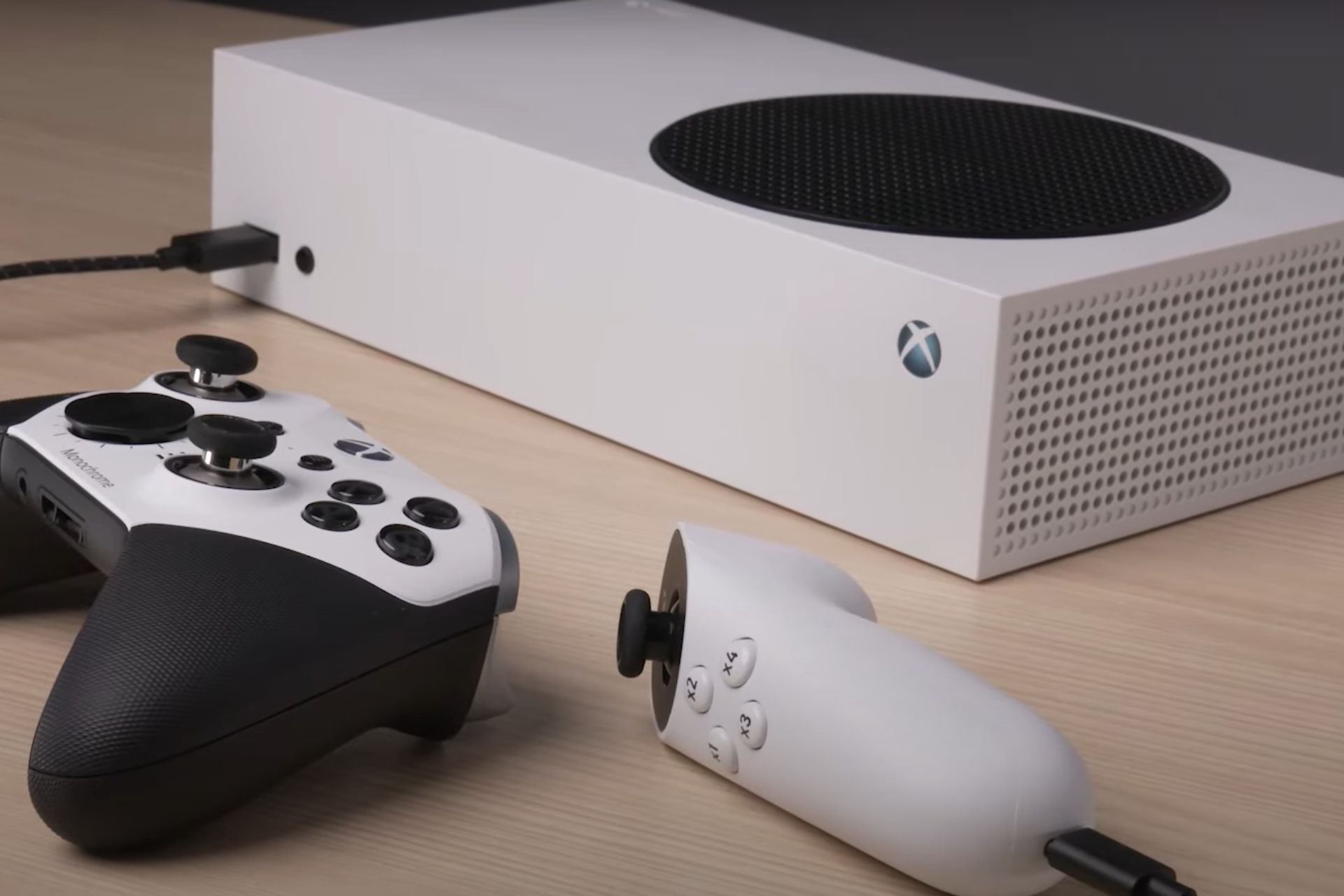
Microsoft has always valued inclusion and accessibility, and the Redmond-based tech company has taken another significant step in its commitment to these ideals with the launch of the Xbox Adaptive Joystick.
Designed to empower gamers with limited mobility, this innovative device is set to transform the gaming experience for millions worldwide. The joystick offers a range of adjustable features, including mappable buttons and a versatile thumbstick, allowing users to tailor their gaming setup to their unique needs.
Compatible with Xbox consoles and PCs, the Adaptive Joystick can be paired with other Xbox controllers and accessories for a comprehensive, adaptive gaming setup.
The device is part of Microsoft’s broader initiative to make gaming more accessible, ensuring that everyone can enjoy the thrill of interactive entertainment.
The Xbox Adaptive Joystick is available exclusively through the Microsoft Store, reflecting the company’s dedication to creating accessible solutions for gamers of all abilities.
Microsoft and NVIDIA unveiled new advancements in a collaboration to revolutionize artificial intelligence (AI) development and performance. As a result, the two tech giants have released the new NVIDIA Blackwell platform, which is now integrated with Azure AI services and offers unparalleled performance for AI workloads.
Thanks to the new NVIDIA Blackwell platform, developers and organizations can harness the full potential of NVIDIA’s advanced computing power within the Azure ecosystem.
According to the official announcement of the partnership, Azure AI Foundry now features NVIDIA NIM microservices, providing optimized containers for over two dozen popular foundation models. This enhancement accelerates the deployment of generative AI applications and improves inferencing workloads, making AI development more efficient and accessible.
Epic, a leading electronic health record company, is leveraging NVIDIA NIM on Azure AI Foundry to enhance patient care and operational efficiency. Epic aims to drive medical innovation and improve clinical outcomes by deploying open-source generative AI models.
But the companies are not stopping here: Microsoft and NVIDIA want organizations to develop their own in-house AI agents capable of solving specific tasks, thanks to the new integration of the NVIDIA Llama Nemotron Reason models into Azure AI Foundry.
For more details, you can explore the official Azure Blog.
Microsoft has been aggressively integrating its AI-powered assistant, Copilot, into the Edge browser. Most recently, the company has added a Copilot button to the address bar in Edge Canary, further expanding its presence.
Microsoft’s AI-powered assistant, Copilot, is designed to deliver real-time suggestions, page summaries, content generation, and troubleshooting assistance. By integrating Copilot into Edge, Microsoft aims to provide users with personalized support directly within the browser.
However, this integration is starting to feel less like innovation and more like overkill. From the sidebar and new tab page to the bottom of every webpage with Copilot Vision enabled—and now a new button in the address bar—Copilot seems to be everywhere.
Image Credit: WindowsReport.
Why It Feels Like Overkill :
Too Many Entry Points for Copilot. Copilot is already everywhere:
Sidebar: Always visible, one-click access. New Tab Page: Prominently featured in the search bar. Bottom of Pages: With Copilot Vision, a prompt appears on every webpage—though it doesn’t always work as promised.
Ad-Like Prompts:
Have you spotted the message in settings? “Running into a problem? Ask Copilot to offer known solutions.” While it might be helpful for some, it feels redundant and intrusive for others. Users who already know about Copilot—or don’t want to use it—might see it as over-the-top.
The address bar should be clean and efficient, not stuffed with AI buttons. For those who don’t use Copilot often, its placement here feels more distracting than helpful.
Here’s what Microsoft could do to tone things down:
Give Users More Control. Let people decide where they want Copilot—address bar, sidebar, or nowhere at all.
Be contextual. Instead of being everywhere, Copilot could show up only when it’s genuinely helpful, like during troubleshooting or complex tasks.
Respect Preferences. Not everyone is on board with AI assistants. Make it easy to minimize or disable Copilot features without disrupting the browser experience.
Copilot is undeniably a powerful tool, but Microsoft’s constant push to promote it risks doing more harm than good. Between the sidebar, new tab page, bottom-of-page prompts, and now the address bar, it’s starting to feel like Copilot is everywhere—whether you want it or not.
Microsoft should take a step back and rethink this approach. Sometimes, less really is more. A great assistant knows when to help—and when to stay out of the way.
Microsoft has released Windows 11 Build 26100.3613 (KB5053656) to the Release Preview Channel. With it, the Redmond-based tech giant now allows developers to build their own dynamic and interactive widgets from existing web content.
These widgets can then be added to widget surfaces in Windows 11. This new capability gives users extra options to customize the widget experience the way they prefer.
Elsewhere, KB5053656 brings enhanced communication capabilities to AMD and Intel-powered Copilot+ PCs. Live captions now support real-time translation into English for over 44 languages. Additionally, Snapdragon-powered Copilot+ PCs gain real-time translation support for Simplified Chinese.
A new Settings homepage is being gradually rolled out for enterprise-managed PCs, featuring cards like “Recommended settings” and “Bluetooth devices.” Users will also notice “top cards” under Settings > System > About, providing a quick overview of key PC specifications such as processor, RAM, storage, and GPU.
The update introduces a Gamepad keyboard layout for the touch keyboard, allowing Xbox controllers to navigate and type more efficiently. A new system tray icon on the taskbar improves the discoverability of the emoji and more panels.
This update is being rolled out gradually, meaning not all features may be immediately available to all users. Some of them will only be available in the next days.
Google has added time range options to Clear Browsing data dialog at the top. Please check the new screenshot below.
Image Credit: WindowsReport.
The original article follows.
Last month, we reported that Google was testing a revamped ‘Delete Browsing Data’ dialog in Chrome Canary. Now, the preview of the new UI is live. While it is not fully working yet, it is simpler and easier to use than the previous version. Here’s what’s new—and what’s still missing.
Chrome allows users to clear various type of browsing data including history, cookies, saved passwords, and autofill information. The interface hasn’t been updated since a long time.
The new Clear Browsing Data dialog introduces several changes aimed at improving the user experience.
A single, clean interface replaces the Basic and Advanced tabs.
A “Show more” button appears at the bottom, though it currently doesn’t populate any additional options.
The option to delete all saved passwords at once has been removed,
DBD new UI. Image Credit: WindowsReport.
What’s missing in new UI:
The timeframe range (e.g., last hour, last 24 hours, last 7 days, last 4 weeks, all time) is not currently available but may be added in a future update.
The “Delete Data” button is not working at the moment, meaning users can only view the new UI but cannot actually clear their browsing data using this dialog. It’s likely that Google is still working on the feature and will fully enable soon.
Note: To keep it simple, we’ve attached a screenshot of the Delete Browsing Data dialog for a user not signed into Chrome.
Here’s a quick comparison of the old and new designs:
Feature
old UI
New UI
Tabs
Basic and Advanced
Single Screen
Password Deletion
Option to delete all passwords at once
Removed
Layout
cluttered with seperate tabs
Cleaner with a “show more “button
The updated Clear Browsing Data dialog is currently available in Chrome Canary, Here is how you can try it out
Launch the latest version of Chrome Canary.
Go to chrome://flags
Find and enable the “”Revamped Delete Browsing Data dialog” flag
Restart Chrrome
Image Credit: WindowsReport.
Once enabled, you’ll see the new UI when you navigate to Settings > Privacy and Security> Delete Browsing Data.
As you might already know, Microsoft is retiring Skype for good this May. The decades-old app will be discontinued, and of course, all Skype users are encouraged to migrate to Teams.
The migration should be easy: you’ll only need to log in to Teams using your current Skype credentials, and you’ll be good to go. However, ever since the announcement that Skype is going away for good, many Skype users have started to wonder what’s going to happen with the remaining Skype credit.
Skype credit is used to purchase Subscriptions, Skype Numbers, and generally any non-free Skype features: these include calls to mobiles and landlines, SMS text messages, and more.
With Skype going away, any remaining Skype Credit can be used to purchase and renew Skype-paid products until April 3, 2025. After this date, Microsoft says Skype Credit can be allocated to group members and used for calling.
So, there you have it. If you want more credit, you can do so until April, and then you should use it until May. Microsoft also says that existing calling and Skype Number subscriptions will continue to automatically renew until April 3, 2025, and they will remain active until Skype is deprecated in May.
After the deprecation, the Skype Dial Pad will be available to remaining paid users from the Skype web portal and within Teams Free.
You can find more information about Skype Credit here.
It’s been almost a year since Microsoft unveiled Copilot+ PC devices, the AI-powered laptops that run on ARM architecture. While they’re faster and better than anything on the market, they’re still limited to only running ARM-based apps, and this is one reason why many tech enthusiasts are not really into getting them so far: some really useful apps, such as the classic version of Outlook, can’t run on these devices.
On Reddit, many Windows users are disappointed that Microsoft didn’t release an ARM-64 version of Classic Outlook, especially since this version of the emailing app is still available and enhanced with modern capabilities, such as AI.
I was extremely disheartened to find that Microsoft forces you to use new outlook on ARM based windows, because in my experience, you cannot do anything more advanced than setting up an IMAP account.
More Windows users then preferred the classic Outlook and asked Microsoft to release a standalone Classic Outlook app for ARM-64.
While there isn’t such a version, Microsoft indeed released an ARM-64 version of the entire Office suite three years ago. The suite also included classic Outlook. However, it was only available for Insiders back then, and it might not be available today—I looked everywhere on official Microsoft websites and forums, and I couldn’t find anything.
Will Microsoft release an ARM-64 version of the Classic Outlook app? Most likely, yes. As we said, the app already has AI capabilities, and support for it will continue for a few more years.
Microsoft has announced the extensibility of Teams Phone for the Dynamics 365 Contact Center. The new integration aims to streamline businesses’ operations and improve customer experience. It offers advanced voice capabilities alongside Microsoft-certified ISV (Independent Software Vendor) solutions.
In the announcement, Microsoft says the Teams Phone extensibility enables businesses to integrate their contact center operations directly with Microsoft Teams, leveraging its voice and video communications infrastructure. The update is designed to provide seamless connections, boost efficiency, and elevate customer interactions across industries.
Collaboration with certified ISV solutions offers additional customization options for businesses, making integration adaptable for each organization.
By connecting Dynamics 365 Contact Center with Teams Phone, businesses can expect a unified communication hub that aligns customer relationship management with modern collaboration tools, including Anywhere365, AudioCodes, ComputerTalk, Enghouse, IP Dynamics, Landis, and Luware.
This flexibility ensures that customers can select the best solutions for their unique requirements, further enhancing the value and functionality of their Teams Phone platform. ISV solutions that will be certified for Teams Phone extensibility include Anywhere365, AudioCodes, ComputerTalk, Enghouse, IP Dynamics, Landis, and Luware.
With its rollout, Microsoft hopes to set a new benchmark for enterprise communication by offering a more innovative, streamlined solution for modern businesses’ ever-evolving needs.
Speaking of Teams, Microsoft introduced the new Live Chat to the platform, allowing organizations to embed the widget on their official websites for better customer communication.
Microsoft has released KB5053657 to Windows 11 Insiders in the Release Preview Channel. The update, which is part of Windows 11 version 23H2, brings a huge change to the Settings Page.
More exactly, commercial devices will now feature a “Your Accounts” card on the Settings Home Page and “Top cards” displaying key hardware specifications such as storage, graphics, RAM, and more. This should make it easier for Windows 11 users to get essential info quickly when needed.
Elsewhere, KB5053657 introduces increased support for text scaling across File Explorer, File Open/Save dialogs, and copy dialogs, making it more accessible for users with visual impairments.
Update: Microsoft decided to retire the support for text scaling across File Explorer, due to some issues.
A new Gamepad keyboard layout for the touch keyboard has been enabled, allowing users to navigate and type using their Xbox controller. This includes button accelerators and vertically aligned keyboard keys for better controller navigation.
Task Manager will now calculate CPU utilization using standard metrics, ensuring consistent display of CPU workload across all pages. A new optional column called CPU Utility is available on the Details tab for backward compatibility.
Plus, KB5053657 also brings the new system tray icon on the taskbar, which has been introduced to improve the discoverability of the emoji and more panel in Windows 11.
Microsoft just announced the release of the brand-new Live Chat feature for Teams, which is available to commercial customers starting today. The new capability will allow businesses to embed a Teams chat directly on their website so that customers can communicate with them from there.
The Redmond-based tech giant says the new capability should reduce response times and even lead to higher conversion rates and more customers.
With live chat, you can support one-to-one chat with your customers right from your business website—directly from Teams. This reduces response times and moves prospective customers further along the sales journey, leading to higher conversion rates and improved customer satisfaction.
Below, you can watch how this feature works. Microsoft says commercial customers can add the new Live Chat widget in Teams directly to their website starting today.
Along with the new Live Chat, Microsoft Teams now allows businesses to employ the Queues app to take and manage customer calls more easily. The Redmond-based tech giant teased the platform a while ago.
Microsoft released KB5053649 to Windows 11 Beta Channel Insiders. While the patch is small, it contains important fixes for a really frustrating bug regarding Windows Tools.
The platform would cause all of the apps related to it to be broken out into folders instead of being centralized in one point. However, with the release of the KB5053649 pack, Microsoft effectively fixes this issue.
We fixed the issue causing Windows Tools-related apps to break out into folders instead of being in one single app.
Elsewhere, the patch introduces Chinese support for voice access, including Simplified Chinese and Traditional Chinese, additional fixes for Windows updates, and the login screen.
Microsoft released the latest Windows 11 Insider build, KB5053650, to all insiders on the Dev and Beta Channels. With it, the Redmond-based tech giant has made Windows 11’s Voice Access capable of understanding intuitive language.
What does this mean? Windows 11 users will no longer have to use a fixed syntax with Voice Access for the capability to understand what the user is trying to say and perform the said action.
As Microsoft says, you can now say “Can you open Edge application”, or “Switch to Microsoft Edge”, or “Please open the Edge browser”. Voice access understands your intent and executes the right action for the voice command you speak.
You’ll no longer have to pause and remember an exact phrasing for the capability to work. The Redmond-based tech giant also enhanced Voice Access with the ability to suggest real-time commands based on what users just said in case the tool doesn’t pick the sentence correctly.
Voice Access is now capable of something Windows Copilot should have been all along: the ability actually to open applications and navigate Windows using another tool.
Elsewhere, while the KB5053650 patch comes with dozens of fixes for the operating system, it’s also full of known errors ranging from general ones regarding the ability to install Windows updates to Recall, Click to Do, Improved Windows Search, File Explorer, Taskbar, and Task Manager.
A long-time Xbox user has sparked discussion across gaming communities after sharing their experience of being permanently banned from the platform under weird circumstances: the individual, a loyal Xbox player since 2007, claimed to have invested over $40,000 on more than 600 games—only to have their access to all digital purchases revoked.
The ban happened during a recent Call of Duty: Black Ops 1 game, where a random player in the online lobby activated a mod menu that unlocked achievements for everyone present. The user states they did not participate in the modding but were banned the following day for violating Xbox’s community guidelines.
Here’s what happened: I’m playing Black Ops 1 the other night, and some random guy in the lobby uses a mod menu that unlocks achievements for everyone in the lobby. I didn’t do anything, but suddenly a day later I get a message saying I’ve been banned for breaking community guidelines. Now, I’ve been playing Xbox for years with a perfect account—no violations, no strikes, nothing. I’ve literally never cheated in my life. But Microsoft punishes me for something I didn’t even do.
Adding to the frustration, the user’s appeal was allegedly denied within minutes without the opportunity to explain the situation entirely. The ban notice reportedly cited “No details given,” leaving the user with no clear explanation for the penalty.
The user also said explaining the situation to Microsoft was impossible, alleging a lack of direct contact options or responsive support from the Redmond-based tech giant. They expressed their concerns about the risks associated with digital ownership, urging fellow gamers to think carefully about their purchases.
To make matters worse, there’s no way to escalate or contact anyone directly. I tried everything, and Microsoft just ignores me. So basically, if you’re unlucky enough to be in the wrong lobby or even get caught by a stray bullet like I did, they can take everything you’ve ever bought without any explanation or recourse.
However, in a last update, the Xbox gamer says they managed to access their library, as Microsoft lifted the ban after finally getting in touch with the company. Despite the resolution, the case has prompted broader questions about digital content ownership and platform accountability.
What to do in such a case? If you face a similar situation, the best solution is to get in touch with Xbox’s customer support and explain the situation as thoroughly as possible. Provide evidence of the problem and the necessary information about your account, Game Pass, or library information, emphasizing specific data such as when the ban happened.
You can also try to ask for advice from the recently added Copilot for Gaming. The AI will then guide you through the issue and will offer you ways to contact Xbox, or Microsoft.
Microsoft announced the next-gen Xbox console a few weeks ago. According to the company, it’s coming in 2027, but not before releasing an Xbox handheld, which should be available at the end of this year or in 2026.
Touted as the most powerful Xbox console, the next-gen Xbox should reinvigorate the Redmond-based tech giant’s gaming department. This is especially true after recently low sales of the Xbox Series S and X compared to the other consoles on the market, which prompted many to say that Xbox is losing the console war, whatever that means.
Why are we saying this? Well, because, at a quick glance on Reddit, gamers are more than ecstatic about the next-gen Xbox console: they, too, agree that the next console will be the best on the market.
Yes, Microsoft usually nails the hardware and software on consoles (let’s ignore the Xbox One ?), much better than Windows at least.
Most gamers agree that the Xbox consoles are pretty durable, and they’re not crippled with hardware or software issues. Plus, the ability to choose between two types of consoles, one for casual gamers and the other one for more hardcore gamers, has also been received well by the community. However, some said this decision meant that certain games were available on Xbox on release day (with the latest example being Baldur’s Gate 3).
The Reddit thread, although still an unofficial forum, is a good way to get the sentiment regarding the next-gen Xbox, and it’s surprisingly positive.
If the price is right, yeah. I mostly play on pc, but almost all of my friends are on Xbox, and not every game has crossplay.
Yup, while i have a PC and i know its more flexible in terms of games and power, i enjoy the simplicity of my xbox as a gamepass machine to just relax and play on.
Yes. I prefer gaming on consoles as opposed to PC or streaming and I have a large Xbox Library that will go with me to the next console.
Microsoft has acknowledged a peculiar issue affecting the Disk Cleanup tool in Windows 11, version 24H2. Last year, users reported that the tool incorrectly displayed the storage space available for cleanup, even after files had been successfully removed.
The issue appeared when users attempted to clean up “Windows Update Cleanup” files. Although the files were deleted and the space was freed, the tool continued to show the same amount of space as occupied.
The Redmond-based tech giant has clarified that this is a reporting error and does not indicate that the files are still taking up storage.
This bug is linked to Windows 11’s new “checkpoint cumulative updates” feature, which allows for more minor, incremental updates. While the feature is designed to improve the update process, this temporary reporting glitch has confused users.
According to the Windows Health dashboard, Microsoft has resolved the issue and it assures users that their devices are not at risk. In the meantime, users can rest assured that their storage space is being managed correctly, despite the misleading display in Disk Cleanup.
Resolution: Windows updates released October 24, 2024 (KB5044384) and later include improvements to the Windows Disk Cleanup tool which address some of the causes for incorrect estimates. We will continue to improve the accuracy of the free space estimates provided by the Disk Cleanup application in future Windows updates.
Microsoft has added a new video game, a feature match quiz that will appear on the operating system’s OOBE update screen.
Spotted by tech enthusiast @phantomofearth, the new feature match quiz should appear to all Windows users moving forward. The rollout will most likely take place in the following weeks.
The Redmond-based tech giant has been enhancing the OOBE update screen with various interactive elements, over the years, so this little video game shouldn’t come as a surprise to Windows users.
However, it opens up the possibilities of making the experience even more engaging. As we all know, the OOBE usually takes some time.
Microsoft has rolled out the latest update for its Edge Dev Channel, version 135.0.3179.11, introducing many improvements and new features, including AI for further support.
More specifically, the update supports displaying Copilot in the Side Pane, enabling seamless tab switching and navigation within the same tab.
Added support for displaying Copilot in the Side Pane, with contextual ability for tab switching and navigation within the same tab.
Numerous issues have been resolved, such as crashes caused by specific actions like CTRL + TAB on collapsed tab groups or switching profiles in the search bar.
The update addresses platform-specific issues, including display glitches on iOS, toolbar disappearance on Android, and tab shadow effects on macOS. For example, the PDF toolbar will no longer disappear when closing the browser and opening an external PDF with Edge on Android. Some issues regarding the recently released Game Assist crashing links in sidebar apps were also fixed.
If you’re a fan of the action-horror genre, especially the Silent Hill saga, you will be happy to know Konami will also release the game on Xbox and PC. The first Silent Hill game was released in 1999 and is one of the psychological horror genre’s grounding titles.
Konami’s announcement is a bit of a surprise because the publisher has an exclusivity contract with Sony for PlayStation. However, that agreement will expire in October 2025. The same announcement also appears on the Xbox website, together with a brief description of Silent Hill f.
Here’s how the acclaimed writer Ryukishi07 describes his experience with the Silent Hill series:
To me, the SILENT HILL series is more than just a collection of stories, it’s a medium; an amazing, phenomenal way of exploring and experiencing a person’s heart and mind. It’s my hope that players out there will come to appreciate it in the same way. To all of our overseas friends, I hope you’ll enjoy a look at what SILENT HILL might be like if set somewhere a little different, like Japan.
We can’t embed the trailer of Silent Hill f here due to inappropriate content, but you can watch it on YouTube if you’re an adult.
We also need to mention that Silent Hill f will be adapted for Xbox and PC. Konami didn’t recreate it for the other platforms, so you probably need to get a controller ready if you plan to play it on PC.
Konami didn’t disclose the release date for the game, but it’s safe to assume that it will happen sometime after the Sony deal expires. If you’re lucky, this will happen in time for Halloween.
Microsoft will enhance Teams with a peculiar feature, to say the least: Real-Time Text (RTT).
According to a recent entry to the Microsoft 365 Roadmap, Real-Time Text (RTT) is a feature that lets people type during a meeting. Their text shows up instantly for everyone to see. At the same time, the spoken words of others in the meeting are written down automatically as subtitles.
Microsoft says this helps everyone communicate smoothly—whether someone prefers typing instead of talking, finds speaking hard, or wants to use text for any reason. It’s designed to make meetings easier and more inclusive for all.
Real-Time Text (RTT) lets participants type in the meeting while others’ speech is transcribed in real time. Whether for accessibility reasons or simply a preference to chime in via text, RTT ensures seamless, instant communication for everyone. It enables effective collaboration for all users, including those who prefer typing over speaking, and can be especially useful in situations where speaking is difficult or not possible.
The Redmond-based tech giant says the enhancement will be available in May. However, the company is not saying whether the new setting is optional, and it might unveil more when the feature is out.
Why is this important? Well, the description implies that the other users can see what you’re typing even though you haven’t sent the message, which means users will have to be extra careful when writing messages in Teams calls from now on.
Mozilla is working to bring Progressive Web Apps (PWAs) to Firefox on Windows 11 under the name “Taskbar Tabs.” This feature aims to transform websites into app-like experiences, allowing users to pin web apps to their taskbar on desktop for quick access.
PWAs, or Progressive Web Apps, are websites that function like apps on your phone or computer. They load quickly, even with a slow internet connection, and can work offline.
Progressive Web Apps in Firefox
In the past, Mozilla attempted to add PWA support to Firefox in the form of a Single Site Browser (SSB), but the feature was never launched, even in the Nightly version for testing. The company eventually abandoned PWA support. Although there is an extension to support PWAs in Firefox, native support for the feature had not been implemented—until now.
With growing demand, Mozilla is working on Taskbar Tabs for Windows, aiming to make websites feel more like traditional apps.
David Rubino, a Firefox product manager, shared that the team is rethinking how to implement PWAs based on community feedback. The goal is to allow users to turn any website into a web app with a single click, running it in its own window with a simplified browser interface. These web apps would stay open until closed, handle links within their scope, and integrate with the operating system, such as Windows, for quick access—like appearing on the taskbar.
WindowsReport has learned that Mozilla worked on this feature under the name “Taskbar Tabs” as a separate extension before integrating it into Firefox. The feature moves tabs to single-site windows in the taskbar.
How Taskbar Tabs work
Based on our findings, here’s how you can create web apps in Firefox:
When you navigate to a website, an option appears in the URL bar to move a normal window tab into a Taskbar Tab. It may also be possible to move a Taskbar Tab back into a normal window, similar to how PWAs work in Chrome or Edge, where you can reopen them in the browser.
Image Credit: WindowsReport.
Here’s how you can enable Taskbar Tabs and install PWAs in Firefox on Windows:
WindowsReport has noticed that Mozilla has kept Taskbar Tabs behind a hidden preference. Here’s how you can enable it:
Launch the latest Firefox Nightly.
Visit about:config.
Create a boolean preference named browser.taskbarTabs.enabled and set its value to true.
Restart Firefox.
Note: As of now, the feature isn’t working. However, we’ve shared a video below that shows how Taskbar Tabs work, based on the concept made available as an extension in the past.
Progress so far and what’s next
From the Taskbar Tabs meta bug, we have learned that Mozilla has made a significant progress in improving Firefox’s PWA Support. key tasks, such as minimizing the browser UI for Taskbar Tab windows, cleaning up the hamburger menu, have already been completed.
However, some work remains, including adding a URL bar action for Taskbar Tab conversions, handling Taskbar Tab launches, integrating with the Session Store, and improving the Jump List to display only relevant items.
The team is also working on allowing users to revert Taskbar Tabs back to regular windows and updating internal logic to ensure Taskbar Tabs don’t interfere with normal tab restoration.
Video: How Taskbar Tabs Worked as an Extension
Mozilla plans to roll out Taskbar Tabs as an experiment first, followed by a wider release based on user feedback. The team is also looking to bring PWAs feature to macOS, where single tabs could be moved to the dock instead of the taskbar.
However, while Firefox on Android already supports adding website shortcuts to the home screen, it’s unclear whether Mozilla plans to expand PWA support for Linux or further improve Android’s PWA features
WindowsReport has reached out to Mozilla for a statement on this development and an estimated timeline for when Taskbar Tabs will be available to users. We are currently awaiting their response and will update this article as soon as we hear back.
What do you think about Firefox’s new Taskbar Tabs and its PWA install button? Could this feature convince you to switch to Firefox?Let us know your thoughts in the comments below.
However, among the new enhancements and changes, Microsoft also adds new policies, and one, in particular, is important because it will impact Edge users right away.
The new AddressBarTrendingSuggestEnabled will allow Microsoft Edge to enable Bing to display trending suggestions in the address bar. As with any other policy, this one needs to be enabled first, for Edge users to see its impact, but it’s still interesting.
It could especially be helpful to companies looking to optimize their content for Bing Search, as the search engine will show them what’s currently trending on the Internet.
Microsoft is adding two new options, “Article” and “Question,” to the “Create new” button in Viva Engage for premium users. According to a recent entry to the Microsoft 365 Roadmap, this change will start in April 2025 and make it easier for premium users to create these posts.
However, it’s worth noting that the Redmond-based tech giant will not be adding new types of content but will make it simpler to create articles and questions if you already have a premium license, such as the Microsoft Viva Suite or the Microsoft Viva Employee Communications and Communities Suite.
We are excited to announce the addition of two post creation options—Article and Question—to the centralized creation button in Viva Engage for premium users. Starting April 2025, a Viva Engage premium licensed user will be able to create an article or a question post type directly by clicking on the “Create new” button, easing the process of creation of these post types, while also helping users discover them quicker. Kindly note that this roll out does not entail adding new types of content creation, but brings forth a unified and easier way to create these post types when a user is already licensed to use them. By ‘Viva Engage premium licensed user’, we mean this feature is available for users licensed to the Microsoft Viva Suite or the Microsoft Viva Employee Communications and Communities Suite.
The new options will be available worldwide for Desktop and Viva users.
However, a new feature is indeed coming to Microsoft Viva: Republish. The company announced it last month and promises to change content management on the platform.
Microsoft has unveiled its latest innovation, Copilot for Gaming, an AI-driven assistant designed to enhance the gaming experience for Xbox players. It will soon be available everywhere.
Copilot for Gaming aims to help players with strategy, setup, and more, making gaming more accessible and enjoyable. It provides real-time coaching to help players improve their skills and navigate in-game challenges. Whether suggesting the next move in a survival scenario or offering strategic advice, the AI assistant guides players through their gaming journey.
In the latest episode of the official Xbox podcast, the company gives a glimpse of its new AI tool, which will offer personalized game recommendations based on players’ preferences and gaming history.
Copilot for Gaming can also help players download and install games and stay connected with their friends and gaming communities.
The tool will be available as an early preview for Xbox Insiders on mobile. If that is a success, Microsoft will then refine the tool before expanding it to other devices. As always, the Redmond-based tech giant asks Xbox players to provide feedback about it.
Epic Games is making significant strides in expanding gaming accessibility by bringing Windows on ARM support to its Epic Online Services Anti-Cheat system, also known as Easy Anti-Cheat.
This update will also make Fortnite available on Windows on Snapdragon devices later this year. According to Epic Games’ announcement, the collaboration with Qualcomm Technologies aims to enable developers to bring more games to ARM-based Windows devices, powered by Snapdragon processors.
Over the last year, the introduction of Windows 11 Arm-based laptops has transformed the PC landscape, and laptops with Qualcomm’s Snapdragon® X Series processors represent a rapidly growing segment of the PC gaming market. However, the majority of PC games today are compiled for x64, which doesn’t translate directly to the Windows on Snapdragon architecture. Due to the way anti-cheat software works with x64 features, additional tooling is required for compatibility with these devices.
The move addresses a key challenge in the gaming industry: compatibility with anti-cheat software on ARM architecture. By integrating Easy Anti-Cheat support, Epic Games is paving the way for a smoother gaming experience on Snapdragon-powered devices. This update is expected to benefit not only Fortnite but also other multiplayer games that rely on Easy Anti-Cheat to maintain fair play.
The lack of anti-cheat support is one of the reasons why many gamers avoided using Windows on ARM as a gaming platform. The move from Epig Games will certainly smooth the gamers’ relation to ARM.
After launching AI History Search in Chrome, Google has started dispalying images of web pages alongside search results in Canary version. This makes finding websites via History Search using AI even faster and easier.
Chrome AI History Search is a new feature that allows users to search their browsing history using everyday language and even ask questions. AI provides answers based on the content of previously visited pages, even if you don’t remember the exact site or URL.
The feature is evolving. We observed that Chrome Canary now shows thumbnails or preview images next to each result in AI History Search, so users can quickly identify the page they’re looking for. These visual cues reduce the the need to scroll through a long lists of text-based search results in your browsing history.
Chrome AI History Search showing results with webpage images. Image Credit: WindowsReport
According to Google Chrome Gerrit, a commit made in January 2024 explains how this feature works. The commit states:
“Add images to results for history embeddings with answers enabled. If a history embeddings search result’s URL is known to sync, try to get an image for the result through the PageImageService using the same client ID as history clusters. If there is no image, the History page falls back to an SVG, and the side panel falls back to the favicon. Update some styling for the side panel.”
This means Chrome attempts to fetch an image for each result using the PageImageService. If no image is found, it displays a default graphic or the site’s favicon, ensuring users always see some kind of visual aid.
For example, if you’re trying to find a recipe you visited earlier, seeing an image of the dish or the website’s layout can help you locate it much faster than reading through URLs or page titles. Keep in mind, you still need to input a search query in whatever way you remember it.
“Using question words like “what” or “where” helps Chrome give you better answers. Alternatively, you can describe what you’re looking for in a few words. As you visit more sites, you’ll see more AI-powered results” as noted by Chrome on the feature page.
The Notepad update introduces the ability to summarize content using generative AI. Users can select the text they want to summarize, right-click, and choose the “Summarize” option, or use the Ctrl + M keyboard shortcut.
Moreover, Notepad now includes a “Recent Files” section in the File menu, allowing users to quickly reopen recently closed documents. This highly-requested feature enhances the user experience by providing easy access to previously used files.
With recent files, you can now reopen your recently closed files directly within Notepad. To access Recent Files, open Notepad and go to the File menu, where you will find a list of your recently used documents. Click on any file to instantly reopen and continue editing.
The Redmond-based tech giant also updated Snipping Tool with the Draw & Hold feature, which allows users to quickly add shapes and arrows to images by drawing them. Both the new capabilities for Notepad and Snipping Tool were released in the same patch.
Great news for all Snipping Tool users out there: its latest update introduces the “Draw & Hold” feature, allowing users to draw neat lines and shapes easily. Users can use this feature to capture a screenshot and then use the pen tool to draw a line, arrow, rectangle, or oval over the image.
In a blog post, Microsoft says holding the cursor or pen still for a moment before releasing the pen will convert the stroke into a well-formed shape. This feature aims to improve users’ inking markup experience.
Additionally, the Snipping Tool supports a new and improved protocol launch experience. Developers can customize which Snipping Tool capture features are shown when invoked from their applications, offering improved flexibility, security, and ease of use.
For developers, Snipping Tool now supports a new and improved protocol launch experience! App callers can now customize which Snipping Tool capture features are shown when invoked from their experience. The protocol is designed to offer improved flexibility, security, and ease of use, aligning closely with familiar HTTP-based interactions. This shift can make use of the protocol more intuitive for developers, and it expands support for better integration with web technologies. To learn more and get started, check out the Launch Snipping Tool developer documentation page.
The new Draw & Hold capability is available to all Snipping Tool insiders.
In similar news, the tool was recently enhanced with the ability to trim video recordings, allowing users to share a specific part of their recordings with others easily.
Windows 11’s Settings app has come a long way since the operating system’s launch four years ago. Microsoft has steadily migrated features from the classic Control Panel to the more modern and streamlined Settings interface.
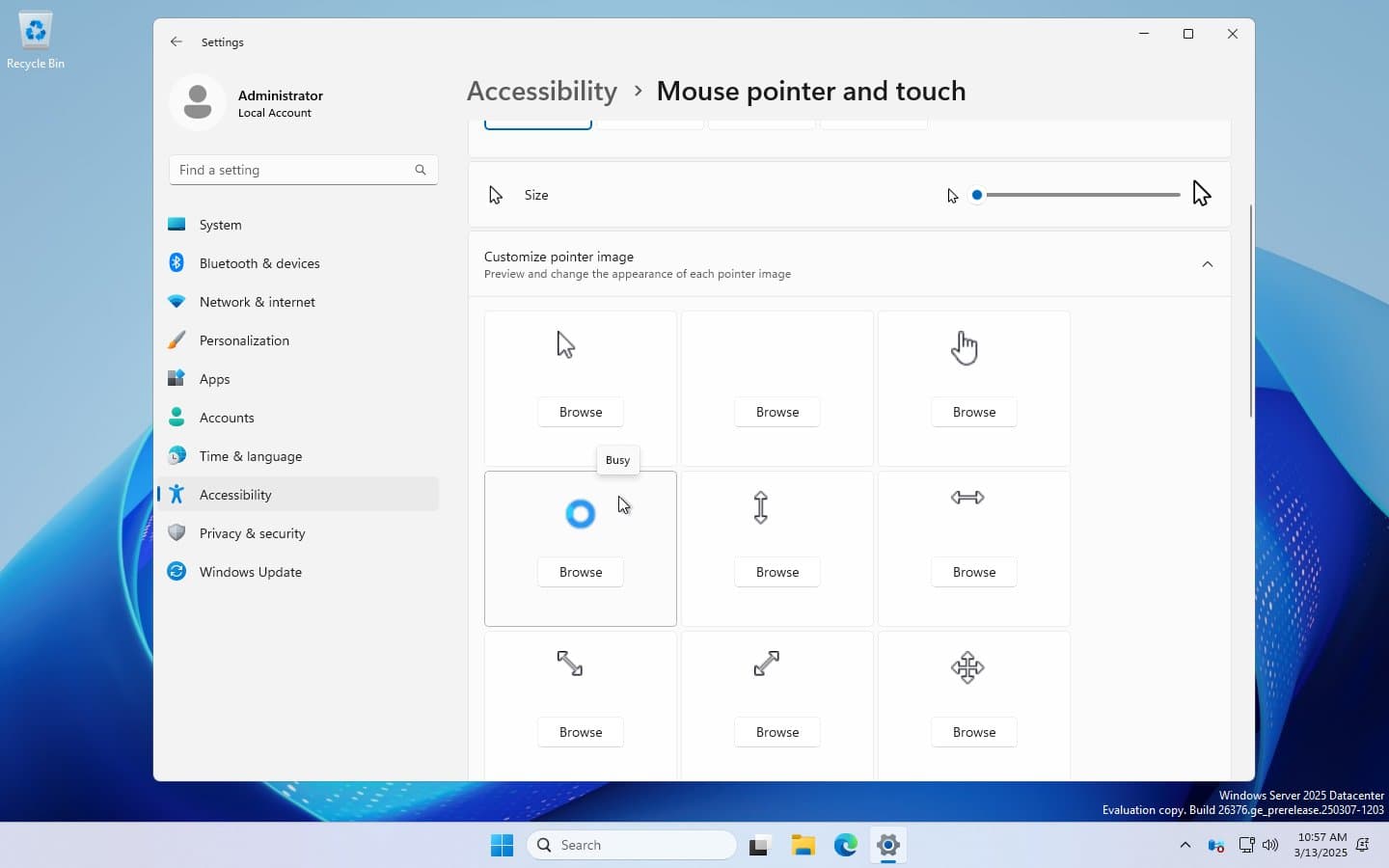
In the latest Windows Server build 26376 for insiders, some exciting updates have surfaced. Phantomofearth posted on X that additional mouse settings have been moved from the Control Panel to the Settings app, making it less likely you’ll need to use the old Win + R > control command.
Hidden in build 26376 (out for server): all of the options in the old mouse properties dialog are now available in Settings, including pointer trails, pointer shadow & pointer image customization!
Newly added mouse options include the ability to enable the mouse indicator (which helps locate the cursor by pressing the Ctrl key), adjust pointer trails and their size, enable cursor shadow, and even customize pointer images individually. Microsoft has also refreshed icons for existing settings like cursor speed and enhanced pointer precision, giving the app a fresh, cohesive look.
Obviously, Microsoft wants to create a unified, user-friendly experience in Windows 11. It’s still a bit strange why you still need to go to the old Control Panel for some features when they can be embedded into Settings.
Anyway, these mouse settings are only accessible in Windows Server build 26376 for insiders, so you won’t see the options on a stable build.
Microsoft has released the KB5053643 patch to Windows 10 Insiders in the Release Preview Channel. The update is not big, but it brings many improvements to the 10-year-old operating system.
For starters, the update provides Noto CJK (Chinese, Japanese, and Korean) fonts in Windows, improving text support for these languages and making writing easier.
The Country and Operator Settings Asset (COSA) profiles have been updated to improve compatibility and performance with mobile operators.
With KB5053643, a fix has been implemented to address an issue where thumbnails in File Explorer may crash, resulting in white pages appearing instead of the actual thumbnail. The patch has also fixed printers using Independent Hardware Vendor (IHV) drivers that might unexpectedly output incorrect or unwanted text.
System processes can now store temporary files in a secure directory “C:\Windows\SystemTemp” by calling the GetTempPath2 API or using the.NET’s GetTempPath API, thereby reducing the risk of unauthorized access.
Certain Get-Help troubleshooters that might not run in a Remote Desktop session have been fixed.
The update introduces improved support in Windows Search for the European Economic Area (EEA), including increased discoverability.
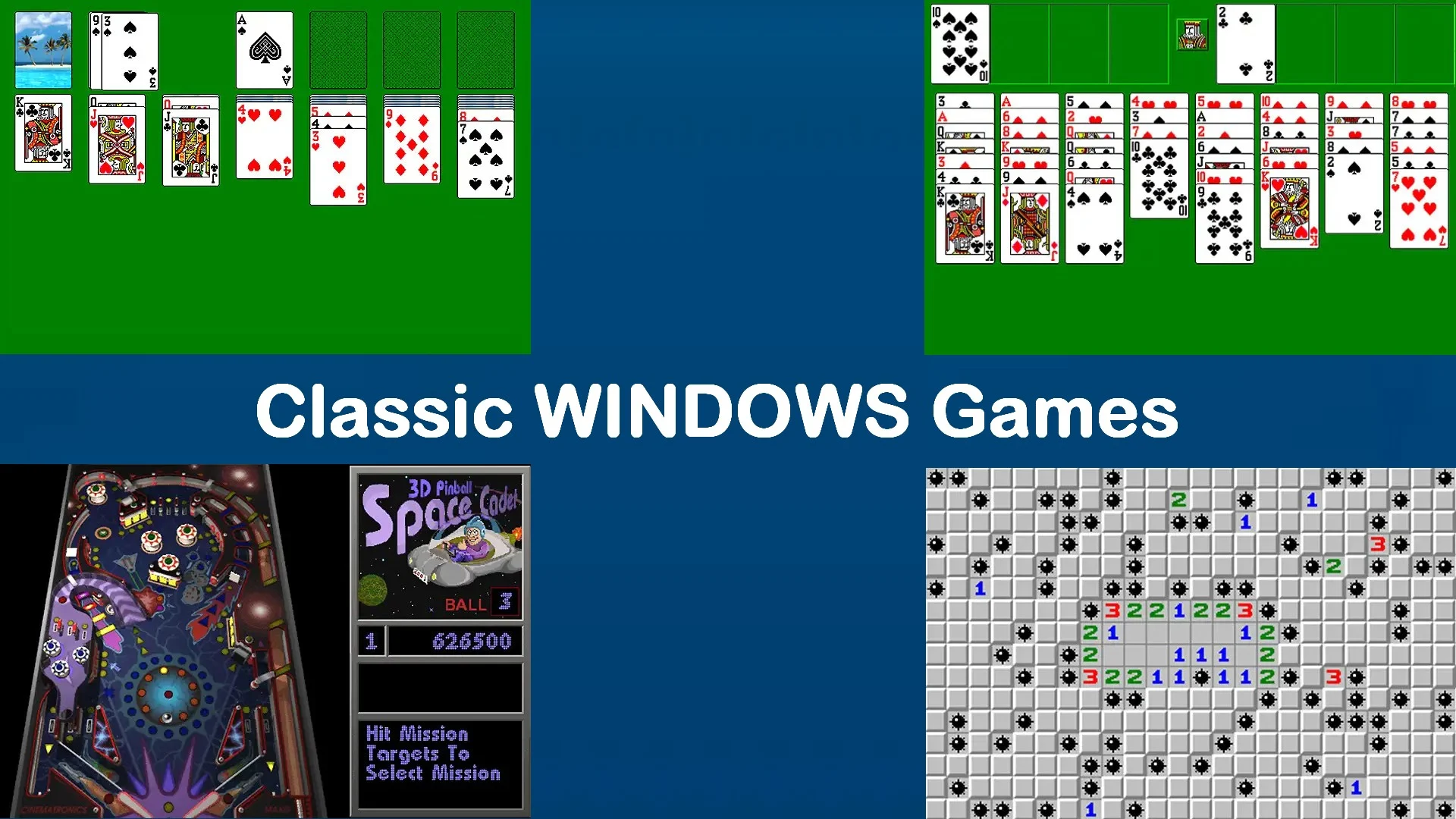
If you had a Windows PC in the 90s or early 2000s, chances are you spent countless hours playing some of its iconic built-in games. These classic Windows games were more than just time-killers, they were a core part of the PC experience. Whether you were clicking frantically in Minesweeper, strategizing your next move in FreeCell or watching the cards bounce after winning a game of Solitaire, these classics hold a special place in gaming history.
But are they still worth playing today? Absolutely! These games were designed for quick, engaging gameplay and even in an era of hyper-realistic graphics and open-world adventures, they remain fun, challenging and strangely addictive. Let’s take a trip back and revisit the five best classic Microsoft Windows games that are still worth playing today.
#1 – Solitaire (Klondike)
Solitaire is the king of classic PC games. If you had a Windows computer in the 90s or early 2000s, you’ve played this at least once. It was the ultimate way to pass time, whether you were taking a break at work or just killing a few minutes at home.
The game’s simple yet addictive mechanics—stacking cards in alternating colors and arranging them by suit from Ace to King—made it easy to learn but sometimes frustratingly difficult to win. The best part? The iconic bouncing card animation that played when you finally beat the game.
Modern versions of Windows do still include Solitaire and it’s still free through the Microsoft Store and other gaming platforms. It may be old, but it hasn’t lost its charm.
#2 – Spider Solitaire
Windows introduced Spider Solitaire in 2000 and it quickly became one of the most played card games on the platform. Unlike classic Solitaire, this version required players to organize cards by suit, making it a bit more complex.
One of the best aspects of Spider Solitaire was its adjustable difficulty. Players could choose between one suit (easiest), two suits (moderate difficulty) or all four suits (the ultimate challenge). This flexibility made it a great game for both casual players and serious card strategists.
Even now, Spider Solitaire remains a staple in Windows card games and can be found in modern versions of Windows or played online.
#3 – Minesweeper
Minesweeper is a game that starts off simple but quickly turns into a mental workout. Originally introduced in Windows 3.1 and included in every version until Windows 8, Minesweeper was one of the most well-known logic puzzle games in computing history.
The premise was deceptively simple: click on tiles to reveal numbers, which indicate how many mines are adjacent. Using logic and deduction, you had to clear the board without clicking on a mine. If you hit a mine… boom! Game over.
It’s a game of patience, strategy and a bit of risk-taking. And while it may not be as flashy as modern puzzle games, it remains just as engaging today as it was decades ago.
#4 – FreeCell
If you thought Solitaire was too reliant on luck, Freecell Solitaire was here to test your strategic thinking. First appearing in Windows 3.1 and becoming wildly popular with Windows 95, FreeCell was a twist on traditional Solitaire that required more planning.
Unlike regular Solitaire, nearly every FreeCell game is solvable, except for a very small number of impossible hands. That meant if you lost, you couldn’t blame the shuffle, you just had to think harder. This made it a favorite among puzzle lovers who enjoyed the challenge of working through difficult layouts. Even today, FreeCell is a timeless classic for those who enjoy strategic card games.
#5 – 3D Pinball for Windows: Space Cadet
This game was the closest thing to an arcade pinball machine you could get on a PC. Originally included with Windows NT and later Windows XP, 3D Pinball: Space Cadet felt revolutionary at the time. It featured 3D graphics (a big deal back then) and had a satisfying physics system that made launching and bouncing the ball around genuinely fun.
The gameplay was simple: hit targets, rack up points and keep the ball in play for as long as possible. It was easy to pick up but tricky to master, which kept players coming back for more.
Unfortunately, newer versions of Windows don’t include 3D Pinball: Space Cadet, but it’s still possible to download it online or run it on an older machine. If you ever get the chance to play it again, you’ll remember why it was so beloved.
Final Thoughts
Classic Microsoft Windows games were part of gaming history, and many still hold up today. They’re simple, fun and strangely addictive, even in an era of ultra-HD graphics and massive open-world games.
So, if you’re feeling nostalgic or just want to experience the games that defined early PC gaming, fire up 3D Pinball: Space Cadet, FreeCell, Minesweeper, Spider Solitaire or Solitaire. You might be surprised at how much fun they still are.
What if we told you that Copilot might soon be able to understand subtext in an email you’re sending or receiving, so that you can send the perfect follow-up? You wouldn’t have to spend hours thinking about the a proper answer, Copilot could just do that for you.
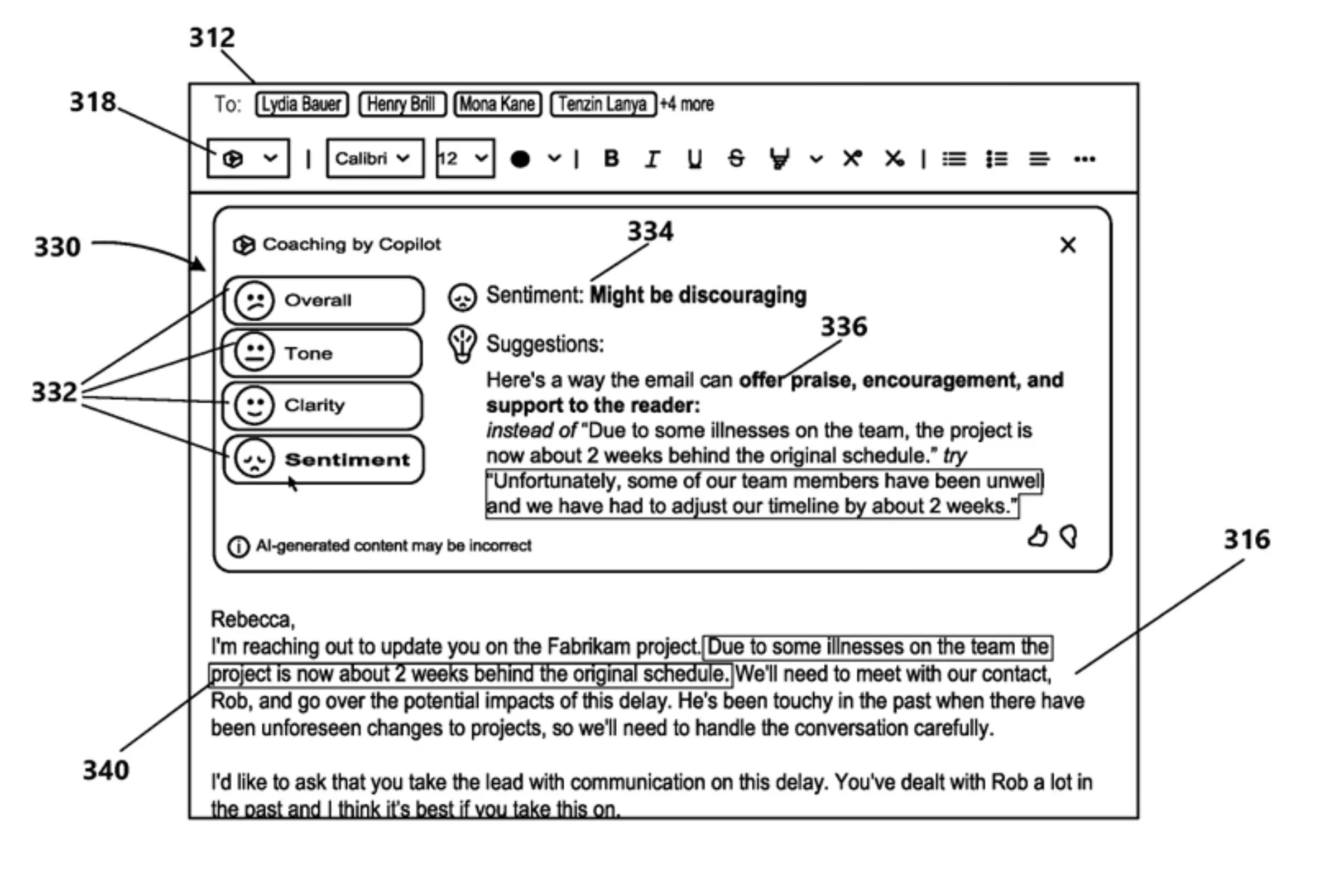
Sounds exciting, right? Well, you should know that Microsoft is indeed designing or developing something of the sort, because we found a recent patent that describes such a technology. The paper, suggestively called Second Chance Message Enhancements, describes a technology that provides advanced feedback for messages you are writing or have sent in a messaging app.
It works in two main scenarios:
For Draft Messages, the system gets the text when you start typing a message. The system analyzes the message’s content using unique models or rules if certain conditions are met (like a long enough message or specific keywords).
Based on the analysis, the system gives the message a score that indicates how good or bad it is. If the score is high or low enough, the system provides detailed feedback to help you improve the message.
For Sent Messages, the system gets the text after you send a message. The system again uses unique models or rules to examine the message’s content and gives the sent message a score indicating how good or bad it is.
If the score is high or low enough, the system sends you an alert in the messaging app. If you interact with the alert, the system provides detailed feedback to help you understand and improve the message.
In both cases, the system uses feedback scores to decide whether to give you more detailed, advanced feedback. This helps you write better messages whether you’re still drafting or have already sent them.
We have reviewed the patent. The paper uses mockup images of Copilot, the said technology, so this is definitely about the AI model, as you can see in the features image above.
It would be interesting if Copilot ends up being able to identify the tone and subtext of each email. Microsoft experimented with an AI model in 2023, Project Rumi, that was capable of using the web camera to analyze the user’s facial expressions and react accordingly, to exceptional results, so this is more than feasible. Copilot is already capable of drafting an email, however, you need to tweak it with specific prompts to make it write a proper follow-up.
This technology would automatically make Copilot detect the tone and help you craft an email specific to each case. In this regard, the AI model might actually become useful, and the paper provides several examples: from dealing with difficult conversations at work to getting suggestions on how to ask for a raise or a promotion.
Copilot now includes Designer, a tool for creating attractive slide layouts and presentation templates.
According to a recent entry to the Microsoft 365 Roadmap, when you use Copilot, it will show you suggestions from Designer in a vertical list. This list includes familiar slide layouts, presentation templates, and new features.
Essentially, Copilot can now help you design your slides more effectively with the help of Designer’s suggestions.
Designer is now part of Copilot. Copilot suggestions now brings you familiar Designer slide layout and presentation template suggestions in a vertical gallery, along with new capabilities.
The integration is rolling out this month, and all Copilot users should have access to Designer. Earlier this month, the Redmond-based tech giant made Designer available in Microsoft PowerPoint with a similar task. Now, it seems the company is expanding the capability to all.
Alibaba Group Holding Ltd. has announced the release of its latest AI model, R1-Omni, which is designed to read and interpret human emotions. This new model is part of Alibaba’s ongoing efforts to establish itself as an AI industry leader and compete with OpenAI’s ChatGPT.
The R1-Omni model, developed by Alibaba’s Tongyi Lab, enhances computer vision technology by allowing it to infer individuals’ emotional states from videos.
In demonstrations, the AI model could describe people’s emotions, clothing, and surroundings. This model builds on a previous open-source model, HumanOmni, created by Jiaxing Zhao, the same lead researcher.
Alibaba’s push into emotional intelligence AI is seen as a strategic move to outpace competitors like OpenAI. The company has made the R1-Omni model available for free on the Hugging Face platform, making it accessible to many users. This move contrasts OpenAI’s GPT-4.5 model, available only to premium subscribers for $200 per month.
The Hangzhou-based tech giant has expanded its AI capabilities, including securing a significant partnership with Apple to bring AI features to iPhones in China.
Alibaba’s CEO, Eddie Wu, has emphasized that achieving artificial general intelligence is the company’s primary objective, with emotional intelligence being a key step toward that goal.
Microsoft has announced the integration of its AI assistant, Copilot, into the GroupMe messaging app. This new feature aims to enhance the group chat experience by providing users AI-powered assistance for various tasks.
According to the announcement, users can now long-press any message to ask Copilot for help in GroupMe. The blog post even has an example of this. Users can also start a new direct message with Copilot from their chat list.
Some of the key features of Copilot in GroupMe include writing the perfect response, using Study Buddy, making decisions, curating playlists, and planning events.
Microsoft has hinted that this is just the beginning of Copilot’s capabilities in GroupMe. Future updates may include AI understanding how specific group chats operate, making conversations smoother and more intuitive.
GroupMe, which was purchased by Skype in 2011 and later acquired by Microsoft, continues to be a popular messaging app, especially among university and college students in the United States. The integration of Copilot is expected to enhance the app’s appeal and functionality further. On the other hand, Skype will be entirely deprecated this May, and the Redmond-based tech giant advises users to migrate to Teams.
Hera is a deep space probe launched last year to study and monitor the Dimorphos and Didymos asteroids which are potentially dangerous for Earth. Right now, the explorer is around Mars and sent beautiful images back home.
Recently, Microsoft announced Hera Space Companion on X, a website that includes all the data from the probe, but also offers a chat service powered by Azure OpenAI. The Hera Companion is basically a way to chat with Hera and ask her about its mission. Of course, you can also ask it the obvious question about aliens, right? Well, we’re way ahead, although we knew the answer: I haven’t encountered any aliens during my journey so far!
Hera Space Companion, powered by Azure OpenAI Service, lets space fans chat with an orbiter in deep space as it studies asteroids to protect our planet. It provides real-time updates and engages with space enthusiasts. ? pic.twitter.com/SAmsvk8eof
After a long pause and without me asking anything, Hera updated me with the actual useful information about its status and mission:
Hey, are you still here? ? I’m thrilled to share the latest—I’m approaching Mars on March 12, 2025! During the flyby, I’ll use Mars’s gravity to fine-tune my trajectory toward the Didymos system. It’s an exciting maneuver that optimizes my journey and helps save energy for the mission ahead. Would you like to hear more about how this gravity assist works or what I might discover along the way?
So, here how this works. All the data from Hera’s position and mission are introduced in a database that Azure OpenAI uses to respond to your natural language question in an equally natural way.
Whether you’re a space exploration fan, or just curious, the new feature powered by Microsoft’s Azure OpenAI is pretty exciting. Check it out and let us know what you think in the comments below.