
Part of Laptop Screen Flickering? Here’s What to Do


 4 min. read
  Published on
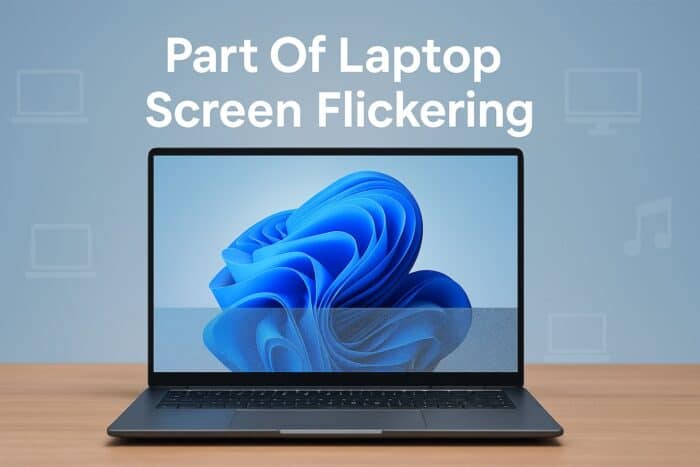
If part of your laptop screen is flickering, it can be distracting and indicate a hardware or software issue. This guide explains the most common causes and offers simple steps to fix it quickly.
Table of contents
How to Fix Part of Laptop Screen Flickering?
1. Restart Your Laptop
A simple restart clears temporary glitches that can cause partial flickering.
- Save your open files.
- Click Start > Power > Restart.

- Wait for Windows to reload and observe if the flicker disappears.
If your display still flickers after reboot, see this full guide on how to fix laptop screen flickering.
2. Check Display Cable and Hinges
If the flicker happens only when adjusting the lid, it may be a hardware connection issue.
- Shut down your laptop completely.
- Gently open and close the lid to see if the flicker changes.
- If yes, the internal cable may be loose or damaged.
- Have a technician reseat or replace the screen ribbon cable.
This type of hardware flicker can also appear on multiple screens. See what to do if your third monitor is flickering.
3. Update Graphics Drivers
Outdated or faulty drivers are a leading cause of display flicker.
- Press Windows + X and choose Device Manager.

- Expand Display adapters.
- Right-click your GPU and select Update driver.

- Choose Search automatically for drivers.

- Restart the device after installation.
If the issue persists, download drivers directly from your GPU maker’s website (Intel, NVIDIA, or AMD).
4. Adjust Refresh Rate
Using a refresh rate not supported by your screen can cause partial flickering.
- Press Windows + I to open Settings.
- Go to System > Display > Advanced display.
- Under Choose a refresh rate, select the recommended value (usually 60 Hz or 120 Hz).

- Check if the flickering area stabilizes.
5. Disable Hardware Acceleration in Apps
Some apps use GPU acceleration that may conflict with your graphics driver.
- Open the app where flickering occurs (for example, Chrome or Edge).
- Go to Settings > System.
- Turn off Use hardware acceleration when available.
- Restart the app and test again.
6. Run Windows Troubleshooter
Let Windows automatically detect and fix display issues.
- Open Settings > System > Troubleshoot > Other troubleshooters.
- Run the Display Adapter or Video Playback troubleshooter.
- Follow on-screen instructions to apply fixes.
For Windows-specific fixes, follow our guide on Windows 11 screen flickering.
7. Test in Safe Mode
Safe Mode loads only essential drivers, helping you isolate the issue.
- Press Windows + R, type msconfig, and hit Enter.

- Open the Boot tab and check Safe boot > Minimal.

- Restart your PC.
- If flickering stops, the cause is likely a software or driver conflict.
8. Update BIOS and Windows
Keeping your system firmware and OS updated can solve persistent flicker bugs.
- Open Settings > Windows Update and click Check for updates.
- Install all pending updates.
- Visit your laptop manufacturer’s support page to download the latest BIOS update.
- Follow on-screen instructions carefully during installation.
Why Is Part of My Laptop Screen Flickering?
Flickering in a specific area of your screen usually happens due to:
- Loose or damaged display cable
- Outdated graphics drivers
- Incorrect refresh rate
- Third-party apps or power settings causing conflicts
Identifying the cause helps you apply the right fix above.
FAQs
Because the cable or panel connection for that section may be loose, or the GPU output for part of the display is unstable.
It is rare, but malware affecting GPU drivers can cause display instability. Run a full antivirus scan to rule it out.
If flickering appears even in BIOS or external display mode, your laptop screen may be physically damaged.
Yes. High temperatures can temporarily affect GPU performance and cause partial flickering, especially during gaming or video playback.
Conclusion
When part of your laptop screen flickers, start with simple fixes like updating drivers and adjusting the refresh rate before assuming hardware failure. Consistent partial flickering often points to a loose cable or panel issue that a professional can repair quickly.
If your problem spreads across multiple monitors or reappears after updates, explore the related guides above for more advanced troubleshooting.

Read our disclosure page to find out how can you help Windows Report sustain the editorial team. Read more



Improve this guide
User forum
0 messages