
Pokemon TCG Not Updating: Easy Step-by-Step Guide


 3 min. read
  Published on
Is Pokémon TCG Live stuck and refusing to update? This problem usually happens because of corrupted files, connection errors, or system settings. Luckily, there are several quick solutions you can try to get the game updated and running again.
Table of contents
How do I fix Pokémon TCG if it’s not updating?
1. Restart the Game and Launcher
Restarting the client clears leftover processes that block updates.
- Close Pokémon TCG Live completely.
- Open Task Manager with Ctrl + Shift + Esc and end leftover processes.

- Restart the game client and try the update again.
If the update still fails to install, you can follow additional steps from our guide on Pokémon TCG not working.
In case you are running the game in an Android emulator, this guide on Pokémon TCG not working on BlueStacks covers emulator-specific fixes for update issues.
2. Clear Cached Data
Deleting cached files removes corrupted data that interferes with updates.
- Press Windows + R and type %appdata%.
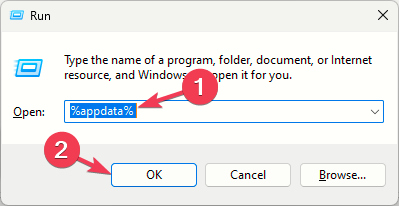
- Locate the Pokémon TCG folders and delete them.
- Relaunch the game to force new clean files.
If cached files are causing gameplay problems such as missing cards or the Pokémon TCG not enough energy error, clearing these folders often helps restore proper functionality.
Corrupted cache may also affect features like the QR scanner. If your cards are still not registering, check this guide on Pokémon TCG not scanning for fixes related to camera and scanning errors.
3. Check Internet and Timezone
Stable connections and correct time settings are required for update servers.
- Switch from Wi Fi to a wired connection for stability.
- Right click the clock in the taskbar and select Adjust date/time.

- Set the timezone to UTC -6 or UTC -8 and save changes.
This method also helps with issues like Pokémon TCG error 10099.
4. Reinstall the Game as Administrator
A clean reinstall removes corrupted files and fixes permission conflicts.
- Open Settings > Apps > Installed apps.
- Find Pokémon TCG Live and uninstall it.
- Delete leftover Pokémon folders in %appdata%, %localappdata%, and %programdata%.
- Download the latest installer, right-click it, and choose Run as administrator.
Conclusion
Most update errors in Pokémon TCG Live can be fixed by clearing cached files, checking your network and time settings, or reinstalling the game with admin rights. If the update loop happens during account verification, request a fresh code as explained in our guide on Pokémon TCG not sending verification code.
FAQs
It usually fails because of corrupted cached files, poor internet stability, or mismatched system time settings.
Clear cached files, reinstall the game as administrator, and double check your timezone and network stability.
Yes. Using a VPN may block or slow the game’s update servers. Disconnect and try again.

Read our disclosure page to find out how can you help Windows Report sustain the editorial team. Read more



Improve this guide

User forum
0 messages