
Quickly Set Up iPhone Not Working? Fix It Fast


 4 min. read
  Updated on
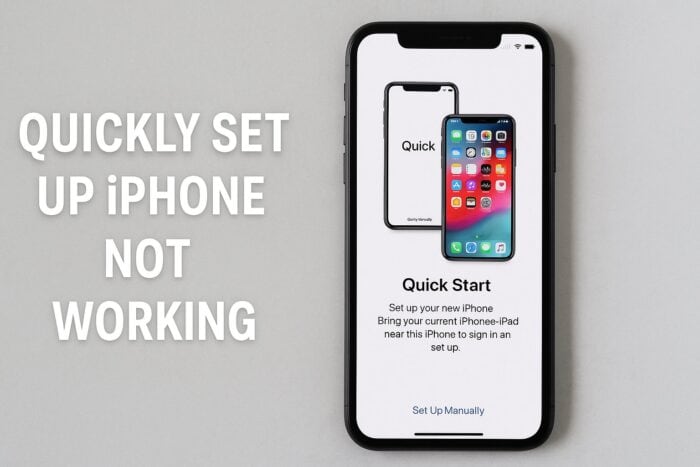
If quickly set up iPhone not working on your new device, you are not alone. Quick Start sometimes fails to connect, but this guide will help you fix the problem with simple steps.
Table of contents
What can I do if quickly set up iPhone is not working?
1. Make sure both devices support Quick Start
Quick Start only works on iPhones running iOS 11 or later. If either device is outdated, the transfer will not start. To check compatibility and update both devices, do the following:
- On each iPhone, go to Settings > General > Software Update.

- Install any available updates.
- Confirm both devices show iOS 11 or newer.

Sometimes setup also fails because the system does not detect the device properly, similar to when Windows 11 is not recognizing an iPhone.
If unlocking or authentication problems prevent Quick Start from working, see this guide on Face ID not working on iPhone for additional solutions.
2. Turn on Bluetooth and Wi-Fi
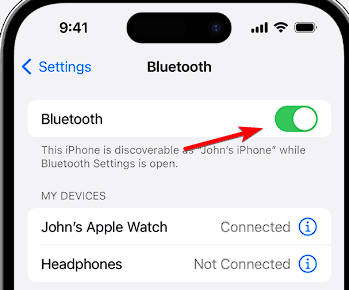
Quick Start depends on both Bluetooth and Wi-Fi being enabled. Without these connections, the iPhones cannot communicate to start the transfer. To enable them, follow these steps:
- On both iPhones, go to Settings > Wi-Fi and enable it.
- Go to Settings > Bluetooth and turn it on.

- Keep both devices connected to the same Wi-Fi network.
3. Keep both iPhones close together
The feature uses proximity to detect the source device. If the iPhones are too far apart, the transfer may fail to begin. To ensure a stable connection, try the following:
- Place both iPhones side by side on a flat surface.
- Ensure no objects block the signal.
- Try again to start the transfer.
4. Restart both iPhones
Temporary glitches can interrupt Quick Start, and restarting often clears these issues. Restarting both devices ensures a fresh start for the transfer. Here is how:
- Hold the power button and slide to power off each device.
- Wait 10 seconds before turning them back on.
- Open Quick Start again to retry setup.
If the transfer still does not begin, the situation is similar to when iTunes does not recognize an iPhone on Windows 10, and a reset can often resolve it.
5. Try a wired transfer
Wired transfer can fix cases where wireless Quick Start repeatedly fails. Using a cable ensures faster and more reliable data transfer between iPhones. To set it up, do the following:
- Get a Lightning-to-USB cable and a Lightning-to-USB 3 adapter.
- Connect the old iPhone to the new one with the cable.
- Follow the Quick Start prompts for faster setup.
In some cases, the new iPhone may not appear on the computer, much like when an iPhone does not show up in File Explorer. Switching to a wired transfer usually solves this.
FAQ
It may fail if Bluetooth or Wi-Fi is disabled, devices are too far apart, or one iPhone runs an older iOS version.
Yes. You can restore from iCloud, use iTunes on a computer, or transfer data manually.
Yes. Both iPhones should be signed in with the same Apple ID.
Yes. A cable transfer is typically more reliable and faster.
It copies most apps, settings, and data, but you may need to re-enter some passwords or re-download certain apps.
Conclusion
By ensuring compatibility, checking connections, and using a wired option if needed, you can usually fix issues with Quick Start. If problems persist, refer to the related troubleshooting guides linked above to complete the setup successfully.

Read our disclosure page to find out how can you help Windows Report sustain the editorial team. Read more



Improve this guide



User forum
0 messages