
Fix Realtek Audio Console Doesn't Support For This Machine [3 Ways]
Updating your drivers can usually help with this problem


 2 min. read
  Updated on

Getting the “Realtek Audio Console doesn’t support for this machine” error? It usually means your audio driver is missing, outdated, or incompatible.
You might be trying to open the console, only to find it won’t run, or worse, you can’t find Realtek Audio Console at all.
Since this tool is key for managing sound settings, issues like a corrupt Realtek HD Audio Manager can really mess things up. Here’s how to fix it fast.
How to fix Realtek Audio Console Machine Error
1. Update your driver
- Visit your motherboard manufacturer’s website.
- Locate your motherboard model on the list and go to the Drivers section.
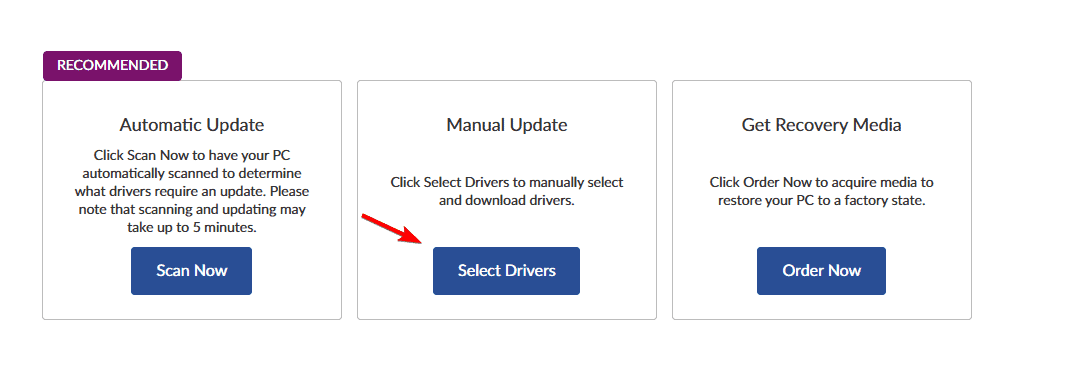
- Next, locate the latest audio driver and download it.

- Once downloaded, run the setup file to install it.
2. Use the built-in driver
- Press the Windows key + X and choose Device Manager.

- Expand the Sound, video, and game controllers section.
- Next, right-click Realtek High Definition Audio and choose Update driver.

- Choose Browse my computer for drivers.

- After that, go to Let me pick from a list of available drivers on my computer.

- Select the Realtek High Definition Audio and follow the steps on the screen to complete the process.
3. Reinstall the driver
- Open Device Manager.
- Locate your Realtek High Definition Audio, right-click it, and choose Uninstall device.

- Check Attempt to remove the driver for this device, if available, and choose Uninstall.
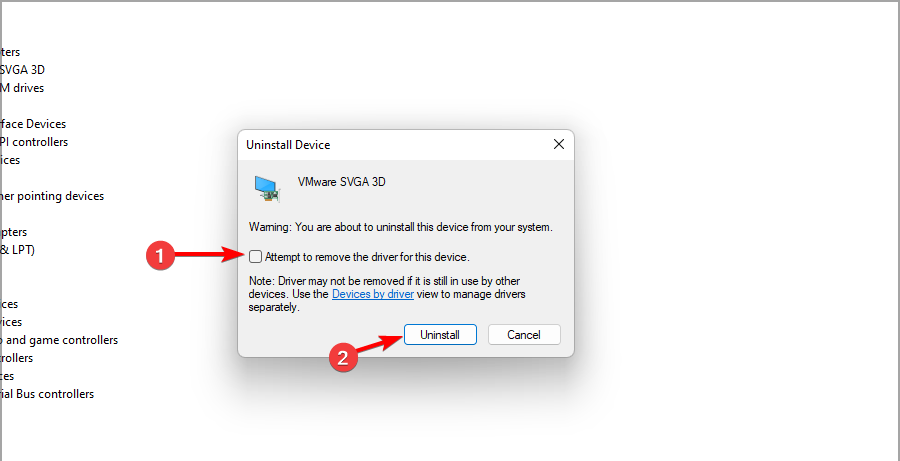
- Once removed, open the Actions menu and choose Scan for hardware changes.

- After that, the default driver should be installed.
If you’re having issues with Realtek Audio Console doesn’t support for this machine message, updating or reinstalling your drivers is the way to fix it.
This can also help if the Realtek Audio Console equalizer is missing, so don’t hesitate to try it.
If the error still shows up, it could be due to deeper driver issues like Realtek audio driver error 0001. In some cases, the HD Audio Manager might be missing or refuse to open
This software is known for various issues, and we already wrote about how Realtek Audio Console cannot connect to RPC and how Realtek Audio Console is not detecting Bluetooth headphones in our previous articles, so feel free to visit them.

Read our disclosure page to find out how can you help Windows Report sustain the editorial team. Read more



Improve this guide

User forum
0 messages