
Stellar Migrator for Exchange Review: Exchange Server to Office 365 Migration


 8 min. read
  Published on
Migrating mailboxes, especially Exchange to Office 365 migration, can be a frustrating task. Between complex data mapping, inconsistent synchronization, and performance problems, errors and downtime are common.
I recently got to try Stellar Migrator for Exchange, which aims to simplify the process. The guided migration platform is suitable for both small business migrations and large-scale enterprise deployments and supports migration across Exchange Servers and Microsoft 365.
What is Stellar Migrator for Exchange?
Stellar Migrator for Exchange is a comprehensive mailbox migration solution that enables seamless mailbox migrations between Exchange Server and Microsoft 365, including Exchange-to-Exchange, Exchange-to-Microsoft 365, Microsoft 365-to-Exchange, and Microsoft 365 tenant-to-tenant migration scenarios. It also supports Exchange upgrade within the same domain.
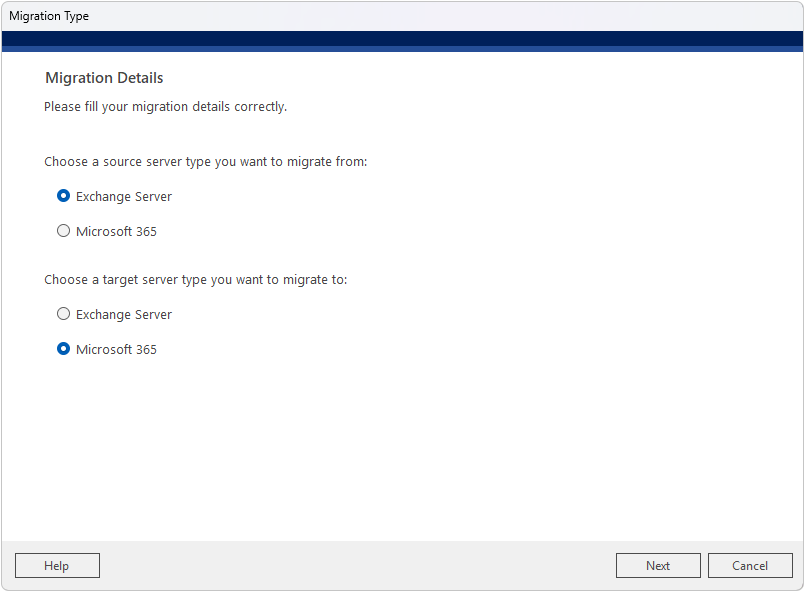
It supports primary mailboxes, shared mailboxes, archive mailboxes, and public folders, while providing features such as automatic mailbox mapping, scheduling, and concurrency controls.
You can try the tool for free on two mailboxes before purchasing a plan scaled to your needs. Here’s everything you need to know.
Main Features
One of the biggest strengths of Stellar Migrator for Exchange is the range of migration controls available. Rather than simply moving mailbox data from one location to another, the software gives you full control over how migrations are planned, executed, and managed.
Automatic Mailbox Mapping
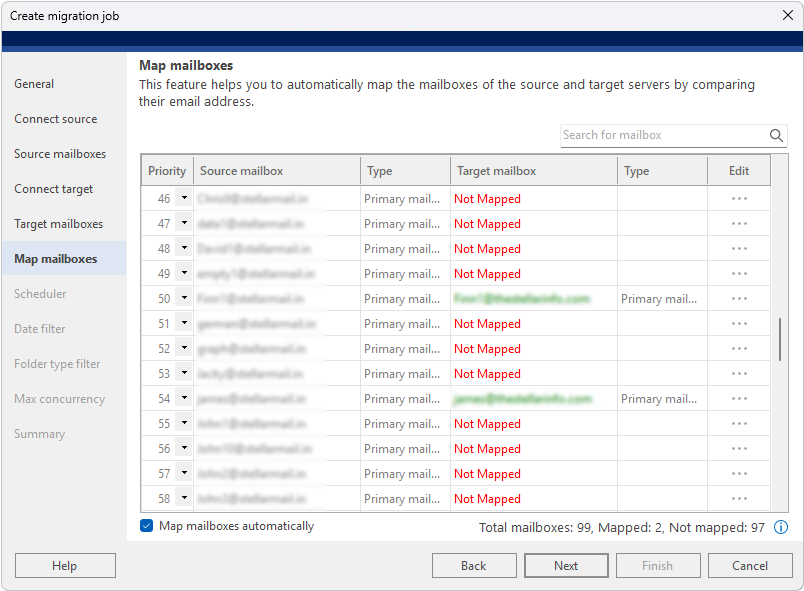
Stellar Migrator for Exchange simplifies mailbox mapping by automatically matching source and target mailboxes based on email addresses.
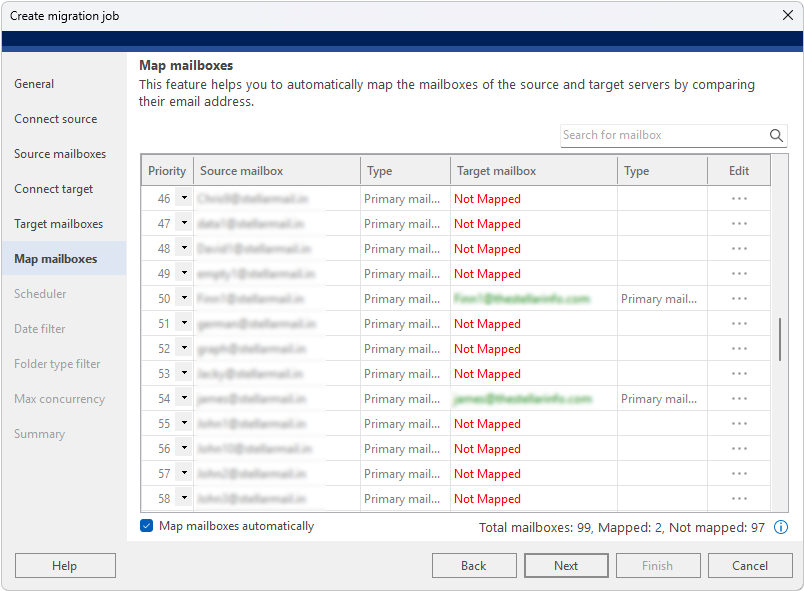
During testing, this significantly reduced setup time. Successfully matched mailboxes are displayed in green, making them easy to identify, while any unmatched mailboxes appear in red with a “Not Mapped” status. This visual approach helps you quickly identify any issues before migration begins.
For situations where automatic mapping isn’t possible, the software also supports manual mailbox mapping. This flexibility is particularly useful when email addresses have changed or when migrating between environments with different naming conventions.
Scheduler
The built-in Scheduler is one of the most useful features for organizations that need to perform migrations outside business hours.
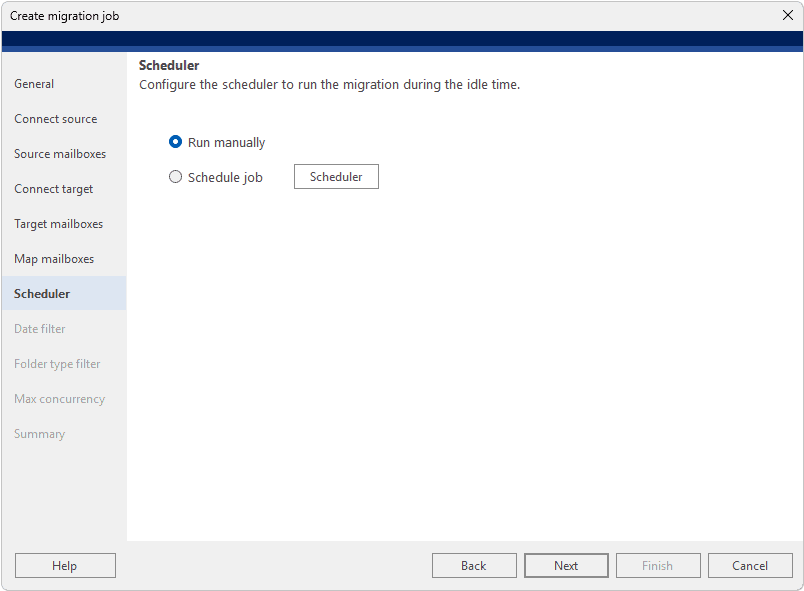
Administrators can choose between:
- Run Once
- Daily
- Weekly
- Monthly
Schedules can be configured with custom start and end times, allowing migrations to run during evenings, weekends, or maintenance windows.
This level of automation helps minimize disruption for end users while reducing the need for manual intervention. For larger migration projects that may take days or weeks to complete, scheduling provides a much more manageable workflow.
Max Concurrency Settings
Migration speed can vary dramatically depending on network conditions, server resources, and mailbox sizes.
Stellar Migrator for Exchange includes detailed concurrency controls that allow administrators to optimize performance by configuring:
- Concurrent mailbox migration threads
- Item migration threads per mailbox
- Retry attempts during network interruptions
These settings make it possible to balance migration speed against available resources. I.e., Smaller organizations can use conservative settings to reduce server load, while larger environments can increase concurrency to accelerate migrations.
The ability to control retry attempts helps migration resume even if temporary network issues occur.
Delta Migration
In traditional migration projects, rerunning a migration can involve reprocessing large amounts of data that have already been transferred. Delta Migration avoids this by identifying only new or modified mailbox items since the previous migration.
This significantly reduces migration times during subsequent synchronization cycles while also conserving bandwidth and server resources.
Delta Migration is particularly useful during staged and hybrid migration projects where users continue working while mailbox data is being synchronized. Instead of repeatedly migrating the entire mailbox, only changes are transferred.
Supported Migration Scenarios
Stellar Migrator for Exchange supports a wide variety of migration scenarios, making it suitable for organizations at all stages of their cloud adoption journey.
Supported scenarios include:
- Exchange to Exchange
- Exchange to Microsoft 365
- Microsoft 365 to Microsoft 365
- Microsoft 365 to Exchange
In the tool’s latest release, you can also perform Exchange-to-Exchange Server Subscription upgrade migration. This is a feature that many competing migration tools do not support and can be extremely valuable during server upgrades or infrastructure modernization projects.
The broad compatibility means organizations can continue using the same migration platform regardless of future migration requirements.
Supported Migration Types
The software also supports several common migration strategies.
These include:
- Cutover Migration
- Staged Migration
- Hybrid Migration
- Public Folder Migration
This flexibility allows organizations to choose a migration approach that best suits their environment and business requirements.
Public Folder Migration deserves special mention. Many migration tools focus solely on user mailboxes, but Stellar Migrator for Exchange also supports the seamless migration of Public Folders alongside mailbox data. This helps ensure organizational data remains accessible after migration.
Hosted Exchange to Microsoft 365 Migration
Another useful capability is support for Hosted Exchange environments.
Even when administrators have limited access to the Hosted Exchange infrastructure, the software allows mailboxes to be connected individually using user credentials. This makes migration possible in situations where traditional administrative access may not be available.
For organizations working with third-party hosted Exchange providers, this can significantly simplify migration planning.
Getting Started
The Exchange Migration Tool is surprisingly easy to use and guides you through every step. Follow these general steps to begin migration:
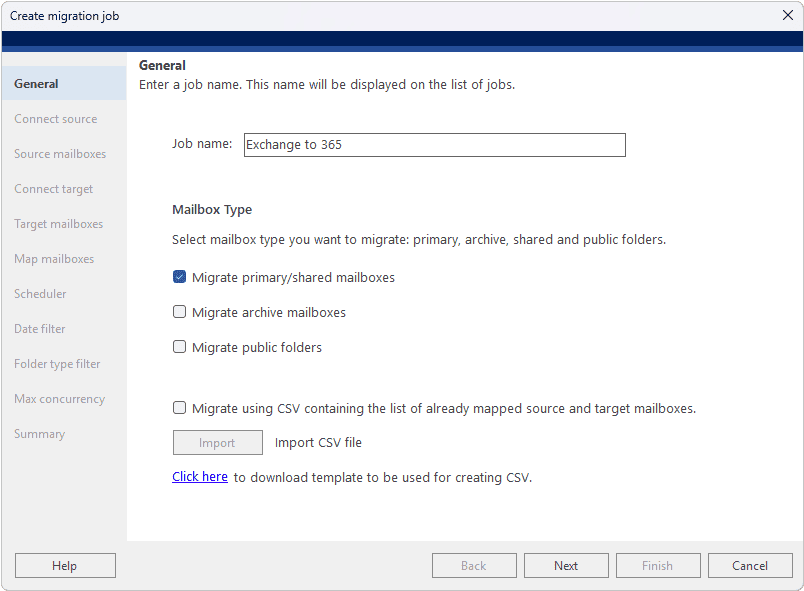
1) Create the migration job and select the migration and mailbox types. You can also import a CSV file with pre-mapped mailboxes.
2) Connect to your source Exchange Server by entering the account credentials.
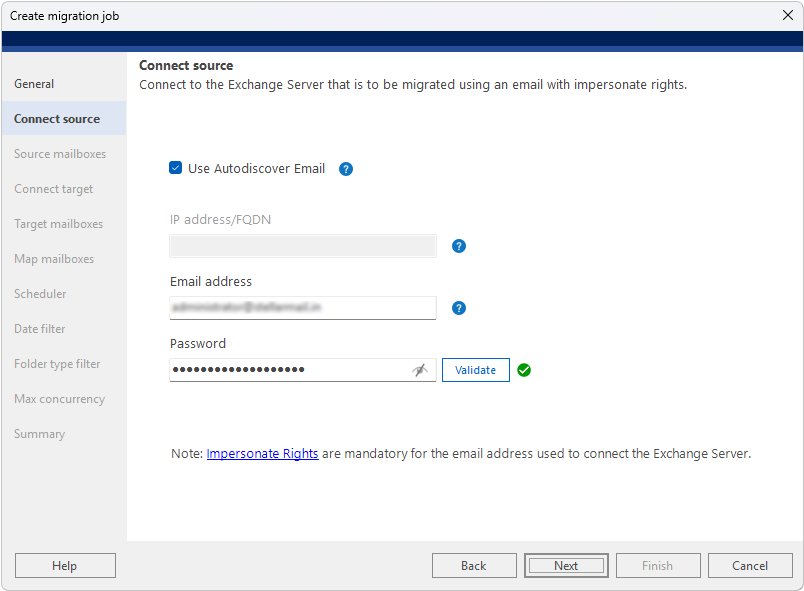
During my testing, enabling Autodiscover was the quickest option, as the software automatically located the server after I entered the email address and password. Alternatively, you can manually specify the server address if required.
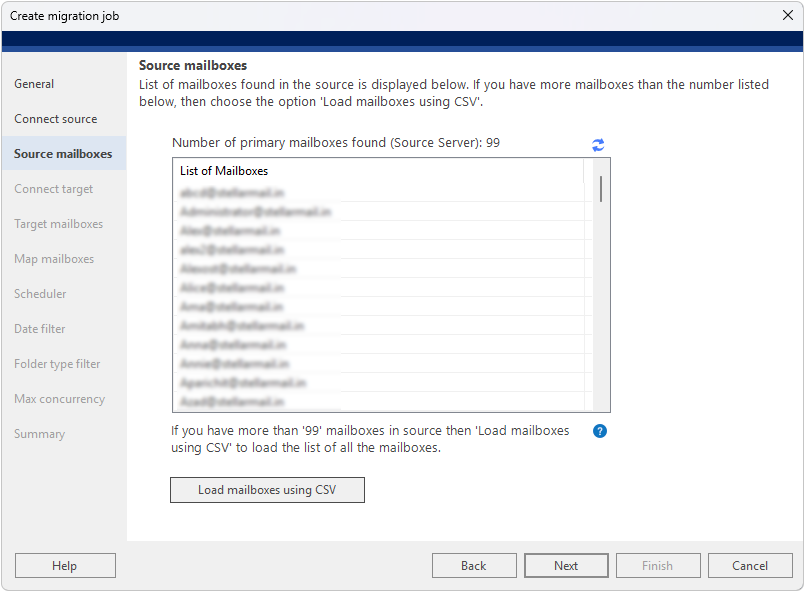
3) Review your list of source mailboxes and follow the instructions if you have more mailboxes than listed.
4) Connect to the target via the desired method. Auto Registration is the simpler option, redirecting you to a Microsoft 365 Global Admin sign-in page and automatically configuring the connection.
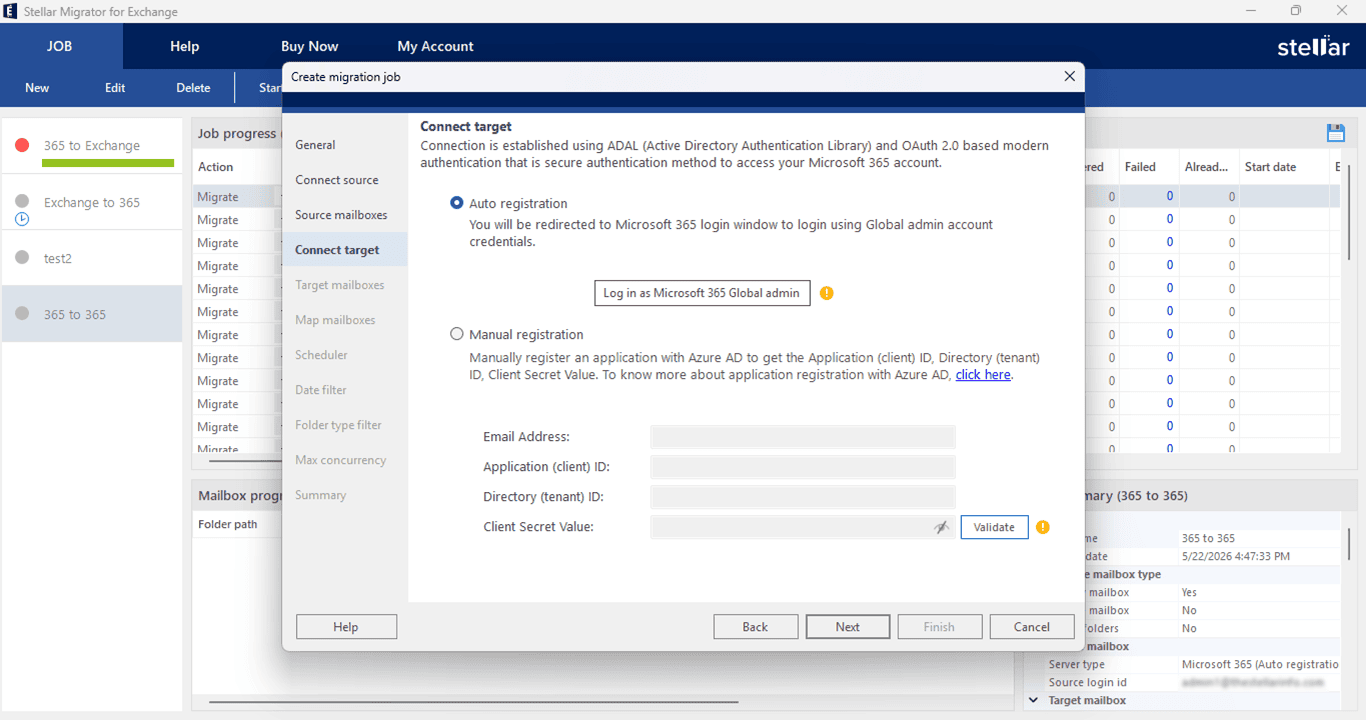
Manual Registration is available for organizations that prefer to manage their own Entra ID app registration and requires the Application ID, Tenant ID, and Client Secret.
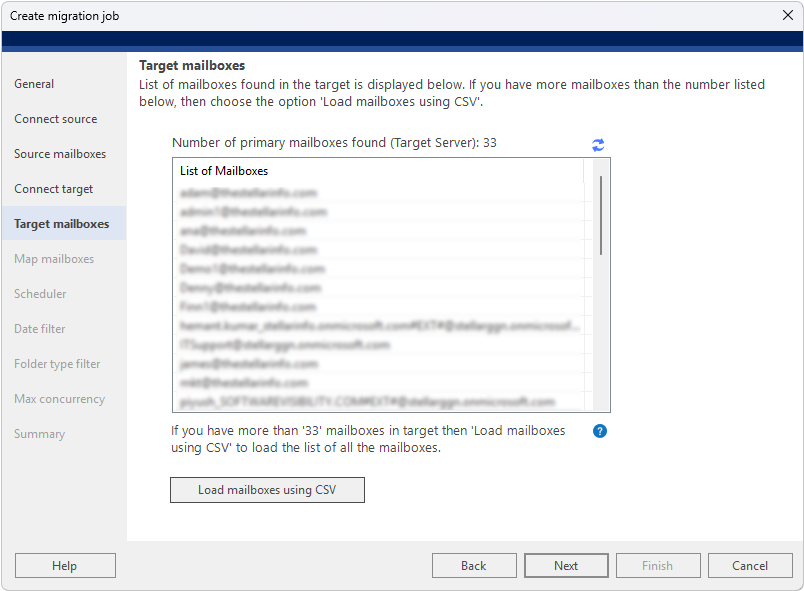
5) Review discovered Target mailboxes.
6) Map any mailboxes missed by auto-mapping. Usually they are matched by email address, but any that fail are displayed in red and can be configured by clicking edit.
7) Use the Scheduler to choose between running the job immediately, at a future date, or at regular intervals.
8) The Date filter lets you choose whether to migrate all data or data from a set period of time, while the Folder Type filter lets you choose the specific mailbox items to migrate. E.g., Contacts, Calendars, Notes, etc.

9) Configure Max Concurrency settings, which control how many mailboxes are migrated simultaneously.
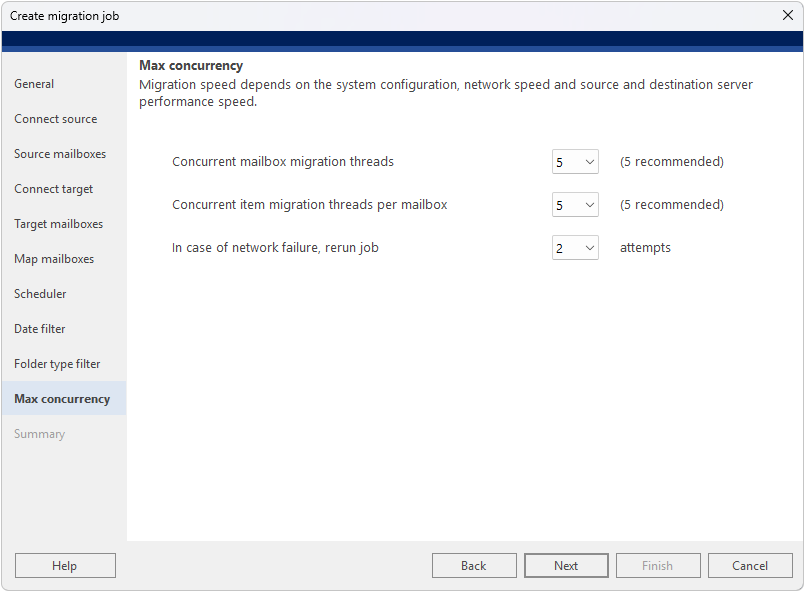
Increasing the value can speed up large migration projects by processing multiple mailboxes at once, while lower settings help reduce the load on your network, Exchange Server, and Microsoft 365 tenant.
10) Review the migration job and click start.
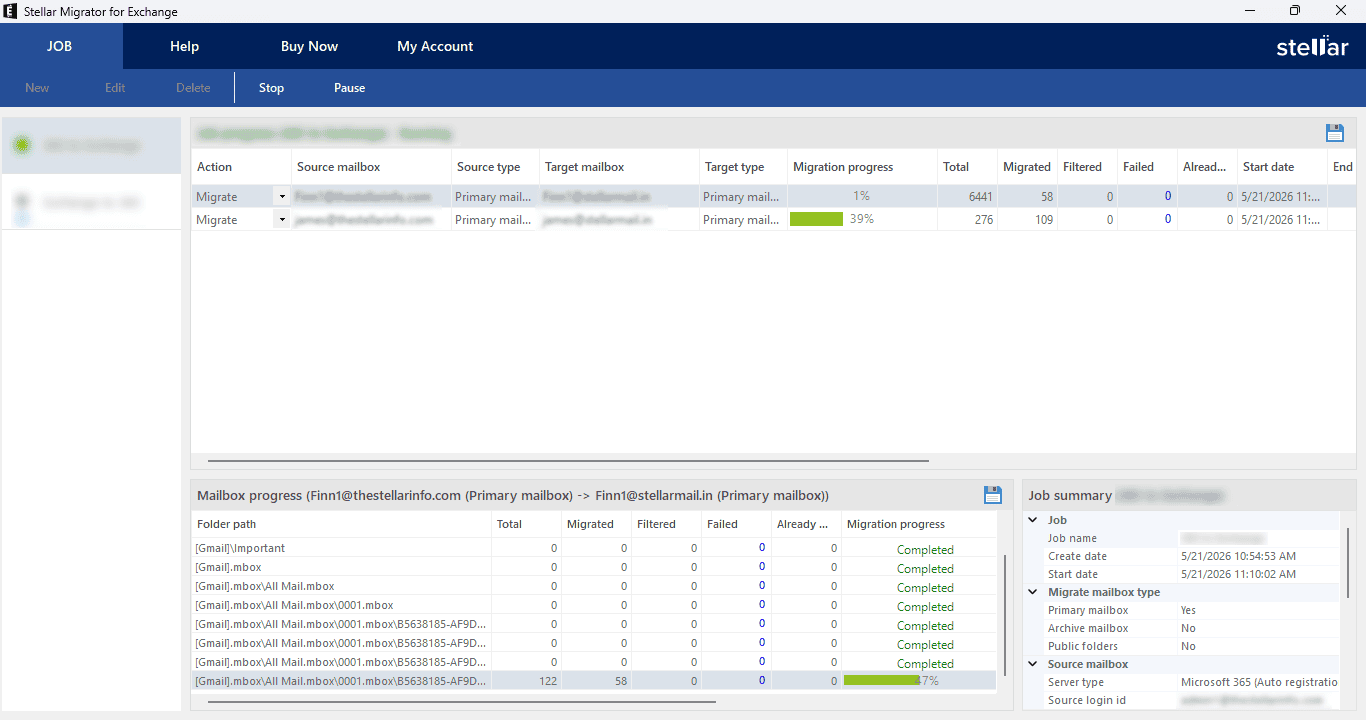
11) Perform Delta Migration synchronizations if required.
The interface remains clean throughout the process and avoids overwhelming users with unnecessary complexity.
Migration progress is clearly displayed, allowing administrators to monitor mailbox status, completed items, failed items, and overall progress in real time.
While the software includes advanced configuration options for experienced users, most migrations can be configured using the default workflow with minimal training.
Pricing
Stellar Migrator for Exchange is available in multiple licensing options depending on migration requirements and mailbox volumes.
You can try it for free on 2 mailboxes before choosing a paid plan from 25 to more than 500 mailboxes. The more mailboxes, the cheaper the price per mailbox. For example:
- 25 Mailboxes for $250 ($10 per Mailbox).
- 500 Mailboxes for $1,500 ($3 per Mailbox).
Stellar Migrator for Exchange Review – Verdict
Mailbox migrations are rarely straightforward, especially when dealing with large user counts, public folders, archive mailboxes, or ongoing user activity during the migration process.
After testing Stellar Migrator for Exchange, I found it to be a well-designed solution that balances ease of use with the level of control IT administrators typically need.
Features such as automatic mailbox mapping, Delta Migration, scheduling, and concurrency controls help simplify migration planning while reducing the manual effort often associated with Exchange and Microsoft 365 projects.
The support for multiple migration scenarios—including Exchange to Microsoft 365, Microsoft 365 tenant-to-tenant, and Exchange Server upgrades—also makes it versatile enough for a wide range of environments.
While organizations should always validate any migration tool in a pilot deployment before a large-scale rollout, Stellar Migrator for Exchange performed reliably during testing and offered a straightforward migration experience with minimal complexity.
If you’re planning an Exchange Server upgrade, a move to Microsoft 365, or a tenant-to-tenant migration, Stellar Migrator for Exchange is a solution that’s worth evaluating, particularly for organizations looking to reduce migration effort without sacrificing flexibility and control.


Read our disclosure page to find out how can you help Windows Report sustain the editorial team. Read more



Improve this guide


User forum
0 messages