
How to Use Windows 11 System Maintenance Troubleshooter


 3 min. read
  Updated on

The System Maintenance Troubleshooter on Windows 11 is a simple yet powerful tool that helps you automatically fix small issues that slow down your PC. From removing unused shortcuts to correcting system settings, it is one of the easiest ways to keep your computer running smoothly.
Table of contents
How to Run the System Maintenance Troubleshooter on Windows 11?
1. Open the Troubleshooter via Control Panel
Follow these steps to launch the troubleshooter from the Control Panel:
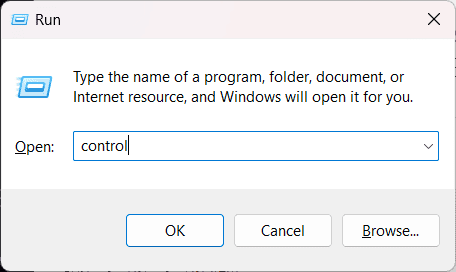
- Press Windows + R to open the Run dialog.
- Type control and press Enter.
- In the Control Panel, click Troubleshooting.

- Select View all from the left sidebar.
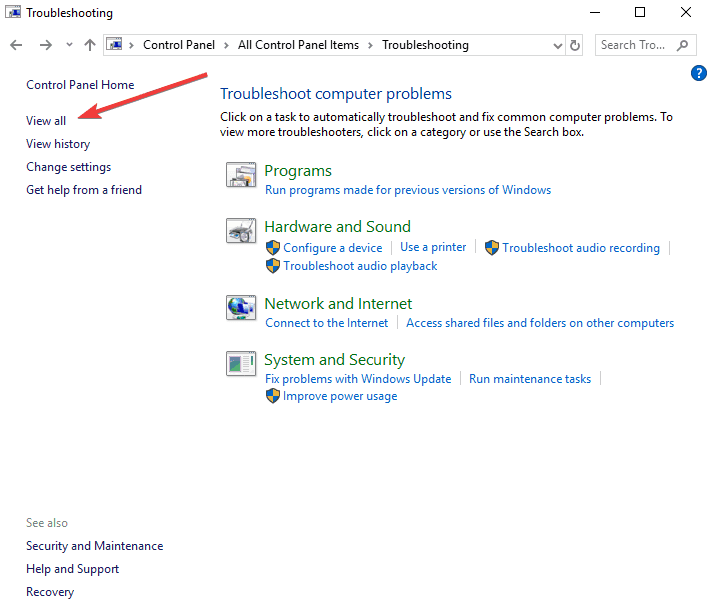
- Scroll down and choose System Maintenance.
- Click Next to start the scan.
2. Run It Through Command Prompt (Alternative Method)
You can also run the System Maintenance Troubleshooter directly using a command:
- Press Windows + S and type cmd.
- Right click Command Prompt and select Run as administrator.
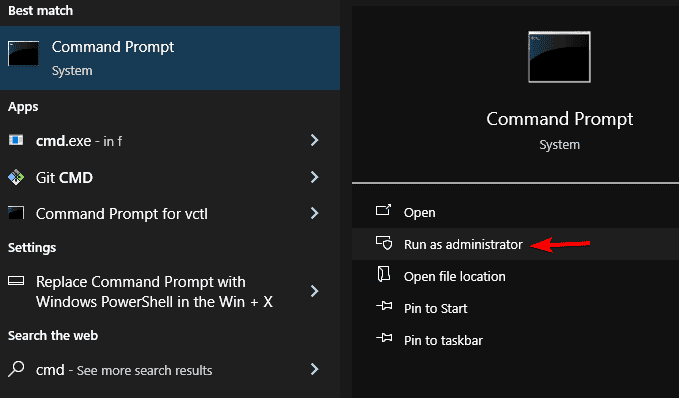
- Type the following command and press Enter:
msdt.exe -id MaintenanceDiagnostic- The troubleshooter window will open. Follow the prompts to continue.
If your keyboard is not working correctly, you can also try the Keyboard Troubleshooter for Windows 11.
You can learn more about launching other Windows troubleshooters through command line tools by checking this guide on how to run Windows troubleshooters from Command Prompt for faster access to diagnostic utilities.
3. Let the Tool Automatically Detect and Fix Problems
Once the tool starts, it will automatically scan your system for issues.
- Choose Apply repairs automatically when prompted.
- Wait while Windows scans for problems such as:
- Unused desktop shortcuts
- Disk volume errors
- Broken file associations
- Review the results and click Close once the process completes.
What is the System Maintenance Troubleshooter?
The System Maintenance Troubleshooter is a built in Windows utility that checks your PC for common performance and stability problems. It automatically fixes errors like broken shortcuts, file path issues, and unused system tasks that may affect performance.
For more on using troubleshooters effectively, check out how to run troubleshooters on Windows 11.
Why Use the System Maintenance Troubleshooter?
Running this troubleshooter helps keep your Windows 11 PC in top shape.
- Improves performance: Fixes small issues that slow down your computer.
- Cleans up clutter: Removes unused or broken shortcuts.
- Enhances stability: Corrects system configuration errors.
- Saves time: Automatically handles minor maintenance tasks.
FAQs
It is a good idea to run it once a month or whenever you notice slow performance.
Yes. The troubleshooter can run in Safe Mode if Windows will not start normally.
No. It only removes unused shortcuts and temporary system files, leaving your data untouched.
If it does not appear in the Control Panel, it may be disabled by your system administrator or hidden under optional troubleshooters in newer Windows builds.
Conclusion
The System Maintenance Troubleshooter is an underrated yet essential Windows tool that helps maintain performance and stability without any technical knowledge. Running it regularly can prevent slowdowns, clear system clutter, and ensure your PC stays optimized for daily use.
If you also use Microsoft 365 apps and encounter issues, try the official Microsoft 365 Uninstall Troubleshooter to completely remove or repair Office installations.

Read our disclosure page to find out how can you help Windows Report sustain the editorial team. Read more



Improve this guide


User forum
0 messages