
How to Uninstall WinZip on Windows 11 Quickly


 3 min. read
  Published on
If you no longer need WinZip or prefer another compression tool, uninstalling it from your PC is simple. Below are several safe methods to remove WinZip completely from Windows 11.
Table of contents
How to Uninstall WinZip on Windows 11?
1. Uninstall WinZip via Windows Settings
You can quickly uninstall WinZip from the Settings app built into Windows 11.
- Press Windows + I to open the Settings app.
- Click Apps > Installed apps.
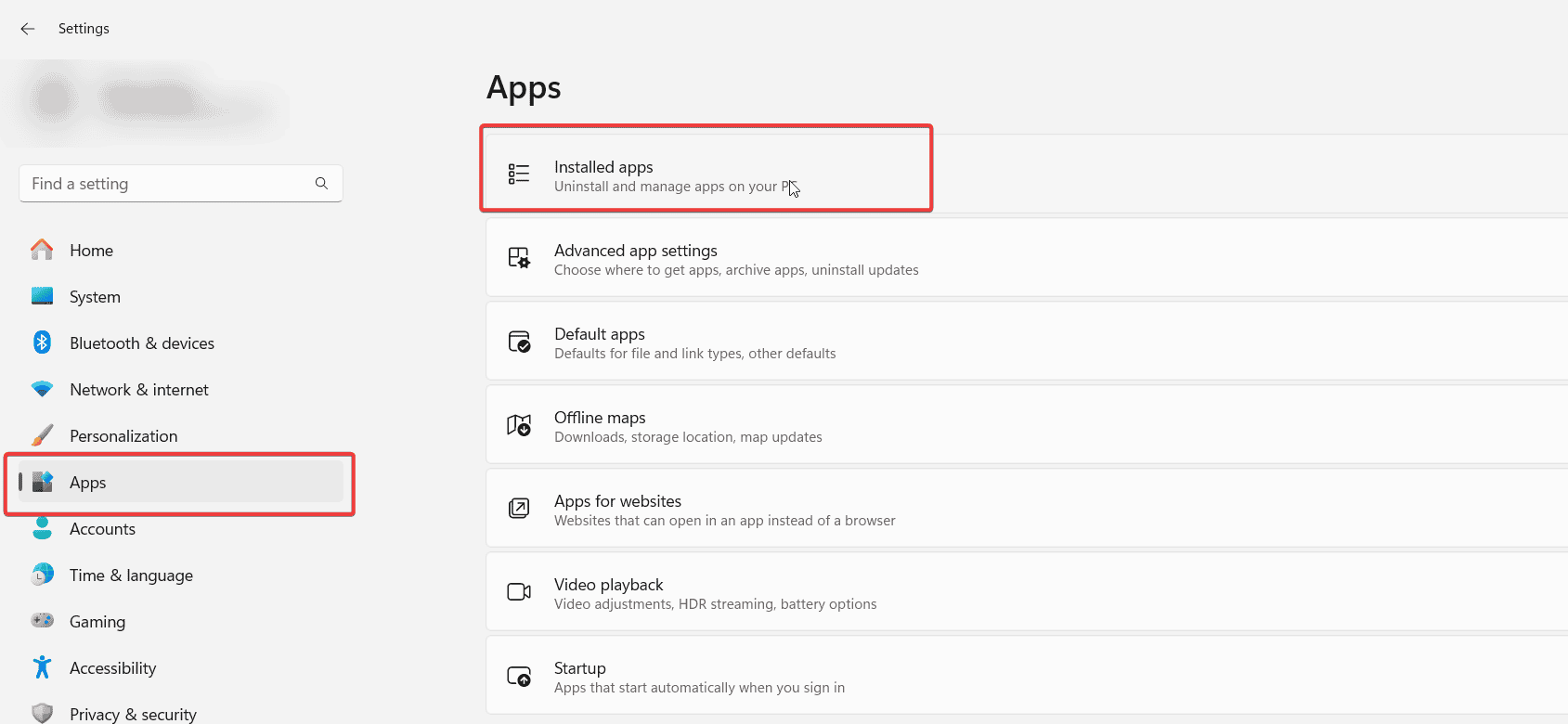
- Type WinZip in the search bar or scroll to find it in the list.
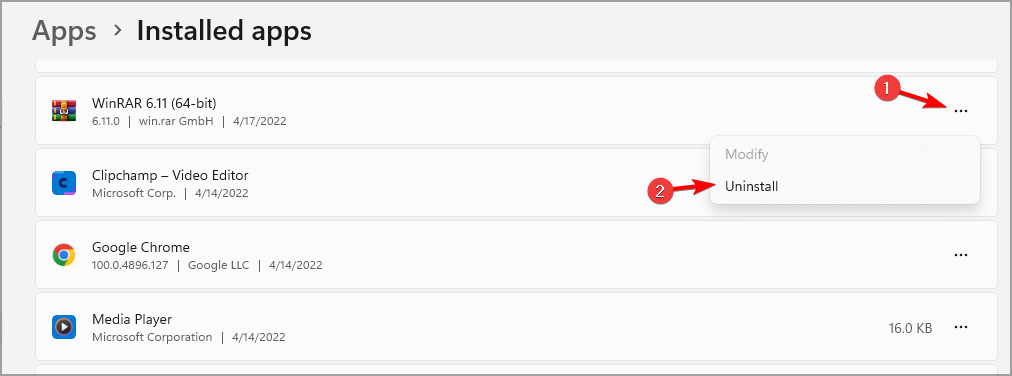
- Click the three dots beside WinZip.
- Select Uninstall, then follow the on-screen prompts to remove it.
If you installed WinZip as a trial and want to stop seeing renewal pop-ups, read: WinZip trial expired.
2. Remove WinZip Using Control Panel
If you prefer the classic interface, you can uninstall WinZip using Control Panel.
- Press Windows + R, type control, and press Enter.
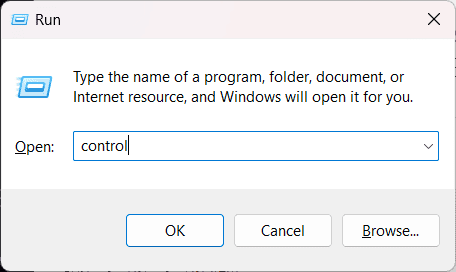
- Click Programs > Programs and Features.

- Locate WinZip in the list of installed programs.
- Select it, then click Uninstall at the top of the window.

- Confirm the removal and wait for the process to finish.
If WinZip will not launch before removal, see: WinZip not opening on Windows 11.
3. Uninstall WinZip Using Command Prompt
Advanced users can use Command Prompt to remove WinZip directly through a system command.
- Press Windows + S, type cmd, then right-click Command Prompt > Run as administrator.

- Type the following command and press Enter:
wmic product where "name='WinZip'" call uninstall - When prompted, type Y and press Enter to confirm.
- Wait for the uninstallation process to complete.
4. Delete Remaining Files and Registry Entries (Optional)
If you want to ensure every trace of WinZip is removed, clean up its leftover files and registry entries.
- Open File Explorer and delete leftover folders:
C:\Program Files\WinZipC:\Users\<YourName>\AppData\Roaming\WinZip
- Press Windows + R, type
regedit, and open the Registry Editor. - Delete any WinZip entries under:
HKEY_CURRENT_USER\SoftwareHKEY_LOCAL_MACHINE\Software
- Close the editor after cleaning the entries. Create a registry backup before making changes.
If you used WinZip for multi-part archives, learn how to recombine them here: merge split ZIP files.
FAQs
Open WinZip > click Options > Configure > uncheck Run WinZip at Startup.
Yes, it is safe. It will not affect your system or other software.
Use the Command Prompt method above or try a reputable third-party uninstaller.
Yes, you can download it again from the official website if you need it.
Conclusion
Uninstalling WinZip on Windows 11 is straightforward whether you use Settings, Control Panel, or Command Prompt. After removal, you can still manage compressed files with Windows’ built-in ZIP tools or switch to free alternatives like 7-Zip or PeaZip.

Read our disclosure page to find out how can you help Windows Report sustain the editorial team. Read more



Improve this guide




User forum
0 messages