
How to Use WhatsApp in Browser on Your Computer Without Installing Anything
Using WhatApp in web browser is simpler than you think


 3 min. read
  Updated on
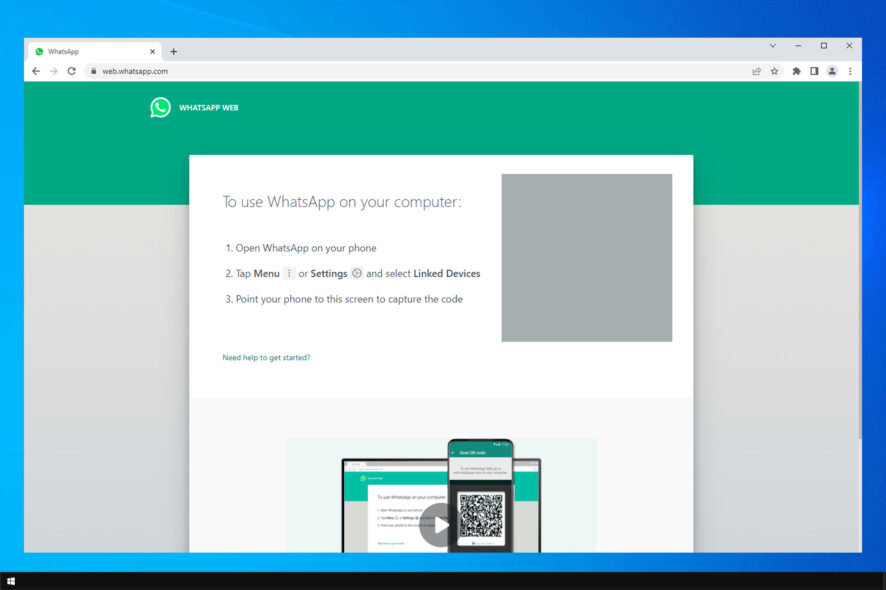
Find below how to use WhatsApp in a browser without having to install anything on your PC. With the WhatsApp on the Web option, you can jump into your instant messages fast. Luckily, the process is simple, and we’ll walk you through all the steps.
Here’s how to use WhatsApp on your computer without downloads:
How can I use WhatsApp in browser?
Table of contents
Use WhatsApp web application
1. Open WhatsApp Web
Go to web.whatsapp.com in any major browser such as Chrome, Edge, Firefox, or Safari.
2. Scan the QR Code on Your Computer
- Open WhatsApp on your phone.
- Tap on Menu or Settings and choose WhatsAppWeb.
- Now scan the QR code on your screen.
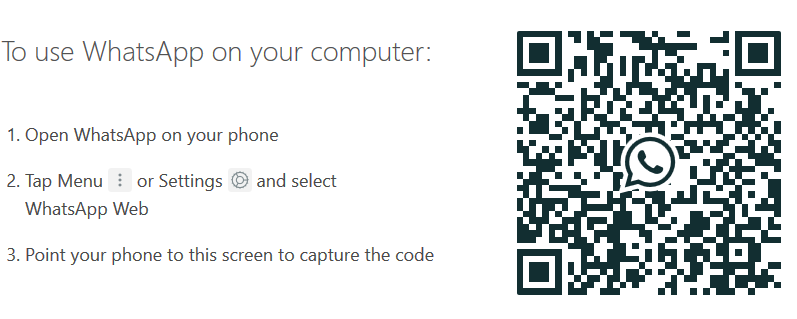
- After scanning the code, WhatsApp will load in your browser.
3. Start Chatting
Your chats will load instantly. You can send messages, voice notes, media files, and even documents from your computer.
Do All Browsers Support WhatsApp?
To ensure WhatsApp works properly, use a supported browser for WhatsApp Web like Opera, Chrome, Firefox, Safari, or Microsoft Edge. WhatsApp does not work in outdated or non-Chromium browsers.
If you’re seeing an error:
- Switch to a supported browser.
- Clear your browser cache.
- Check for firewall or VPN interference.
- Try logging out and back in to refresh the session.
Unsupported browsers, outdated settings, or session glitches are common causes of WhatsApp Web not loading properly. For the best experience, consider using Opera. It’s Chromium-based, light on resources, and includes built-in privacy features that keep your WhatsApp Web sessions fast and interruption-free.
FAQ
Yes, you can access WhatsApp Web in any supported browser like Chrome, Edge, or Opera without installing anything on your computer.
The only way to use WhatsApp completely independently of a phone is by using an Android emulator for Windows 11. Install the emulator, download WhatsApp from the Play Store, and log in using your phone number.
If you’re having issues, such as a blank screen or QR not loading, check your browser compatibility and internet connection. You can also follow this step-by-step WhatsApp Web fix guide to troubleshoot common errors.
Yes, you can. If you’re on Windows 7, using the browser version is likely the easiest option. For more details, check this WhatsApp for Windows 7 PC guide.
Wrapping up
Using WhatsApp in a browser is one of the easiest ways to stay connected without installing extra apps. Just scan the QR code, and you’re ready to chat, share files, and multitask from your computer.

Read our disclosure page to find out how can you help Windows Report sustain the editorial team. Read more



Improve this guide

User forum
0 messages