
System Settings in Windows 11: Everything You Need to Know


 4 min. read
  Updated on
System Settings in Windows 11 is the main control center where you manage every aspect of your computer. From performance and personalization to privacy and updates, it brings all essential tools together in a simple, modern interface.
Table of contents
System Settings in Windows 11: Complete Overview
What Is System Settings in Windows 11?
System Settings is the place where you adjust how your computer looks, behaves, and connects. It organizes all key options into categories like System, Bluetooth & Devices, Network & Internet, and Privacy & Security.
You can open it by pressing Windows + I or by selecting Start > Settings.
If your Settings app is not opening or missing entirely, learn how to reinstall the Windows Settings app.
Key Sections in Windows 11 Settings
System

This area lets you control display, notifications, storage, and power preferences.
- Adjust screen resolution and brightness
- Manage sound devices
- Set up battery saver or power mode
- View storage space and cleanup options
Bluetooth & Devices
Manage all your connected accessories and hardware.
- Add or remove Bluetooth devices
- Set up printers and scanners
- Configure keyboard, mouse, and typing settings
Network & Internet
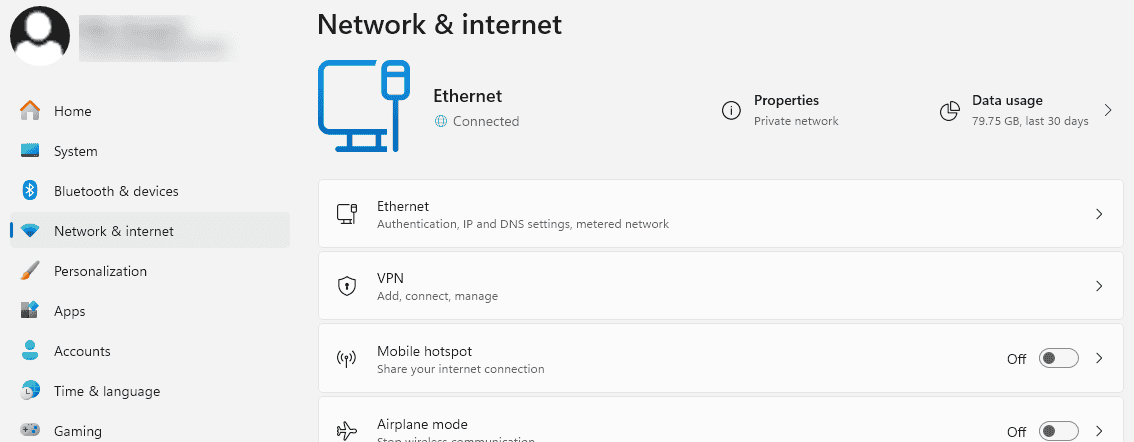
Handle all your connection settings in one place.
- Connect to Wi-Fi or Ethernet
- Set up VPN or mobile hotspot
- Check data usage and proxy settings
Personalization
Customize your Windows experience.
- Change wallpaper, themes, and accent colors
- Adjust Start menu and taskbar layout
- Modify lock screen and font settings
Apps

Manage installed applications and their behavior.
- Uninstall apps you no longer need
- Choose default programs
- Control startup apps to improve boot speed
If you want to compare older tools with new ones, here’s a breakdown of Control Panel vs Settings in Windows 11.
Accounts
Control user profiles and login preferences.
- Add or remove Microsoft accounts
- Set up PIN or fingerprint sign-in
- Manage work or school accounts
Privacy & Security

Keep your device and data safe.
- Review app permissions for camera and microphone
- Enable Windows Security protection
- Turn on Firewall and device encryption
To better control how your data is collected and shared across apps and services, review this step by step guide to Windows 11 privacy settings and adjust every option for maximum protection.
Windows Update

Stay current with the latest improvements.
- Check for updates regularly
- Pause or schedule installations
- Review update history and optional driver updates
Learn more about configuring update checks, pauses, and optional drivers in Windows Update settings.
Why Use System Settings?
System Settings in Windows 11 offers a unified and intuitive way to manage your PC. It replaces most Control Panel features and adds cloud sync, device management, and accessibility tools that make configuration easier than ever.
To learn more about adjusting vision, hearing, and interaction preferences, see this detailed guide on using Accessibility settings in Windows 11.
FAQs
Press Windows + I or go to Start > Settings.
Yes, but most functions have moved to the Settings app.
Yes, you can type any keyword in the search bar at the top to find options quickly.
No, but you can pin commonly used sections to the Start menu for faster access.
Conclusion
System Settings in Windows 11 is the core tool for customizing and maintaining your PC. It simplifies everything from system updates to personalization, giving users full control in one place. If your Settings app ever disappears, check this guide on the Windows 11 Settings app missing to get it back quickly.
To take your optimization further, explore Windows 11 settings you should change now and make your computer run faster and more securely.

Read our disclosure page to find out how can you help Windows Report sustain the editorial team. Read more



Improve this guide

User forum
0 messages