
How to Change Privacy Settings on Windows 11


 4 min. read
  Updated on
Windows includes a wide range of privacy settings that let you decide how much data your PC shares with Microsoft and third-party apps. If you want to reduce tracking, control app permissions, and protect personal information, adjusting these settings is essential.
Table of contents
How do I change Privacy settings?
How to Access Windows Privacy Settings
To open your privacy dashboard, follow these quick steps:
- Press Windows + I to open the Settings app.
- Select Privacy & security from the left sidebar.
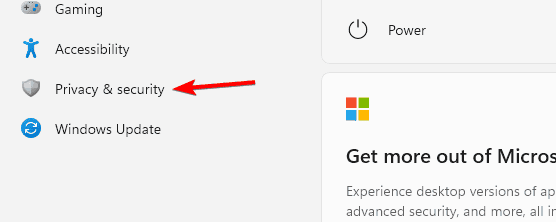
- Review each section under Windows permissions and App permissions.
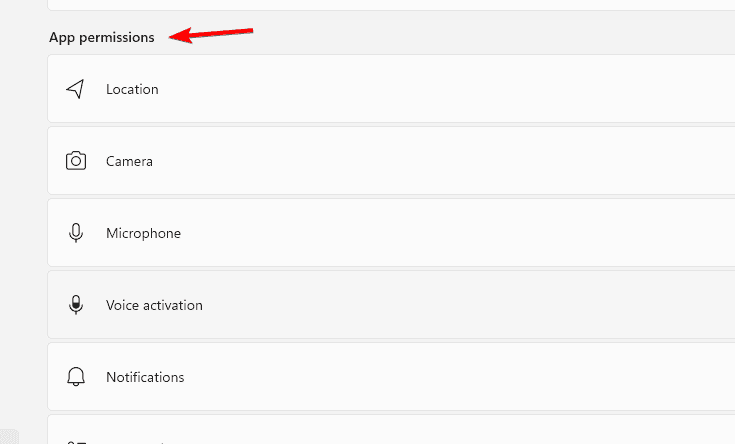
- Click on a category to adjust its options.
Key Privacy Settings to Configure
Diagnostics & Feedback
Control how much diagnostic data Windows sends to Microsoft.
- Go to Settings > Privacy & security > Diagnostics & feedback.
- Choose Send required diagnostic data only to limit sharing.
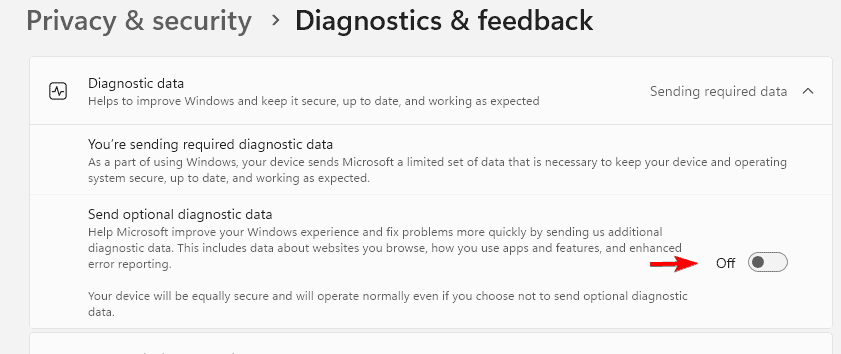
- Turn off Tailored experiences to stop personalized suggestions.
Location Access
If you rarely use location based apps, it is safer to turn this off.
- Open Settings > Privacy & security > Location.
- Toggle Location services off.

- Click Clear under Location history to delete past data.
Camera and Microphone Access
You can choose which apps can use your camera and microphone.
- Navigate to Settings > Privacy & security > Camera.
- Turn off access for unnecessary apps.
- Repeat for Microphone to block unneeded permissions.
For additional device protection, check out how to enhance Windows 11 security. For better control over connected hardware and wireless devices, learn how to adjust Bluetooth and Devices settings in Windows 11 to manage permissions and privacy effectively.
App Permissions
Not every app needs access to your personal information.
- Go to Settings > Privacy & security > App permissions.
- Check permissions for Contacts, Calendar, and Call history.
- Toggle off those that are not required.
Advertising ID
Disable ad tracking for a cleaner, less personalized experience.
- Visit Settings > Privacy & security > General.
- Turn off Let apps show me personalized ads using my advertising ID.
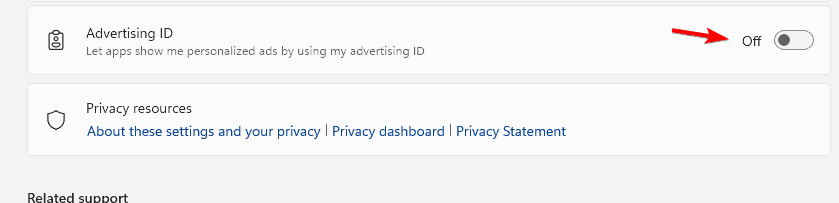
- This limits Windows from building ad profiles based on your activity.
How to Manage Privacy with a Microsoft Account
Microsoft accounts sync some information across devices, but you can manage it online.
- Visit account.microsoft.com/privacy.
- Sign in with your Microsoft account.
- Review Search, Browsing, and Location history.
- Delete any data you no longer want stored.
- Disable personalized ads across Microsoft services.
Why You Should Adjust Windows Privacy Settings
By default, Windows collects diagnostic data to improve system performance and personalization. While useful, this also means sharing information about how you use your computer. Tweaking privacy settings helps you keep that data in your control. For additional control tips, see our guide on Windows 11 settings you should change now.
Additional Tips for Better Privacy on Windows
Fine tune your privacy further with these tips:
- Keep your PC updated to patch security flaws.
- Use a local account instead of a Microsoft account.
- Regularly clear cookies and browsing data.
- Choose a reputable antivirus with privacy protection.
- Consider a VPN for secure browsing.
To explore broader configuration options, see our full guide on system settings in Windows 11.
FAQs
Go to Settings > Privacy & security > Diagnostics & feedback and choose Send required diagnostic data only. Turn off Tailored experiences.
Yes. During setup, select Sign in options > Offline account to create a local profile.
Yes. Apps that depend on GPS, such as Maps or Weather, may not work correctly.
Open Settings > Privacy & security, then click each category and use the Reset permissions option where available.
Conclusion
Managing your Windows privacy settings only takes a few minutes and significantly improves your control over shared data. By customizing diagnostics, permissions, and ad preferences, you can keep your personal information safe and your system secure across all devices.

Read our disclosure page to find out how can you help Windows Report sustain the editorial team. Read more



Improve this guide




User forum
0 messages