
How to Use Windows Security on Windows 11


 4 min. read
  Updated on

Windows Security is your built-in antivirus and protection center in Windows 11. It helps safeguard your PC from viruses, ransomware, and other threats. Here’s how to open, use, and configure Windows Security effectively.
Table of contents
How to Use Windows Security on Windows 11?
How to Open Windows Security
You can quickly access Windows Security through the Settings app or Start menu.
- Press Windows + I to open Settings.
- Select Privacy & security from the left pane.
- Click Windows Security on the right.
- Choose Open Windows Security to launch the app.
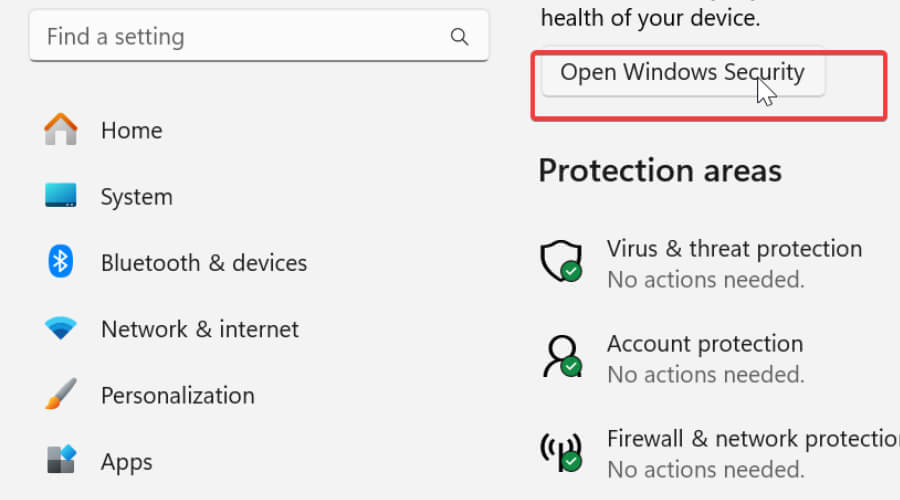
Alternatively, you can search for “Windows Security” in the Start menu. If the app will not launch, check this guide on Windows Security Center not opening in Windows 11.
How to Run a Virus Scan
Scanning your PC regularly helps detect and remove malware before it causes damage.
- Open Windows Security.
- Select Virus & threat protection.

- Click Quick scan to check for immediate threats.

- For a deeper scan, select Scan options then choose Full scan or Microsoft Defender Offline scan.
- Wait for the scan to finish and follow any recommendations displayed.
Run a full scan weekly to catch hidden threats.
How to Enable Real-Time Protection
Real-time protection continuously monitors your system for threats and prevents infections.
- Go to Virus & threat protection settings.
- Click Manage settings.
- Turn Real-time protection to On.

- Ensure Cloud-delivered protection and Automatic sample submission are also on.
These settings help Windows automatically detect and block new threats as they appear.
How to Use Firewall & Network Protection
The built-in firewall guards your network connections and blocks unauthorized access.
- In Windows Security, select Firewall & network protection.

- Check the status of Domain, Private, and Public networks.
- Verify each shows “Firewall is on”.
- Click Allow an app through firewall to give trusted apps network access.
A firewall reduces risk from unauthorized connections and network attacks.
How to Manage App & Browser Control
App & Browser Control protects you from unsafe websites, downloads, and suspicious files.
- Open Windows Security and select App & browser control.
- Under Reputation-based protection, click Turn on if it is disabled.
- Enable SmartScreen for Microsoft Edge and Check apps and files.
- Set Potentially unwanted app blocking to On.
This layer helps block malicious sites and unwanted downloads.
How to Protect Your Device from Ransomware
Turning on ransomware protection helps secure important files from encryption attacks.
- In Windows Security, click Virus & threat protection.
- Scroll to Ransomware protection and click Manage ransomware protection.

- Turn on Controlled folder access.
- Add folders you want to protect from unauthorized changes.
This feature keeps your personal files safe from encryption by ransomware. If the Windows Security app is not working correctly, learn how to reinstall Windows Security in Windows 11.
Why Use Windows Security?
- It is free and automatically updated.
- Provides real-time protection against malware.
- Includes firewall and SmartScreen integration.
- Requires no third-party installation or subscription.
Explore this overview of Windows 11 Security features to understand everything included.
To learn how Microsoft security agents operate behind the scenes, try visiting our Microsoft security agents guide.
FAQs
Yes. For most users, it offers complete protection when kept updated and combined with safe browsing habits.
A quick scan runs automatically, but you should do a full scan at least once a week.
You can, but doing so may disable real-time protection in Windows Security to avoid conflicts.
Open the taskbar search, type Windows Security, and launch it. If all sections show green checkmarks, your PC is protected.
Conclusion
Keep Windows Security updated and active for continuous protection. Regular scans, firewall checks, SmartScreen protections, and ransomware controls work together to keep your PC secure.
To strengthen your setup even more, review Windows 11 settings you should change now and make your system safer and more efficient.

Read our disclosure page to find out how can you help Windows Report sustain the editorial team. Read more



Improve this guide


User forum
0 messages