
How to Change and Manage Windows Update Settings Step by Step


 3 min. read
  Updated on
Learn how to manage your Windows Update settings in Windows 11. This guide shows how to customize when and how updates install so you stay secure without interruptions.
Table of contents
How to Change Windows Update Settings?
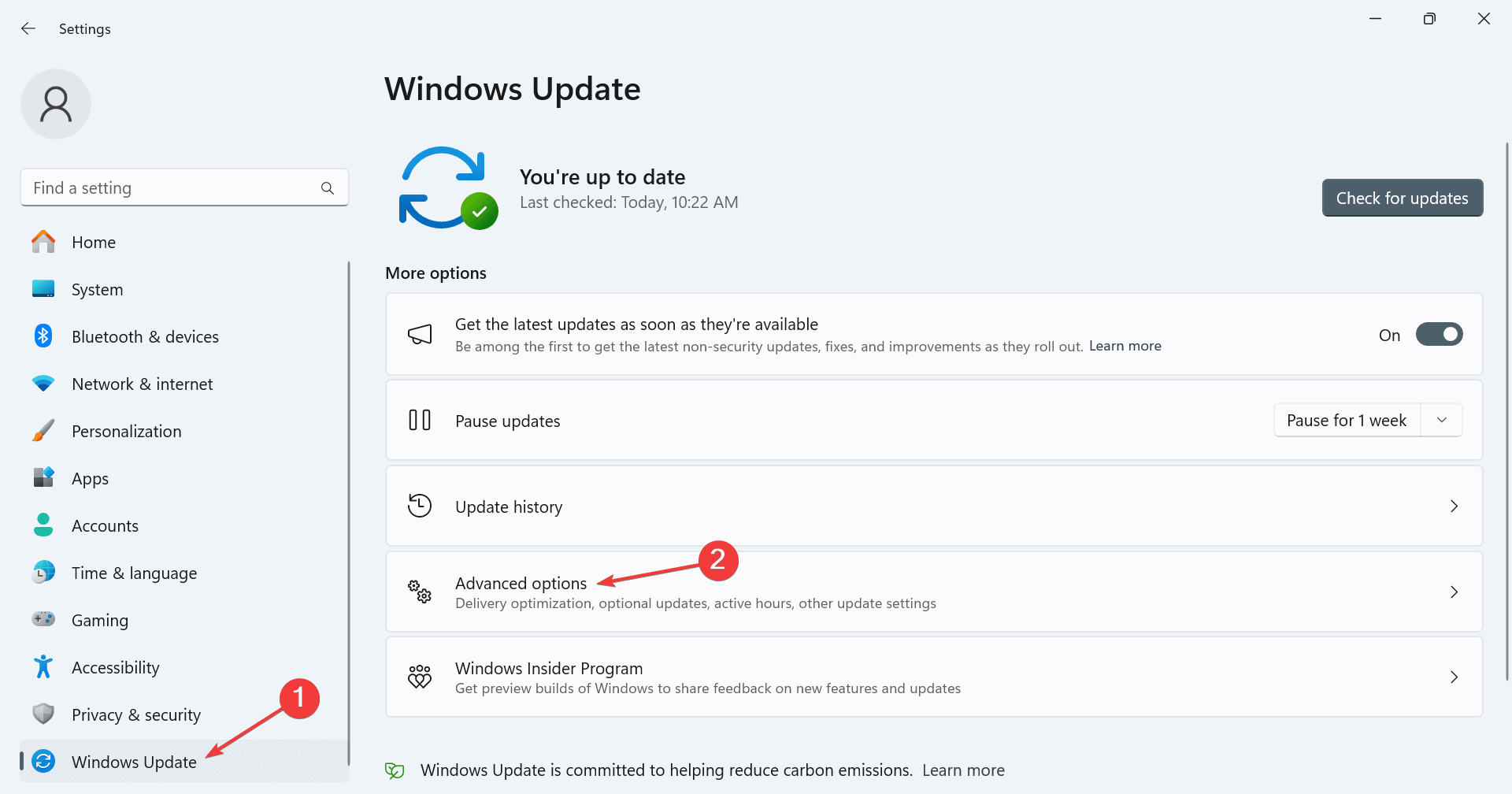
1. Open Windows Settings
- Press Windows + I on your keyboard.
- Select Windows Update from the left sidebar.

Alternatively, search for Windows Update settings from the Start menu. For more essential options, see Windows 11 settings you should change now.
2. Manage Update Preferences
- Click Advanced options.
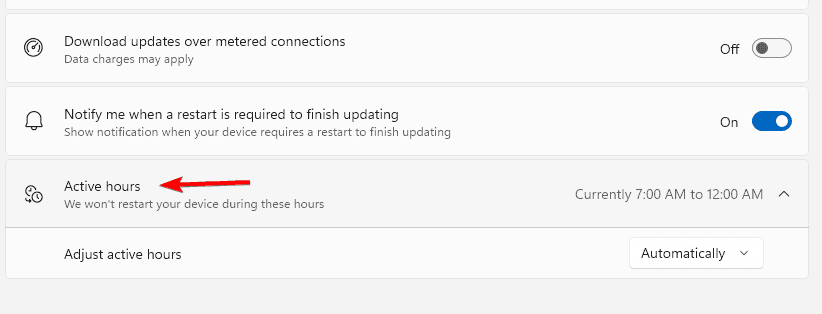
- Under Active hours, set the time you usually use your PC to avoid restarts.
- Open Delivery Optimization to allow or block downloads from other PCs.

- Toggle Get me up to date if you want automatic restarts after updates.
3. Pause Updates Temporarily
- Go to the Pause updates section.
- Choose a pause length up to 5 weeks.
- Click Resume updates when you are ready.
4. Check for Updates Manually
- Click Check for updates in the main Windows Update window.
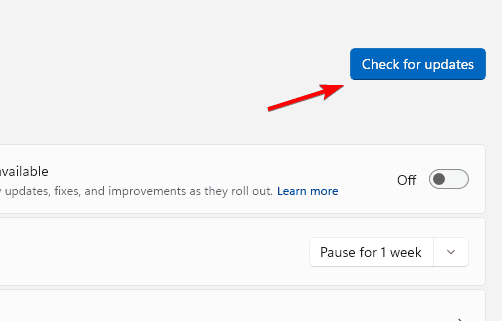
- Wait while Windows scans for updates.
- Select Download and install if updates are available.
For a better understanding of your PC’s settings panel, see how to access System Settings in Windows 11.
5. Manage Optional Updates
- Open Advanced options.
- Click Optional updates.

- Check the items you want, then choose Download and install.
6. Adjust Restart Options
- Open Advanced options and select Restart options.
- Pick a specific date and time for the restart.
- Confirm to ensure updates install outside work hours.
If you want to change other system behaviors, check how to change sound settings in Windows 11.
What Are Windows Update Settings?
Windows Update Settings control how your system downloads and installs updates for Windows, drivers, and optional features. Adjusting these options helps you schedule updates, pause them when needed, and choose which optional updates to install.
Why Customize Windows Update Settings?
- Save bandwidth by turning off peer-to-peer downloads.
- Avoid restarts during work hours using active hours.
- Delay updates if you prefer to test them later.
- Control drivers by reviewing optional updates first.
FAQs
Check at least once a month to install important security patches.
You can pause updates temporarily, but permanently disabling them is not recommended for security.
Yes, they can include driver fixes and enhancements that improve stability and performance.
Automatic updates deliver security patches and bug fixes promptly to protect your device.
Use Update history to uninstall a problematic update, then run the Windows Update Troubleshooter and retry.
Conclusion
With the right Windows Update settings, you decide when downloads happen and when your PC restarts. Use active hours, pause controls, and restart scheduling to stay secure while minimizing interruptions.
You can also roll back a problematic release by following this step by step Windows feature update rollback guide.

Read our disclosure page to find out how can you help Windows Report sustain the editorial team. Read more



Improve this guide

User forum
1 messages