
Windows Defender Full Scan vs Offline Scan Explained


 4 min. read
  Published on

This guide compares Windows Defender Full Scan, Offline Scan, and Quick Scan so you understand when to use each option to remove threats effectively.
Table of contents
What Windows Defender scan types do?
Each scan mode handles different security needs. A Quick Scan checks common threat locations, a Full Scan reviews the entire system, and an Offline Scan targets deep or persistent malware. If you want a better grasp of protection tools, see this overview of Windows Defender settings for clarity on all major features.
Quick Scan: Fast check for common threats
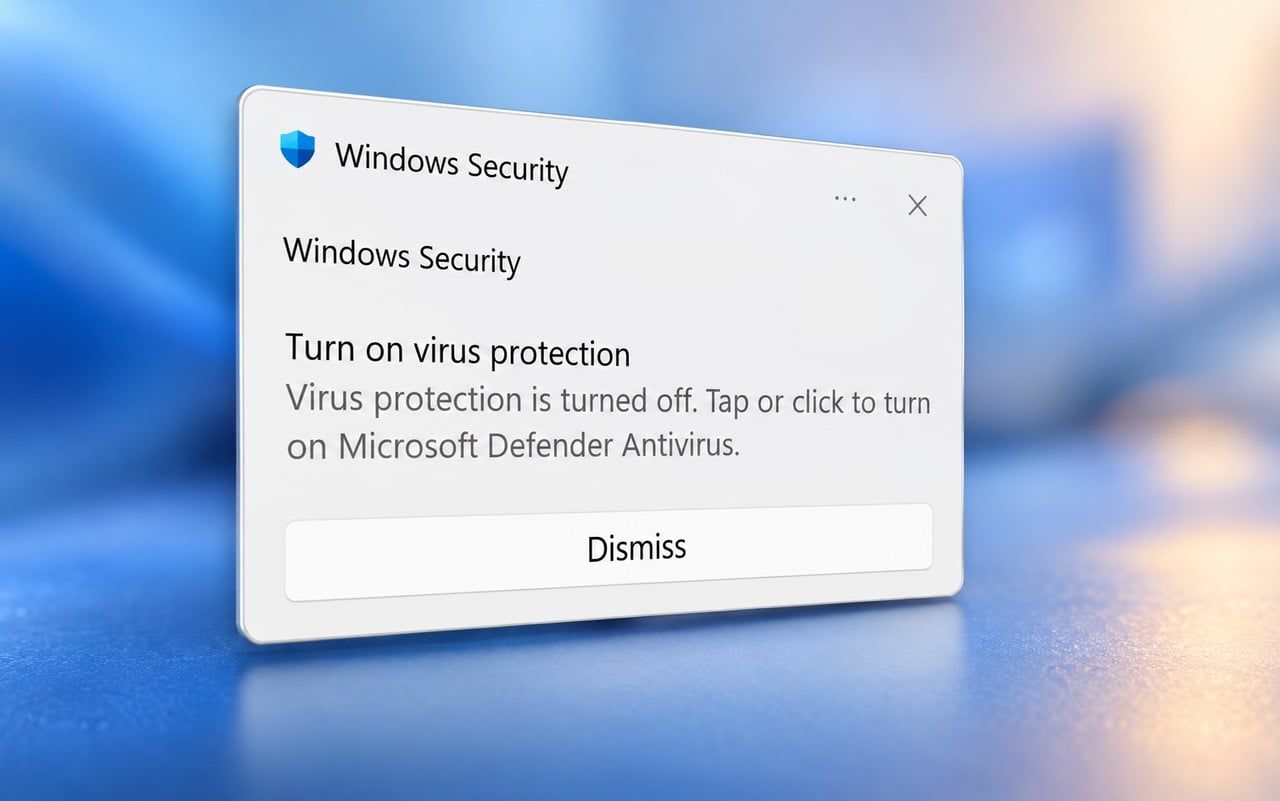
Quick Scan reviews key folders and startup areas where malware usually hides. Use it for routine checks or when you want a fast system review. If you recently enabled real time protection, you can also review how to turn on Windows Defender in Windows 11 to make sure all protections stay active.
When to use Quick Scan
Use these situations to decide when a Quick Scan helps most.
- Run it daily for basic protection
- Use it after installing new software
- Use it when your PC feels slightly slow
How to run a Quick Scan
Follow these steps to run a Quick Scan quickly.
- Open Start and select Settings
- Open Update and security
- Select Windows security
- Select Virus and threat protection

- Select Quick scan

Full Scan: Complete system wide inspection
Full Scan checks every file and process on your PC and detects hidden or dormant threats that Quick Scan might miss.
When to use a Full Scan
Use these situations to know when a Full Scan is the better choice.
- Run it once a week for complete coverage
- Use it after detecting suspicious behavior
- Use it after removing malware to ensure system cleanup
How to run a Full Scan
Use the steps below to start a Full Scan.
- Open Windows security
- Open Virus and threat protection
- Select Scan options

- Select Full scan

- Select Scan now
Offline Scan: Best for stubborn and root level malware
Offline Scan restarts your PC and scans before Windows loads to detect threats hiding deep inside system files. If malware prevents your security tools from starting normally, learn how to temporarily disable Windows Defender so you can troubleshoot without interference.
When to use an Offline Scan
Use this list to recognize when an Offline Scan is the safest choice.
- Run it when Windows Defender reports a severe threat
- Use it if malware keeps returning after removal
- Use it if your PC crashes, freezes, or displays persistent warnings
How to run an Offline Scan
Follow these steps to perform an Offline Scan.
- Open Windows security
- Select Virus and threat protection
- Select Scan options
- Select Microsoft Defender Offline scan

- Select Scan now and allow restart
Full Scan vs Offline Scan: Key differences
These points highlight the most important differences between a Full Scan and an Offline Scan.
Scan depth and detection
- Full Scan checks every file inside Windows
- Offline Scan checks before Windows loads and detects hidden malware
Best use cases
- Use Full Scan for routine thorough checks
- Use Offline Scan for serious or persistent infections
Speed and system impact
- Full Scan takes longer and uses system resources
- Offline Scan runs outside Windows and avoids slowdowns
FAQs
A Full Scan removes most threats, but deep malware may require an Offline Scan.
Use Quick Scan daily, Full Scan weekly, and Offline Scan only when dealing with serious infections.
It only removes confirmed threats.
Internet helps download the latest definitions, but scans work even without it.
Windows Defender gives you strong protection when you select the right scan mode for your situation. Quick Scan handles routine checks, Full Scan covers your whole system, and Offline Scan tackles deep or persistent malware. Use each option strategically to keep your PC stable, secure, and ready for daily tasks.

Read our disclosure page to find out how can you help Windows Report sustain the editorial team. Read more



Improve this guide



User forum
0 messages