
Enable Windows Sonic on Windows 11 for Free Surround Sound


 3 min. read
  Published on

Windows Sonic surround sound brings immersive 3D audio to your PC using regular headphones or speakers. In this guide, you’ll learn what it does, when to use it, and how to enable or disable it easily on Windows 11.
Table of contents
How to Enable Windows Sonic Surround Sound on Windows 11?
How to Turn On Windows Sonic Surround Sound
- Right-click the sound icon on the taskbar.
- Select Sound settings.

- Scroll down and click More sound settings.
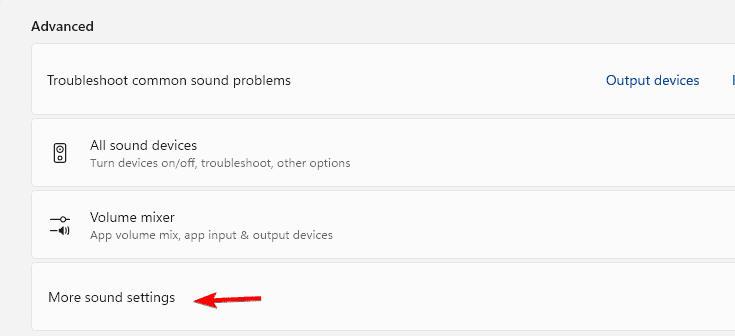
- Under the Playback tab, right-click your default audio device (Headphones or Speakers) > Properties.

- Go to the Spatial sound tab.
- Choose Windows Sonic for Headphones from the drop-down menu.

- Click Apply > OK.
Need help getting to the menu quickly? See how to open sound settings in Windows 11.
How to Disable Windows Sonic
- Right-click the sound icon on the taskbar.
- Go to Sound settings > More sound settings.
- Open your audio device properties.
- In the Spatial sound tab, select Off from the drop-down menu.

- Click Apply > OK.
For broader tweaks, check how to change sound settings in Windows 11.
What Is Windows Sonic for Headphones?
Windows Sonic is Microsoft’s spatial sound format that simulates surround sound through any stereo headphones. It makes audio feel like it’s coming from all directions, improving your experience in games, movies, and music.
You don’t need any special hardware to use it, just Windows 11 and a regular pair of headphones.
For more on customizing audio cues, see how to change Windows sounds.
When to Use Windows Sonic
- Gaming: Detect sound direction and footsteps more accurately.
- Movies and shows: Enjoy a realistic, theater-like sound experience.
- Headphones: Works best with regular stereo headsets.
You can also compare it with Dolby Atmos or DTS Headphone:X if you have those apps installed, but Windows Sonic is the best free spatial sound option.
FAQs
Yes, Windows Sonic is preinstalled and completely free on Windows 11.
Yes, it works with all wired or Bluetooth stereo headphones.
Dolby Atmos can sound more precise, but it requires payment. Windows Sonic offers great free spatial sound.
Yes, though it is primarily designed for headphones, you can still use it with speakers.
Conclusion
Windows Sonic surround sound is a quick, free upgrade to your PC audio. Whether you are gaming, watching movies, or listening to music, enabling it on Windows 11 can make your sound more immersive and realistic.

Read our disclosure page to find out how can you help Windows Report sustain the editorial team. Read more



Improve this guide


User forum
0 messages