
Windows Terminal Features You Should Know


 5 min. read
  Published on

Windows Terminal is a modern command-line tool designed for Windows 11 and 10 users who want speed, flexibility, and full control. It brings multiple shells like PowerShell, Command Prompt, and WSL together under one roof.
In this guide, you’ll learn about the most notable Windows Terminal features that make it a must-have for developers and power users alike.
Table of contents
- Key Features of Windows Terminal
- Multi-Tab Support
- Split Panes
- Full Customization Options
- GPU Accelerated Text Rendering
- Unicode and Emoji Support
- Command Palette
- JSON Based Settings File
- Profiles for Different Shells
- Background Transparency and Acrylic Effects
- Open Source Development
- What Is Windows Terminal
- How to Install Windows Terminal
- FAQs
- Conclusion
Key Features of Windows Terminal
Multi-Tab Support
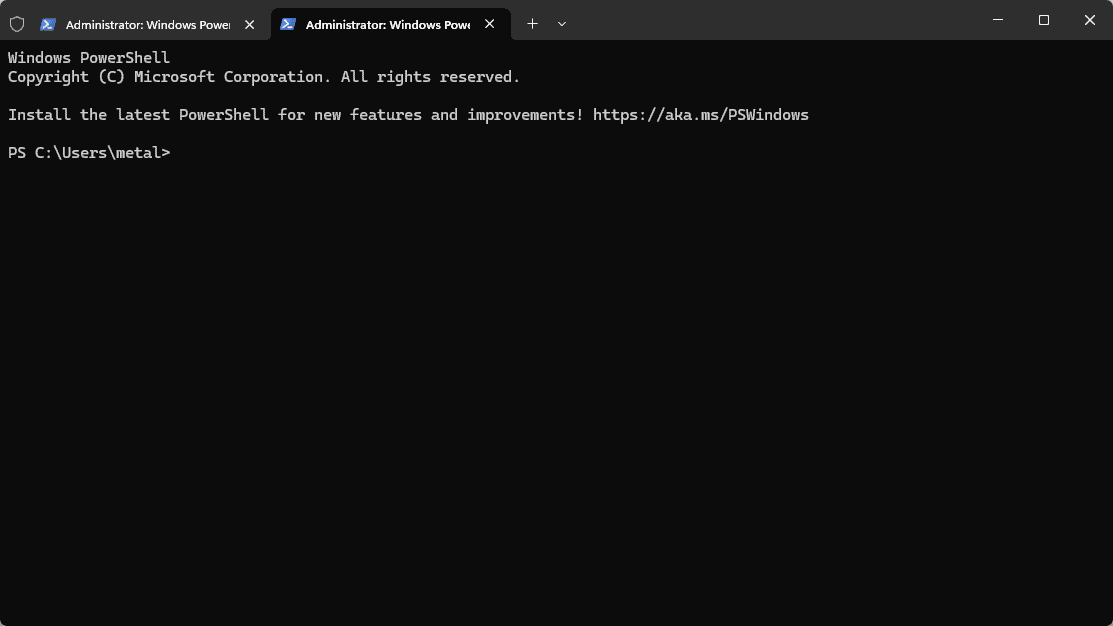
You can open multiple command-line sessions within the same window. Each tab can run PowerShell, CMD, or WSL independently, helping you multitask efficiently.
This keeps your workspace organized and reduces clutter. If you have never used the software before, visit our guide on how to open Terminal in Windows 11.
Split Panes
Split panes let you view and control several sessions side by side for easier monitoring or multitasking.
- Open Windows Terminal.
- Press Alt + Shift + Plus (+) for a vertical split or Alt + Shift + Minus (-) for a horizontal split.

- Use Alt + Arrow keys to move between panes.
You can easily monitor logs while executing commands in another pane without switching windows.
Full Customization Options

Windows Terminal gives you deep personalization control. You can tweak fonts, colors, transparency, and background images to match your workflow.
A well customized layout makes it more comfortable and visually appealing to work in.
GPU Accelerated Text Rendering
Windows Terminal uses DirectWrite and DirectX to render text with GPU acceleration. This results in smooth scrolling, crisp text, and lower CPU usage.
It keeps performance consistent even when handling large amounts of output.
Unicode and Emoji Support
The terminal supports full Unicode, which means it can display all characters, symbols, and emojis correctly.
It is ideal for users working in multiple languages or with detailed visual logs.
Command Palette
The command palette gives you quick access to every feature without memorizing shortcuts.
- Press Ctrl + Shift + P to open the palette.

- Type the command you want to run.
- Press Enter to execute.
It is a simple and fast way to find commands when you are multitasking.
JSON Based Settings File
Advanced users can open the JSON configuration file to edit preferences directly.
- Open Windows Terminal.
- Click the arrow near the tabs and choose Settings.
- Select Open JSON File at the bottom.
Editing this file lets you customize Terminal exactly how you want it.
Profiles for Different Shells
You can create different profiles for each environment such as PowerShell, CMD, Azure, or WSL. Each profile can have its own icon, color scheme, and startup directory.
Profiles help you switch between workspaces instantly. To see how it compares to other tools, head to our Command Prompt vs Windows Terminal guide.
Background Transparency and Acrylic Effects
Windows Terminal supports acrylic and transparent backgrounds for a modern, blended look.
- Open Settings > Appearance.
- Turn on Use Acrylic and adjust the opacity slider.
A transparent window helps your setup feel sleek and minimal.
Open Source Development
Windows Terminal is an open source project hosted on GitHub. Users can contribute ideas, report bugs, and help shape its evolution.
This open model leads to fast updates and new features based on real usage.
What Is Windows Terminal
Windows Terminal is a unified command line interface that combines PowerShell, Command Prompt, Azure Cloud Shell, and WSL in one place. It replaces separate console windows with one modern interface that is faster, easier to customize, and more pleasant to use.
You can get it from the Microsoft Store or install it with Winget on supported versions of Windows 10 and Windows 11.
How to Install Windows Terminal
You can install it in two simple ways.
- Microsoft Store
- Open the Microsoft Store app.
- Search for Windows Terminal.
- Select Get to install.
- Winget Command
- Open PowerShell.
- Run the Winget command to install Windows Terminal.
Both methods give you automatic updates and the newest features.
FAQs
Windows Terminal can host multiple shells like CMD and PowerShell in tabs, while CMD is only a single shell.
Yes. After you install WSL, you can run Linux commands directly inside Windows Terminal.
Yes. It works on Windows 10 version 1903 or newer, as well as Windows 11.
Yes. You can copy your settings file to another PC to keep your custom profiles and preferences.
Conclusion
Windows Terminal combines speed, versatility, and style in one command line experience. With features like split panes, multiple profiles, custom themes, GPU rendering, and open development, it is a clear upgrade from older consoles. If you are getting started or want to customize it further, don’t miss our Windows Terminal themes and customization tips guide.

Read our disclosure page to find out how can you help Windows Report sustain the editorial team. Read more



Improve this guide


User forum
1 messages