
Wrong Phone Number Microsoft Authenticator: How To Change It
Easy way to update your number


 3 min. read
  EEST
EEST
Key notes
- The MS Authenticator app is a mobile application for two-factor authentication (2FA).
- Users can deploy this application for both iOS and Android devices.
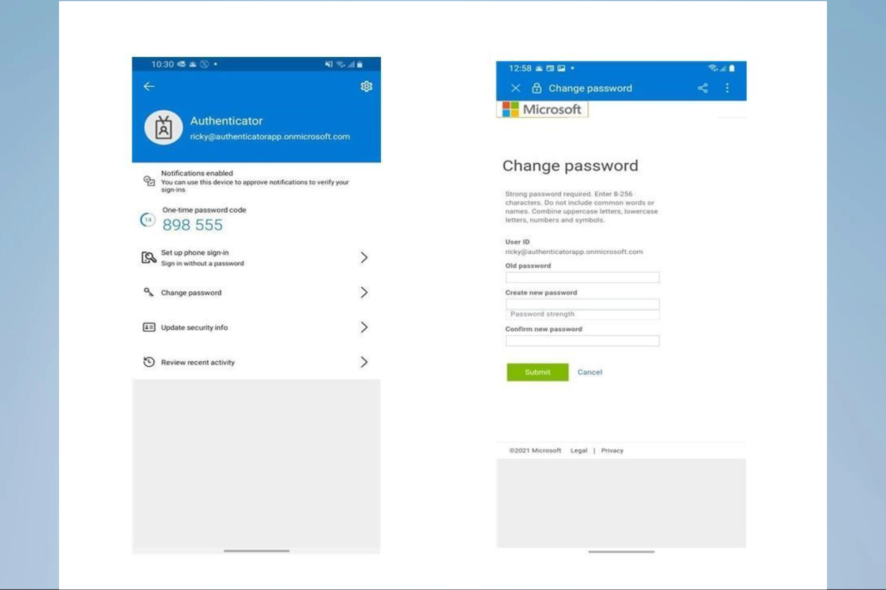
Do you have the wrong phone number in Microsoft Authenticator? Read on!
If you’re using Microsoft Authenticator to secure your accounts, it’s essential to ensure that the phone number associated with the app is correct.
Unfortunately, many users have reported issues with the app using the wrong phone number. This makes it challenging to receive critical security notifications.
This guide explains how to change the phone number associated with Microsoft Authenticator. So you can ensure that your accounts are secure and that you can receive all necessary notifications.
Why should I use Microsoft Authenticator?
If you are considering using an authentication app, there are several benefits to using Microsoft Authenticator:
- Increased security – Microsoft Authenticator provides an additional layer of protection for your accounts by requiring a code generated by the app and your password.
- Two-factor authentication – By using Microsoft Authenticator in addition to a password, you are using two-factor authentication. So, if someone knows your password, they can’t access your accounts without the code generated by the app.
- Convenience – Microsoft Authenticator allows you to generate codes for multiple accounts from one app. Hence, you don’t need to carry numerous physical devices or remember innumerable codes.
- Notifications for suspicious activity – It sends messages like someone trying to sign in to your account from a different location. Hence, you quickly detect and prevent unauthorized access to your accounts.
- Cross-platform compatibility is available on multiple platforms, including iOS, Android, and Windows. Therefore, you can use it on all your devices.
- Easy to use – The app is easy to set up and use. It uses a QR code to link to your account, which you can scan with your phone’s camera. So, once set up, you can sign in with just a tap.
If you use the app and encounter the message wrong phone number in Microsoft authenticator, read on.
How do I change my Microsoft Authenticator to a new phone number?
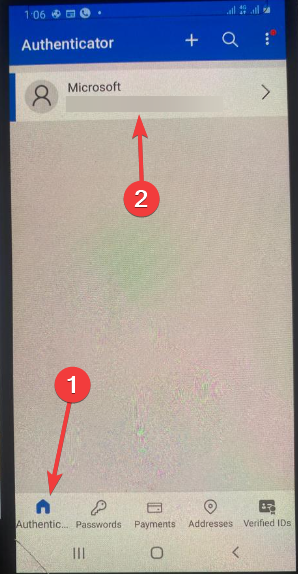
- Open your Microsoft Authenticator app on your device.
- On the Authenticator page, select your account.

- Select the Update security info option.

- Tap on Add a new way to sign in or verify.

- Next, tap the Show more option, then Text a code.

- Here, input your new phone number and tap Next.

- Finally, verify the new phone number by following the prompts.


Note: After updating the phone number, you may need to re-verify all your accounts connected with this Authenticator app.
If you face problems after updating your number or the app stops responding, you can follow this guide to fix Microsoft Authenticator app not working.
It’s essential to ensure that the phone number associated with your Microsoft Authenticator app is correct, as this is a crucial aspect of securing your accounts.
If the app uses the wrong phone number, it’s easy to change it by following the steps outlined in this article.
Lastly, by updating your phone number, you can ensure that your accounts are secure and that you don’t miss any important security notifications. So, it’s always better to periodically check and update your phone number.


Read our disclosure page to find out how can you help Windows Report sustain the editorial team. Read more



Improve this guide


User forum
0 messages