
YouTube Not Working on Samsung TV? 7 Quick Fixes to Try


 3 min. read
  Published on
YouTube may stop working on a Samsung TV due to outdated software, cache issues, or network problems. Luckily, you can fix it quickly with a few proven methods.
Table of contents
How can I fix YouTube problems on Samsung TV?
1. Check Your Internet Connection
Start by making sure your Samsung TV is connected to a stable network.
- Restart your router and reconnect your TV to Wi-Fi.
- Test internet speed with another app to confirm stability.
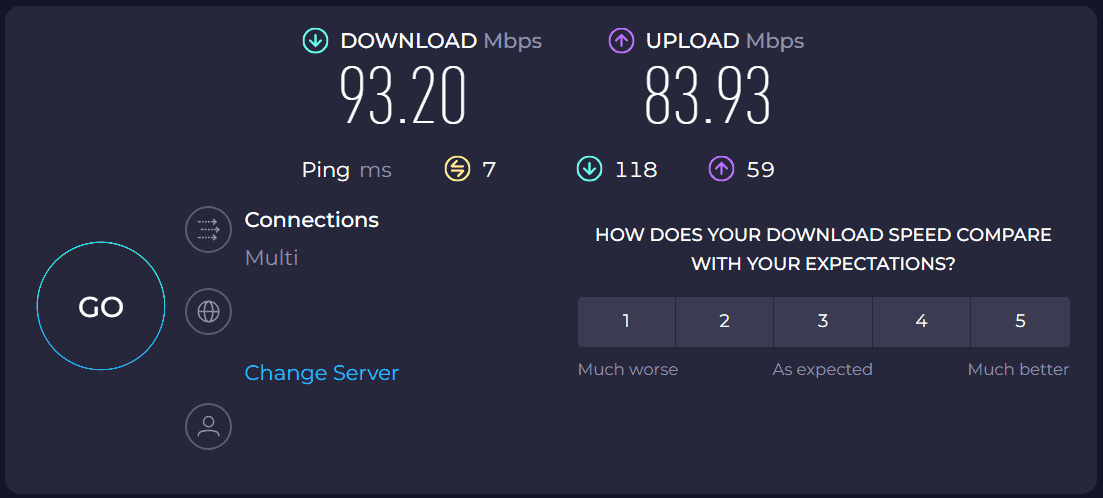
- Switch to a wired Ethernet connection if Wi-Fi is weak.
If your TV struggles with online channels as well, see our guide on Samsung TV Plus not working.
2. Restart Your Samsung TV
Sometimes a simple restart clears temporary glitches.
- Unplug the TV from the power outlet.
- Wait 30 seconds before plugging it back in.
- Turn it on and relaunch the YouTube app.
3. Update the YouTube App
An outdated app may stop working properly, so update it to the latest version.
- Press the Home button on your remote.
- Navigate to Apps > YouTube.
- If an update is available, select Update.
4. Clear the YouTube App Cache
Clearing the cache can solve playback errors or loading issues.
- Go to Settings > Apps > YouTube.
- Choose Clear cache and Clear data.

- Relaunch the app to see if it works properly.
5. Update Samsung TV Software
Your TV may need the latest firmware to run YouTube correctly.
- On your remote, press Settings.
- Select Support > Software Update > Update Now.
- Allow the TV to install the latest firmware and restart.
If your PC has issues connecting to your TV, check Windows 10 won’t connect to Samsung TV for additional fixes.
6. Reinstall the YouTube App
If the app is corrupted, reinstalling it can resolve the issue.
- Go to Apps and highlight YouTube.
- Select Delete, then restart the TV.

- Reinstall YouTube from the Samsung App Store.
Watching through a Nintendo Switch 2 and seeing YouTube errors on the console instead? See our guide for fixes: YouTube Not Working on Switch 2.
7. Reset Smart Hub (Last Resort)
When nothing else works, resetting Smart Hub restores default settings.
- Press Settings on your remote.
- Go to Support > Self Diagnosis > Reset Smart Hub.
- Enter your PIN (default is 0000) and restart the TV.
- Reinstall YouTube after the reset.
FAQs
It usually happens because of internet issues, outdated app versions, or corrupted cache.
Open Apps, find YouTube, and select Update if available.
Yes, it removes all apps. You will need to reinstall YouTube and other services.
Yes. Updating the TV firmware often solves app compatibility problems.
Conclusion
Most YouTube errors on Samsung TVs can be fixed with simple solutions like updating the app, clearing cache, or resetting Smart Hub. If you still face issues, make sure your remote works correctly by following Samsung TV remote not working. With these steps, you will be back to streaming in no time.

Read our disclosure page to find out how can you help Windows Report sustain the editorial team. Read more



Improve this guide



User forum
0 messages