
Zoom Login: How to Sign In on Web, Desktop, and Mobile


 4 min. read
  Published on
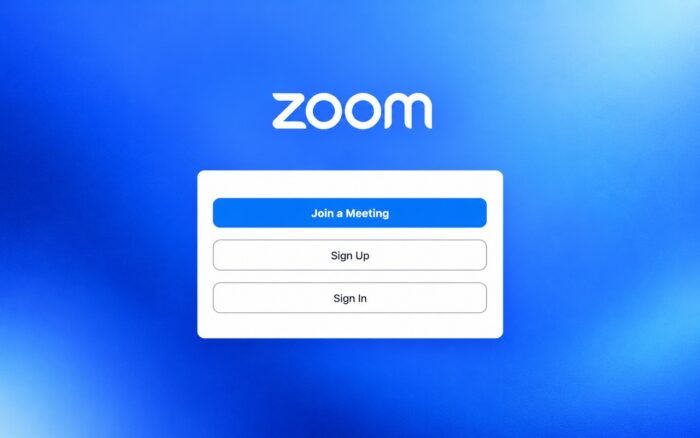
Zoom lets you access your meetings, account settings, recordings, contacts, and other Zoom Workplace features. You can sign in through a browser, the desktop app, or the Zoom mobile app.
Zoom supports several login methods, including email and password, Google, Apple, Facebook, Microsoft, and SSO, and in this guide we’re going to show you how to properly log in to your Zoom account.
How do I log in to Zoom online?
1. Use the web browser
The easiest way to access your Zoom account without installing an app is through the Zoom website.
- Go to the Zoom sign-in page.
- Enter the email address associated with your Zoom account.
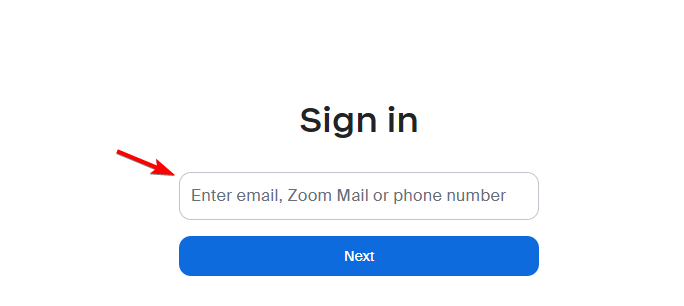
- Enter your password.
- Click Sign In.
- Complete any additional verification if Zoom asks for it.
After signing in, you can access your profile, meetings, recordings, settings, and other features available for your account. Zoom confirms that its web portal works directly in a browser without requiring additional software.
2. Use the desktop app
If you regularly join or host meetings, you may prefer using the Zoom Workplace desktop app.
- Open the Zoom Workplace app on your computer.
- Click Sign In.
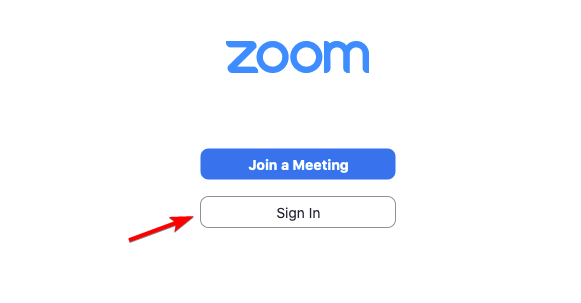
- Enter your Zoom email address and password.
- Click Sign In to access your account.
You can also choose one of the available third-party login options instead of entering a Zoom password.
3. Use the Zoom app on Android or iPhone
You can also sign in through the Zoom Workplace mobile app.
- Open the Zoom Workplace app on your phone or tablet.
- Tap Sign In.
- Enter your email address and password or select another available login method.
- Complete any verification prompts.
- Open your account.
Once logged in, you can join meetings, manage your profile, view contacts, and access other available Zoom features.
4. Use Zoom SSO login
Your workplace, school, or organization may require you to sign in through single sign-on instead of using a normal Zoom password.
- Open the Zoom Workplace app.
- Select SSO or Sign In with SSO.
- Enter your company’s Zoom domain.
- Select Continue.
- Sign in through your organization’s authentication page.
If you do not know your company domain, Zoom provides an option to enter your email address instead. You may also need to contact your organization’s Zoom administrator for the correct login information.
What to do if Zoom login is not working
If you cannot log in to Zoom, first confirm that you are using the same sign-in method you originally used to create your account.
Try these fixes:
- Check your email address and make sure there are no typing errors.
- Reset your password if you cannot remember it.
- Try your original login method if you registered through Google, Apple, Microsoft, Facebook, or SSO.
- Open Zoom in another browser if the web login page does not work correctly.
- Update the Zoom Workplace app if the desktop or mobile app cannot sign you in.
- Contact your administrator if your company or school manages your Zoom account through SSO.
Trying to use an email and password for an account created through another authentication method can also cause sign-in problems.
The Zoom login process takes only a few steps whether you use the web portal, desktop app, or mobile app. If you want to learn more, check out our guides on how to install Zoom on Windows 11, fix Zoom connection issues, or troubleshoot Zoom not responding.
FAQs
1. Where is the official Zoom login page?
The official Zoom web portal sign-in page is zoom.us/signin. Zoom also lets organizations use custom URLs for managed accounts.
2. Can I log in to Zoom with Google?
Yes. Zoom supports Google login, along with Apple, Facebook, Microsoft, email and password, and SSO authentication methods.
3. Why can’t I log in to my Zoom account?
Check your password, email address, and sign-in method first. If your employer or school manages the account, you may need to use SSO rather than a regular Zoom password.
4. Can I have two Zoom accounts on the same computer?
Yes. Zoom supports adding multiple accounts and switching between them. Compatible versions of the Zoom app can store up to five accounts on one device.
5. Do I need a Zoom account to join a meeting?
Not always. Many meetings allow participants to join from an invitation link without signing in, although the meeting host or organization can require authentication.

Read our disclosure page to find out how can you help Windows Report sustain the editorial team. Read more



Improve this guide



User forum
0 messages