
How to Use Troubleshooters in Windows 11 to Fix Common Issues


 2 min. read
  Updated on
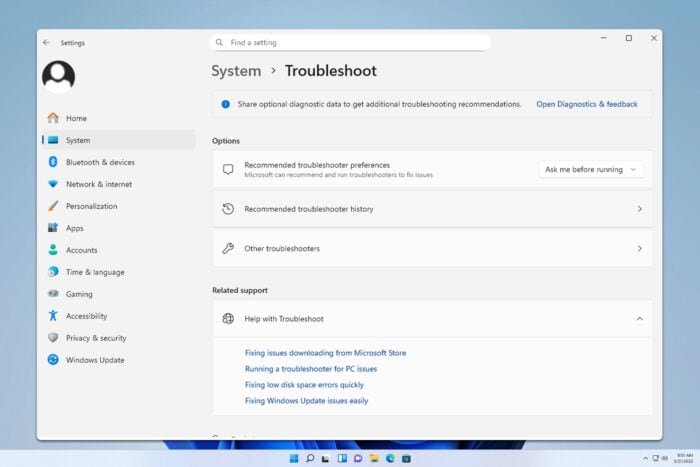
If your Windows 11 PC runs into errors, the built-in troubleshooter can help fix common issues automatically. Here’s how you can access and run them.
How do I run the troubleshooter in Windows 11?
Table of contents
1. Open Windows troubleshoot settings
- Press Windows + I to open Settings.
- Go to System > Troubleshoot.

- Select Other troubleshooter.
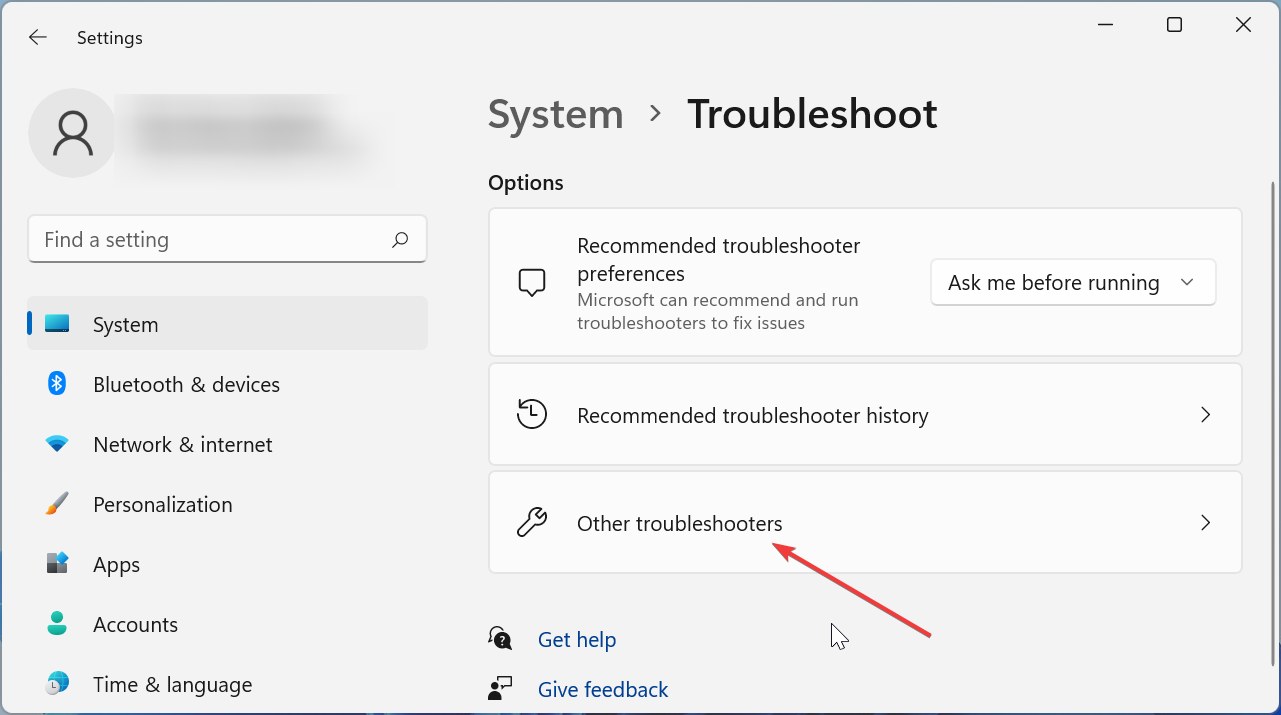
2. Choose the right troubleshooter
- Internet Connections for network access problems.
- Keyboard or Printer for hardware issues.
- Windows Update for system update errors.
You can also follow this guide on how to get help with File Explorer in Windows when file issues appear on your PC.
You can explore device related fixes by checking the Hardware And Devices Troubleshooter, which helps resolve USB and hardware malfunction issues on Windows 11.
3. Run the troubleshooter
- Click Run next to the tool you want.
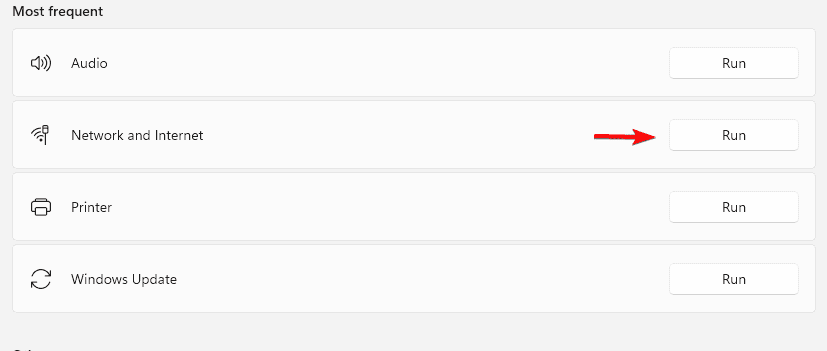
- Follow the on-screen instructions.
- Apply any recommended fixes.
Additional fixes if troubleshooter fails
- Restart your PC to clear temporary glitches.
- Update Windows manually
You can also try the System Maintenance Troubleshooter to scan your computer for performance and stability problems that other tools might miss.
You can also run troubleshooters through Command Prompt by following this guide on how to launch Windows troubleshooters from the command line when standard tools fail to start correctly.
Run the Windows Update troubleshooter
If updates are the problem, launch the dedicated tool by following the steps in Windows Update troubleshooter for Windows 11.
FAQs
It may stop working due to corrupted system files or pending updates. Restart your PC, check for updates, or use this guide: Windows troubleshooter stopped working.
Yes. The Windows Update troubleshooter applies common fixes. If it fails, follow the steps in fix Windows Update errors.
Yes. It diagnoses issues and applies safe system-level changes without deleting personal files.
Windows 11 troubleshooters are quick tools that can resolve the most common issues. If problems persist, try the dedicated update and repair guides to keep your system running smoothly.

Read our disclosure page to find out how can you help Windows Report sustain the editorial team. Read more



Improve this guide


User forum
1 messages