
One AirPod Not Working? 5 Quick Fixes to Try Now


 3 min. read
  Updated on

If one of your AirPods is not working, the issue can usually be traced to connection problems, battery issues, or software glitches. Here’s how to fix it step by step.
Why is one of my AirPods not working?
1. Check Battery Levels
The most common reason is that one AirPod has run out of charge.
- Place both AirPods in the charging case.
- Make sure the case has enough charge.
- Wait a few minutes, then try using them again.
If you are pairing AirPods with a Windows PC and run into problems, see this guide on AirPods not working on Windows 11.
2. Clean the AirPods and Case
Dirt or debris can block sound or prevent proper charging.
- Wipe the AirPods with a soft, lint-free cloth.
- Remove dust and debris from the speaker mesh and charging contacts.
- Avoid using liquids that can damage the components.
3. Reset Bluetooth Connection
Sometimes the connection between your device and AirPods glitches.
- Put both AirPods back in the case.
- Close the lid and wait 15 seconds.
- Reopen the lid and reconnect them from your device’s Bluetooth settings.
4. Forget and Re-Pair AirPods
If the issue persists, a full re-pair often resolves it.
- Go to Bluetooth settings on your iPhone or other device.
- Tap “Forget This Device” for your AirPods.

- Place them back in the case, press and hold the setup button until the light flashes white, and then pair again.
When pairing with Windows, microphone issues may appear. You can learn how to fix them in this article on Windows 11 AirPods microphone problems.
5. Update Your Device
Outdated software can prevent AirPods from working properly.
- Ensure your iPhone, iPad, or Mac has the latest software version.
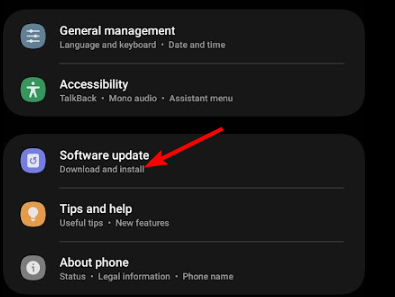
- AirPods rely on firmware that updates automatically when paired with an updated device.
In case the microphone is still unreliable, check this troubleshooting guide on AirPods microphone not working.
If audio or connection issues also appear in your car, check our guide on Apple CarPlay not working for quick fixes.
FAQs
It may be caused by low battery, dirt blocking the speaker, or a temporary Bluetooth glitch.
Yes. Outdated iOS or macOS versions sometimes affect AirPods performance.
Try resetting the AirPods entirely and pairing them again as a new device.
Hold the setup button on the case until the LED light flashes amber, then white.
If one AirPod still does not work after all fixes, the hardware may be faulty and needs service.

Read our disclosure page to find out how can you help Windows Report sustain the editorial team. Read more



Improve this guide



User forum
0 messages