
How to Log In to Xtime in a Few Steps


 3 min. read
  Published on
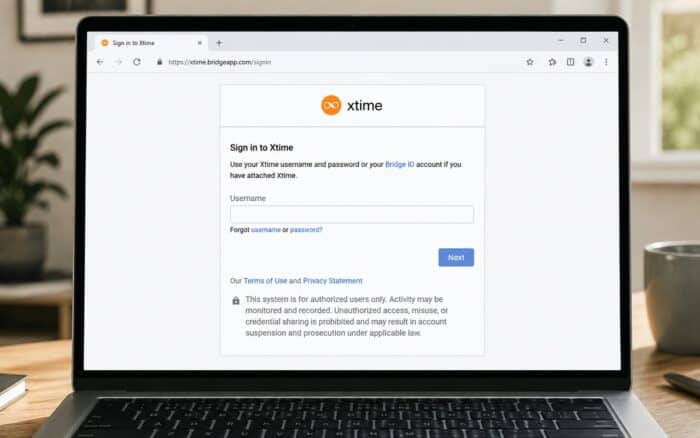
Xtime login lets dealership employees access Xtime Schedule, Engage, Inspect, Invite, and other authorized Cox Automotive tools.
Xtime now uses the Cox Automotive common sign-in system. You can enter your existing username on the standard login page, and the system will automatically identify whether your account uses Bridge ID.
How do I log in to Xtime?
1. Use the login page
Follow these steps to access your Xtime account:
- Open the official Xtime website.
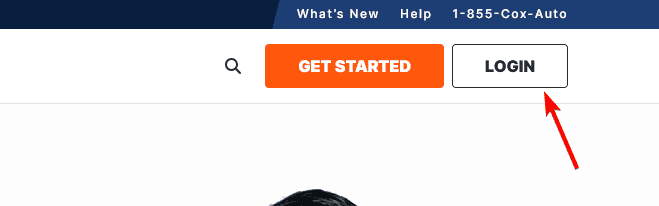
- Select Login from the top navigation menu.
- Enter your Xtime or Cox Automotive username.
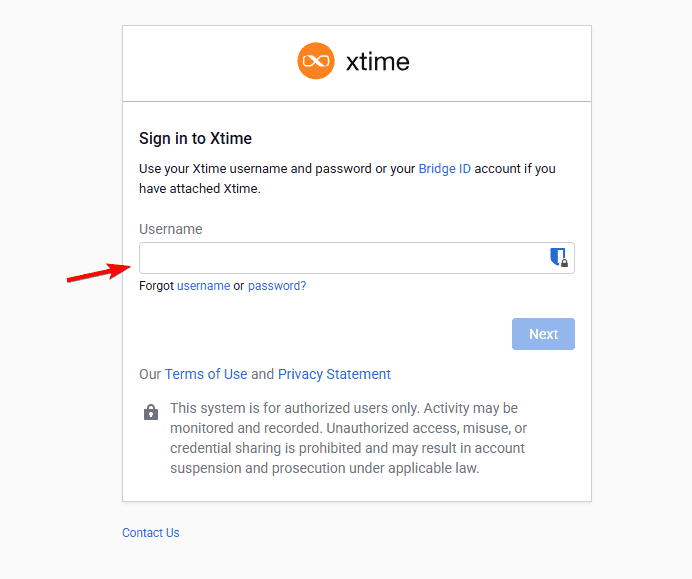
- Select Next to continue.
- Enter your password when prompted.
- Complete any identity verification requested by your organization.
- Select Sign in to open your Xtime dashboard.
The official Xtime website directs users to the Cox Automotive sign-in portal at login.xtime.com. The page may redirect to a Cox Automotive address during authentication.
2. How to log in with Bridge ID
Bridge ID can connect Xtime with other supported Cox Automotive products. It also lets authorized users switch between attached solutions without entering separate credentials each time.
- Enter your username on the regular Xtime sign-in page.
- Cox Automotive will identify your Bridge ID account.
- The system will automatically continue the appropriate login process.
What you need before signing in
Prepare the following details before starting:
- Your Xtime or Bridge ID username
- Your current account password
- Access to your registered email address or phone
- Any verification method required by your dealership
- A supported browser with JavaScript enabled
The sign-in application requires JavaScript. Disable script-blocking extensions temporarily when the login screen remains blank or fails to load.
In summary, accessing Xtime is a straightforward process through the Cox Automotive common sign-in system, whether you are using a standard username or Bridge ID.
This isn’t our only login guide, and we have guides on how to log in to Denticon and a Procore login guide.
FAQs
What is the official Xtime login page?
The official login starts through the Login option on Xtime’s website or through login.xtime.com. It redirects users to the secure Cox Automotive authentication system.
Can I use my Bridge ID to log in to Xtime?
Yes. Enter your Bridge ID username on the regular Xtime login page. The system will recognize the account automatically.
Why does the Xtime login screen look different?
Xtime uses Cox Automotive’s common sign-in experience. This system provides a shared login process across supported Cox Automotive products.
Can customers use the Xtime employee login?
The Xtime portal primarily serves authorized dealership users. Customers normally schedule or manage service through the dealership’s website, messages, or booking links.
Why doesn’t my password manager fill in my Xtime password?
Your password manager may associate the saved credentials with an older login address. Enter the details manually once and save them for the current Cox Automotive sign-in page.
Does the old Xtime login bookmark still work?
Yes. Xtime states that bookmarks for older sign-in pages should redirect users to the current login address.

Read our disclosure page to find out how can you help Windows Report sustain the editorial team. Read more



Improve this guide




User forum
0 messages