
TradingView Not Working? 6 Easy Ways to Fix It


 4 min. read
 Published on

If TradingView is not working, the problem may come from server outages, browser extensions, corrupted cache, or network issues. Try these fixes if TradingView won’t load, charts freeze, or the desktop app keeps crashing.
What can I do if TradingView is not working?
1. Check if TradingView is down
TradingView may experience temporary server outages that affect charts, alerts, and market data.
- Visit the TradingView status page.
- Check whether Website, Chart, and Data feeds show operational status.
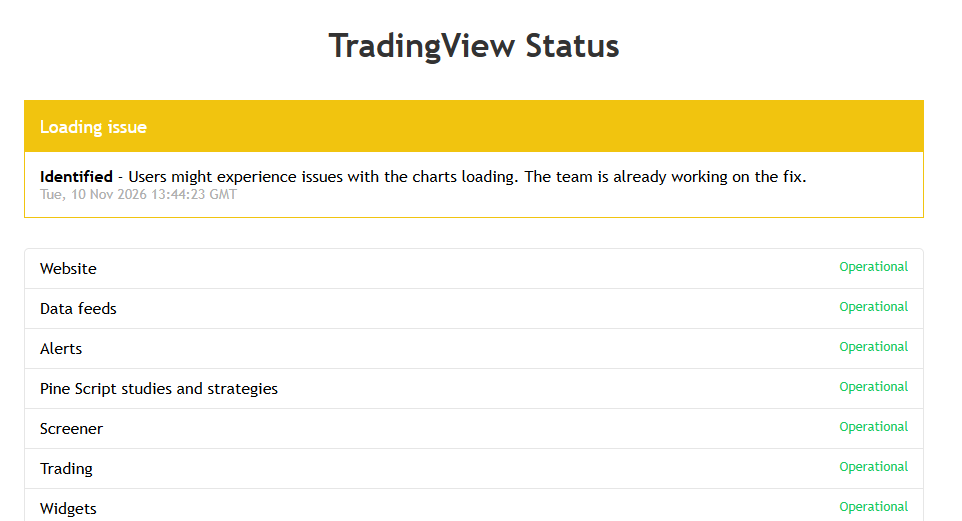
- If TradingView reports an outage, wait for the service to recover.
If all services work normally, continue with the next fix.
2. Restart TradingView and check your internet connection
A temporary connection problem can prevent TradingView from loading charts or updating prices.
- Close TradingView completely.
- Restart your browser or the TradingView desktop app.
- Restart your router if other websites also load slowly.
- Try opening TradingView using another network or mobile hotspot.
If TradingView works on another network, your original connection may be causing the problem.
3. Clear your browser cache and cookies
Corrupted browser data can cause TradingView to display blank charts or fail to load.
- Open Chrome, Edge, or Firefox.
- Press Ctrl + Shift + Delete.
- Select Cookies and other site data and Cached images and files.

- Choose Clear data.
- Restart your browser and open TradingView again.
Clearing cookies will sign you out of websites, so you may need to log in again.
4. Disable browser extensions
Ad blockers, privacy extensions, and VPN tools can interfere with TradingView.
- Open TradingView in an Incognito or Private window.
- Check whether charts load correctly.
- If they do, disable your browser extensions one at a time.
- Reload TradingView after disabling each extension.
- Keep the problematic extension disabled for TradingView.
You can also test TradingView in another browser to determine whether the issue affects your current browser.
5. Clear the TradingView desktop app cache
If the TradingView desktop app freezes, crashes, or displays blank charts, clearing its cache may resolve the problem.
- Open the TradingView desktop app.
- Click the three-dot menu in the upper-right corner.
- Select Settings > Service.
- Click Clear cache.
- Restart TradingView.
If the issue continues, open Settings > Service, select Disable hardware acceleration, and restart the app.
6. Update or reinstall TradingView
An outdated desktop app may cause performance problems or crashes.
- Open TradingView Desktop.
- Click the three-dot menu > Settings > About.
- Check for available updates.
- Install any available update and restart the app.
- If TradingView still doesn’t work, download the latest version from the official TradingView desktop page.
If none of these fixes work, try TradingView on another device or browser to determine whether the issue affects your account, application, or network.
You can also visit the TradingView Help Center for additional troubleshooting. If you want to explore alternatives, check out the best automated trading platforms or other trading software for PC.
If you’re experiencing similar issues with another trading service, such as the stock not supported error on Robinhood, you may need to troubleshoot that platform separately.
FAQ
Why is TradingView not loading?
TradingView may be down, or your browser cache, extensions, or internet connection may be causing the problem. Check the status page and try another browser or network.
Why are TradingView charts frozen?
Frozen charts can result from connection issues, too many indicators, or outdated app data. Refresh the chart, clear the cache, and remove unnecessary indicators.
How do I fix TradingView desktop crashes?
Clear the desktop app cache, disable hardware acceleration, and install the latest version. Reinstall the app if it continues to crash.
Can browser extensions affect TradingView?
Yes. Ad blockers, VPNs, and privacy extensions can prevent charts or market data from loading. Test TradingView in a private window and disable extensions individually.
What should I do if TradingView is still not working?
Try another device, browser, or network to identify the source of the issue. If the problem continues, contact TradingView support through its Help Center.

Read our disclosure page to find out how can you help Windows Report sustain the editorial team. Read more


Improve this guide


User forum
0 messages