
WiFi Slow on Laptop? 9 Ways to Increase Internet Speed
WiFi slow on laptop but fast on phone could signals too many bandwidth hoggin processes


 5 min. read
  Updated on

If you’re dealing with slow WiFi on your laptop, this guide is for you. We’ll walk you through 9 ways to increase internet speed. By the end, you’ll say goodbye to laggy video calls, buffering streams, and painfully slow downloads.
Whether you’re working, gaming, or just browsing, these fixes will help you get the most out of your laptop’s WiFi connection.
How do I fix slow Wi-Fi on my laptop?
To start with, power cycle your router, and move your laptop closer to it. Also, consider restarting your PC and disconnecting other devices connected to the same router.
If these won’t work, follow the advanced troubleshooting steps below.
1. Disable Location services
- Press Windows + I to open Settings, and select Privacy.
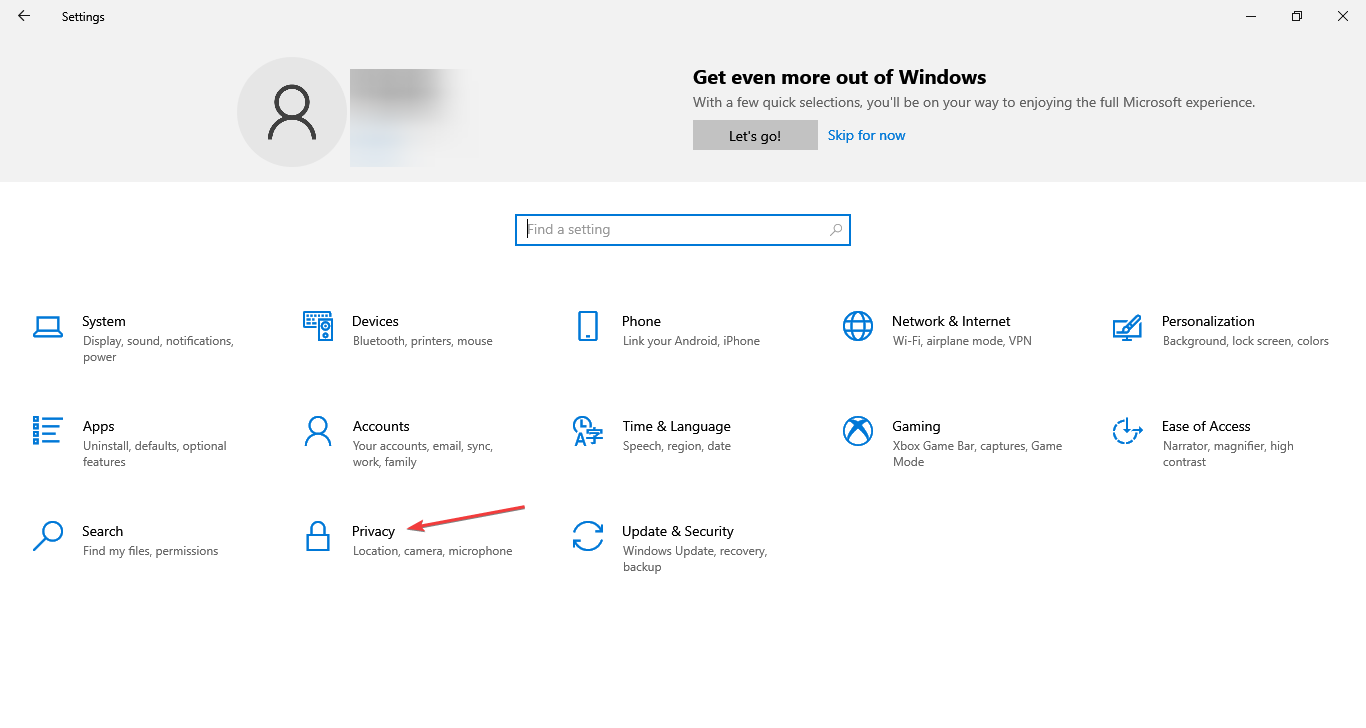
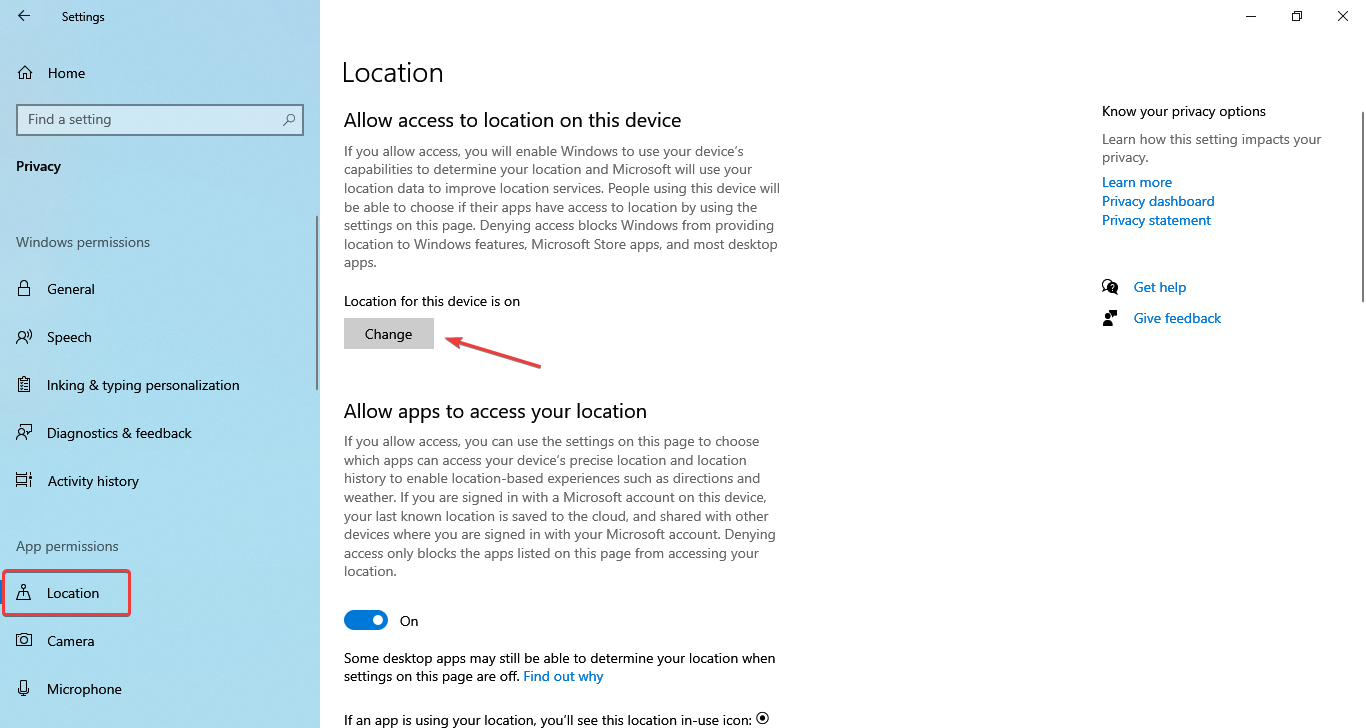
- Now, select Location from the navigation pane, and then click on Change under Allow access to location on this device.
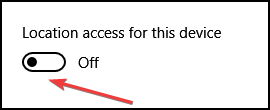
- Turn off the toggle for Location access for this device.
A few users managed to fix things when Wi-Fi was low only on one laptop by disabling Location. Do try it and check if it helps improve the speed in your case.
2. Re-enable the Wi-Fi adapter
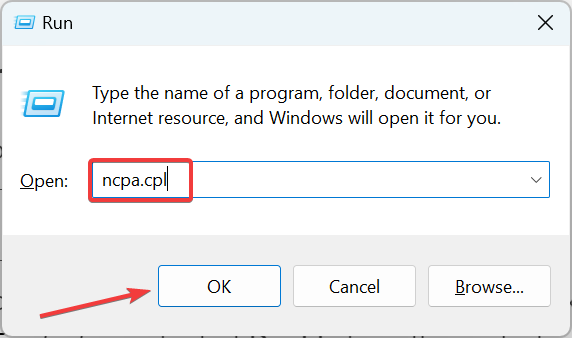
- Press Windows + R to open the Run dialog box, type ncpa.cpl in the text field, and click OK.
- Right-click on the Wi-Fi adapter, and select Disable from the context menu.

- Wait for a minute or so, then again right-click on the Wi-Fi adapter, and select Enable.
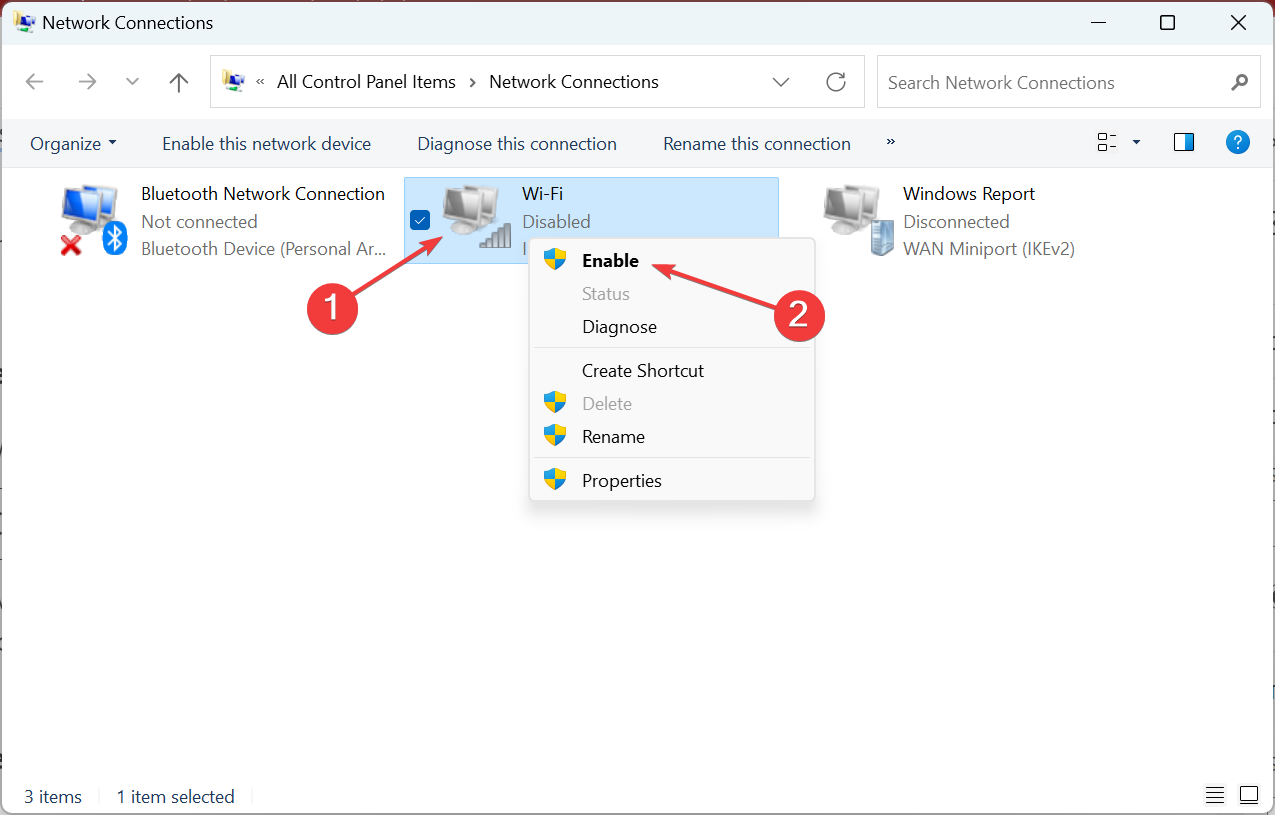
Keeping network drivers in check should fix slow internet errors regardless if you use WiFior Ethernet.
3. Update the Wi-Fi adapter drivers
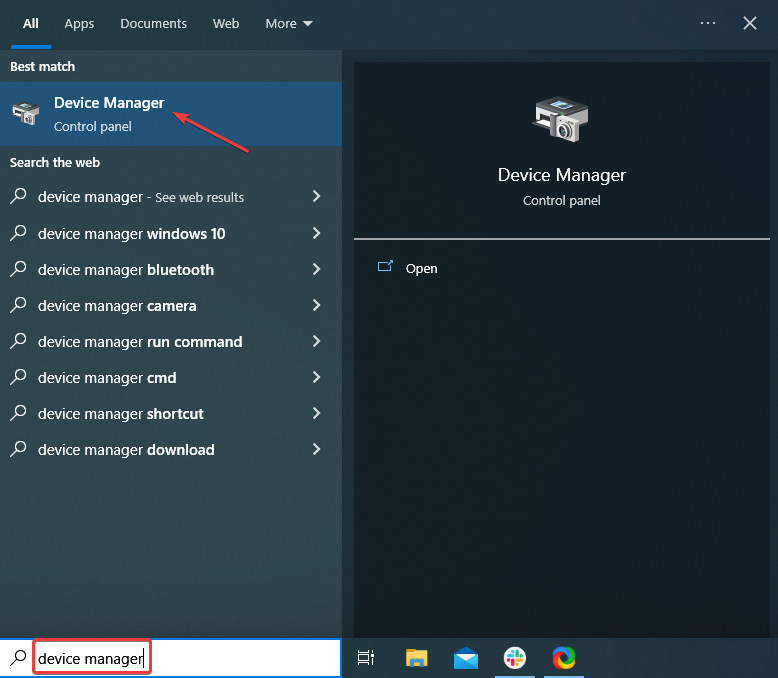
- Type Device Manager in the Search bar, and click on the relevant search result.
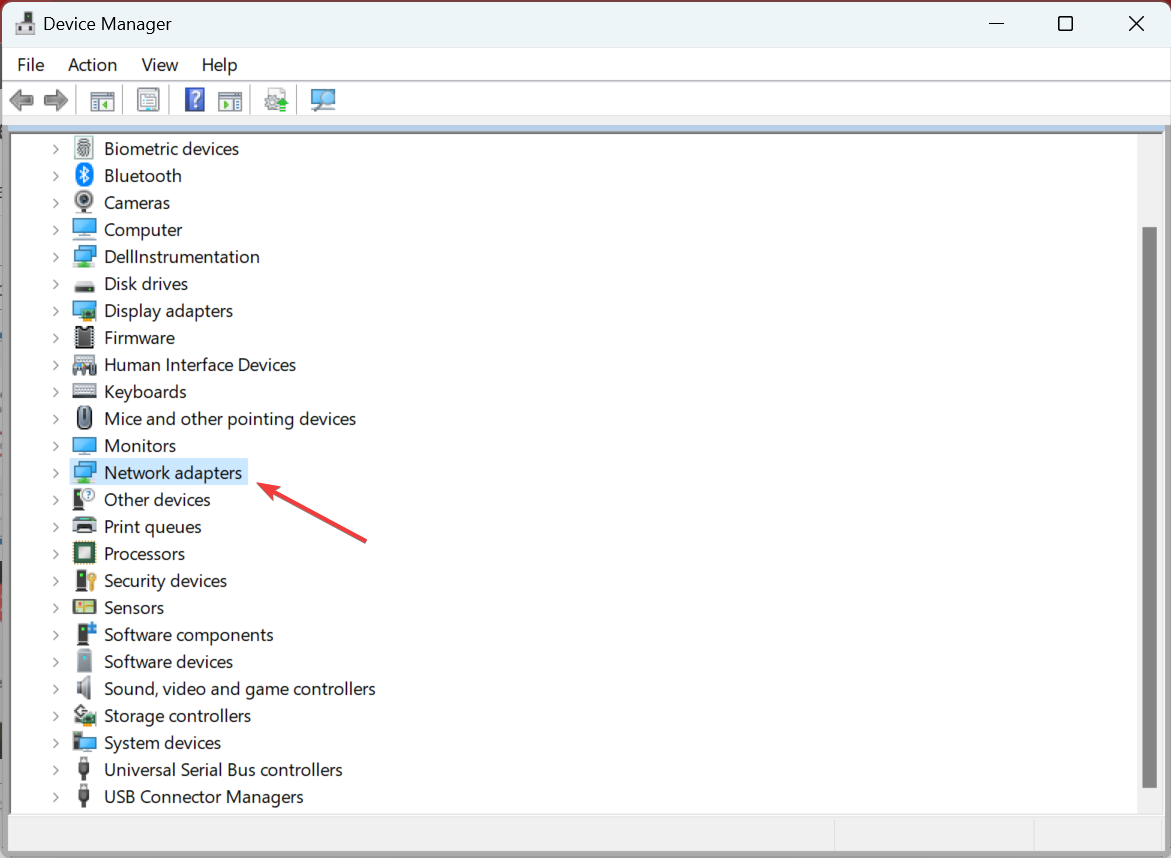
- Double-click on Network adapters.
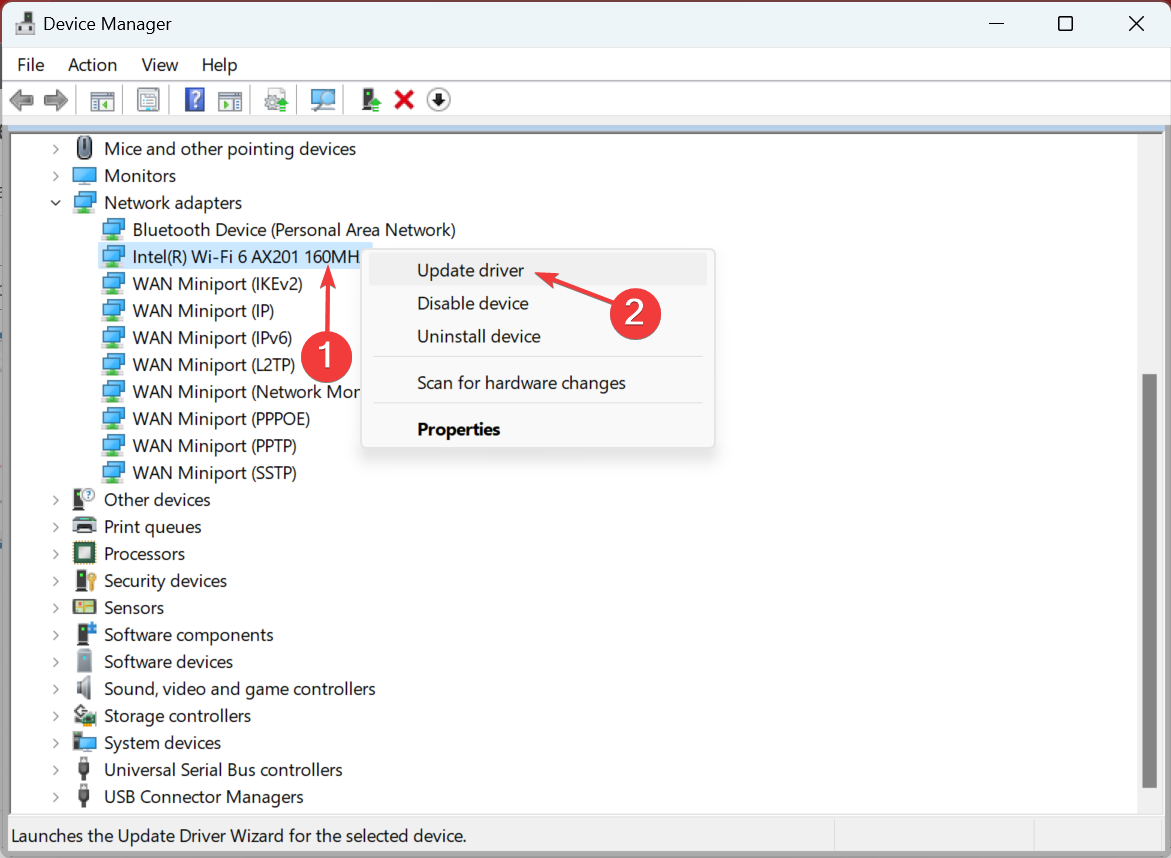
- Right-click on the Wi-Fi adapter and select Update driver.
- Select Search automatically for drivers.
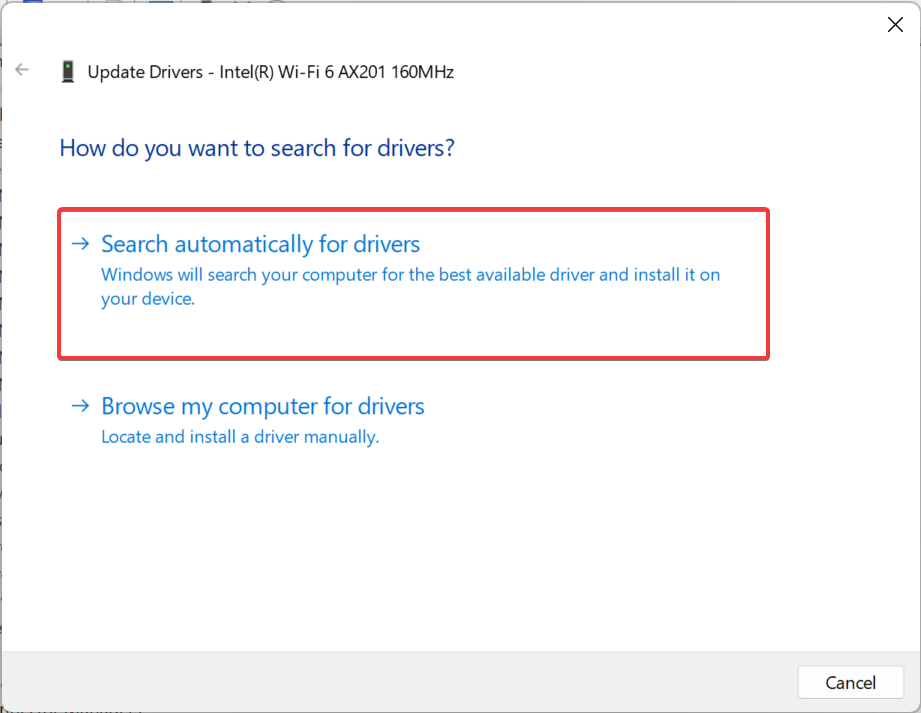
- Wait for the OS to find and install the best available driver on the PC.
Alternatively, to make sure that the installation is safe and fast, we recommend you use a third-party tool that specializes in driver updates.
4. Disable metered connection
- Press Windows + I to open Settings, and click on Network & Internet.

2. Click on Properties under the current Wi-Fi network.

3. Disable the toggle for Metered connection here.

If you have a metered connection set up, Windows will automatically adjust the data usage, which may in turn affect the experience. So, disable it and verify if the slow Wi-Fi problem using the guide below.
5. Uninstall applications that consume high bandwidth
- Press Windows + R to open Run, type appwiz.cpl in the text field, and click OK.
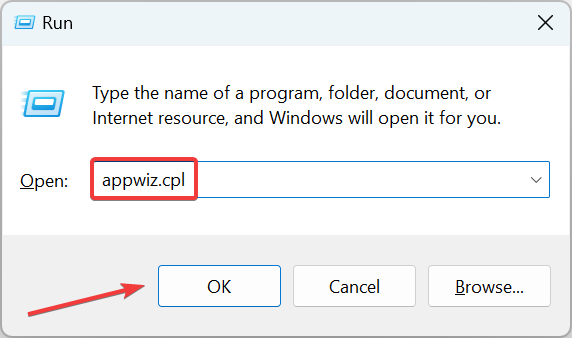
- Select the application hogging the network and click on Uninstall.

- Follow the on-screen instructions to complete the process.
6. Boost your WiFi signal
You can boost your Wi-Fi signal using an awesome software called Connectify Hotspot. This program allows you to transform your PC into a Wi-Fi hotspot just like with a router, only that it’s a lot easier to work with and has a comprehensive user interface and menus.
And if you choose the Hotspot PRO or MAX versions, you will also be able to share your 3G or 4G LTE networks.
7. Reset the network settings
- Press Windows + I to open Settings, and select Network & Internet.
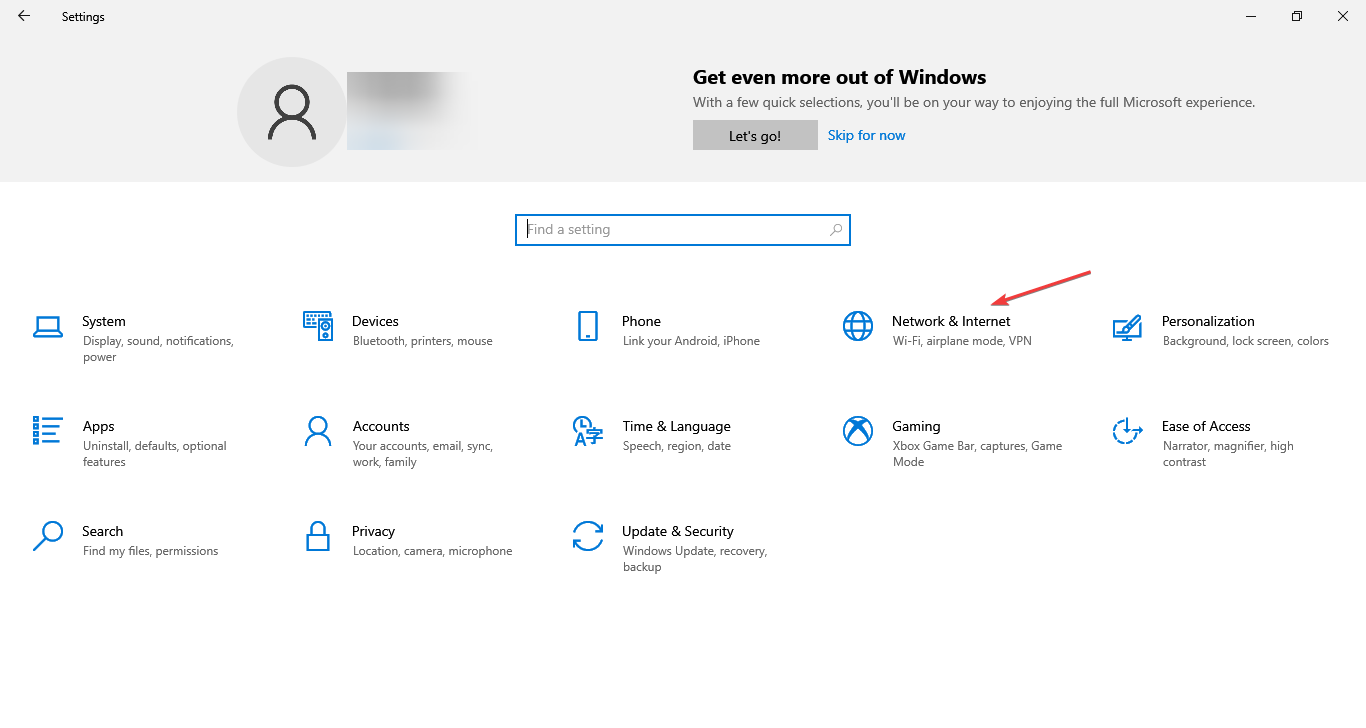
- Click on Network reset at the bottom.
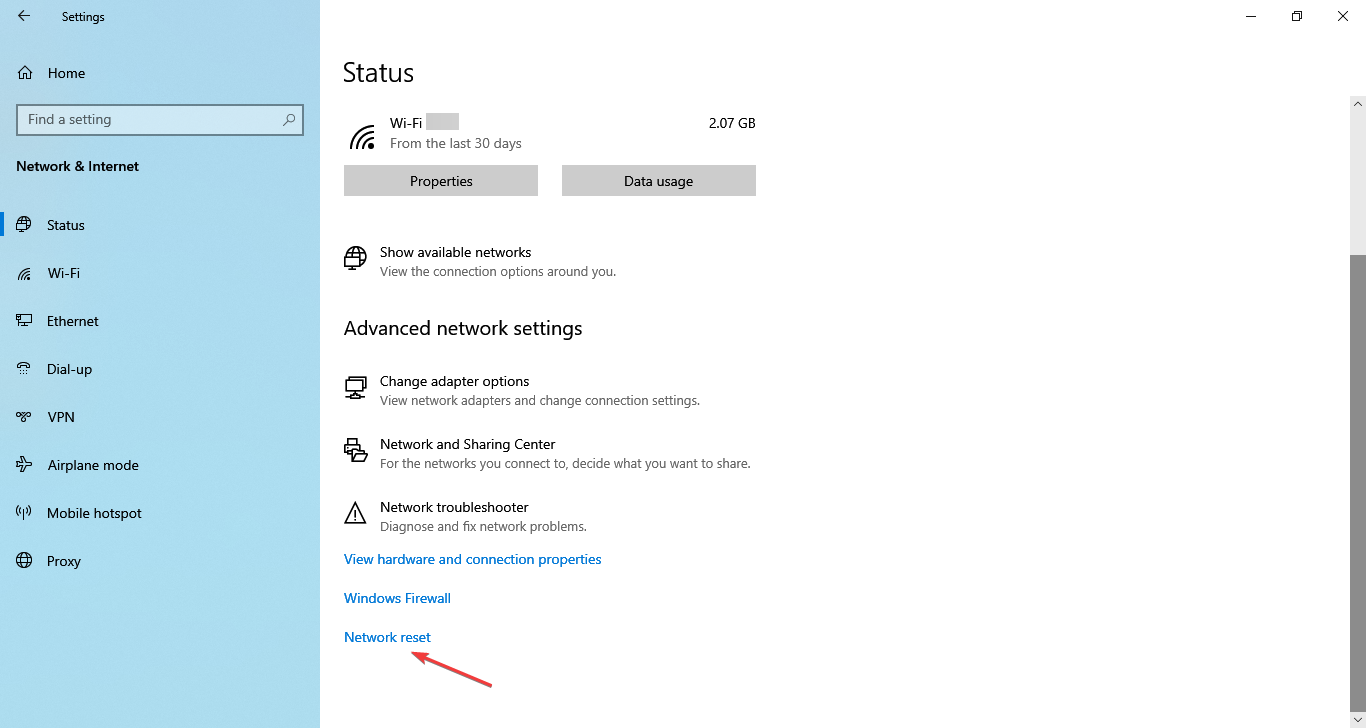
- Click on the Reset now button.
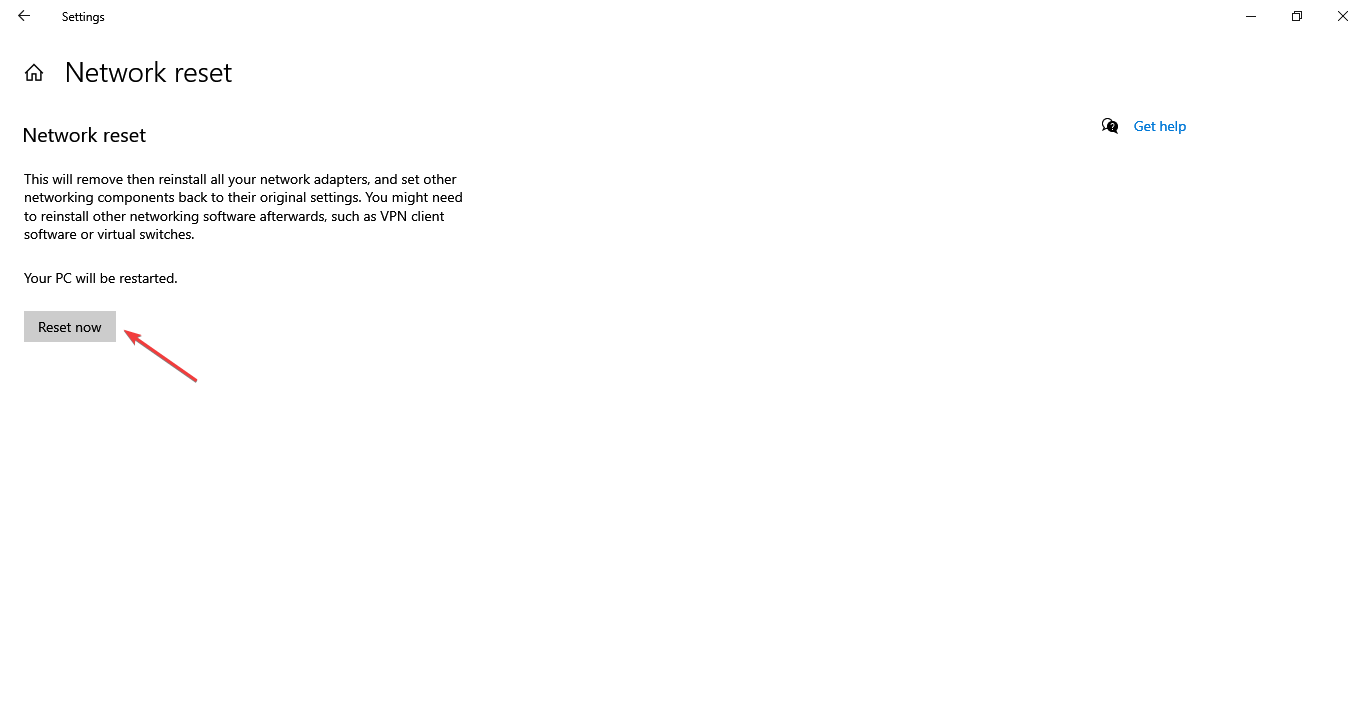
If the problem lies with the network configuration, resetting it should do the trick. In case this, too, doesn’t work, you will have to go with either of the two solutions below.
8. Use a Wi-Fi Extender
A blind spot or a fluctuating signal might cause the problems with your slow Internet connection. You can fix that by using a Wi-Fi range extender.
We recommend NETGEAR Nighthawk because it creates a strong and steady Wi-Fi signal, exactly what you’re looking for.
It’s easy to set up, and you can connect it to the router using the WPS button or its designated app. Moreover, it’s a really small device that won’t interfere with any of your other setups.
NETGEAR Nighthawk has Wi-Fi coverage of up to 2500 square feet and can connect to more than 30 devices, including laptops, phones, tablets, or IP cameras. Its AX6000 Wi-Fi speed and smart roaming function recommend it as a professional device.
9. Get a new Wi-Fi card
If you are using an old laptop, it’s likely that the Wi-Fi card is not capable of handling high speeds. In this case, getting a new Wi-Fi adapter is the best way forward.
How do I change my laptop from 2.4 GHz to 5GHz?
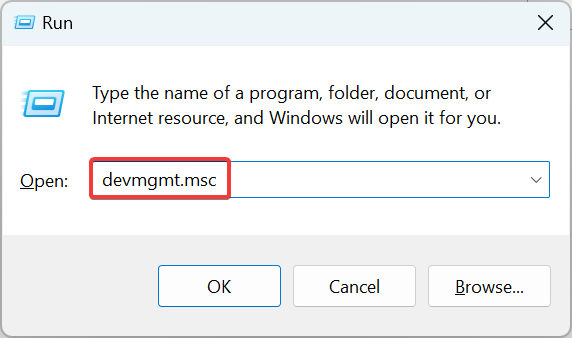
- Press Windows + R to open Run, type devmgmt.msc in the text field, and hit Enter.
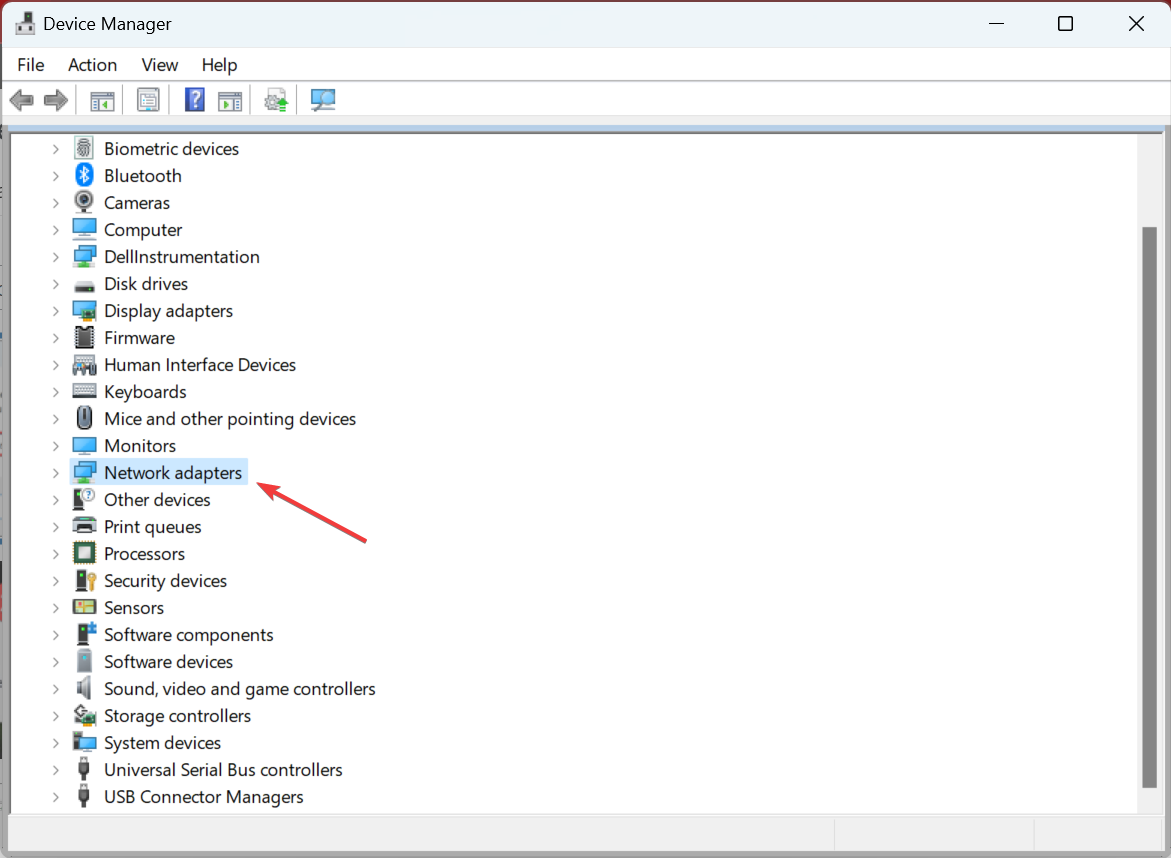
- Double-click the Network adapters category.
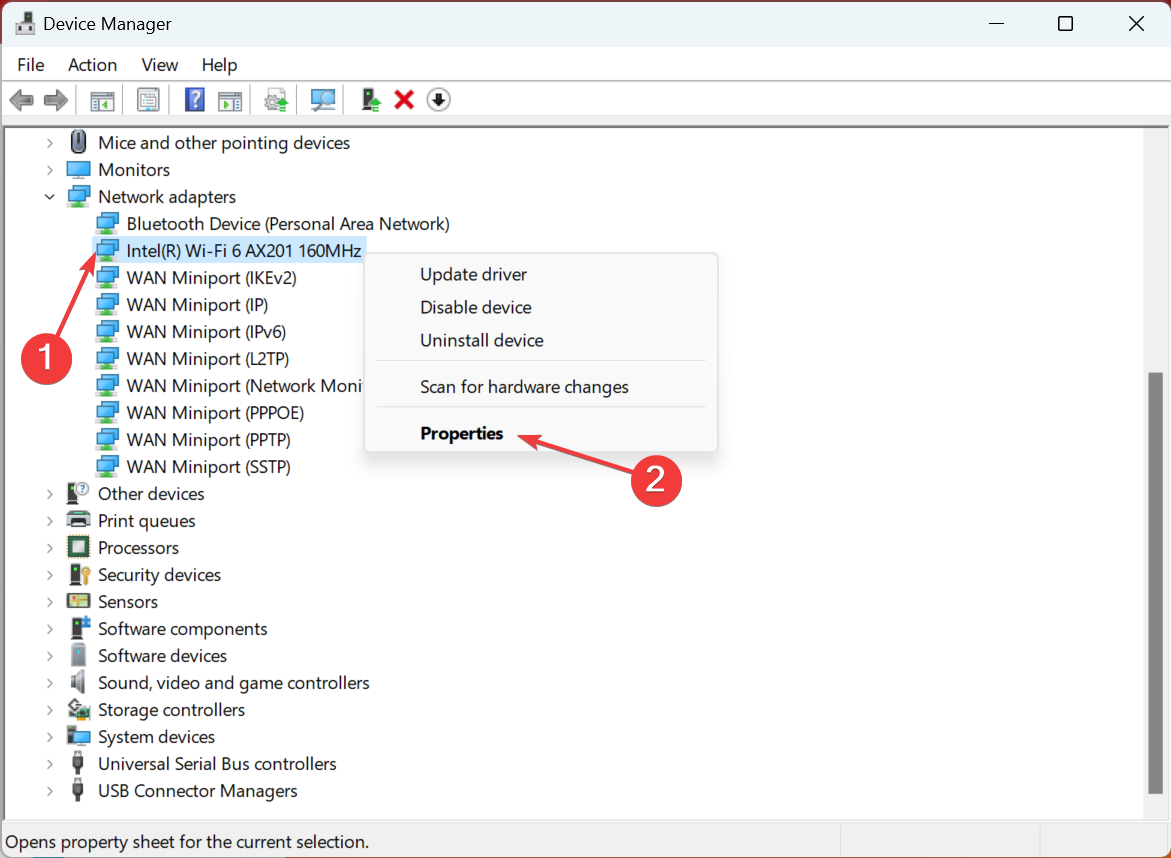
- Right-click the Wi-Fi adapter and select Properties.
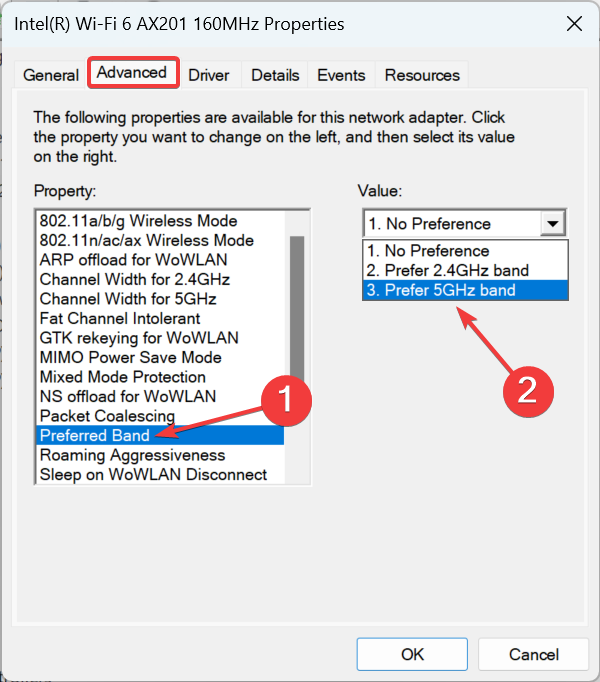
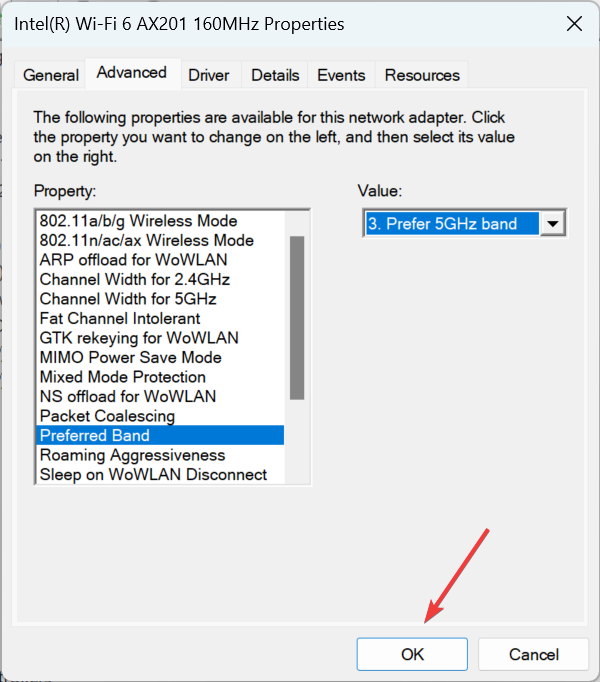
- Navigate to the Advanced tab, select Preferred Band under Properties, and choose Prefer 5GHz band from the Value dropdown menu.
- Once done, click on OK to save the changes.
Changing to a higher frequency can also help you solve issues like your Wi-Fi being slow when you connect to Bluetooth. And if your router is too old, we recommend consulting a professional who can recommend the best Wi-Fi adapter for your laptop.
In summary, slow Wi-Fi on laptops can stem from several factors like obstructions, misconfigured settings, router issues, outdated drivers, background applications, and VPN use.
For example, if the network driver is outdated, it can cause connection problems.
If your laptop is slower than other devices or your WiFi can’t match Ethernet speeds, these tips—and our fixes for slow internet on one computer but fast on another, and WiFi slower than Ethernet issues can help.
By addressing these common issues, you can enhance your laptop’s Wi-Fi speed for a smoother internet experience.

Read our disclosure page to find out how can you help Windows Report sustain the editorial team. Read more



Improve this guide



User forum
3 messages