
How to Fix Black Ops 6 Hueneme Negev Error Step by Step


 4 min. read
  Published on

Seeing the Black Ops 6 error Hueneme Negev can stop you from joining matches or connecting to servers, but you can resolve it with a few targeted steps.
Table of contents
How can I fix Black Ops 6 error Hueneme Negev?
1. Check your internet connection
Start with your connection because most server errors are caused by weak or unstable internet.
- Restart your router and modem to refresh the signal.
- Switch from Wi-Fi to a wired Ethernet connection if possible.
- Run a speed test to confirm that your internet is stable.
- Reconnect to your network and try launching Black Ops 6.
- Reduce other devices on the same network to avoid bandwidth issues.
2. Restart the game client
A quick client restart often clears temporary glitches that trigger the error.
- Close Black Ops 6 completely.
- Open Task Manager with Ctrl + Shift + Esc.
- End any Steam or Battle.net processes still running.

- Relaunch your game client to start fresh.
- Open Black Ops 6 again and test if the error is gone.
If the game refuses to start correctly in Steam, see this guide on Black Ops 6 not launching in Steam.
3. Clear reserved space or cached data
Refreshing the game’s cached files removes corrupted entries that block connections.
- Open the game and go to the settings menu.
- Navigate to the storage or saved data section.
- Find the reserved data or cache files.
- Select them and choose the option to clear.

- Restart Black Ops 6 so new files can be recreated.
If problems continue after clearing data, follow this broader guide on Black Ops 6 not working for more fixes.
4. Update or reset your network settings
Resetting your network removes outdated configurations that can cause conflicts.
- Press the Windows key and search for Command Prompt.
- Run it as administrator to ensure full access.
- Use standard network reset commands to refresh settings.
- Restart your computer to apply the changes.
- Reset your router to factory defaults if the error persists.
5. Disable firewall or antivirus temporarily
Security tools can block the game by mistake, so test with them turned off for a moment.
- Open your antivirus from the system tray.
- Disable protection briefly using the built-in toggle.
- Open Windows Security and turn off the firewall.
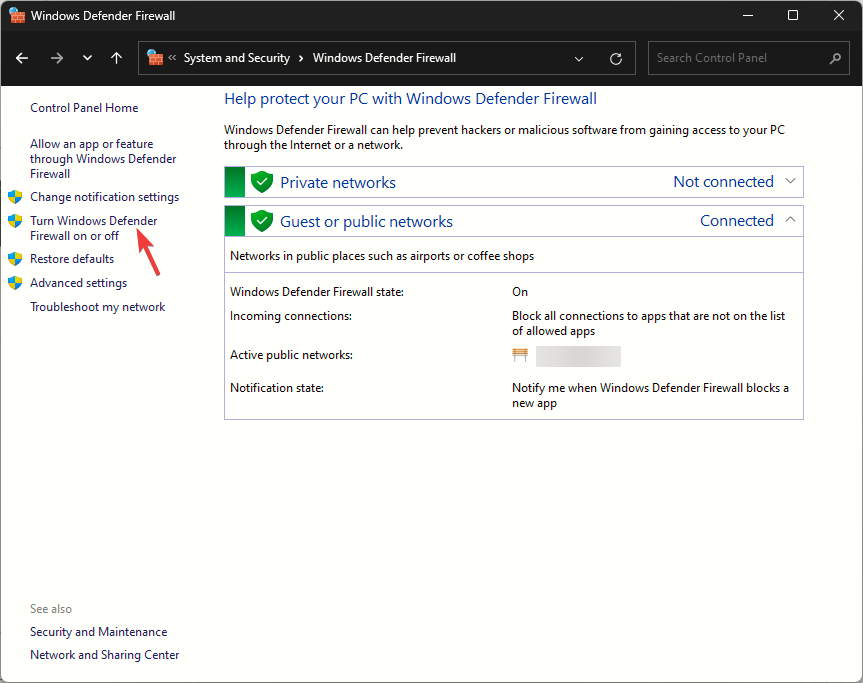
- Start Black Ops 6 and try joining multiplayer again.
- If it works, add the game as an exception in both tools.
The Puget Altus error can appear under similar conditions, so take a look at our Black Ops 6 Puget Altus error guide for detailed troubleshooting steps.
6. Reinstall the game as a last resort
When nothing else helps, a clean reinstall fixes corrupted or missing files.
- Open Steam or Battle.net on your computer.
- Uninstall Black Ops 6 from your library.
- Restart your system to clear remaining files.
- Download and reinstall the game.
- Launch it and test multiplayer to confirm the fix.
If you still cannot join matches, follow this guide on Black Ops 6 not letting me play multiplayer for additional connection tips.
Conclusion
The Black Ops 6 error Hueneme Negev usually points to a network or data conflict. Restarting your connection, clearing cache, and adjusting firewall settings are often enough to get back into the game. If nothing works, reinstalling Black Ops 6 should restore normal functionality.
FAQ
It generally signals a problem with your network connection or corrupted cached game files.
Sometimes it is, especially during heavy traffic or server instability, so trying again later can help.
Yes, clearing reserved space, restarting the client, and resetting your network often resolves it.
Switching to a reliable DNS provider can improve routing and reduce connection errors.
No, keep it enabled but add Black Ops 6 as an exception so the game can connect safely.

Read our disclosure page to find out how can you help Windows Report sustain the editorial team. Read more



Improve this guide


User forum
0 messages