
How to Check Blue Screen Log: 4 Ways to Access Crash Files


 4 min. read
  Updated on

Today, we’ll walk you through 4 easy ways to check the Blue Screen log on Windows. This will help you figure out what type of errors crash your PC. Once you know that, you can easily address and fix them.
Let’s get right to it.
How to check the Blue Screen log
Table of contents
1. Use the Event Viewer
1. Press Windows + X to open the Power User menu, and then click on Event Viewer to launch the app.

2. Hover over the Action menu, and then click the Create Custom View link.

3. Select a time range from the Logged dropdown menu when the BSoD happened, and tick the Error checkbox in the Event level section.

4. Select the Event logs menu, and tick the Windows Logs checkbox.
5. Once done, click on OK to proceed.
6. Give the custom view a name, and then press OK. (The Event Viewer will now show the information based on the filters you applied.)

7. Sort the information by date using the Date and Time header.

8. Look at the error events at the time of your last BSoD. For more details regarding the error, click on the Details tab.


You can use Event Viewer to see a Blue Screen log file. Windows Event Viewer shows a log of application and system messages.
This includes errors, information messages, and warnings, and it is a useful tool for troubleshooting all kinds of different Windows problems. So, if you were wondering how to see blue screen log, this is probably the most effective method.
You can view detailed BSOD entries through Event Viewer, and you can follow this guide to find BSOD logs in Event Viewer for a clearer look at the crash details.
2. Via the Control Panel
- Press Windows + S to open Search, type Control Panel in the text field, and click on the relevant search result.

- Click on System and Security.

- Next, choose System and Maintenance.
- Click on Maintenance here, and then select View reliability history.
- Now, locate the red cross marks, since these are critical errors, including BSOD.

- To view the log file, simply click on an event at the bottom.

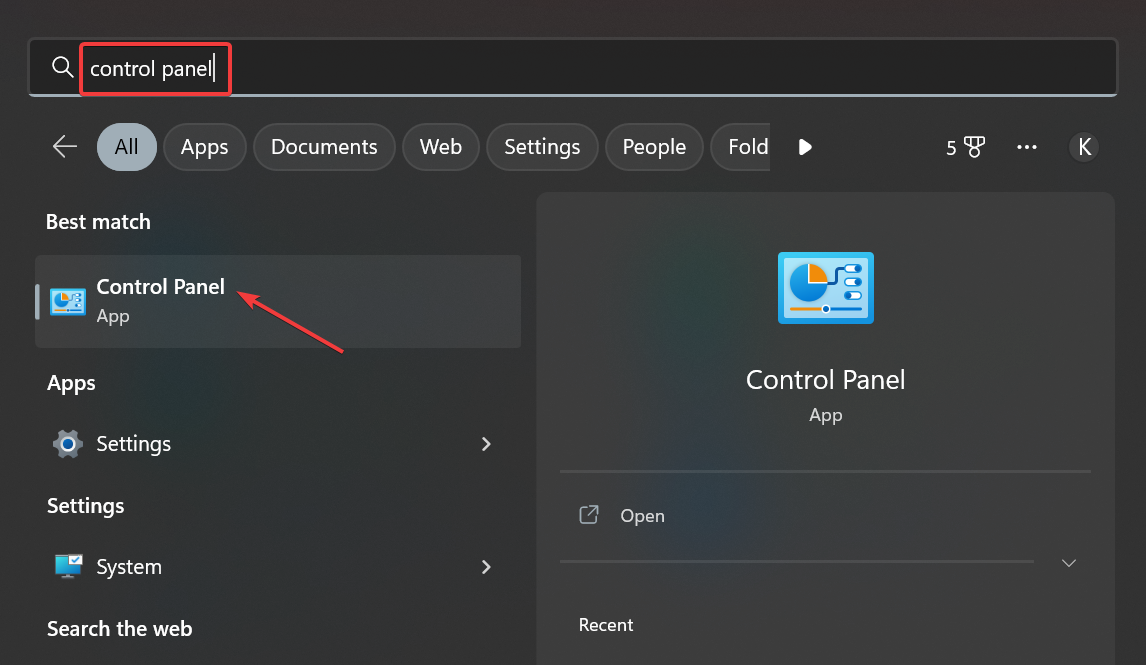
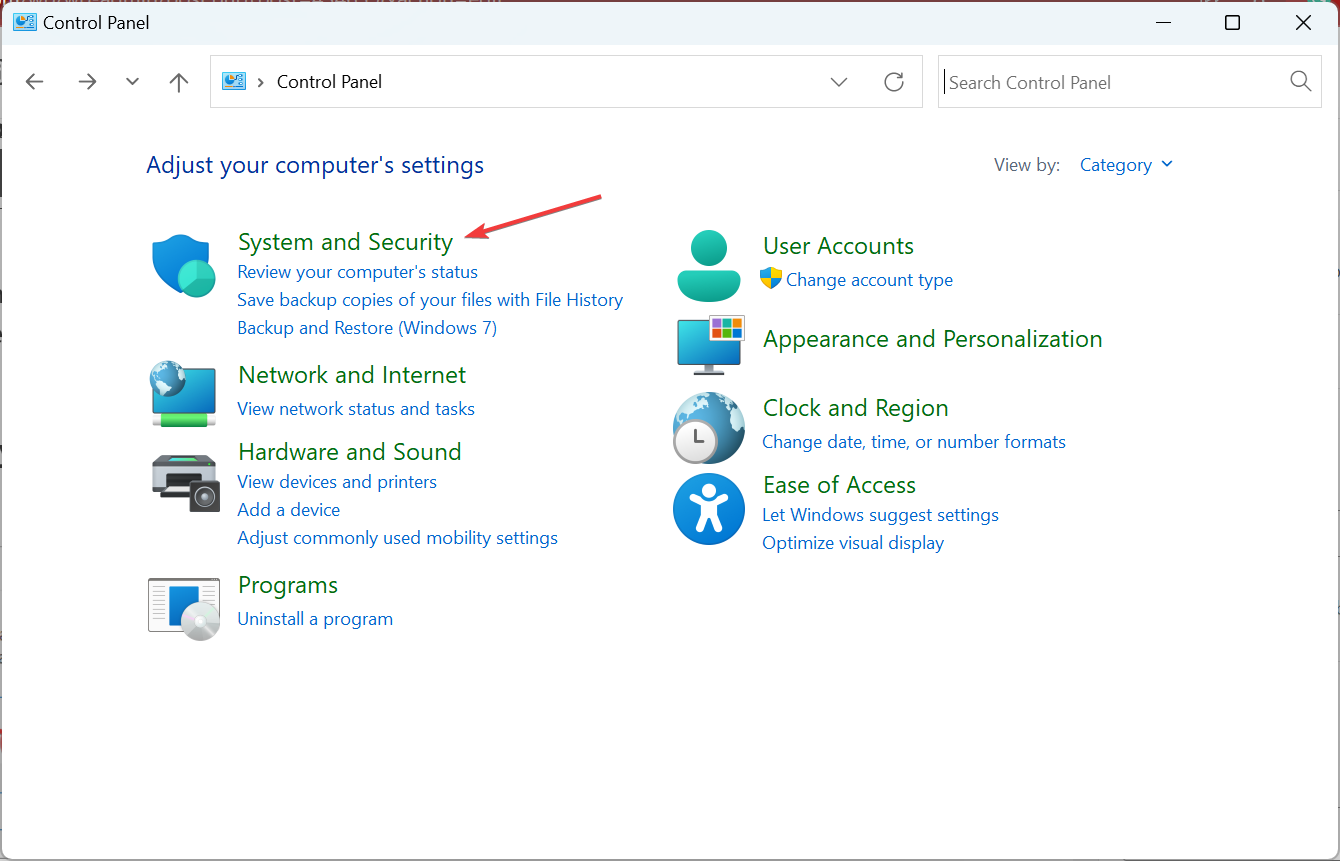
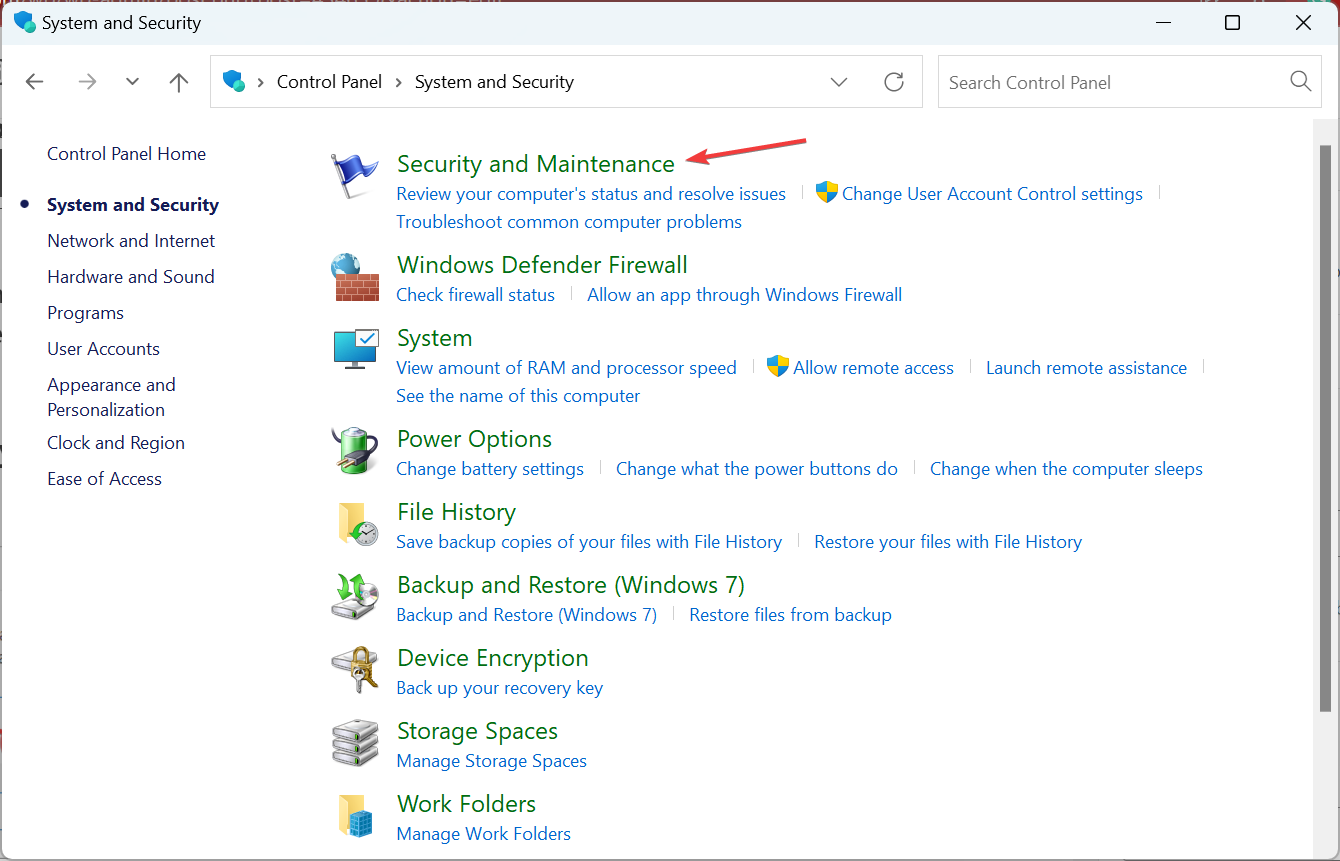
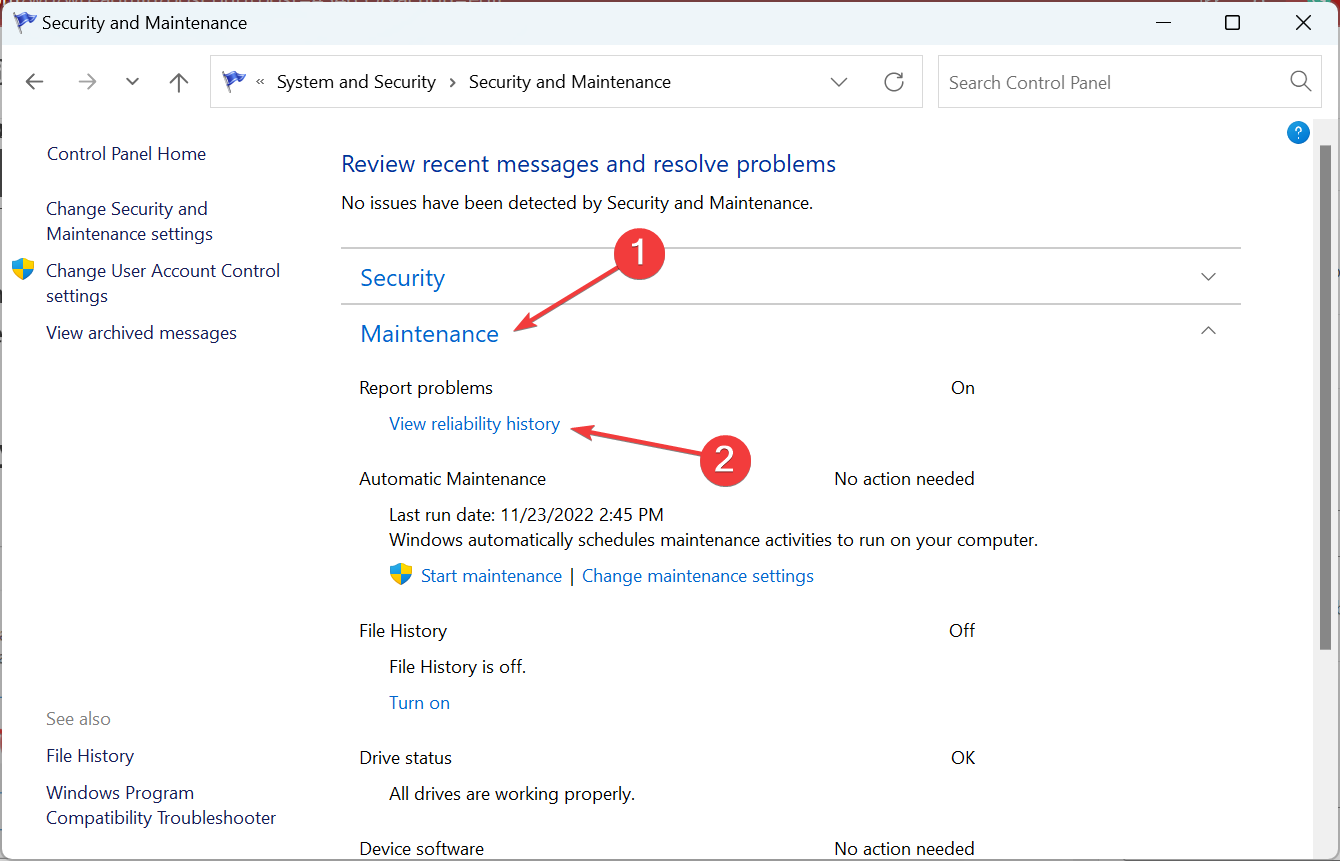
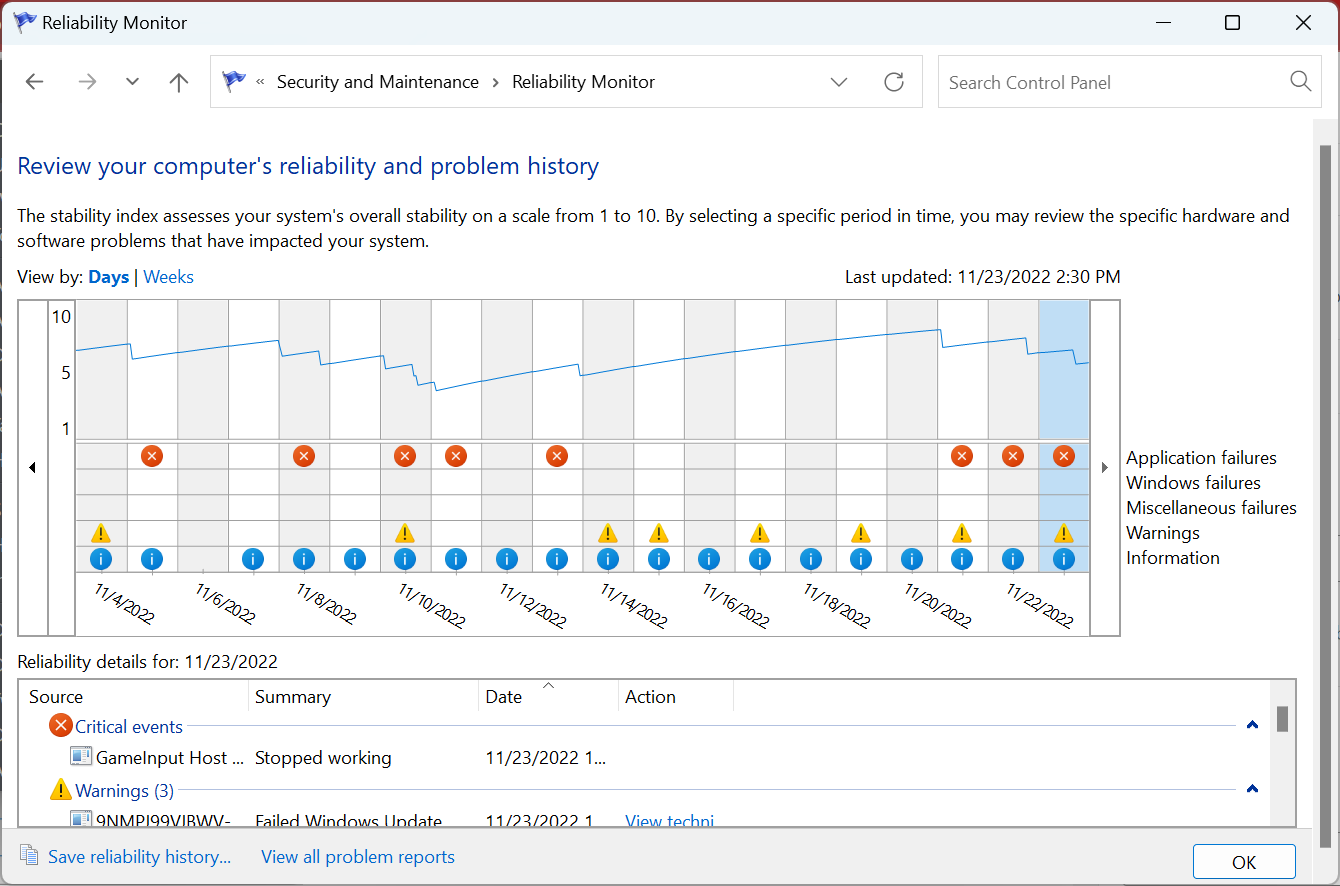
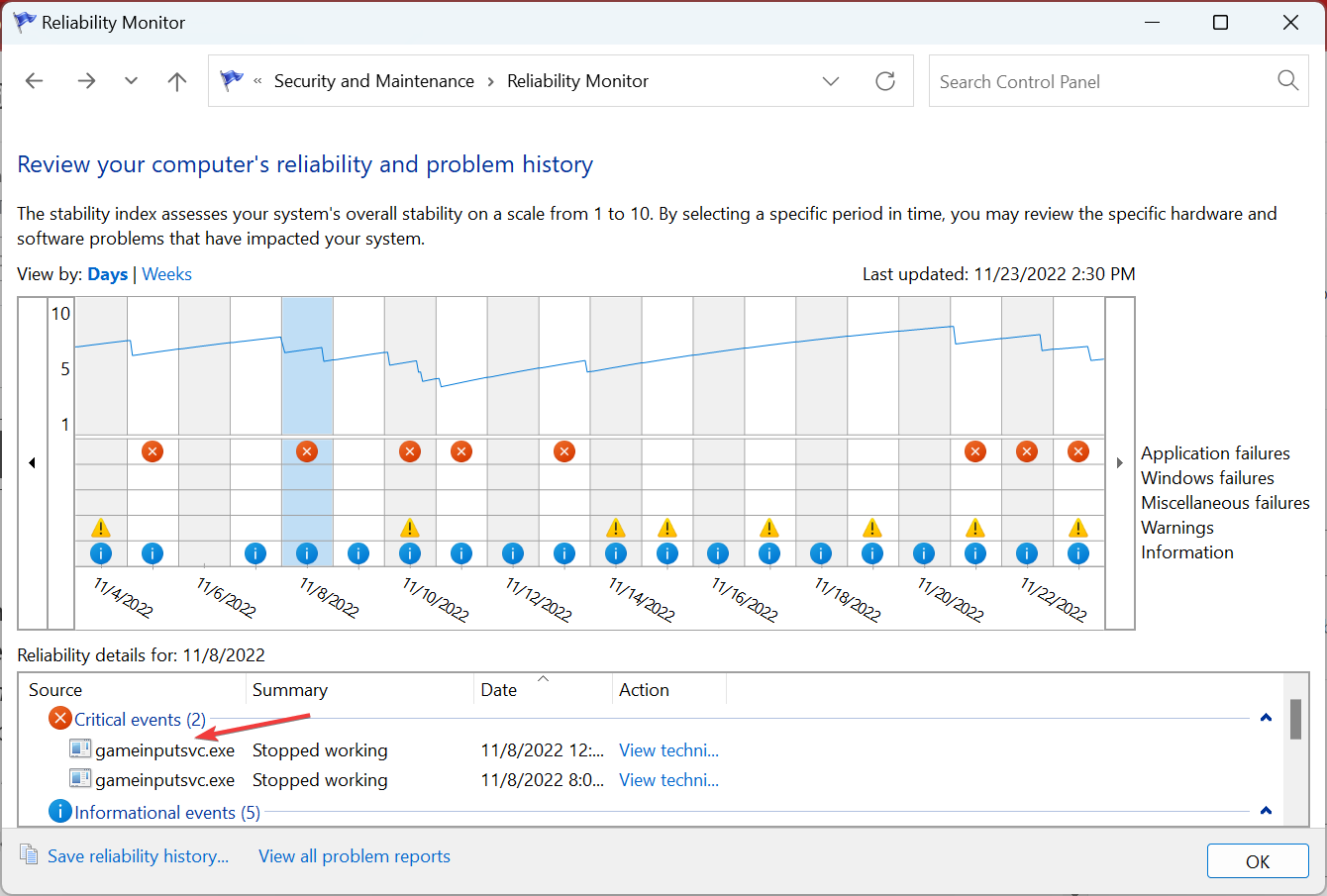
Control Panel also allows you to view the critical errors encountered on the PC, and it’s slightly easier than Event Viewer, but not as detailed.
3. Use your Registry Editor
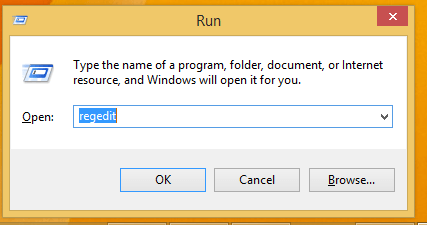
- Press Windows + R to open Run, type regedit, and then click OK.

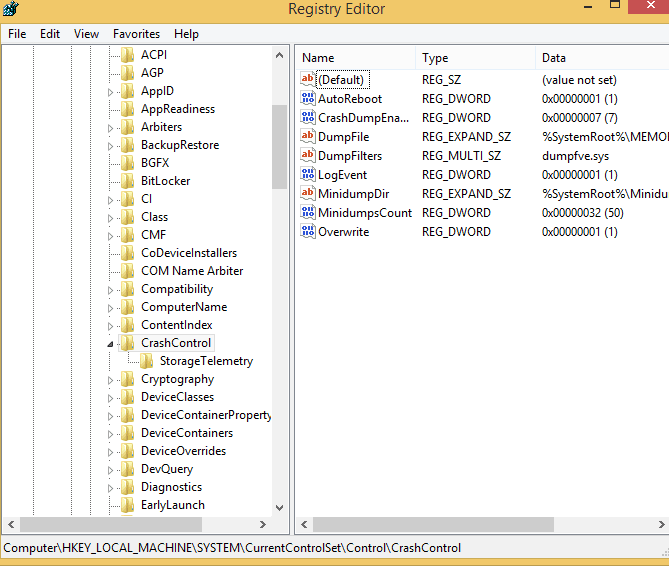
- Paste the following path in the address bar and hit Enter:
HKEY_LOCAL_MACHINE\System\CurrentControlSet\Control\CrashControl
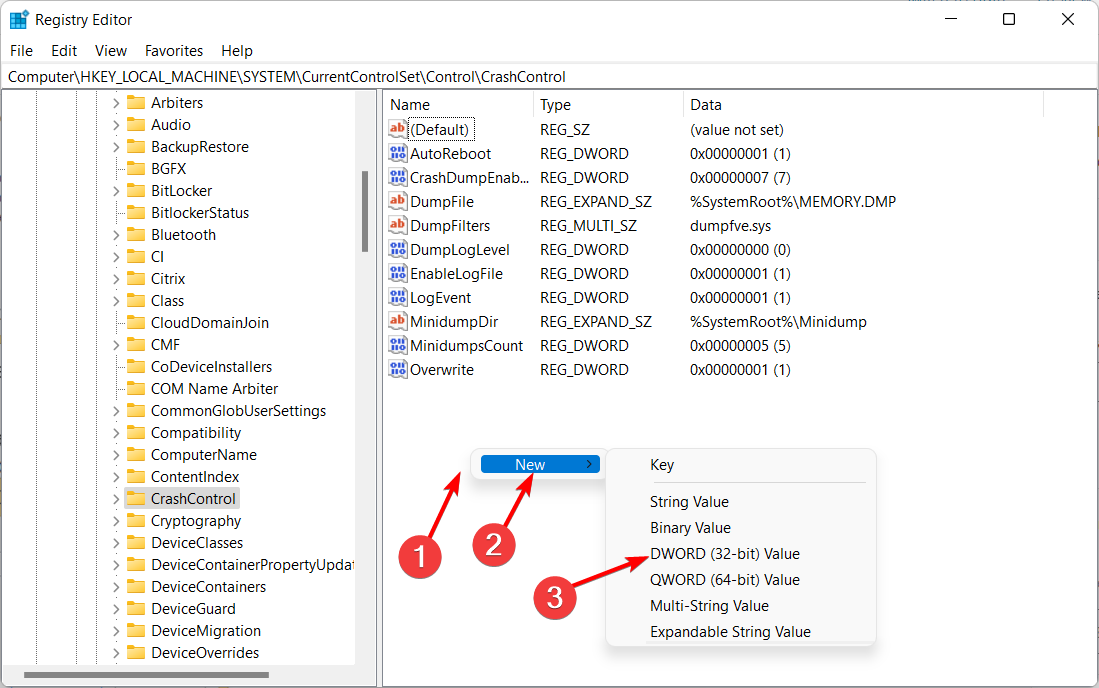
- Right-click on the right side, hover the cursor over New, select DWORD (32-bit) Value, and name it DisplayParameters.

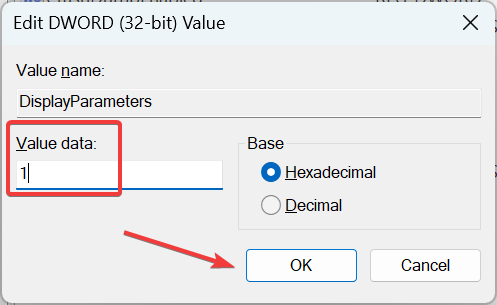
- Type 1 under Value data, and click OK to save the changes.

- Once done, restart the computer.
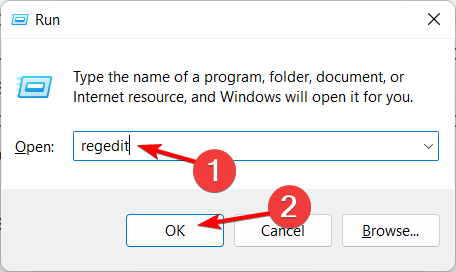
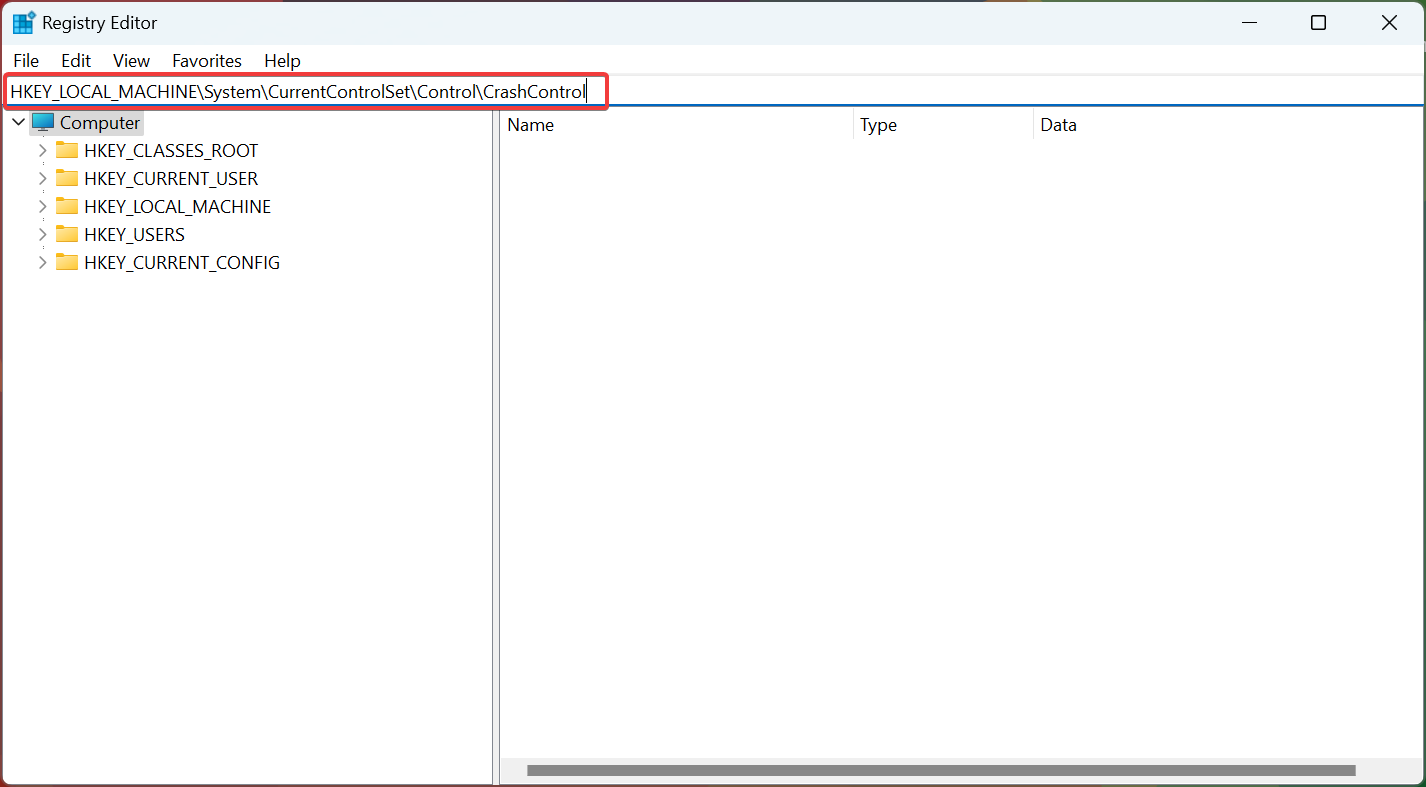
If you were unable to view the Blue Screen Event ID or other relevant information in the error log, making changes to the registry should fix things.
4. Use a third-party BSoD viewer
If all of the steps mentioned above seem too complicated, then you could make use of a third-party event viewer. These apps will usually do the exact same thing as the Windows Event Viewer, but with fewer steps.
The tool scans your systems for the BSoD crash file and returns the information in one single table, so you can easily analyze it. This way, you’ll easily see the cause of the event and the location.
5. Use Reliability Monitor
- Press Windows + S, type Reliability Monitor, and select View reliability history.
- Look for red X marks indicating system crashes.
- Select the event to see details, including the stop code and failure type.
6. Check Windows Error Reporting (WER) Logs
- Open File Explorer and go to:
C:\ProgramData\Microsoft\Windows\WER\ReportArchive - Inside the folders, you’ll find text reports and crash details created during Blue Screen events.
To learn more about how Windows logs and stores these reports, check out what a CBS log file is and how it helps track system repair and update details.
7. Review Memory Dump Files
- Navigate to:
C:\Windows\Minidump - Open the
.dmpfiles using WinDbg (from the Windows SDK) or simpler tools like BlueScreenView to analyze crash details.
8. Use PowerShell or Command Prompt
Run this PowerShell command to pull Blue Screen events:
Get-WinEvent -FilterHashtable @{LogName="System"; ProviderName="Microsoft-Windows-WER-SystemErrorReporting"} | Format-List -Property *
This retrieves BugCheck logs directly from the system event history.
9. Check the System Information Tool
- Press Windows + R, type
msinfo32, and hit Enter. - Expand Software Environment > Windows Error Reporting.
- Review the crash data with bug check codes and error details.
Summary
There are several underlying causes that trigger a BSOD, and unless you know how to check the blue screen log, it will be difficult to fix things.
And now that you know it, find out the best tools to seamlessly fix BSOD errors in no time.
Did you ever encounter a Blue screen of Death error while using Windows? Tell us about your experience in the comments section below.

Read our disclosure page to find out how can you help Windows Report sustain the editorial team. Read more



Improve this guide



User forum
0 messages