
How to Change Another User’s Password in Windows 11


 4 min. read
  Published on
Changing another user’s password in Windows 11 is simple, whether you are an administrator helping someone recover access or managing multiple accounts on a shared PC. This guide walks you through every reliable method to reset or change a user password step by step.
Table of contents
How do I change another user’s password?
Change Another User’s Password via Settings
This is the easiest way to change another user’s password through the Windows interface.
- Press Windows + I to open Settings, then click Accounts in the left pane.
- Select Family & other users on the right.

- Under Other users, find the account you want to modify, click it, and choose Change account settings.

- Select Change password, enter the new credentials, and click OK to confirm.
For more detailed options, read our full guide on how to change a username or password in Windows 11.
Change Another User’s Password with Control Panel
This traditional method is reliable for older systems or administrators who prefer classic tools.
- Press Windows + R, type control, and press Enter to open the Control Panel.
- Click User Accounts, then Manage another account.

- Choose the target account, click Change the password, enter the new password twice, and click Change Password again.
You can also check how to reset your Windows 11 password if the user is completely locked out of their account.
Change Another User’s Password via Command Prompt
If you prefer a faster, text-based method, Command Prompt provides full administrative control.
- Press Windows + S and search for cmd.
- Right-click Command Prompt and choose Run as administrator.
- Type net user username newpassword, replacing username and newpassword with the correct values, then press Enter.
- Wait for the confirmation message that the command completed successfully.
Change Another User’s Password with PowerShell
PowerShell offers advanced control and can automate user management tasks.
- Press Windows + X and choose Windows Terminal (Admin).
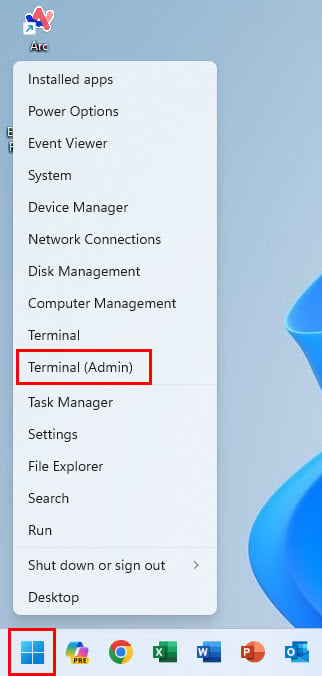
- Type Set-LocalUser -Name “username” -Password (ConvertTo-SecureString “newpassword” -AsPlainText -Force”) and press Enter.
- Replace the placeholders with the correct username and password, then confirm the change.
Why You Might Need to Change Another User’s Password
- The user forgot their password and cannot log in.
- You manage a family or work PC with multiple accounts.
- You need to update security after someone leaves a team or stops using the device.
FAQs
No. Only accounts with administrative privileges can reset or change other users’ passwords.
No, changing a password does not delete files, but if encryption is enabled, the user might lose access to encrypted data.
You can require the user to create a new password the next time they log in by setting a password expiration rule.
If the account is linked to a Microsoft account, the user will need to sign in again with the updated online password.
Conclusion
Changing another user’s password in Windows 11 is straightforward once you have administrative access. Whether you use the Settings app, Control Panel, Command Prompt, or PowerShell, each method keeps the account secure and accessible.
If you want to go further, you can also remove your Windows 10 password to simplify login for personal or family devices. Always confirm the user can log in after resetting their password to avoid any lockout issues.

Read our disclosure page to find out how can you help Windows Report sustain the editorial team. Read more



Improve this guide



User forum
0 messages