
How to Customize RGB Keyboard Backlight on Windows PCs


 3 min. read
  Published on
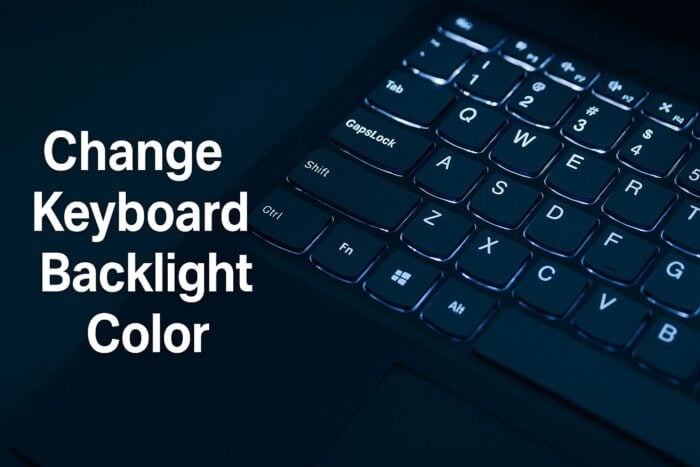
If you’re tired of the default keyboard glow on your laptop, you can easily customize it. Changing your keyboard backlight color adds a personal touch and helps you type better in the dark. Follow this guide to learn how to do it step by step.
Table of contents
How to Change Keyboard Backlight Color in Windows?
1. Use the Keyboard Shortcut
Most laptops let you switch colors using function keys.
- Locate the keyboard backlight key on your laptop (usually F5, F9, or F10).
- Press Fn + the backlight key to cycle through brightness levels or color modes.
- If your model supports RGB lighting, continue pressing the keys until you reach your preferred color.
This method works instantly for brands like HP Omen, Dell Alienware, MSI, and ASUS ROG.
If your keyboard light doesn’t respond at all, see this guide on what to do when your laptop keyboard lights won’t turn on.
2. Change Keyboard Color via Manufacturer Software
Many gaming laptops include RGB control software for advanced customization.
- Open your laptop’s control center app.
- Go to Lighting or Keyboard settings.

- Choose a color palette or create zones for individual keys.
- Click Apply to save your color changes.
This gives you more precise control, including effects like breathing, wave, or static color.
If your lighting app isn’t working properly, check out this fix for Acer PredatorSense lighting not working.
3. Adjust Lighting in BIOS or UEFI (If Available)
- Restart your computer.
- Press F2, F10, or Del to enter the BIOS/UEFI.
- Navigate to Advanced > Built-in Device Options or similar.
- Change Keyboard Backlight Color or Mode settings.
- Save and exit BIOS.
This ensures the lighting stays consistent across reboots.
4. Update or Reinstall the Keyboard Driver
- Press Windows + X, then select Device Manager.

- Expand Keyboards and right-click your device.
- Choose Update driver and select Search automatically for drivers.

- Restart your PC once done.
After updating, check if the lighting shortcut or software works again.
5. Use Third-Party RGB Control Apps (For DIY Setups)
- Download tools like OpenRGB or SignalRGB.

- Install and open the program.
- Detect your keyboard and choose a color profile.
- Apply your preferred color or lighting animation.
⚠️ Note: These apps work best with external RGB keyboards or supported hardware.
Why Customize Your Keyboard Backlight?
- Improve visibility in dim rooms.
- Create profiles for work, gaming, or streaming.
- Match your keyboard lighting with your setup theme.
FAQs
Your laptop may only support white backlighting. Check your model specs or manufacturer website.
Press the same backlight key repeatedly until the light turns off.
Only on RGB keyboards that support per-key customization through manufacturer software.
For Microsoft Surface models, you can use the Fn + F7 shortcut or follow this guide on how to turn on keyboard light on Surface Pro.
Conclusion
Changing your keyboard backlight color is simple once you know where to look. Whether through shortcuts, BIOS, or RGB software, you can personalize your lighting to match your style and setup. For more help, explore related troubleshooting guides linked throughout this article.

Read our disclosure page to find out how can you help Windows Report sustain the editorial team. Read more



Improve this guide



User forum
0 messages