
Dell Touchpad Not Working on Windows 11: Complete Fix Guide


 4 min. read
  Published on

The Dell laptop touchpad not working issue often appears after Windows updates, broken drivers, or disabled settings. This guide shows you quick steps that restore full touchpad control.
Table of contents
- What Can I Do If Dell Laptop Touchpad Not Working?
- 1. Check if the touchpad is enabled
- 2. Restart essential Windows services
- 3. Update the driver
- 4. Reinstall the driver
- 5. Install the latest Dell firmware and BIOS updates
- 6. Turn off USB power management
- 7. Run the Windows hardware troubleshooter
- When the touchpad still does not work
- Why your Dell touchpad stops responding
- FAQs
- Conclusion
What Can I Do If Dell Laptop Touchpad Not Working?
1. Check if the touchpad is enabled
Before trying anything else, ensure that your touchpad is enabled.
1. Use the keyboard shortcut
- Press Fn + F3 or Fn + the touchpad icon.
- Test cursor movement after toggling.
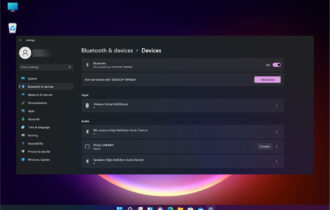
- Go to Settings > Bluetooth and devices > Touchpad and turn on the main switch.

2. Enable the touchpad in Dell settings
- Open the Start menu and search for Dell Touchpad.
- Select the control panel for your model.
- Turn on the main toggle and apply changes.
If taps or clicks still fail, you can review extra fixes in the trackpad touch click not working troubleshooting guide for similar click and tap issues.
2. Restart essential Windows services
For touchpad to work, certain services need to be running.
- Press Win + R, type services.msc, and press Enter.

- Find Human Interface Device Service.
- Right click and select Restart.
- Reboot your laptop and test the touchpad again.
3. Update the driver
Outdated drivers are the most common cause for touchpad issues.
- Press Win + X and choose Device Manager.
- Open Mice and other pointing devices.
- Select your Dell touchpad driver and choose Update driver.
- Click Search automatically for drivers.

If the touchpad entry is missing or shows errors, you can follow the repair steps in the touchpad driver missing in Device Manager guide to restore the driver.
4. Reinstall the driver
Corrupted drivers can also lead to problems. Reinstall them by doing the following:
- Right click the touchpad device.
- Choose Uninstall device.

- Restart your laptop to load a clean driver.
- Test the touchpad for movement and gestures.
5. Install the latest Dell firmware and BIOS updates
Keep BIOS up to date to prevent these and other problems:
- Visit the Dell Support website and enter your service tag.
- Download the latest BIOS, chipset, and touchpad firmware.
- Install each update.
- Restart after every installation.
6. Turn off USB power management
Adjusting USB settings can also help with this error.
- Open Control Panel and go to Power Options.
- Select Change plan settings.
- Click Change advanced power settings.
- Expand USB settings.
- Turn off USB selective suspend.

- Restart your laptop.
7. Run the Windows hardware troubleshooter
Sometimes a quick troubleshooter is all you need to fix this.
- Open Settings and choose System.
- Go to Troubleshoot.
- Select Other troubleshooters.
- Run Hardware and devices.
- Apply the fix that Windows suggests.
When the touchpad still does not work
If these steps do not fix the problem, your touchpad hardware may be damaged. Use a USB mouse as a temporary option and contact Dell Support for repair or replacement.
Why your Dell touchpad stops responding
A Dell touchpad can stop responding when Windows changes input settings or when the system loads an outdated driver. If the problem started after an update, you can compare symptoms with the fixes in the touchpad not working on Windows 11 guide to understand how updates affect touchpad behavior.
FAQs
A Windows update, disabled setting, or corrupted driver can cause the touchpad to stop responding.
Use Fn + F3, turn on the toggle in Settings, or enable the touchpad through Dell Touchpad software.
Yes. Firmware updates improve input stability across many Dell models.
This usually points to a driver failure. Reinstalling chipset drivers or restoring missing touchpad drivers fixes it.
Conclusion
You can fix a dell laptop touchpad not working issue by enabling the device, restarting HID services, updating drivers, and installing BIOS or firmware updates. These steps solve most touchpad failures without needing a repair.

Read our disclosure page to find out how can you help Windows Report sustain the editorial team. Read more



Improve this guide

User forum
0 messages